

Introduction
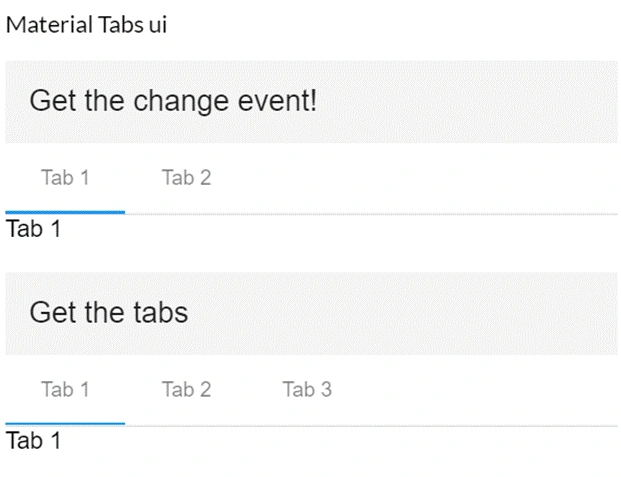
In this article, we will learn to create a new Angular 11 project using ng new command and then we will install material design using ng add command. After that we will create a simple matTabs example in Visual Studio code.
Step 1
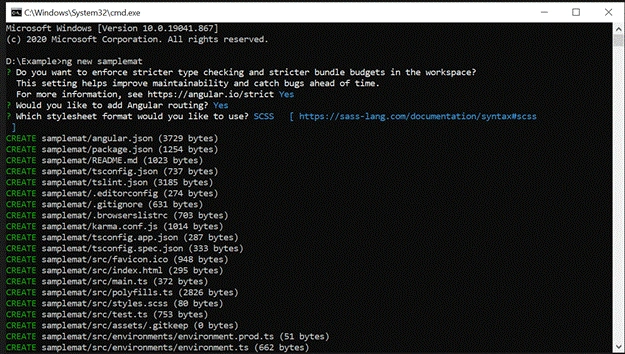
Create an Angular project setup using the below commands or however you create your Angular app
ng new samplemat
Step 2
Open a new terminal and run the following below commands
Install Angular Material,
Install Material module in Your App.
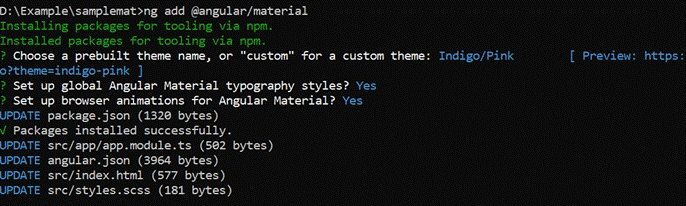
ng add @angular/material
ng add command will install Angular Material, the Component Dev Kit (CDK) and Angular Animations
They will ask some question on installation,
- Choose a prebuilt theme name, or "custom" for a custom theme:
You can choose from prebuilt material design themes or set up an extensible custom theme.
- Set up global Angular Material typography styles:
Whether to apply the global typography styles to your application.
- Set up browser animations for Angular Material:
Importing the BrowserAnimationsModule into your application enables Angular's animation system. Declining this will disable most of Angular Material's animations.
The ng add command will additionally perform the following configurations,
- Add project dependencies to package.json
- Add the Roboto font to your index.html
- Add the Material Design icon font to your index.html
- Add a few global CSS styles to:
- Remove margins from body
- Set height: 100% on html and body
- Set Roboto as the default application font
Now we are done and Angular Material is now configured to be used in our application.
Step 3 - App.module.ts
Now we will declarae material in app.module.ts
- import { NgModule } from '@angular/core';
- import { BrowserModule } from '@angular/platform-browser';
- import { BrowserAnimationsModule } from '@angular/platform-browser/animations';
- import {
- MatTabsModule,
- MatButtonModule,
- MatToolbarModule
- } from '@angular/material';
- import { AppComponent } from './app.component';
- @NgModule({
- imports: [ BrowserModule, BrowserAnimationsModule, MatTabsModule, MatButtonModule, MatToolbarModule ],
- declarations: [ AppComponent ],
- bootstrap: [ AppComponent ]
- })
- export class AppModule { }
Step 4
Join the conversation! Your thoughts help the community grow.