

Prerequisites
- Azure account.
Microsoft Cognitive Services allows us to build apps with powerful algorithms, using just a few lines of code. These services work across devices and platforms, such as iOS, Android, and Windows, keep improving, and are easy to set up.
APIs, given below, are available under Microsoft Azure Cognitive Services.
- Face API
- Emotion API
- Computer Vision API
- Bing Speech API
- Speaker Recognition API
- Language Understanding Intelligent Service
- Text Analytics API
- Web Language Model API
- Bing Spell Check API
- Recommendations API
- Academic Knowledge API
- Bing Search APIs
- Bing Autosuggest API
Before reading this article, please go through the article's link, mentioned below.
- Kickstart To Microsoft Cognitive Service In Azure Portal
- How To Create Microsoft Cognitive Service Face API On Azure Portal
- How To Create Microsoft Cognitive Service Emotion API On Azure Portal
Now, let's discuss about the Bing Search APIs and how to create Bing Search APIs Service on Azure Portal.
Bing Search APIs
Make our apps, webpages and other experiences smarter and more engaging with the Bing Search APIs. Harness the same knowledge used by hundreds of millions of people, as well as the industry’s technology leaders, today.
Bing Web Search API
Get enhanced search details from billions of web documents. Retrieve web documents indexed by Bing and narrow down the results by result type, freshness and more.
- Result and answer ranking
Search results and answers can be ranked and arranged to fit your layout.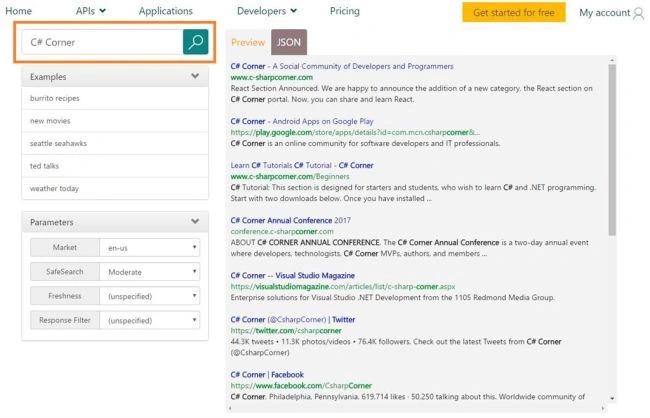
- Instant answers
Use relevant Bing answers, including image, video, news, calculator, and time zone. - Location and market-aware results
Results are customized to the location or market of the user. The location or market can be determined implicitly (via IP address) or configured explicitly. - Safe search and adult intent
Customize the safe-search level of the results. Response also includes an adult intent flag, specified as a true or false value. - Spelling suggestions
Get spelling suggestions for queries when Bing is confident of a misspelling. - Related searches
Help users discover more search options with a list of related queries.
Bing Image Search API
Search for images and get comprehensive results.
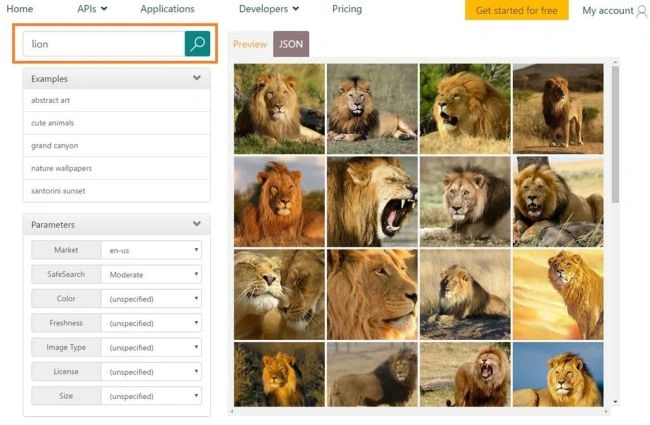
Scour the web for images. Results include thumbnails, full image URLs, publishing website info, image metadata and more. Try out the demo. Submit a query via the Search box or click one of the examples.
- Image insights
Image metadata includes machine-generated captions, visually similar images, shopping and recipe sources, related image searches and more. - Image search filters
Narrow search results with filters including image type, layout, freshness and license. - Trending images
Customize a feed of trending images from around the world.
Bing Video Search API
Search for videos and get comprehensive results.
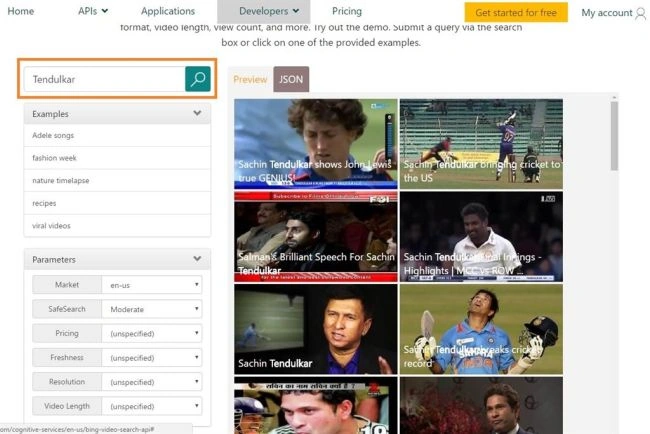
Find videos across the web. Results provide useful metadata including creator, encoding format, video length, view count and more. Try out the demo. Submit a query via the Search box or click one of the examples.
- Enhanced results
Harness useful metadata about videos such as publisher and creator info, encoding format, source view count, video length, quality and more. - Video preview thumbnails
Get visually enriched search results that include a static or motion (animated GIF) thumbnail. - Video search filters
Narrow results by freshness, video length, resolution and price. - Trending videos
Customize a feed of trending videos from around the world.
Bing News Search API
Search for news and get comprehensive results.
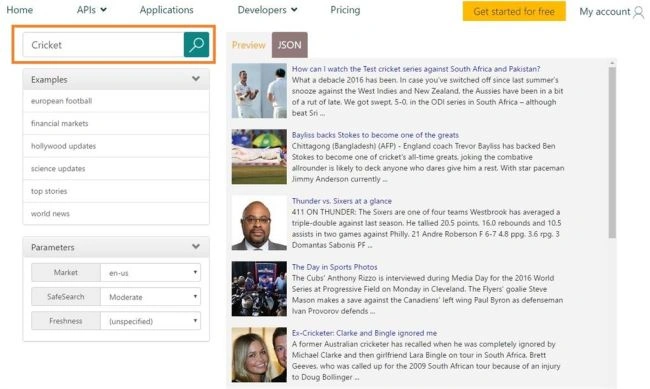
Search the web for news articles. Results include details like authoritative image of the news article, related news and categories, provider info, article URL and date added. Try out the demo. Submit a query via the Search box or click one of the examples.
- News topics
Categorize news searches by topics such as world, politics, sports and more. - Trending news and topics
Customize trending news from around the world by category and region.
Create a new Bing Search APIs on Azure Portal
Now, let's get started with the following steps.
Step 1
Sign in to the online Microsoft Azure Portal.
Step 2
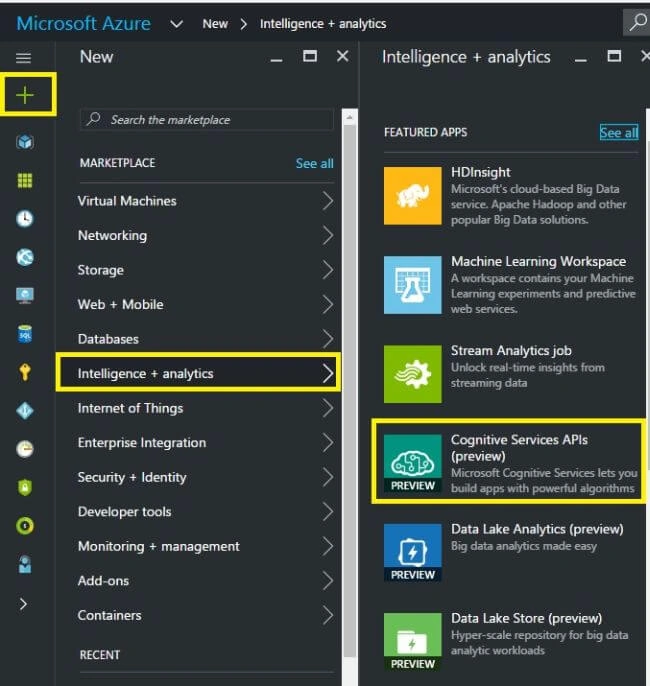
Click “+NEW” and choose “Intelligence + Analytics”. Select “Cognitive Service API”.
Step 3
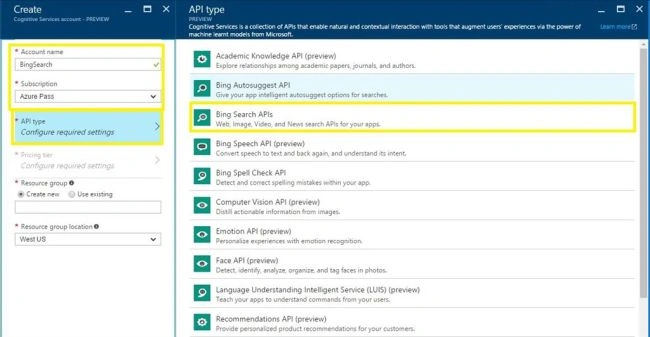
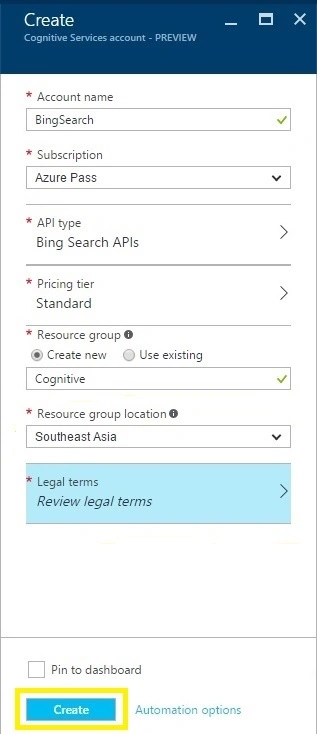
In the "New Account" blade, enter the Account Name, select Subscription and select API type as Bing Search APIs from the list of available APIs.
Step 4
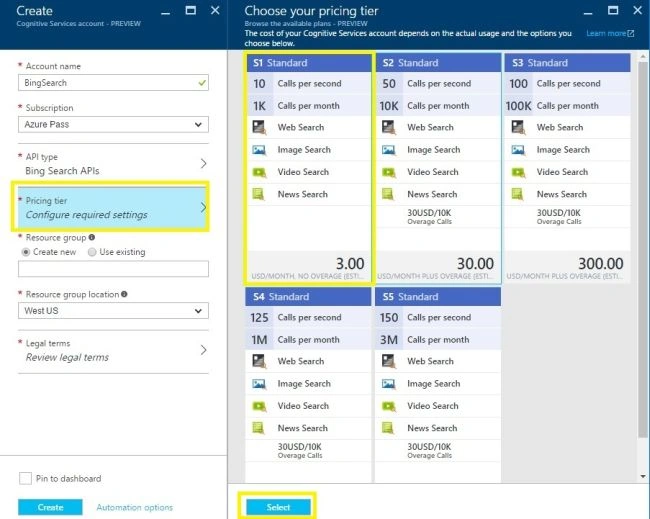
Next, we need to choose Location, Pricing tier, and Resource group.
Step 5
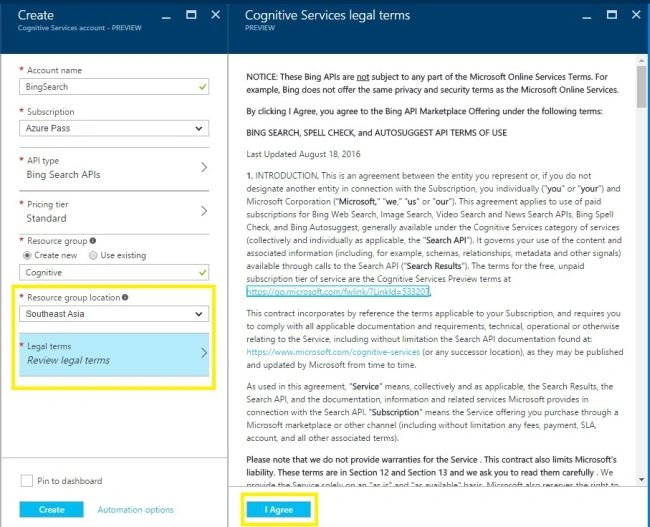
Next, we need to "Accept" the license term.
Step 6
Finally, click "Create" button to create a Cognitive Service.
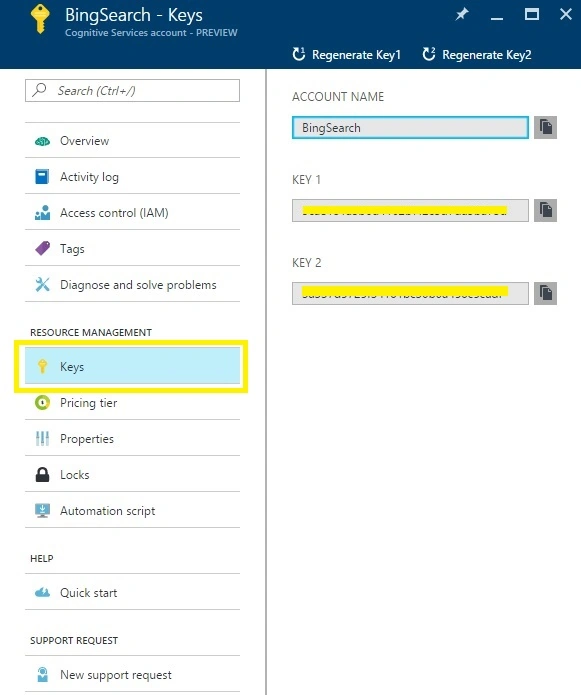
A few minutes later, we will see that the Bing Search APIs dashboard appears. Then, we can download the Bing Search APIs and use them in our project.
Summary
So, this is how we create Bing Search APIs on Microsoft Azure Portal.
Pradeep SahooPosted Oct 29, 2016, 10:58 PM
Nice share
Anu VPosted Oct 28, 2016, 12:12 AM
Nice..