

When working with Power Pages, updating lookup columns can be challenging, especially when dealing with custom forms and client-side operations. In this article, we’ll walk through how to create or update a lookup column in a Dataverse table using the Web API, with clear examples and best practices.
Prerequisites
Configure Site Settings for Web API & Tables
Make sure that the required site settings are enabled to allow Web API access in Power Pages.
For a detailed guide on configuring site settings for the Web API and table permissions, you can read here for stepwise explantation.
Assign Web Roles and Table Permissions
Make sure the appropriate web roles and table permissions are configured:
Grant Create and Update permissions on the target table where the record will be created or updated.
Assign Append To permission on the table that contains the lookup column.
Assign Append permission on the related (lookup) table to which the record will be associated.
Special Permissions to both tables
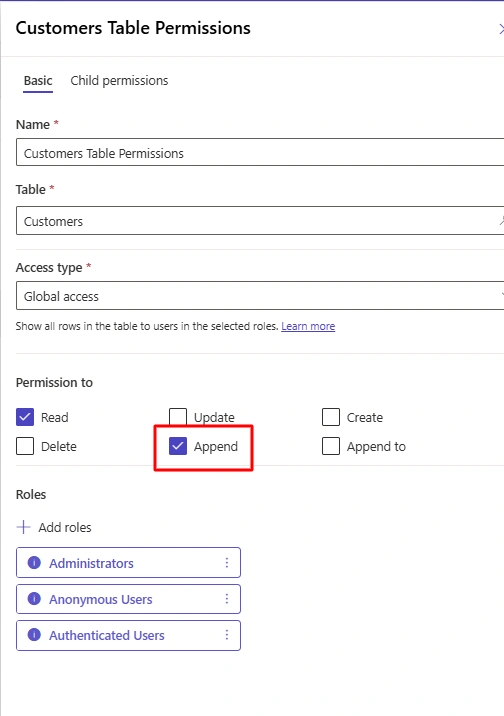
Customers Table (Parent)
The Append permission allows the parent table (Customers) to grant the child table (Service Request) the right to link to it via the lookup column.
Service Request Table (Child )
The Append To permission allows records in the child table (Service Request) to be created or updated when they are associated with a parent record.
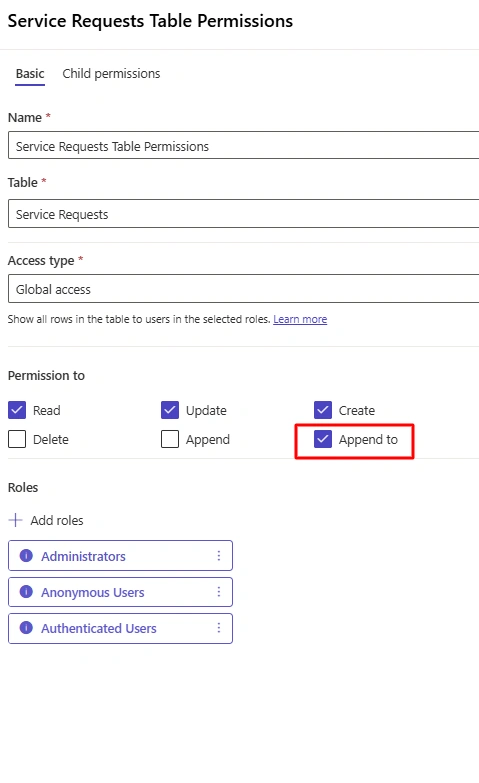
In simple words, The child table needs Append To to receive records, while the parent table needs Append to allow the child to link to it.
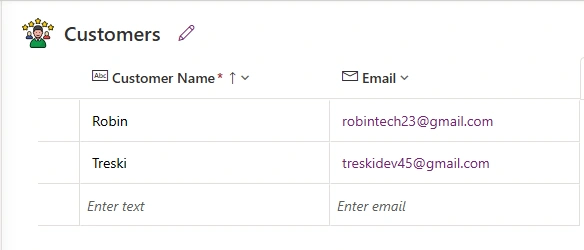
Tables used in Demo:
Customers Table
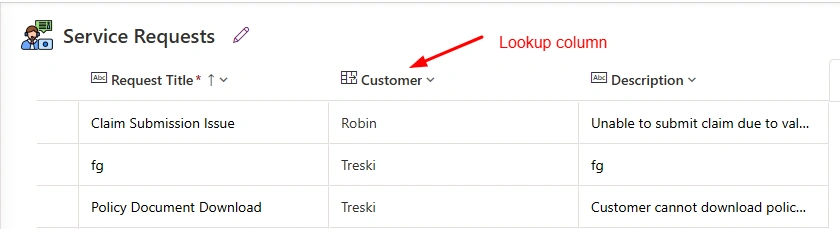
Service Request
UI Design for Demo
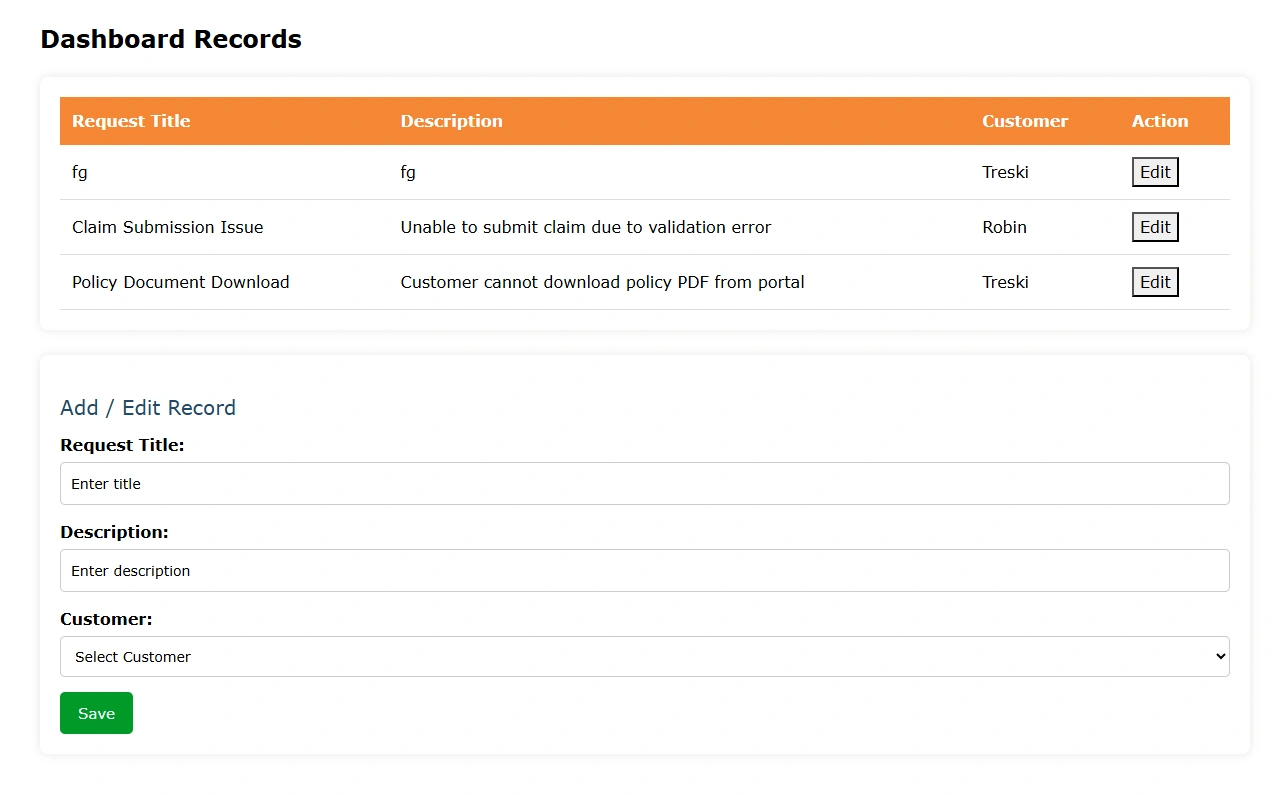
Code Example of Save / Update Lookup Record
If you want the complete source code for this demo, you can find the GitHub repository link at the end of this article.
function saveRecords() {
    const record = {
        "cr399_requesttitle": requestTitle.value,
        "cr399_description": description.value,
        "[email protected]": `/cr399_customerses(${customerId})`
    }

    console.log(requestId)

    const type = requestId ? "PATCH" : "POST"
    const url = requestId ? `/_api/cr399_servicerequestses(${requestId})` : "/_api/cr399_servicerequestses"

    webapi.safeAjax({
        type: type,
        url: url,
        contentType: "application/json",
        data: JSON.stringify(record),
        success: function (res, status, xhr) {
            requestId = xhr.getResponseHeader("EntityId")
            console.log(res)
            form.reset();
            getRecords()
        }
    })
}
This function creates or updates a Service Request record and assigns a Customer lookup using the Power Pages Web API, based on whether a record ID already exists.
1. Prepare the data to be saved
const record = {
    "cr399_requesttitle": requestTitle.value,
    "cr399_description": description.value,
    "[email protected]": `/cr399_customerses(${customerId})`
}
This object contains the data that will be sent to Dataverse.
cr399_requesttitle and cr399_description get values from the form fields.
[email protected] sets the Customer lookup column.
- It links the Service Request to an existing Customer record.
- The value passed is the Customer record GUID.
Decide whether to create or update a record
const type = requestId ? "PATCH" : "POST"
const url = requestId
    ? `/_api/cr399_servicerequestses(${requestId})`
    : "/_api/cr399_servicerequestses"
If requestId exists:
The record already exists.
The function uses PATCH to update the record.
If requestId does not exist:
A new record is created.
The function uses POST.
This logic allows the same function to handle both create and update operations.
3. Send the request using Web API
webapi.safeAjax({
    type: type,
    url: url,
    contentType: "application/json",
    data: JSON.stringify(record),
safeAjax sends the request securely using the Power Pages Web API.
The record data is converted to JSON before being sent.
4. Handle the successful response
success: function (res, status, xhr) {
    requestId = xhr.getResponseHeader("EntityId")
    form.reset();
    getRecords()
}
The newly created or updated record ID is retrieved from the response header.
The form is reset after saving.
getRecords() is called again to refresh the data on the page.
Github Repo : https://github.com/ParthivSuthar/Power-Pages-Lookup-Demo
Conclusion
In this article, we walked through a practical example of creating and updating a Service Request record with a Customer lookup using the Power Pages Web API.
Join the conversation! Your thoughts help the community grow.