Technology used : Visual Studio 2012 and SQL Server 2008
Step 1: Create a database named "Test" in SQL Server 2008 that holds a Table called "Employee" with 4 columns (ID, Name, Salary and Dept) , where the ID column is an Identity field and a Primary Key as in the following:
CREATE TABLE [dbo].[Employee](
[ID] [int] IDENTITY(1,1) NOT NULL,
[Name] [varchar](50) NULL,
[Salary] [int] NULL,
[Dept] [varchar](50) NULL,
CONSTRAINT [PK_Employee] PRIMARY KEY CLUSTERED
(
[ID] ASC
)WITH (PAD_INDEX = OFF, STATISTICS_NORECOMPUTE = OFF, IGNORE_DUP_KEY = OFF,ALLOW_ROW_LOCKS = ON, ALLOW_PAGE_LOCKS = ON)
ON [PRIMARY]
) ON [PRIMARY]
Then insert some data into the table as in the following:
insert into Employee (Name,Salary,Dept)values('A',50000,'IT')
insert into Employee(Name,Salary,Dept)values('B',10000,
'Finance')
insert into Employee (Name,Salary,Dept)values('C',60000,'IT')
insert into Employee (Name,Salary,Dept)values('D',20000,
'Finance')
insert into Employee (Name,Salary,Dept)values('E',10000,'IT')
insert into Employee (Name,Salary,Dept)values('F',70000,'IT')
insert into Employee (Name,Salary,Dept)values('G',40000,
'Finance')
select * from employee
Step 2: Create a new empty website named "Tutorial_RDLCGraph".
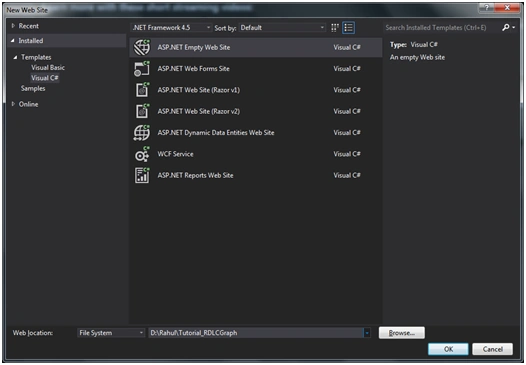 Step 3:
 Create a new Page named "Default.aspx" by right-clicking on the project in Solution Explorer and click on "Add" -> "New Item".
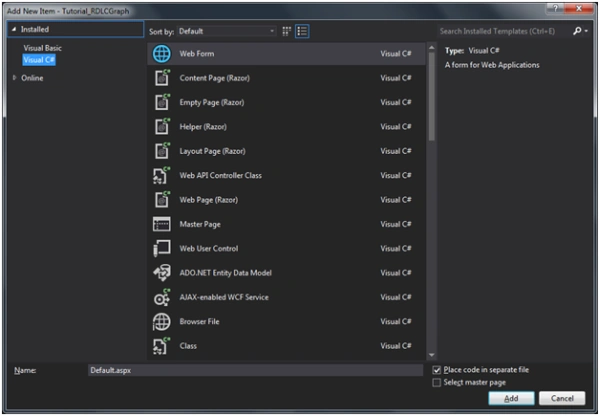 Step 4:
 Add a "ScriptManager" from the Ajax Extensions section, "SQLDataSource" from the Data section and "ReportViewer Control" from
the Reporting section onto the page.
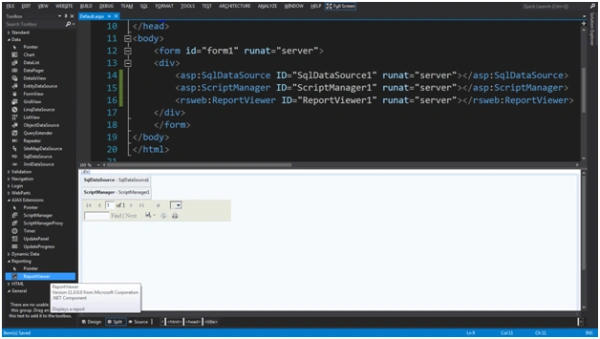 Step 5:
 Right-click on the Selected SQL DataSource control in Design Mode then use the following procedure:
- Click on "Configure Data Source", it shows a Data Source window.
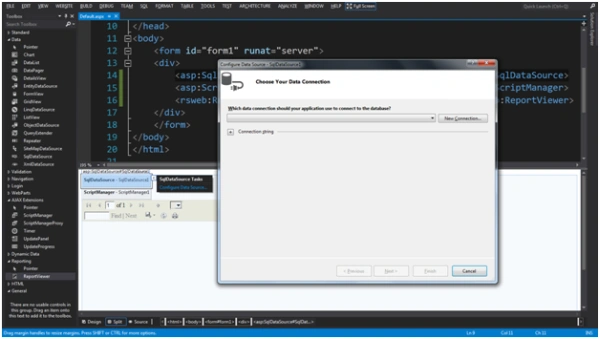
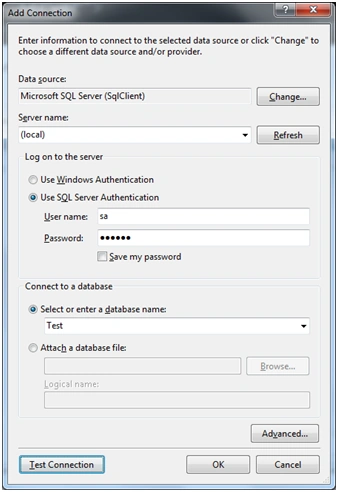
- Click on the "New Connection" button of the window, it shows the New Connection window for providing the details, like:
- Select the "Microsoft SQL Server (SqlClient)" as the Data Source.
- Your database instance name as SeverName.
- Use SQL Server Authentication Mode as "Long on to the server".
- Type the Usrename as "sa" and the password of your database.
- Select the database name as "Test".
Then click the "OK" button.
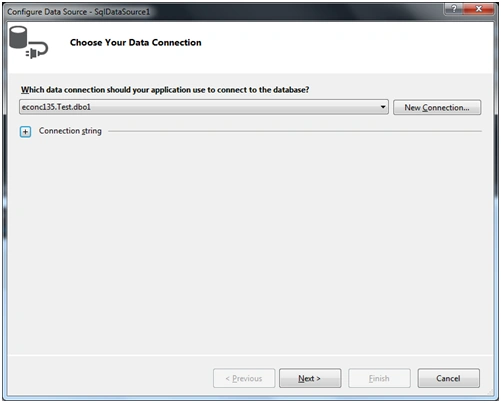
- Now click on the "Next" Button.
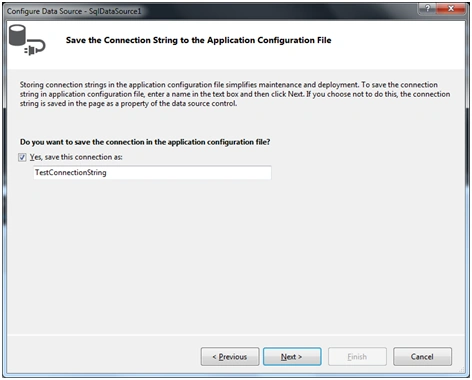
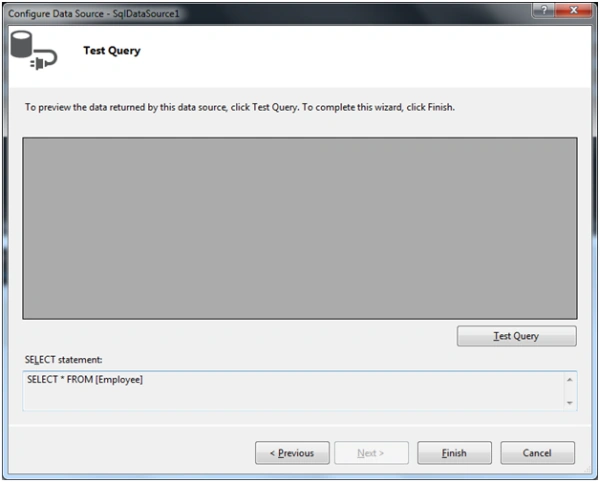
- Check the CheckBox and click on the "Next" button.
- Click on the "Next" button after choosing the table and columns that you want to display in your report.
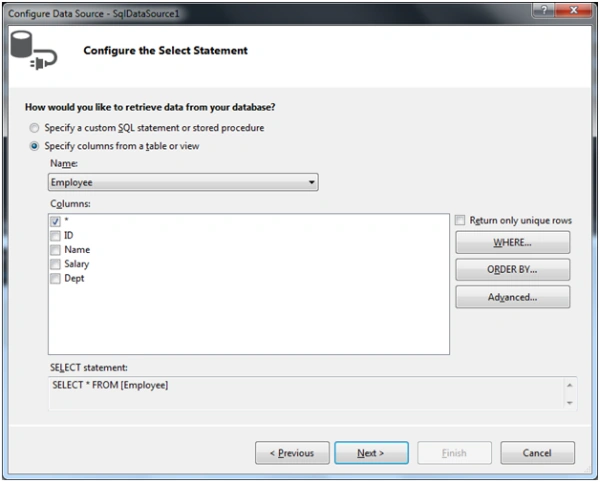
- Click on the "Finish" button.
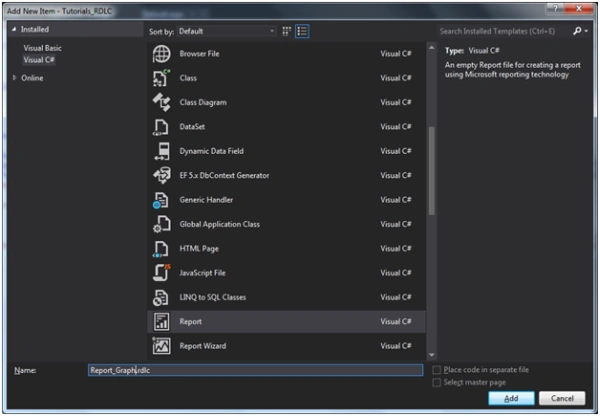
Step 6: Add a RDLC File named "Report_Graph" file by right-clicking on the project in Solution Explorer and click on "Add" -> "New Item".
Step 7: To create the Chart and bind it with the DataSet use the following sub-procedure:
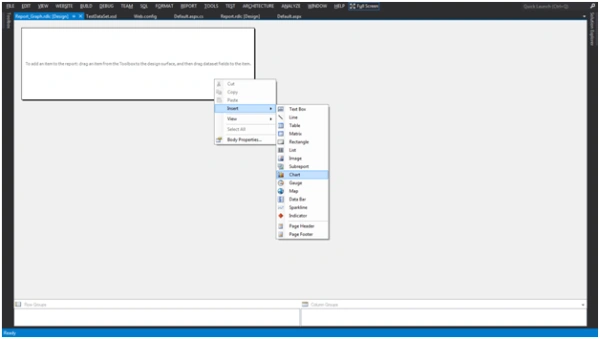
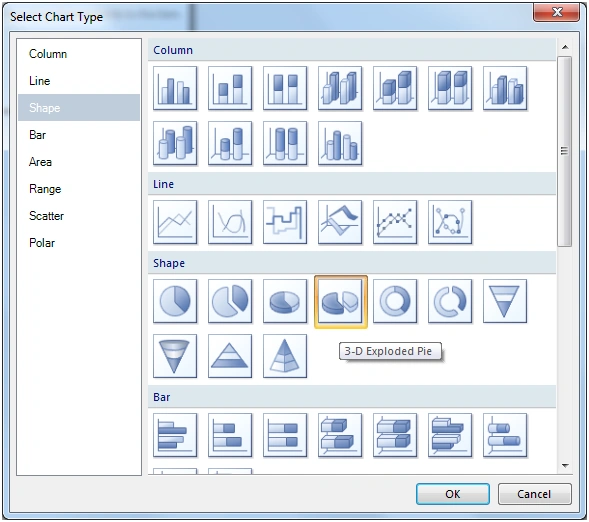
- Right-click on the report and insert the chart that populates a Chart Type window where you can select the type of chart and click "OK".
Note: In this example I am using 3-D Exploded Pie Chart.
- When you click on the "OK" button, you will see a Data Source window. Select the connection string name in the new window that you have created earlier in SQL DataSource. On the Default Page click on the "Next" button.
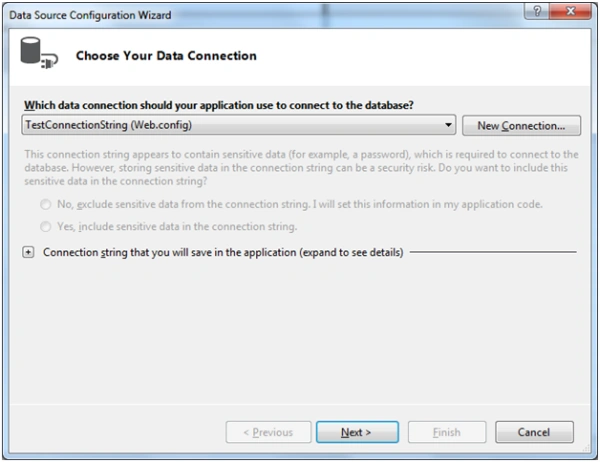
- Click on the "Next" button and expand the "Tables" treeview and the check on your table named "Employee"and click on the "Finish" Button.
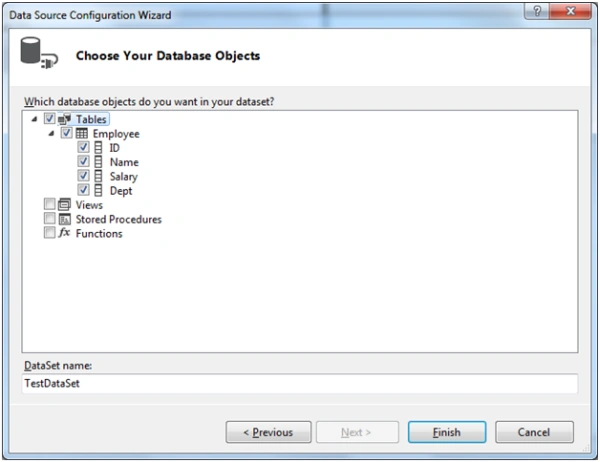
- Click on "Finish" and you will see the Dataset window; click on the "OK" button.
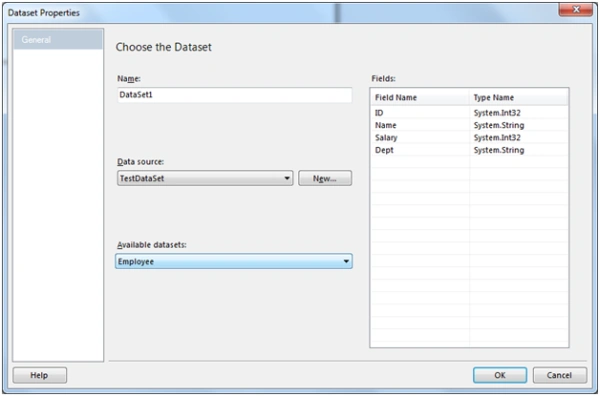
- Now you will see the Chart on your report, expand the body of the report and Chart size after selection.
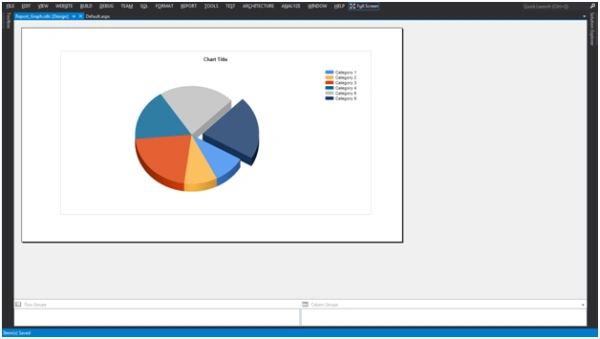
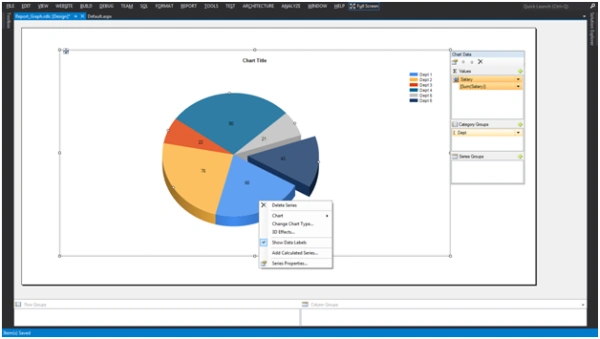
- Select the Legend and you will see the Chart Data window. Add the Department in the Category Groups and ∑ Values then right-click on the Legend and check the "Show Legend Title" and change it.

- Check the Show Data Lables after right-clicking on the Pie Chart and change the Chart Title.
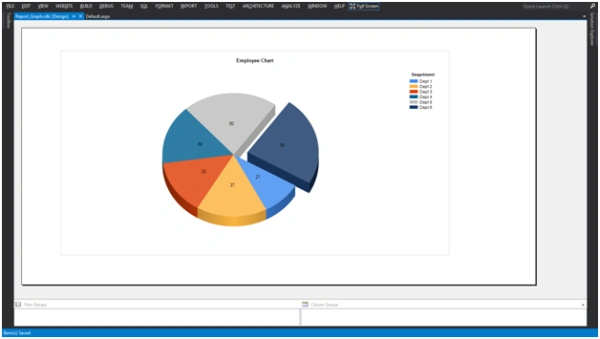
Finally your chart is ready and will look like this:
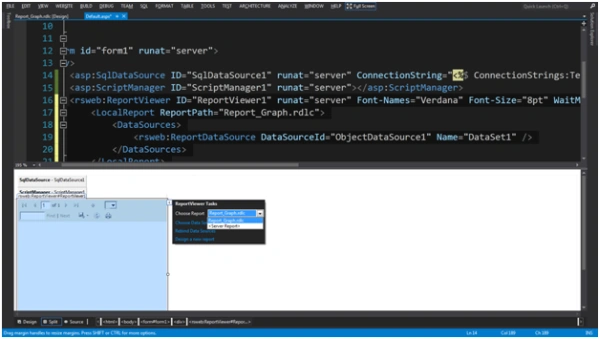
Step 9: Right-click on the "ReportViwer" Control after selecting the "Default.aspx" page and choose the "Report_Graph.rdlc" and save the page.

Step 10: Now run the page and see the output.
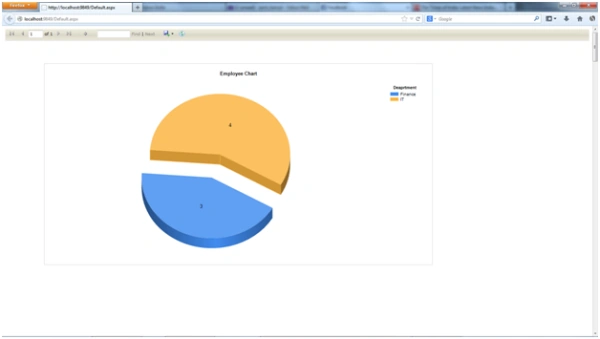
Result: There are 4 employees belonging to the IT Department and 3 employees belonging to Finance.



Vipin MittalPosted Jan 29, 2018, 3:29 AM
Very help full article...thank u sir???????
Rahul BansalPosted Jul 17, 2014, 12:54 AM
Thanks to all...@Prince:-Set some property of ReportViewer like ShowFindControls="false" , ShowRefreshButton="false" ,ShowExportControls="false",ShowPrintButton="false",ShowZoomControl="false" etc.....you hide the controls which you don't want to show.
Prince SharmaPosted Jul 16, 2014, 8:26 AM
Nice work !!! But when I tried it is showing buttons like find , next save ........is there any way to avoid this ???
shyam kalaskarPosted Jul 11, 2014, 3:12 AM
Thanks sir..
yasin mohammadPosted Jun 14, 2014, 2:46 PM
nice Sir...
Rahul BansalPosted Mar 13, 2014, 12:20 AM
@Yan:- Which version you are using like Visual Studio Express for web 2013 ?
Yan ShymanPosted Mar 12, 2014, 3:21 PM
Can I use that on VS express edition? I couldn't find new item "Report" in my version. ..Thx for any help.
Arun GuptaPosted Jan 27, 2014, 7:09 AM
Good rahul keep it up !!