

By using this control you can access any website like a normal browser.
In this article I will demonstrate how to create a Web Browser control on a page in Windows Phone and for this I am using Microsoft Visual Studio Express 2012 for Windows Phone.
So let’s start the work.
Step 1: Create a new project named WebBrowserApp and click the "OK" button.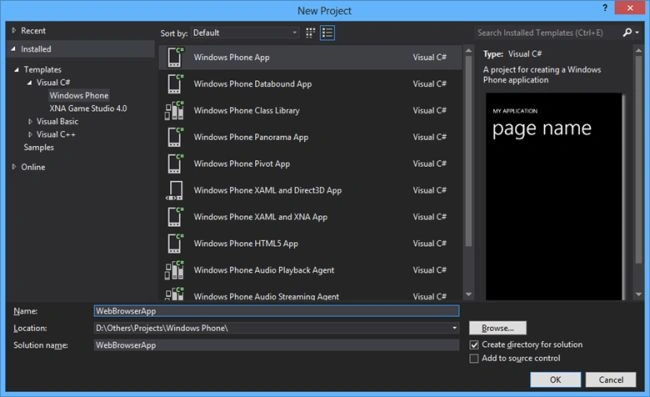
Step 2: Select the Operating System Version or Windows Phone Platform you want to target your project for and click the "OK" button.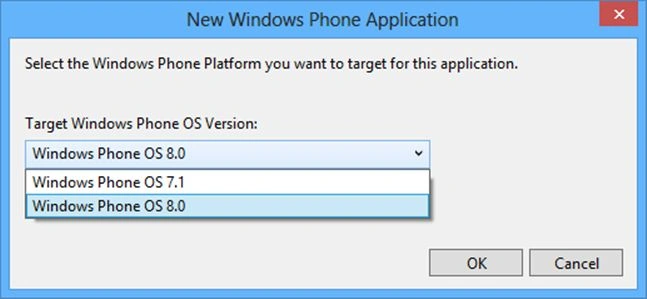
Step 3: Add some code to the Grid tag named "ContentPanel" like TextBox and Button with some properties.
TextBox
- Name: Name of the TextBox like "txt1" in this article.
- HorizontalAlignment: Alignment of TextBox horizontally like left, right and middle.
- Height: Height of the TextBox.
- Margin: Defines the position of the TextBox.
- TextWrapping: Wrap the Text in a TextBox.
- VeticalAlignment: Alignment of TextBox vertically, like top, bottom and middle.
- Width: Width of TextBox.
<TextBox Name="txt1" HorizontalAlignment="Left" Height="72" Margin="10,10,0,0"
TextWrapping="Wrap" VerticalAlignment="Top" Width="356"/>
Button
- Name: Name of the button like "btn_Go"in this article.
- Content: Text that will display on the button.
- HorizontalAlignment: Alignment of TextBox horizontally like left , right and middle.
- Margin: Defines the position of the TextBox.
- VeticalAlignment: Alignment of TextBox vertically.
<Button Name="bt_Go" Content="Go" HorizontalAlignment="Left"
Margin="366,13,0,0" VerticalAlignment="Top"/>
Step 4: Select the Web Browser control from the Toolbox on your page and put it below the button.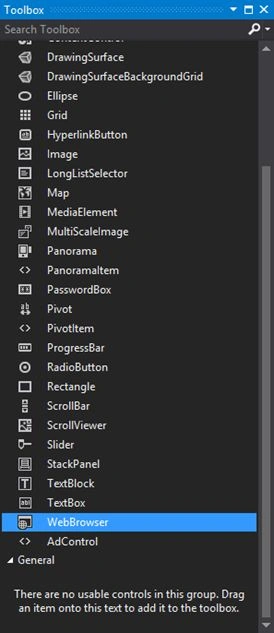
WebBrowser
- Name: Name of the control like "Browser1"in this article.
- HorizontalAlignment: Alignment of TextBox horizontally, like left, right and stretch.
- Margin: Defines the position of the control.
- Width: Width of the control.
<phone:WebBrowser Name="Browser1" HorizontalAlignment="Stretch" Margin="16,110,0,32"
Width="420" />
Step 5: Create a "Click" event in the button control to write the code in the .cs file.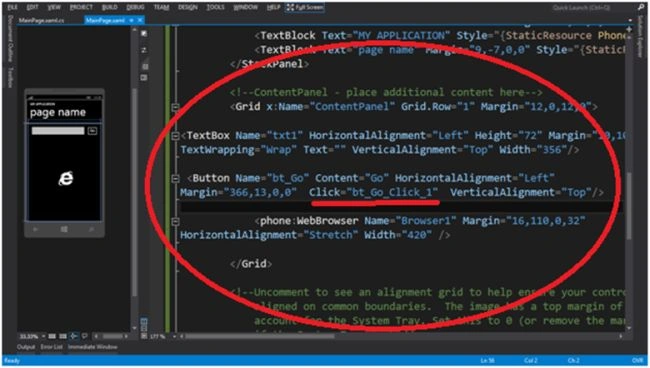
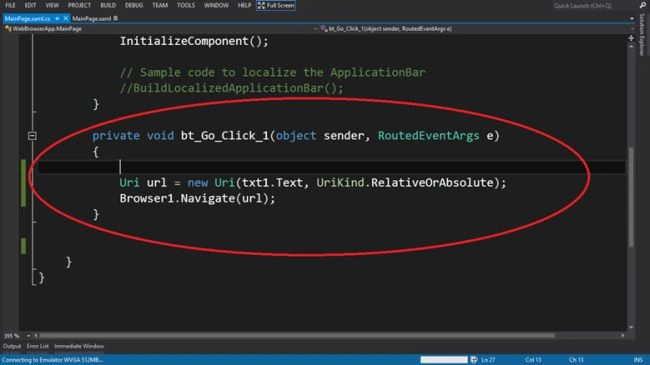
And add some code to the .cs file on the button click event as in the following:
- Object of a URI that accepts the path of the website by the TextBox and UriKind that can be Relative/Absolute/RelativeOrAbsolute.
- Access the method "Navigate" of the WebBrwoser Control and pass the URI object into it.
Step 6: Run the application and type the URL like "http://google.com". Press the GO button to see the output.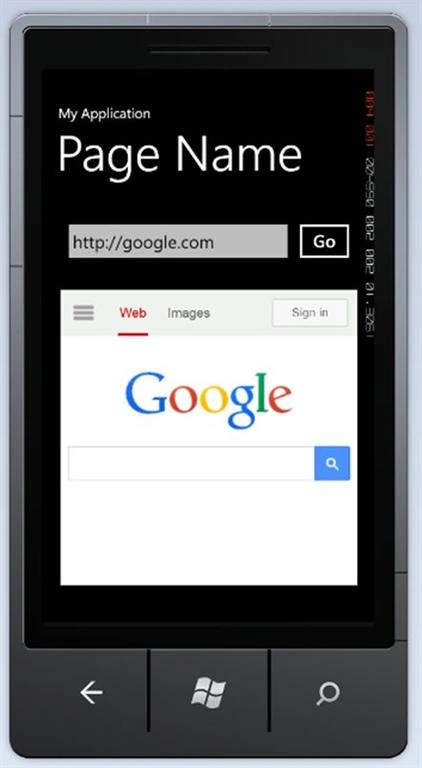
Gowtham RajamanickamPosted Apr 18, 2015, 4:09 AM
good one