

Prerequisites
- Visual Studio 2015 update 2
- Active Microsoft Azure Account
Introduction
Microsoft Azure is one of the most popular cloud services. It is very easy to deploy the web apps, mobile services, and virtual machines in Microsoft Azure. It is also very easy to create and setup the app. You can deploy the services on Azure cloud so that they can be accessed from anywhere, anytime.
ASP.NET is an open source web framework for building modern web applications and services. It is based on the HTML and CSS designing concept. ASP.NET is used as the server side scripting language, in which, the development of web applications is easy because Visual Studio uses some of the collections of .NET framework, itself. The deployment of web applications is also easier in ASP.NET as compared to the other FTP servers.
ASP.NET is an open source web framework for building modern web applications and services. It is based on the HTML and CSS designing concept. ASP.NET is used as the server side scripting language, in which, the development of web applications is easy because Visual Studio uses some of the collections of .NET framework, itself. The deployment of web applications is also easier in ASP.NET as compared to the other FTP servers.
Follow these steps to create and deploy the ASP.NET Web app in Azure, with the help of Visual Studio 2015.
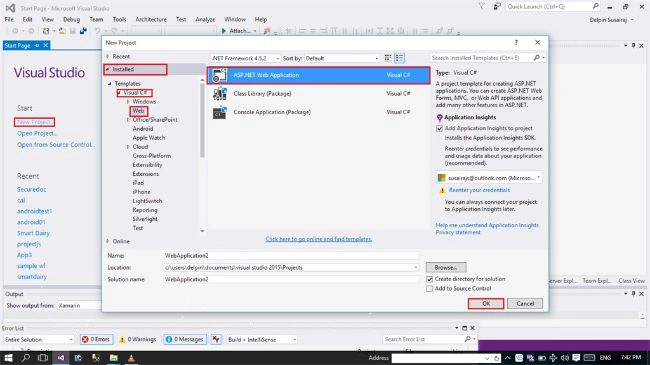
Step 1: Go to Visual Studio 2015 update 2. Select New--> Installed --> Visual C# --> Web--> ASP.NET Web Application (as shown in the image below) and give a name to your project. Select the appropriate location to save your project. Give the solution and project the same name. It helps in executing the project with ease.
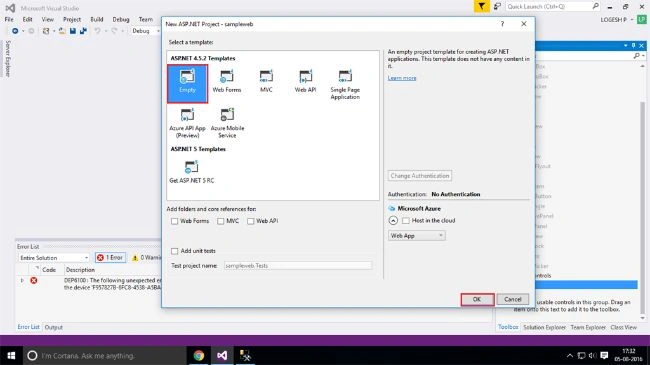
Step 2: Next, select the Empty web form and click OK to continue. It takes some time for adding the libraries.
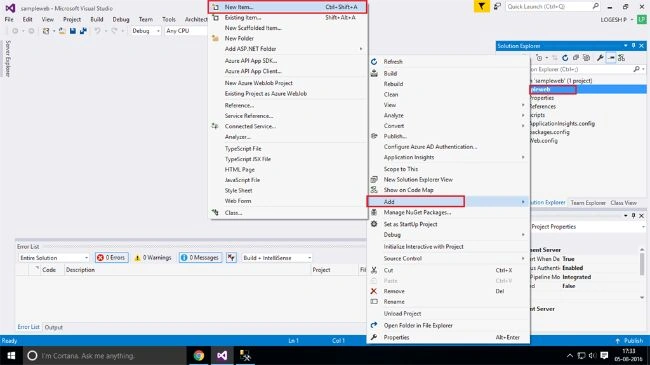
Step 3: Next, add web form.
Step 3: Next, add web form.
Go to the Solution Explorer and go to Add >> New item. It will select the new web form, Master page, CSS, JavaScript, and jQuery.
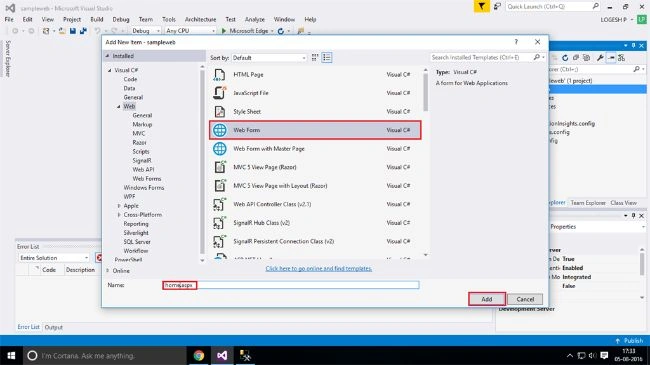
Step 4: Next, select the Web form, give it a name, and click Add. In this area, many type of forms are available. In this web form, we write CSS and HTML code and run the program.
Step 4: Next, select the Web form, give it a name, and click Add. In this area, many type of forms are available. In this web form, we write CSS and HTML code and run the program.
Step 5: Next step is the programming part.
Write HTML code or design it using GUI method (hello world). Here, Visual Studio has three parts - design (For designing the application without going in HTML),split (Offers both the options, HTML and GUI), and code (For designing the application through HTML hard code). You can choose any option to design the application interface.
Noe, click on run (any browser), at the top ribbon.
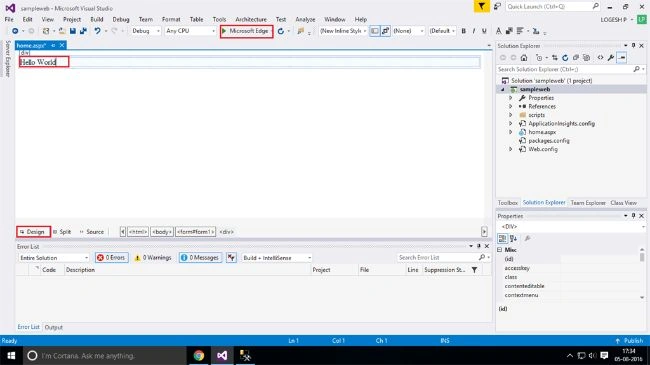
Output: This will show your content on the browser.

Step 6:
Output: This will show your content on the browser.
Step 6:
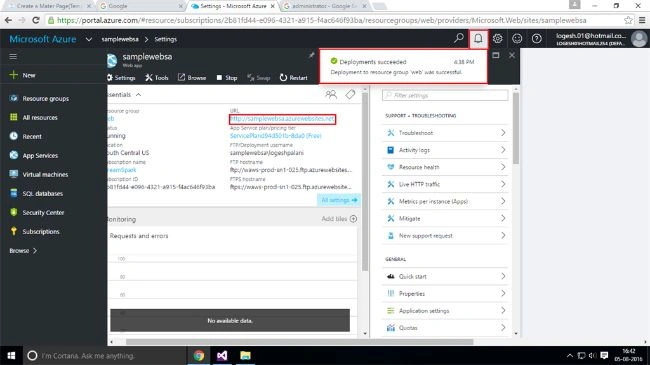
Go to portal.azure.com(sign in). You must have an active Azure account, either paid or free, in order to submit the application on cloud.
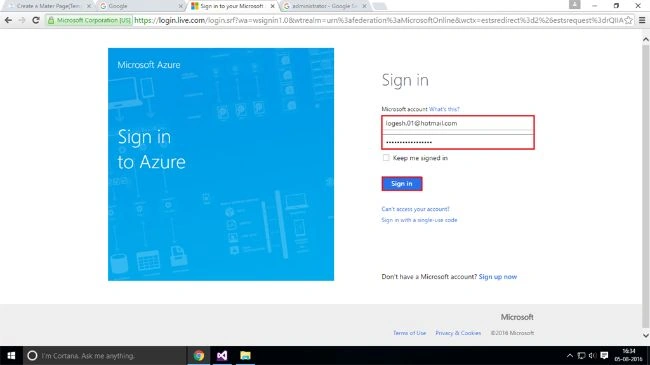
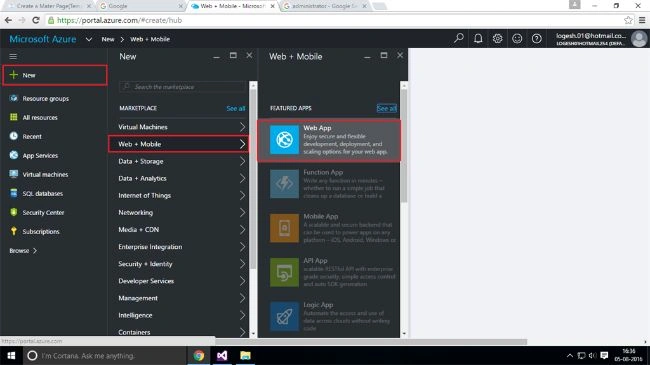
Step 7: In the Azure portal, go to your dashboard. Now, go to New-->Web+Mobile-->Web App.
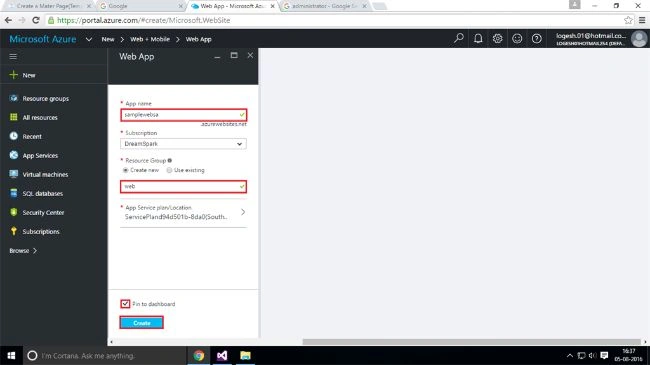
Delpin Susai RajPosted Aug 31, 2016, 1:42 AM
Thank you
Santhosh KumarPosted Aug 28, 2016, 4:42 AM
Nice
Prabu ElavarasanPosted Aug 25, 2016, 2:00 AM
For porting in Azure you should have a network connectivity from your host machine to Azure server otherwise you cannot do it directly. I believe for security reason general company will not provide direct porting of applications from Dev Env to Azure.
Humayun Kabir MamunPosted Aug 15, 2016, 3:23 AM
Nice...
bhavin tannaPosted Aug 12, 2016, 10:01 AM
Nice one....
Vijayaragavan SPosted Aug 12, 2016, 12:35 AM
You are given step by step clearly......good start....