

How to Design Screen by using an Editable Grid Screen in LightSwitch Visual Studio 2012
In this article I describe how to design a screen using an Editable Grid Screen in Light Switch Visual Studio 2012.
In my previous article I described how to perform operations using an Editable Grid Screen using Light Switch in Visual Studio 2012 (http://www.c-sharpcorner.com/UploadFile/18ddf7/how-to-use-editable-grid-screen-in-light-switch-using-visual/).
procedure For using Design Screen using Light Switch
Step 1
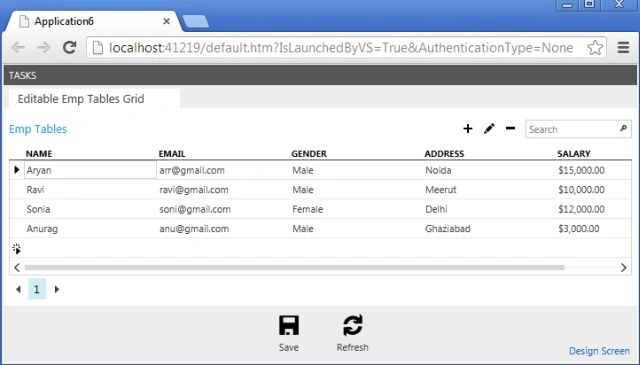
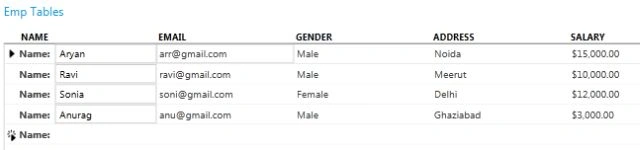
As we run the previous application we have:
Step 2
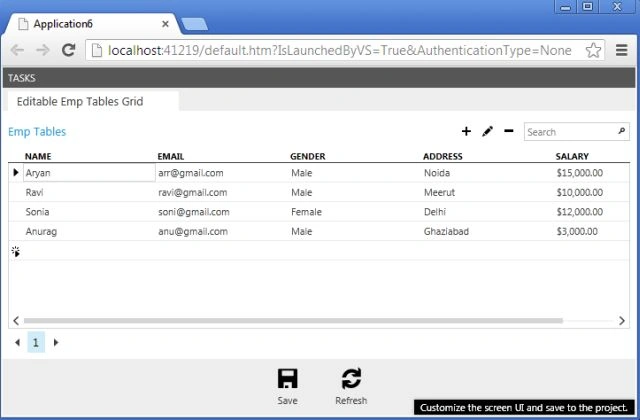
Now we click on the Design Screen button.
Step 3
Customization Mode: the EditableEmpTablesGrid Screen Designer appears.
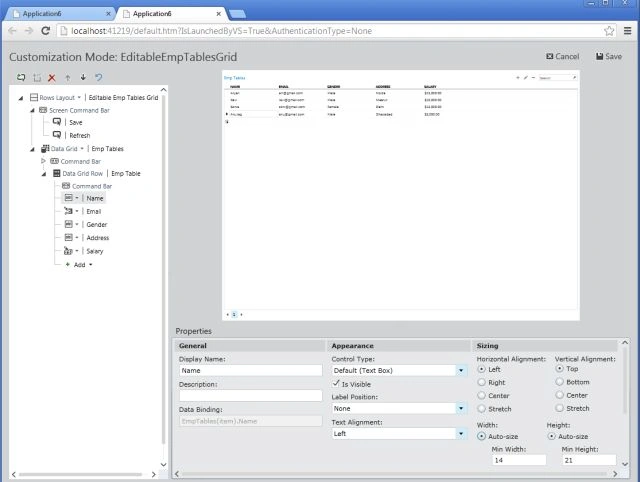
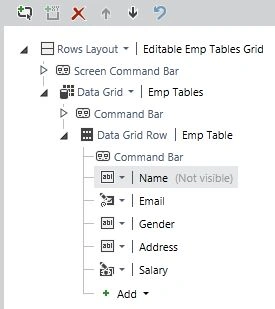
The Screen Designer consistsof Editable Emp Tables Grid, Properties and Emp Tables along with Add ,Edit, Delete, Save and Cancel button.
Step 4
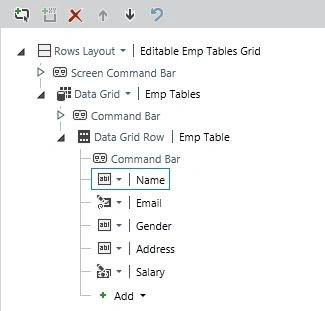
In this article I have selected the Name field from the Editable Emp Tables Grid.
Step 5
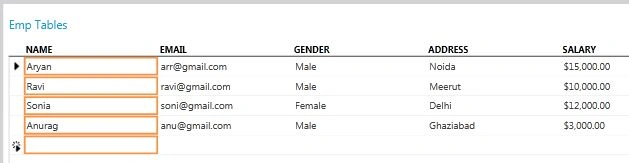
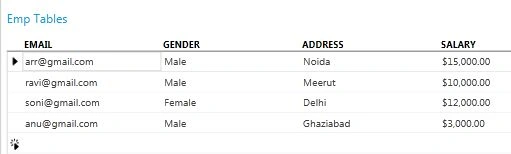
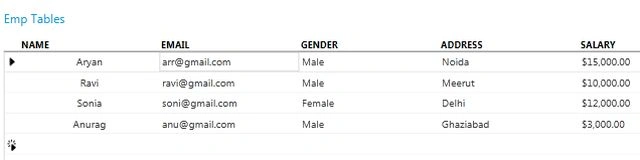
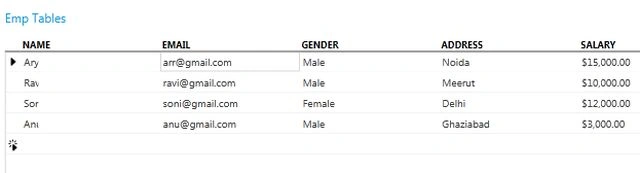
The Emp Tables appear in such a manner for the Name field.
Step 6
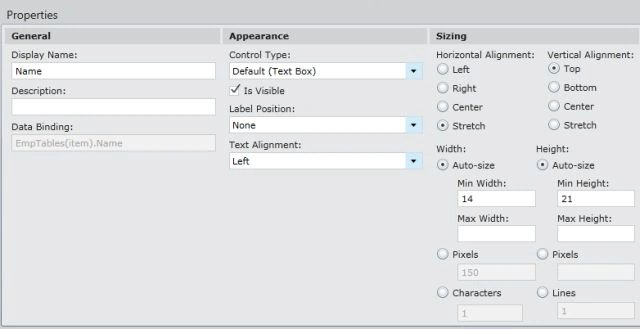
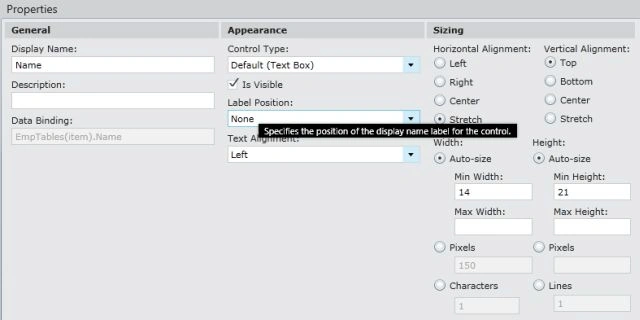
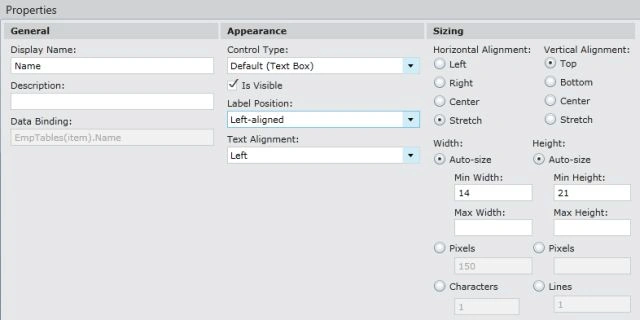
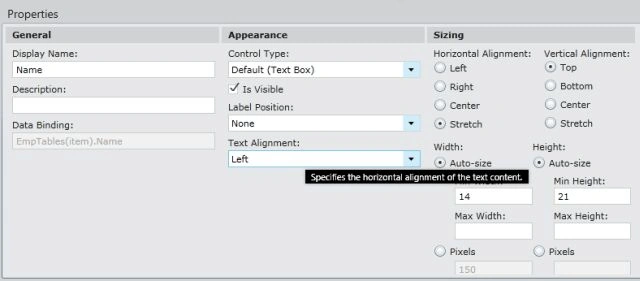
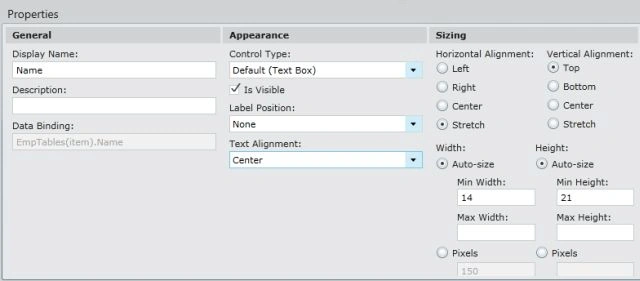
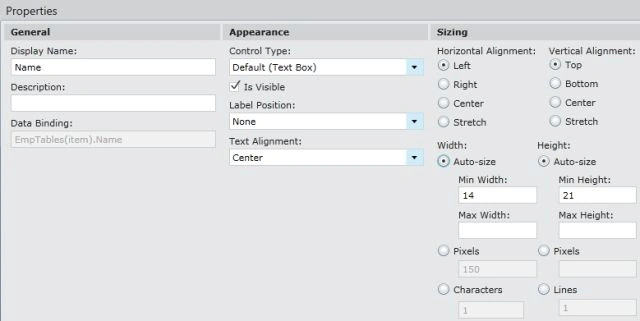
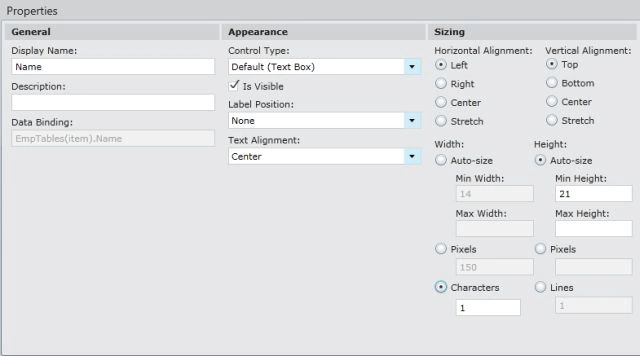
The property window for the name field appears in such a manner.
Step 7
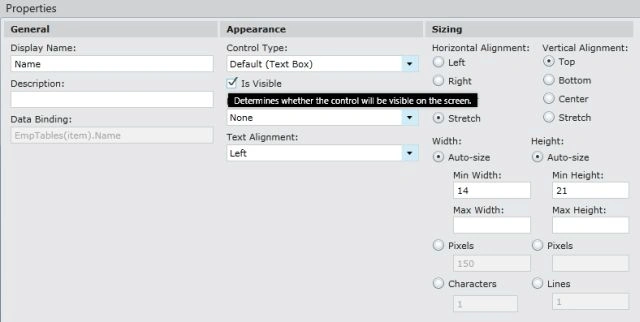
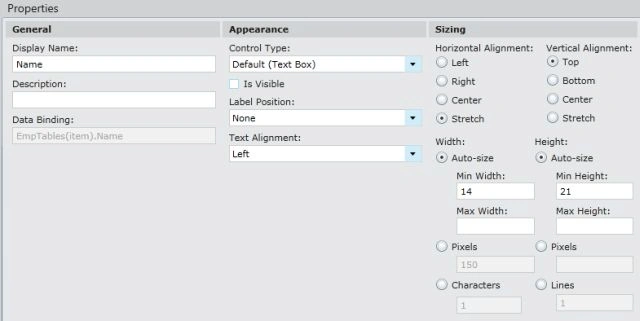
In the property window by default the IsVisible Checkbox property is true.
Join the conversation! Your thoughts help the community grow.