

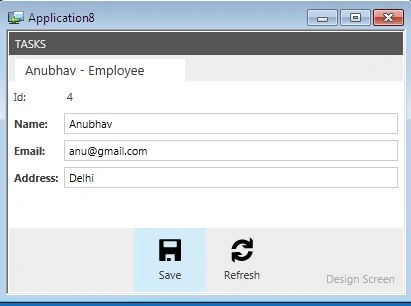
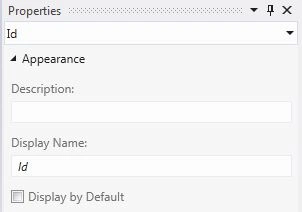
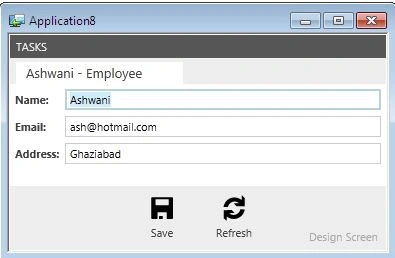
This article describes how to hide a field in LightSwitch using Visual Studio 2012. Here in this article I am setting the visibility of an ID field to false.
The following is the procedure for displaying a field.
Step 1
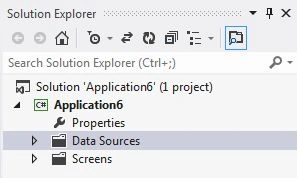
Open the Solution Explorer.
Step 2
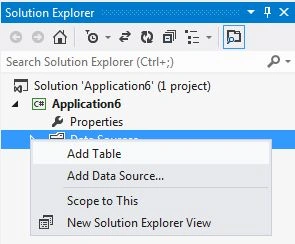
In the Solution Explorer, right-click on the data source and choose "Add Table".
Step 3
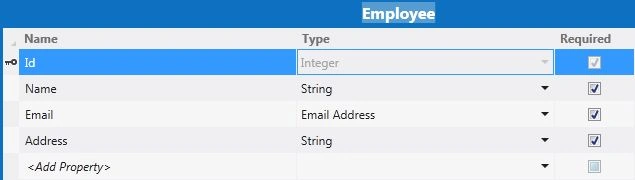
The Table appears.When we are creating a table sometimes we require the field and sometimes not. Here the field is visible by default.
Step 4
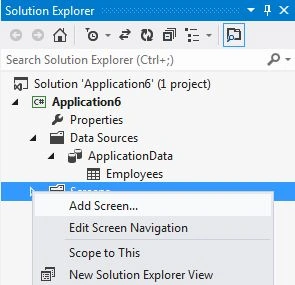
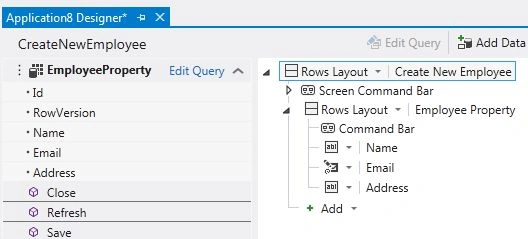
In the Solution Explorer, right-click on the Screens and choose "Add Screen".
Step 5

Join the conversation! Your thoughts help the community grow.