

Scenario
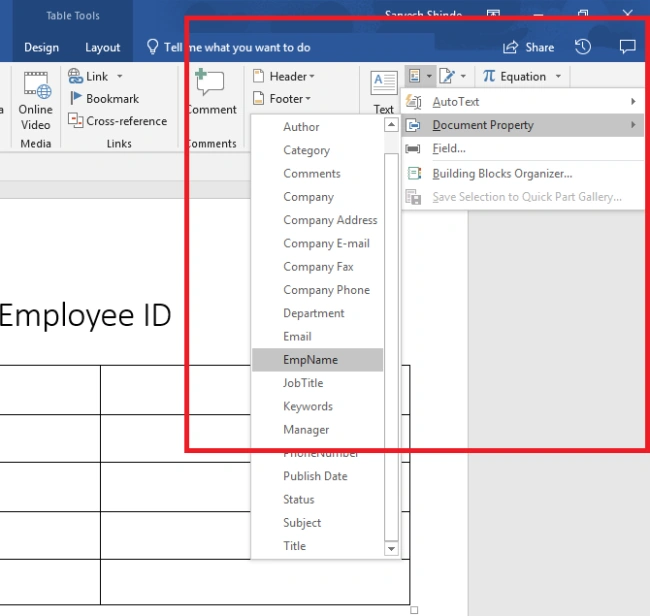
You might have come across a requirement to automate generating documents from templates with some dynamic information filled in automatically. You can do this easily using Quick Parts in a Word document. Quick parts are not new, this has existed for a decade. In this article, we will see how to automate such document generation from Microsoft FLOW.
Solution
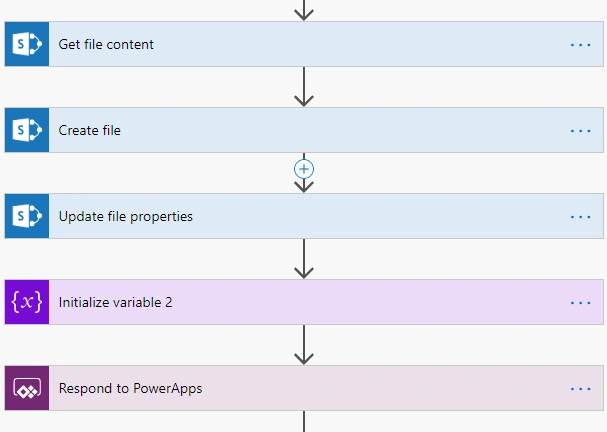
In this article, we will see how we can generate a document from the template and fill the content in it dynamically. We will be using the below main steps to achieve it
-
Read content from a file (read word template)
-
Create a file (using the above content)
-
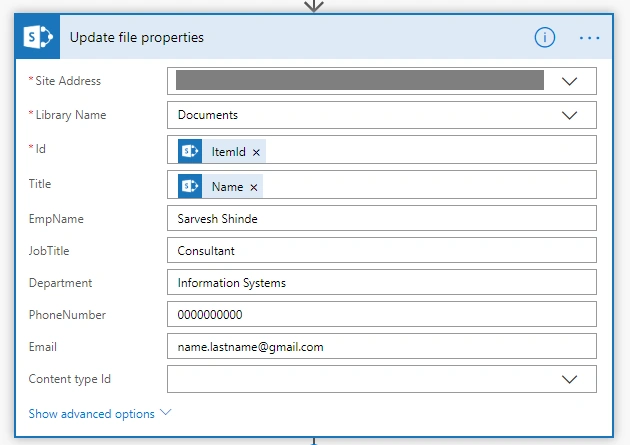
Update properties of the file (of above newly created file) with dynamic values
-
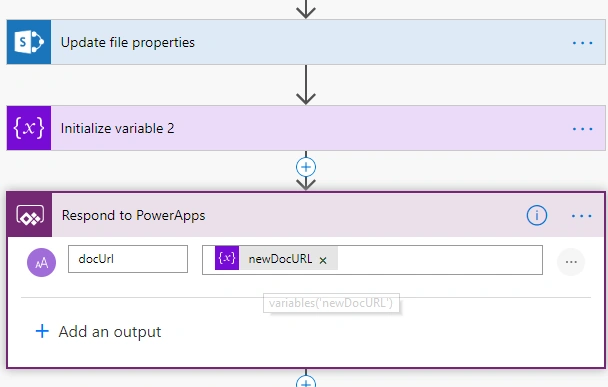
Return URL of the document to UI (in my case it's PowerApps app)
Generate your document template and store it in SharePoint library
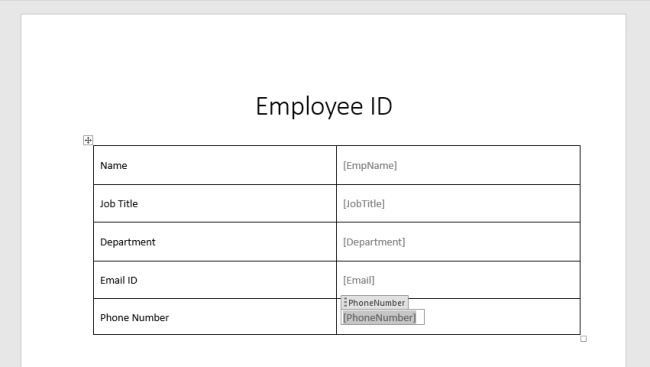
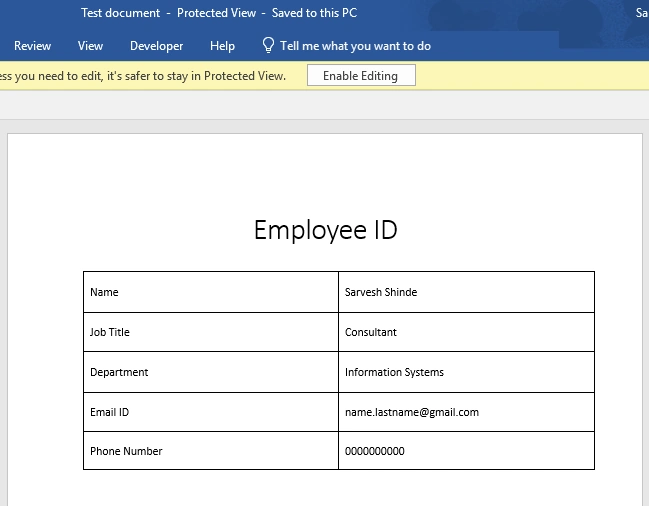
Generate your document template with content inside it. Keep the values to be filled in blank. Upload this document to a document library in SharePoint.
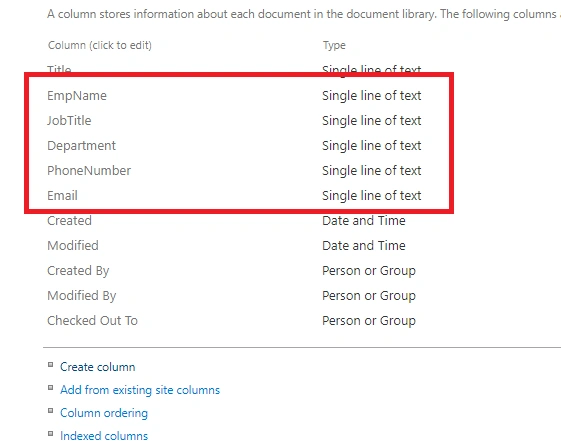
Whatever metadata you want to fill automatically in the document, create those columns in the same document library.
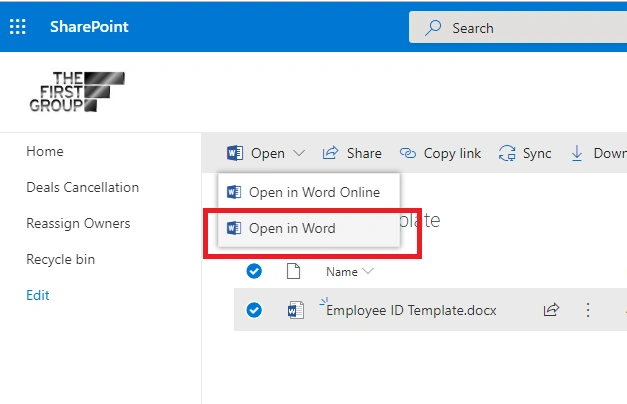
Open this document from SharePoint library >> Edit it in MS Word client.
How to read a document template and fill it in with a dynamic value and create a new document using FLOW
Create a new FLOW or update an existing FLOW. Use any trigger action suitable to your scenario. In my case, it was PowerApps. From PowerApps, I needed to call the FLOW to generate the document.
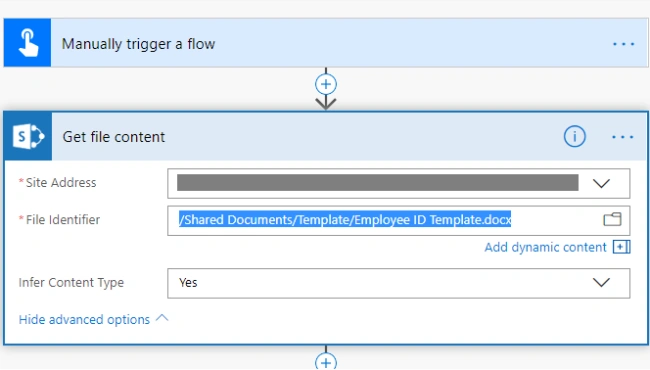
Add a new action “Get file content”. Select the site, library, and select the template document which we have uploaded/saved in the above steps.
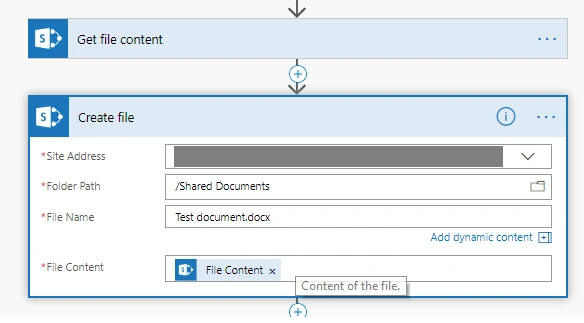
Add new action “Update File properties”. Then select site, same library as in above action >> in Id field, select ItemId output of the above action.
We are almost there. Just one last step to add, generate a URL of the document and respond back from where the FLOW is called. In my scenario it's PowerApps. In PowerApps I have used Launch function to download the newly-generated document.
Rachel ShalemPosted Apr 21, 2023, 11:27 AM
Hi. This Work great when Word document opens in Desktop app, But when open the word document online the Document properties in the doc are empty on Edit mode, and only shown on reading mode. Can you please advice ?
Krunal PatelPosted Jun 28, 2021, 6:42 AM
Can we do the same thing without opening the document in work application (Desktop app)?