A common yet challenging scenario in hybrid identity management occurs when administrators move disabled user accounts from synchronized Organizational Units (OUs) to unsynchronized OUs. While this seems like a clean way to remove accounts from the synchronization scope, it can lead to unexpected errors particularly the "DeletiCloudOnlyObjectsNotAllowed" error. This article documents a real-world scenario where moving disabled accounts to an unsynced OU triggered this error and provides a proven resolution strategy.
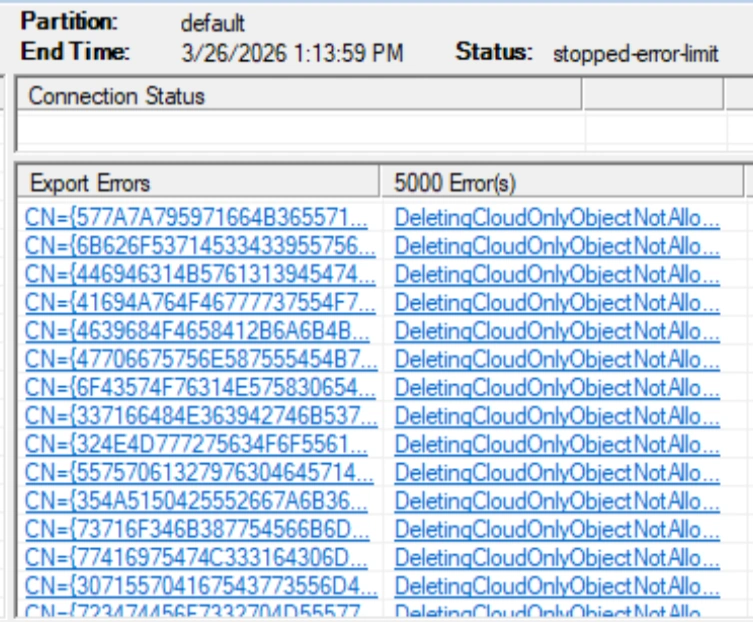
The Scenario
An organization had numerous disabled user accounts that were no longer active. To clean up the synchronization scope without permanently deleting user data, the administrator moved these disabled accounts from the synchronized OU to an unsynchronized OU. The expected behavior was that these accounts would be removed from Microsoft 365/Entra ID during the next synchronization cycle.
However, after the synchronization completed, the accounts appeared in the Microsoft 365 deleted users list. When the administrator restored these accounts from the Microsoft 365 recycle bin, a new error emerged: "DeletiCloudOnlyObjectsNotAllowed" during subsequent synchronization cycles.
Understanding What Happened
The Sequence of Events
Initial State: Disabled accounts existed in synchronized OU with proper linkage between on-premises Active Directory and Microsoft 365/Entra ID.
Move to Unsynced OU: Accounts were moved to an OU excluded from synchronization scope. The next synchronization cycle recognized these objects as "out of scope" and issued delete operations to Microsoft 365.
Cloud Deletion: Microsoft 365/Entra ID processed these delete operations, moving the user objects to the recycle bin (soft delete state).
Restoration in Cloud: Administrators restored the deleted users directly in Microsoft 365 Entra Center , bringing them back as active cloud-only objects.
The Problem: When the next synchronization cycle ran, the on-premises Active Directory no longer contained these accounts (or they were in unsynced OUs), but the cloud now had restored cloud-only objects. The synchronization service attempted to delete these cloud-only objects because it had no matching on-premises objects, triggering the "DeletiCloudOnlyObjectsNotAllowed" error.
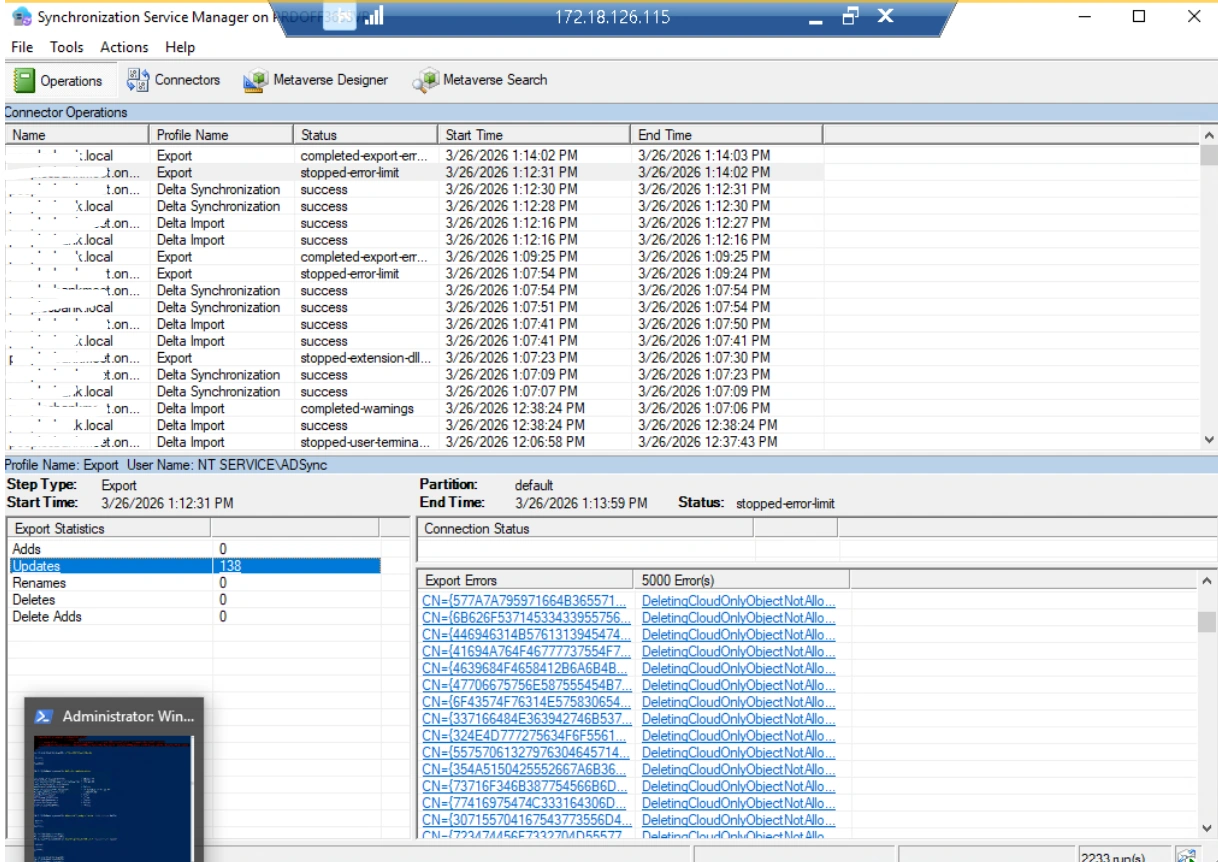
Why the Error Occurred
The synchronization service maintained pending delete operations in its connector space for these accounts. However, when the accounts were restored in Microsoft 365:
The cloud objects now existed but as cloud-only objects (without OnPremisesSyncEnabled flag)
The synchronization service still believed these objects should be deleted
The system correctly prevented deletion of cloud-only objects, resulting in the error
Root Cause Analysis
The Connector Space Mismatch
When accounts were moved to the unsynced OU:
The connector space marked these objects for deletion
Export operations were queued to delete them from Microsoft 365
The deletion was successful, and the cloud objects entered the recycle bin
When accounts were restored in Microsoft 365:
The connector space still contained pending delete operations for these objects
However, the restored objects were now cloud-only (the sync relationship was broken)
The next export attempt failed because the system could not delete cloud-only objects
The Critical Mistake
The key error was restoring accounts in Microsoft 365 before clearing the pending delete operations from the connector space. This created a state where:
On-premises: Accounts in unsynced OU (or deleted)
Connector Space: Pending delete operations
Microsoft 365: Restored cloud-only objects
Result: Permanent mismatch and export errors
Resolution Strategy
Step 1: Identify Affected Accounts
First, identify which accounts are stuck in this error state:
From Synchronization Service Manager:
Open Synchronization Service Manager
Navigate to Connectors → Select the Microsoft 365/Entra ID connector
Click Search Connector Space
Filter for Export Error = True
Note the affected users (typically with "DeletiCloudOnlyObjectsNotAllowed" in error details)
In this scenario, all users were disabled state on AD and therefore all cloud only users were in blocked state.
Step 2: Delete Restored Accounts from Microsoft 365
Since the goal is to have these accounts properly synchronized from on-premises, the restored cloud-only accounts must be removed
Step 3: Perform Initial Synchronization
Now perform a full synchronization to establish clean state:
Full Import: Run on the Microsoft 365 connector to refresh connector space
Initial Synchronization: Run to rebuild relationships
Export: Verify no errors occur
Step 4: Restore Accounts from On-Premises
Now that the cloud is clean, properly restore the accounts:
Move accounts back to synchronized OU in on-premises Active Directory
Run synchronization cycle:
Understanding the relationship between on-premises Active Directory, the synchronization connector space, and Microsoft 365/Entra ID is crucial for avoiding this situation. By following proper account removal procedures and waiting for synchronization cycles to complete before any manual restoration, administrators can prevent this error from occurring in the first place.


Join the conversation! Your thoughts help the community grow.