

Introduction
This articles outlines how to generate workflow reports (in-progress workflows and completed workflows) using a PowerShell script in SharePoint 2010.
Why PowerShell script
Consider a scenario where you configure a workflow for a list to alert you when a new item is added or there are any changes to an existing item. In this case each item would have a separate instance of workflow.
Consider a list with thousands of items, where it is tedious to check the workflow status on each item manually, here PowerShell is useful.
Functionality
The PowerShell script explained in this article loops through all the sites under a site collection and all the lists under each web and all the items under each list and generates 2 separate reports, one to hold the in-progress workflow details and the other to hold the completed workflow details.
The following piece of code generates the workflow reports:
- Function WorkflowReports()
- {
- $output = $scriptbase + "\" + "InProgressWorkflows.csv"
- "SiteCollection" + "," + "WebURL" + "," + "List" + "," + "ItemName" + "," + "ItemGUID" + "," + "WorkflowInstanceID" | Out-File -Encoding Default -FilePath $Output;
- $output1 = $scriptbase + "\" + "OtherWorkflows.csv"
- "SiteCollection" + "," + "WebURL" + "," + "List" + "," + "ItemName" + "," + "ItemGUID" + "," + "WorkflowInstanceID" | Out-File -Encoding Default -FilePath $Output1;
- Write-host "Getting workflow report" -fore magenta
- $SiteCollectionURL = read-host "Enter site collection URL "
- $siteCollection = get-spsite $SiteCollectionURL -ea silentlycontinue
- if($SiteCollection -ne $null)
- {
- foreach($web in $SiteCollection.allwebs)
- {
- $lists = $web.lists
- foreach($list in $lists)
- {
- foreach($item in $list.items)
- {
- foreach($workflow in $item.workflows)
- {
- if($workflow.iscompleted -eq $false)
- {
- $SiteCollectionURL + "," + $web.url + "," + $list.Title + "," + $workflow.ItemName + "," + $workflow.ItemGUID + "," + $workflow.InstanceId | Out-File -Encoding Default -Append -FilePath $Output;
- }
- else
- {
- $SiteCollectionURL + "," + $web.url + "," + $list.Title + "," + $workflow.ItemName + "," + $workflow.ItemGUID + "," + $workflow.InstanceId | Out-File -Encoding Default -Append -FilePath $Output1;
- }
- }
- }
- }
- }
- Write-host "Reports generated and available at the script location " -fore green
- }
- else
- {
- write-host "Invalid site collection.... please check the URL...." -fore red
- }
- }
- $LogTime = Get-Date -Format yyyy-MM-dd_hh-mm
- $LogFile = ".\WorkflowDetailsPatch-$LogTime.rtf"
- # Add SharePoint PowerShell Snapin
- if ( (Get-PSSnapin -Name Microsoft.SharePoint.PowerShell -ErrorAction SilentlyContinue) -eq $null ) {
- Add-PSSnapin Microsoft.SharePoint.Powershell
- }
- $scriptBase = split-path $SCRIPT:MyInvocation.MyCommand.Path -parent
- Set-Location $scriptBase
- write-host "TESTING FOR LOG FOLDER EXISTENCE" -fore yellow
- $TestLogFolder = test-path -path $scriptbase\Logs
- if($TestLogFolder)
- {
- write-host "The log folder already exist in the script location" -fore yellow
- $clearlogfolder = read-host "Do you want to clear the log folder (y/n)"
- if($clearlogfolder -eq 'y')
- {
- write-host "The user choosen to clear the log folder" -fore yellow
- write-host "Clearing the log folder" -fore yellow
- remove-item $scriptbase\Logs\* -recurse -confirm:$false
- write-host "Log folder cleared" -fore yellow
- }
- else
- {
- write-host "The user choosen not to clear the log files" -fore yellow
- }
- }
- else
- {
- write-host "Log folder does not exist" -fore yellow
- write-host "Creating a log folder" -fore yellow
- New-Item $Scriptbase\Logs -type directory
- write-host "Log folder created" -fore yellow
- }
- #moving any .rtf files in the scriptbase location
- $FindRTFFile = Get-ChildItem $scriptBase\*.* -include *.rtf
- if($FindRTFFile)
- {
- write-host "Some old log files are found in the script location" -fore yellow
- write-host "Moving old log files into the Logs folder" -fore yellow
- foreach($file in $FindRTFFile)
- {
- move-item -path $file -destination $scriptbase\logs
- }
- write-host "Old log files moved successfully" -fore yellow
- }
- start-transcript $logfile
- Function WorkflowReports()
- {
- $output = $scriptbase + "\" + "InProgressWorkflows.csv"
- "SiteCollection" + "," + "WebURL" + "," + "List" + "," + "ItemName" + "," + "ItemGUID" + "," + "WorkflowInstanceID" | Out-File -Encoding Default -FilePath $Output;
- $output1 = $scriptbase + "\" + "OtherWorkflows.csv"
- "SiteCollection" + "," + "WebURL" + "," + "List" + "," + "ItemName" + "," + "ItemGUID" + "," + "WorkflowInstanceID" | Out-File -Encoding Default -FilePath $Output1;
- Write-host "Getting workflow report" -fore magenta
- $SiteCollectionURL = read-host "Enter site collection URL "
- $siteCollection = get-spsite $SiteCollectionURL -ea silentlycontinue
- if($SiteCollection -ne $null)
- {
- foreach($web in $SiteCollection.allwebs)
- {
- $lists = $web.lists
- foreach($list in $lists)
- {
- foreach($item in $list.items)
- {
- foreach($workflow in $item.workflows)
- {
- if($workflow.iscompleted -eq $false)
- {
- $SiteCollectionURL + "," + $web.url + "," + $list.Title + "," + $workflow.ItemName + "," + $workflow.ItemGUID + "," + $workflow.InstanceId | Out-File -Encoding Default -Append -FilePath $Output;
- }
- else
- {
- $SiteCollectionURL + "," + $web.url + "," + $list.Title + "," + $workflow.ItemName + "," + $workflow.ItemGUID + "," + $workflow.InstanceId | Out-File -Encoding Default -Append -FilePath $Output1;
- }
- }
- }
- }
- }
- Write-host "Reports generated and available at the script location " -fore green
- }
- else
- {
- write-host "Invalid site collection.... please check the URL...." -fore red
- }
- }
- WorkflowReports
- write-host ""
- write-host "SCRIPT COMPLETED" -fore green
- stop-transcript
- Step 1: Copy the script to the SharePoint server
- Step 2: Launch the SharePoint management shell
- Step 3: Navigate to the script path
- Step 4: Execute the script
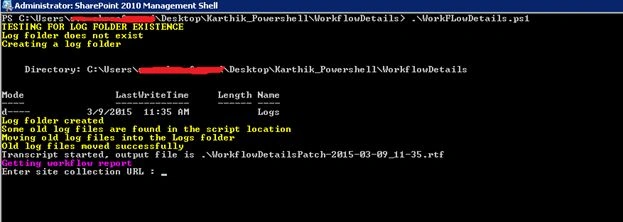
Enter the site collection URL to generate the workflow reports under that specific site collection. The output file is placed under the same location where the PowerShell script is placed.
Conclusion
The script can be modified to run against the SharePoint Farm or a specific web application or specific web/site. Thus this article outlines how to generate workflow reports using a PowerShell script.
Karthik Muthu KaruppanPosted Apr 30, 2015, 11:09 AM
thanks
Vijay SPosted Apr 30, 2015, 3:43 AM
Good one
Karthik Muthu KaruppanPosted Mar 11, 2015, 11:15 AM
Thank you guys
Gowtham RajamanickamPosted Mar 11, 2015, 9:59 AM
hi karthik ,i have one doubt in many powershell script ..powershell script many of them using Function WorkflowReports() {}...how you are calling this function? c# or javascript we can call this function like button click or document .ready..powershell where you are calling this function?
Tom MohanPosted Mar 11, 2015, 4:55 AM
Nice
Rahul Kumar SaxenaPosted Mar 11, 2015, 3:06 AM
Gud Show..