

Introduction
So you’ve built a fancy Blazor WebAssembly (WASM) app. Now you want to run it in Docker. Great choice, Docker is a portable way to ship and run your app anywhere.
In this article, I’ll show you how to create, build, and run your Blazor WASM app inside a Docker container using NGINX.
This is Part 4 of our .NET Docker Series. If you haven’t already, check out the earlier parts.
- Docker: Install, Run, and Test Your First Container - DotNet series
- Docker vs. Virtual Machines (VMs)
- Hosting a Static Website with Docker and NGINX
Step 1. Create Your Blazor WASM App.
If you haven’t created a Blazor WebAssembly app yet, you can do so using the .NET CLI.
dotnet new blazorwasm -o DockingBlazor
This creates a Blazor WebAssembly app in a folder named DockingBlazor.
Or, if you prefer using the GUI.
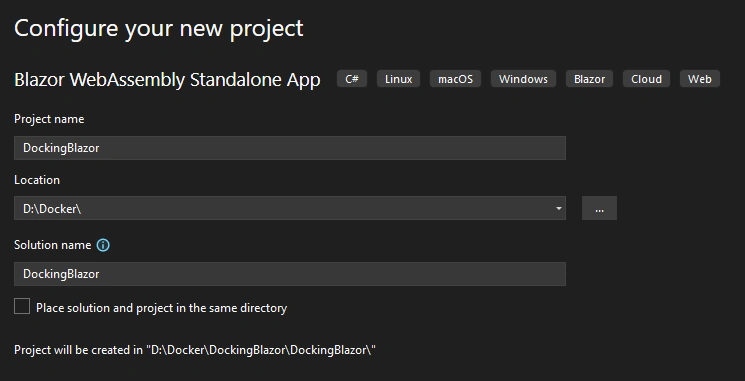
Image 1. Creating a new Blazor WebAssembly project using Visual Studio
Now let’s Dockerize the project.
Step 2. Where to Add the Docker Files.
In the root folder of your solution (same level as DockingBlazor.sln), add the following two files.
- Dockerfile: to define how the container is built
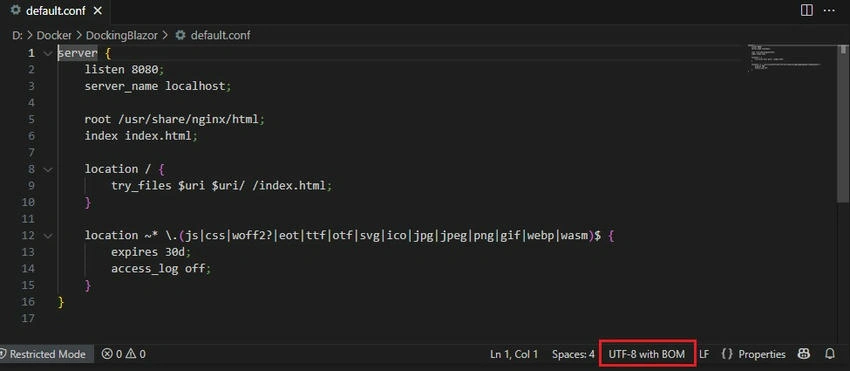
- default.conf: Nginx config that helps route requests properly in a Blazor WASM app
Step 3. The Dockerfile.
# Use the .NET 8 SDK image to build the Blazor app
FROM mcr.microsoft.com/dotnet/sdk:8.0 AS build

# Set the working directory inside the container
WORKDIR /app

# Copy the solution file into the container
COPY DockingBlazor.sln ./

# Copy the project file into the container (needed before restore)
COPY DockingBlazor/DockingBlazor.csproj ./DockingBlazor/

# Restore NuGet packages (uses Docker layer caching effectively)
RUN dotnet restore

# Copy the rest of the source code into the container
COPY . ./

# Publish the app in Release mode to the 'out' folder
RUN dotnet publish -c Release -o out

# Use the Nginx base image to serve the published app
FROM nginx

# Set a working directory (optional, for consistency)
WORKDIR /app

# Expose port 80 (the default port Nginx listens on)
EXPOSE 80

# Copy the custom Nginx configuration file into the container
COPY default.conf /etc/nginx/conf.d/default.conf

# Copy the published Blazor files to the Nginx web root
COPY --from=build /app/out/wwwroot /usr/share/nginx/html
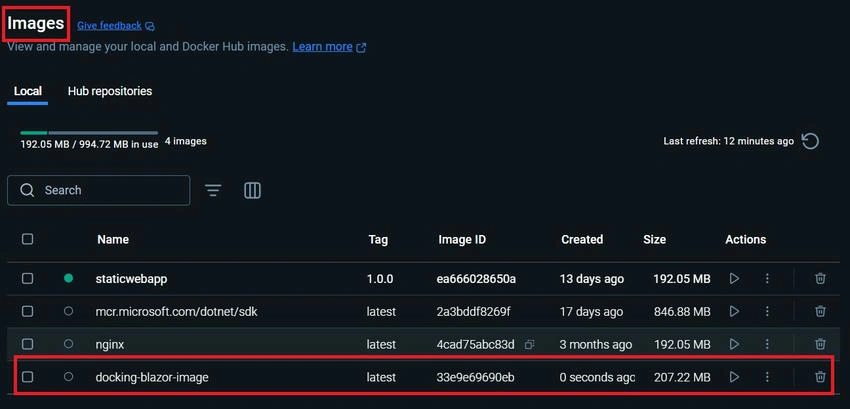
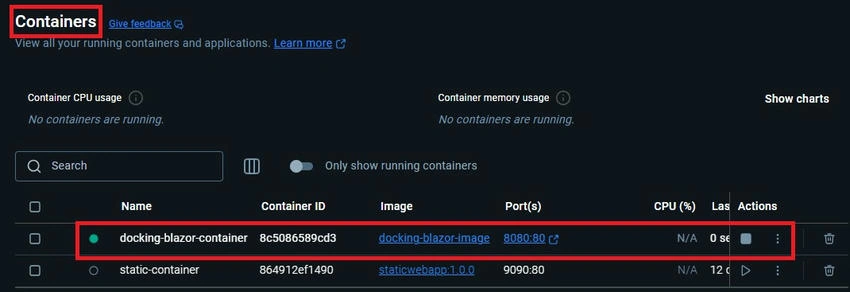
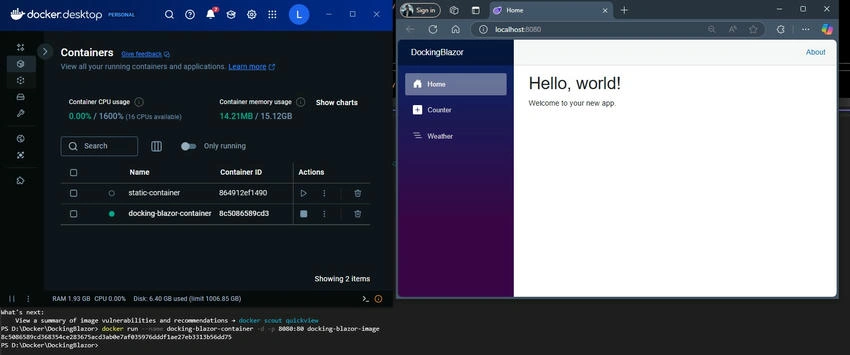
Shamil SalakhetdinovPosted May 13, 2025, 12:19 PM
Very useful article, thank you! The dotnet CLI command lines to create solution DockingBlazor.sln and to add .\DockingBlazor\DockingBlazor.csproj project to this solution are missing, aren't they?