

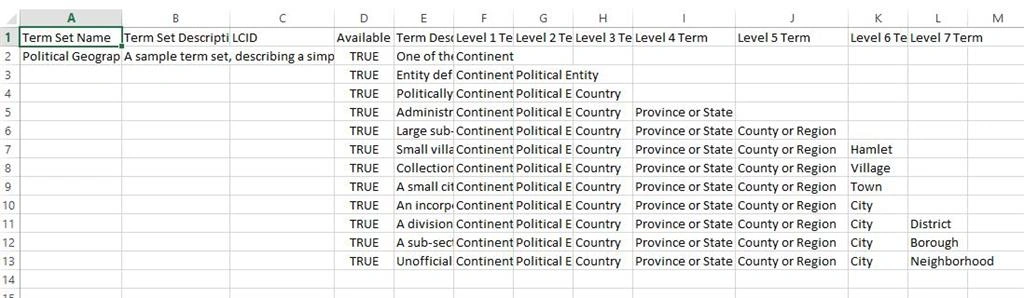
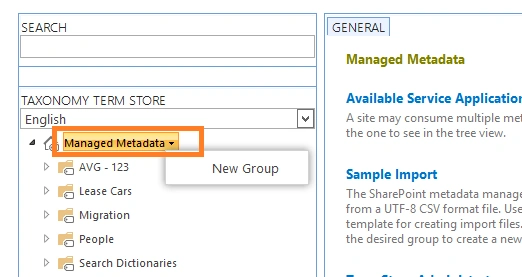
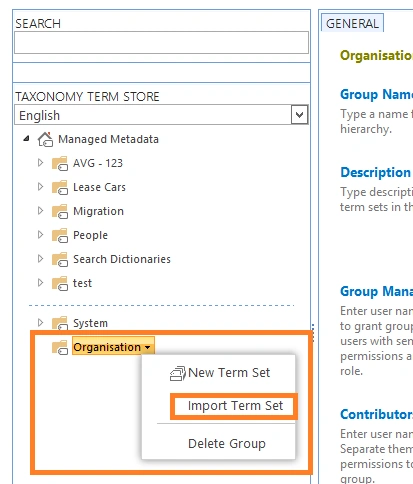
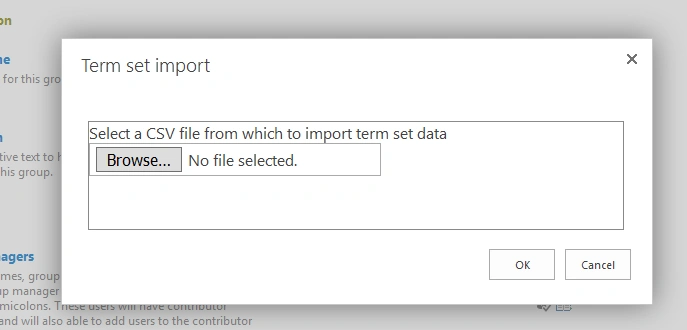
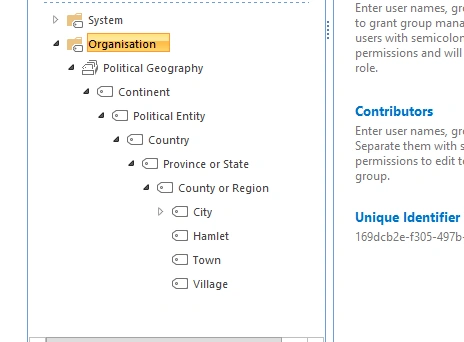
You can use the Term Store Management Tool to create terms in a term set, or manage a term, such as copy it or move it. If you have many terms that you want to add, it will be more practical to import all the terms in the term-set instead of adding the terms individually. For information about how to import a large volume of terms presents in comma separated value (.csv) file, please follow the below-mentioned steps.
To create and manage terms in the Term Store Management Tool, you must be a Contributor, a Group Manager, or a Term Store Administrator.
So, please ensure you have followed all the following steps one-by-one to properly upload the large term sets present in comma-separated values (.csv file) into the SharePoint Central Administration. However, a small mistake can mess everything up.
Presented below are the two ways of uploading a large .csv file into the Central Administration.
The first one is using the PowerShell script.
- $ver = $host | select version
- if ($Ver.version.major - gt 1) {
- $Host.Runspace.ThreadOptions = "ReuseThread"
- }
- if (!(Get - PSSnapin Microsoft.SharePoint.PowerShell - ea 0)) {
- Write - Progress - Activity "Loading Modules" - Status "Loading Microsoft.SharePoint.PowerShell"
- Add - PSSnapin Microsoft.SharePoint.PowerShell
- }
- $siteUrl = Read - Host "SiteUrl"
- $filepath = Read - Host "File Path"
- $usedForNavigation = $false
- $groupName = Read - Host "Group Name"
- $termsetname = Read - Host "Term Set Name"
- ##Site URL
- $site = Get - SPSite $siteUrl
- ## CSV file
- $file = get - item $filepath
- $filename = $file.FullName
- $session = Get - SPTaxonomySession - Site $site.Url
- write - host $site.Url
- $store = $session.DefaultKeywordsTermStore
- #### Checking the Group name,
- if not present and getting the Site collection group
- if ($groupName - eq "") {
- $group = $store.GetSiteCollectionGroup($site)
- } else {
- $group = $store.Groups[$groupName]
- }
- if ($group - eq $null) {
- write - host "Group not found" - ForegroundColor Red
- return
- }
- ##Getting the Termset
- $termset = $group.TermSets[$termsetname]
- if ($termset - eq $null) {
- ##Getting Import manager
- for the Term Store
- $manager = $store.GetImportmanager()
- $reader = new - object System.IO.StreamReader($filename)
- $alltermsadded = $false
- $errormessage = ""
- write - host "Importing $filename"
- $manager.ImportTermSet($group, $reader, [ref] $alltermsadded, [ref] $errormessage)
- $reader.Dispose()
- $termset = $group.TermSets[$termsetname]
- ## Checking if Site Navigation is enabled for the Term store
- ## One can add more custiom properties below depending upon the need
- if ($usedForNavigation - eq $true) {
- $termset.SetCustomProperty("_Sys_Nav_IsNavigationTermSet", "True")
- $termset.SetCustomProperty("_Sys_Nav_AttachedWeb_SiteId", $site.ID.ToString())
- $termset.SetCustomProperty("_Sys_Nav_AttachedWeb_WebId", $site.RootWeb.ID.ToString())
- $termset.SetCustomProperty("_Sys_Nav_AttachedWeb_OriginalUrl", $site.RootWeb.Url)
- }
- if ([string]::IsNullOrEmpty($errormessage) - eq $false) {
- write - host $errormessage
- }
- }
- $store.CommitAll()
- $site.Dispose()
- sleep 20
Join the conversation! Your thoughts help the community grow.