

Introduction
Grafana is a powerful and popular open-source data visualization tool used to create stunning dashboards for monitoring, analyzing, and visualizing various metrics and time-series data. While it is commonly deployed on Linux servers, installing Grafana on Windows can be equally beneficial for users who prefer the Windows operating system or have existing Windows-based infrastructures. In this article, we will guide you through the process of installing Grafana on a Windows machine, allowing you to harness the full potential of this versatile tool.
Prerequisites
Before proceeding with the installation, ensure that you have the following prerequisites in place:
- A Windows machine with administrative privileges.
- Internet connectivity to download the required components.
- Grafana installer package compatible with your system architecture (32-bit or 64-bit).
Step 1. Download Grafana
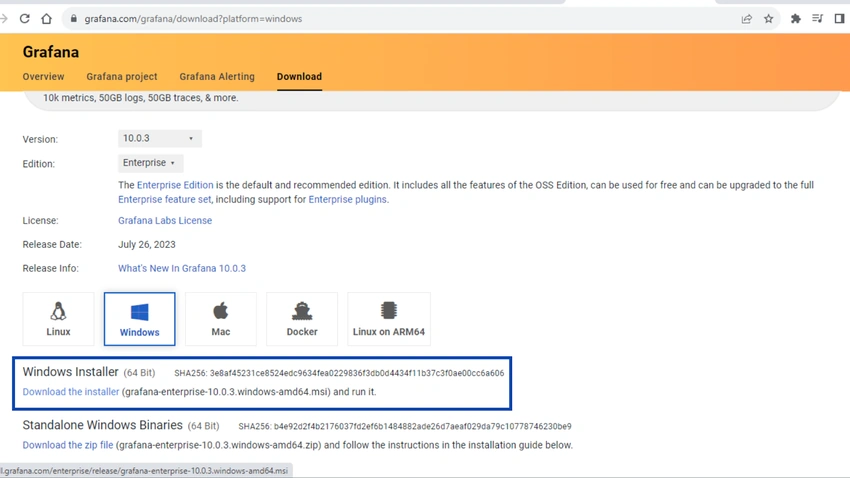
To start the installation process, visit the official Grafana website and navigate to the Download Grafana section. Select the appropriate version for Windows, either 32-bit or 64-bit, depending on your system's architecture. Download the installer package to your machine.
Step 2. Run the Installer
Once the download is complete, locate the downloaded Grafana installer package (usually a .msi file) and double-click on it to begin the installation process. Installer wizards walk you through the process.
Step 3. Choose Installation Location
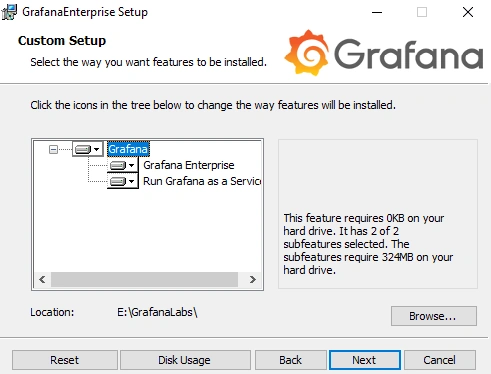
In the installation wizard, you will be prompted to choose the installation location for Grafana. The default location is usually suitable, but you can select a different folder if necessary. Click Next to proceed.
Step 4. Select Components
In this step, you can choose which components you want to install along with Grafana. The typical installation includes Grafana Server and Grafana Web Interface. Leave the default selections unchanged and click Next.
Step 5. Start the Installation
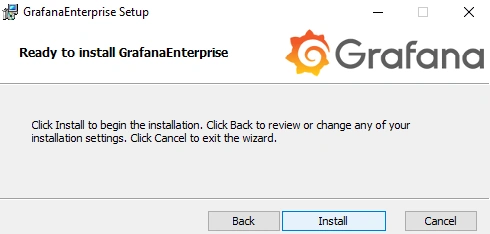
The installer is now ready to start installing Grafana on your Windows machine. Review your selected options once again, and if everything looks good, click "Install" to begin the installation process.
Step 6. Complete the Installation
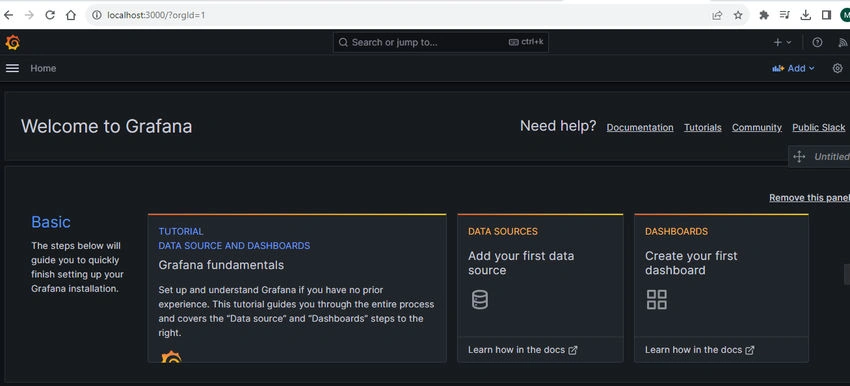
Once the installation process is complete, you will see a confirmation message indicating that Grafana has been successfully installed. Make sure to check the option to launch Grafana after installation and click "Finish."


Join the conversation! Your thoughts help the community grow.