Introduction
In this article, I will explain how to install the SQL Server 2022 Developer Edition and SQL Server Management Studio (SSMS) step by step. The latest version of SQL Server is 2022, and the latest version of SQL Server Management Studio (SSMS) is 19.0.2, released on March 13, 2023. Developer Edition is free.
MS SQL Server- Editions
There are 4 different types of editions available in SQL Server 2022.
- Enterprise – It has more features than any other edition
- It is the top-end edition
- Production use
- License cost
- Standard – Production use
- License cost
- It has fewer features than Enterprise
- Express – Free software/free to download and install
- It has a 10 GB size limit, only used for small applications.
- Developer – Free software/free to download and install
- The developer is the same as Enterprise
- But for non-production use.
- It is used to learn, build and test.
I am using SQL Server 2022 Developer Edition because it is a free software/free to download and install.
How to install SQL Server 2022 Developer Edition?
Step 1
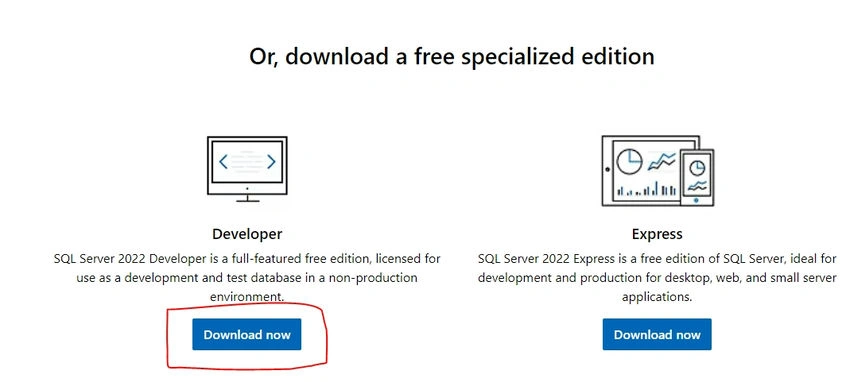
To install SQL Server 2022, you need to download it from this Link https://www.microsoft.com/en-in/sql-server/sql-server-downloads
Step 2
Click the "Download" button for downloading the SQL Server 2022 executable file.
Step 3
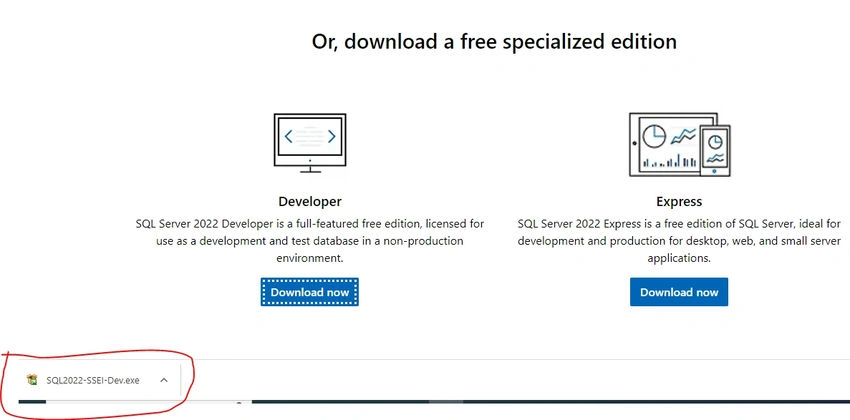
Open your systems download path and find the .exe file. SQL2022-SSEI-Dev.exe

Step 4
Double-click the exe file SQL2022-SSEI-Dev.exe to start installing.

Step 5
After double-clicking, the system will ask the permission: "Do you want to allow the following to make a change to this computer? Click yes to continue installing the SQL Server 2022. Or Click "Yes" on any security prompt.
Step 6
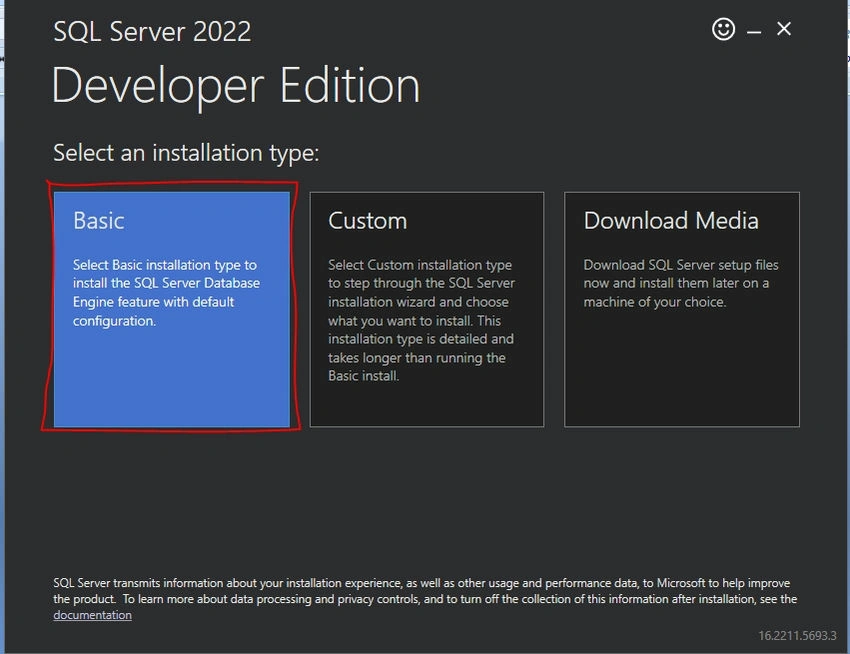
The installer asks you to select the installation type and choose the Basic installation type.
Step 7
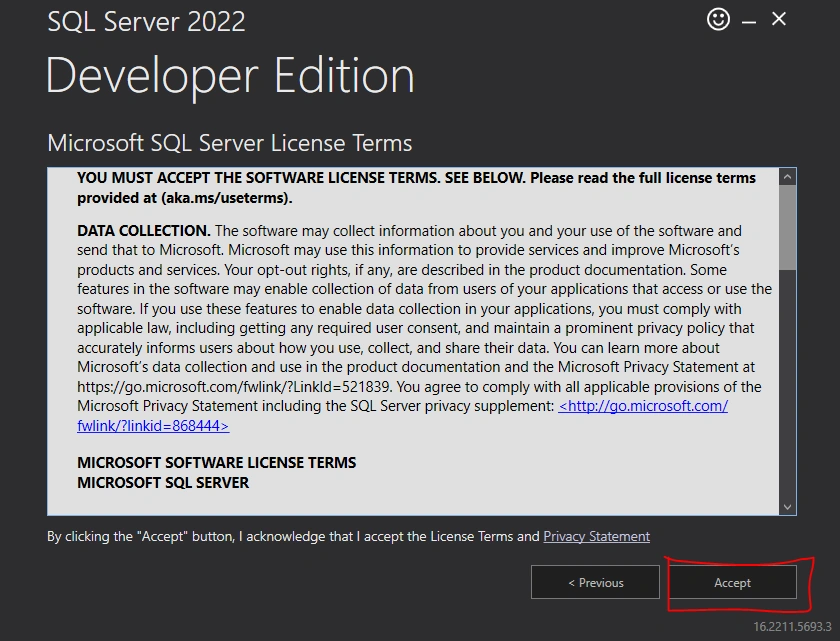
Accept Microsoft license terms, then click the Accept button.
Step 8
Click the Install button. The installer automatically downloads and installs SQL Server.
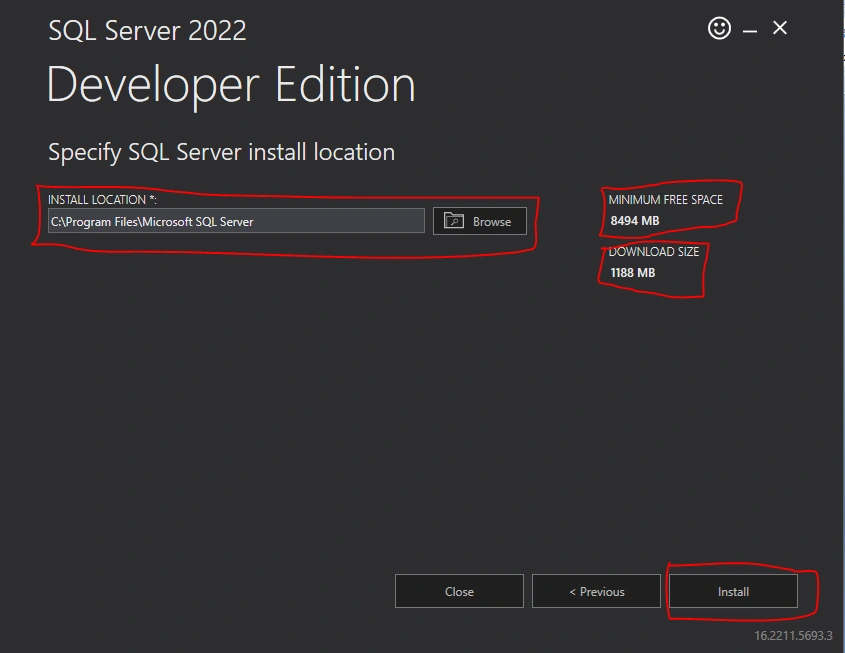
Step 9
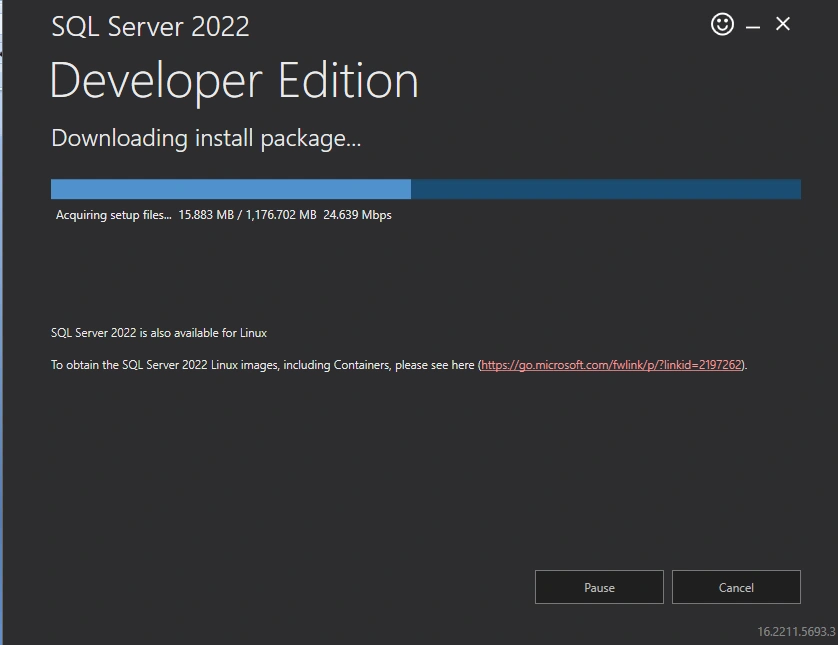
After loading packages, the progress bar will be shown. Wait for a few minutes while the installer downloads and installs packages.
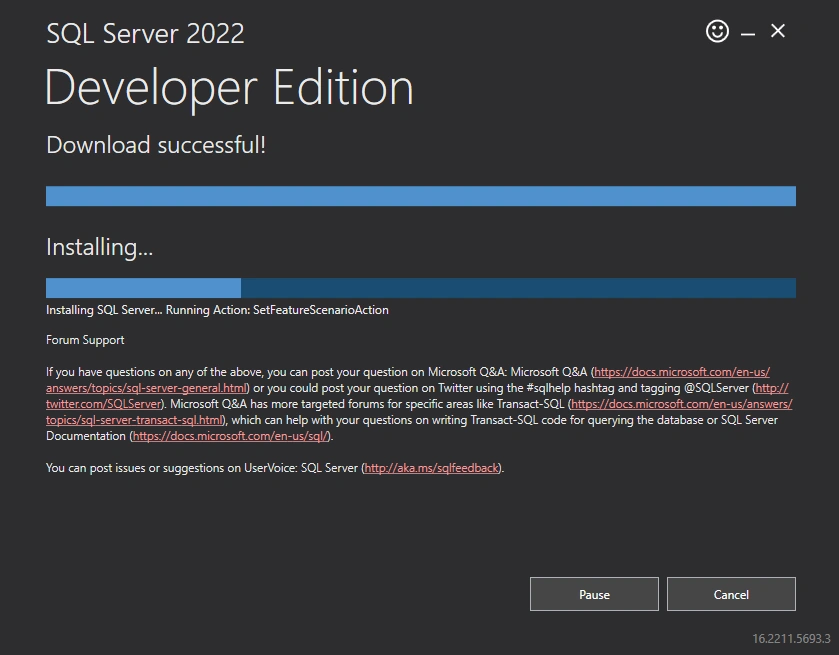
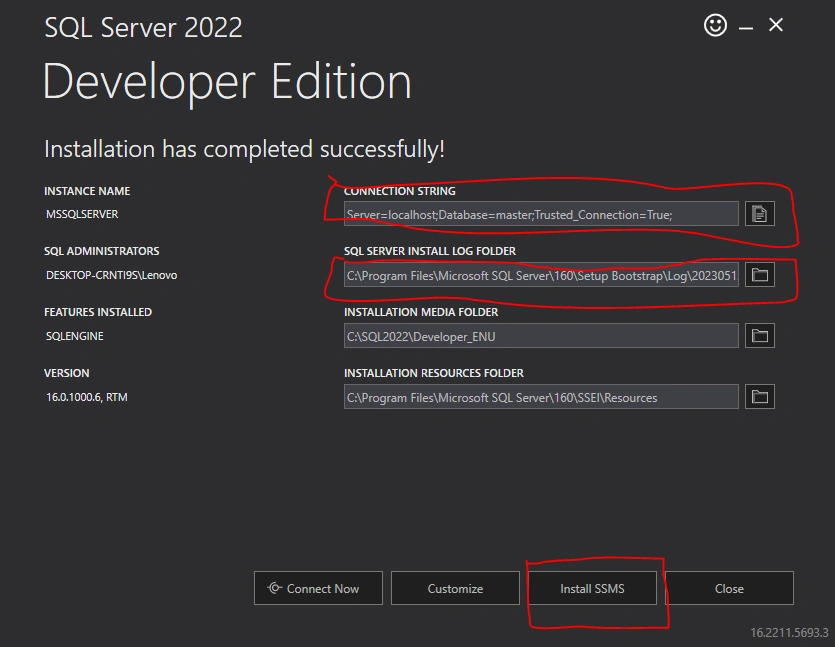
Installation completed for Database Engine.
Congratulations!!! You have successfully installed SQL Server 2022 Developer Edition.
Now install other software called SQL Server Management Studio
Install Microsoft SQL Server Management Studio
Step 1
Click the Install SSMS button to Download and install SQL Server Management Studio.
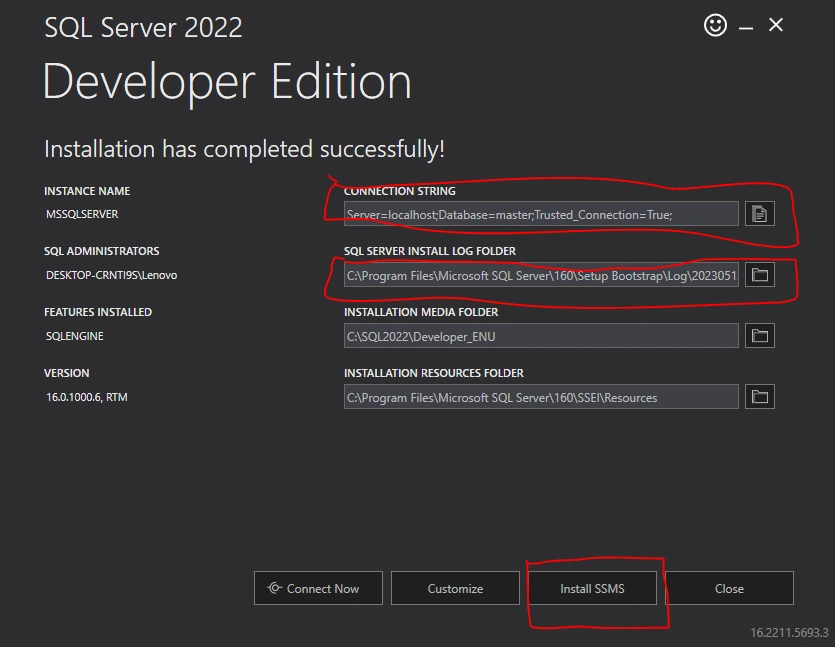
Step 2
Then the page redirects to the Microsoft Download page; you must download it from this Link.
https://learn.microsoft.com/en-us/sql/ssms/download-sql-server-management-studio-ssms?redirectedfrom=MSDN&view=sql-server-ver16
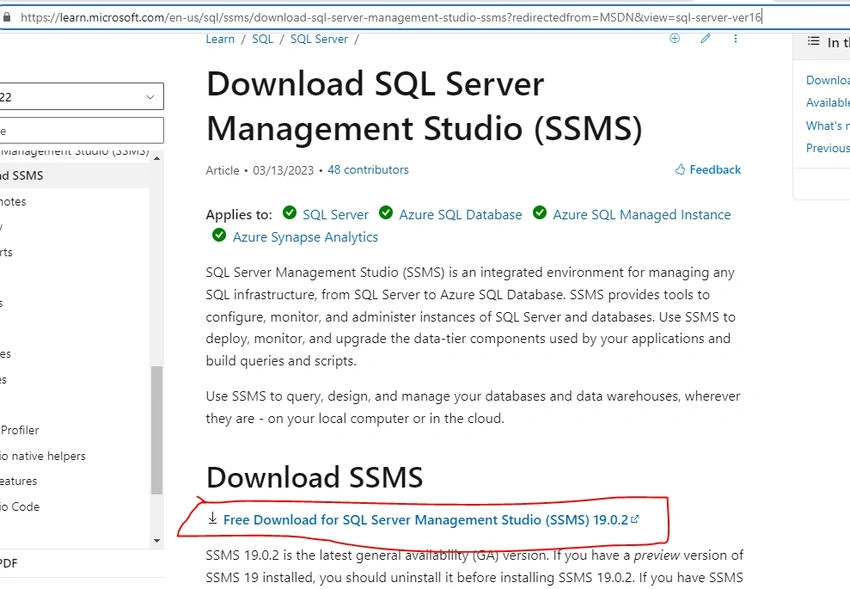
Step 3
Click the "Download" button for downloading the SSMS 2022 executable file on the downloaded path.
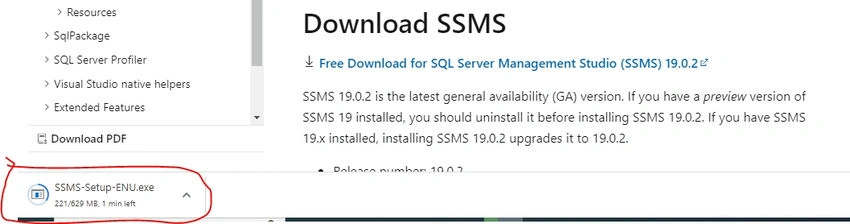
Step 4
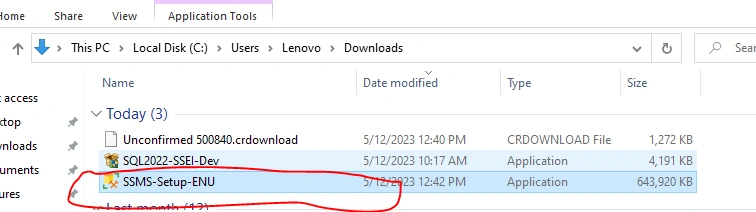
Open your systems download path and find the .exe file. SSMS-Setup-ENU.exe
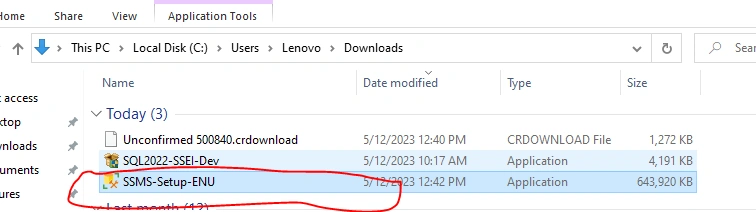
Step 5
Double-click the exe file SSMS-Setup-ENU.exe to start installing. The installation process of SMSS is straightforward, and you just need to follow the screen sequence.
Step 6
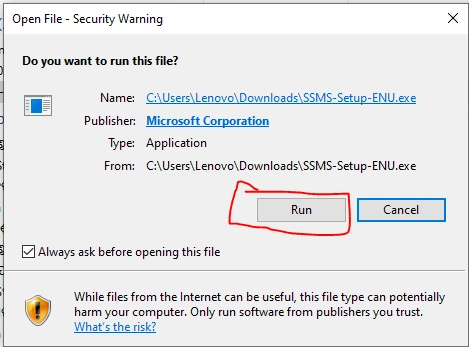
After double-clicking, the system will ask permission: "Do you want to allow the following to change on this computer? Click yes to continue installing the SQL Server Management Studio 2022. Or Click "Yes" on any security prompt." Or click on the "RUN" button when getting a security warning.
Step 7
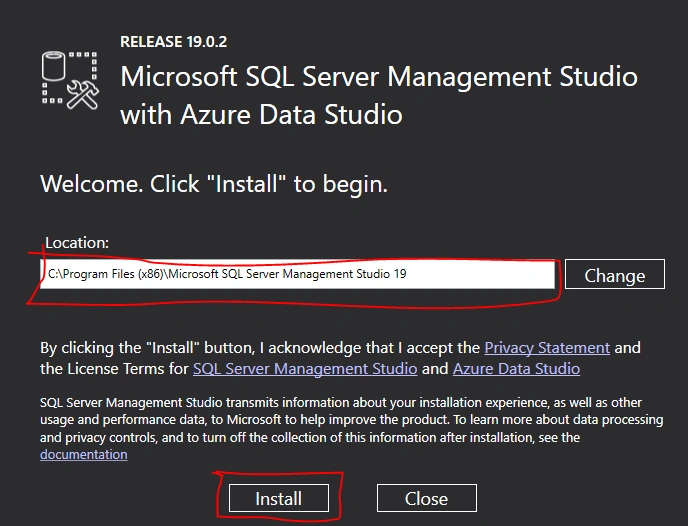
The installation window will be open after giving permission to install. Click the Install button.
Step 8
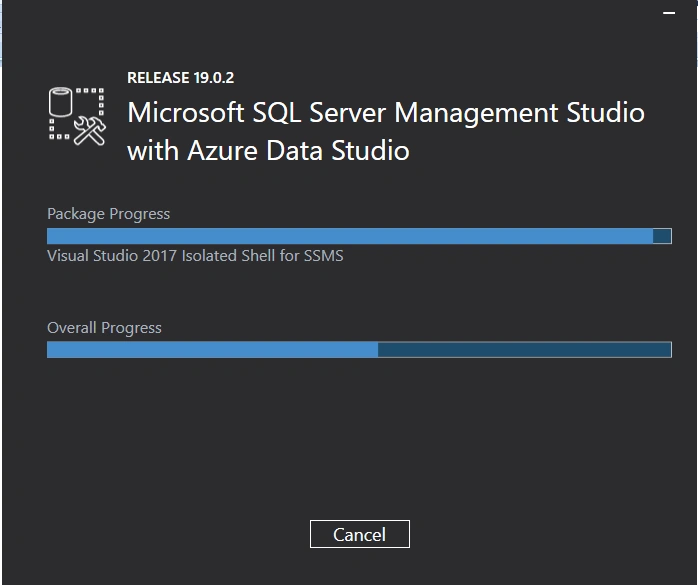
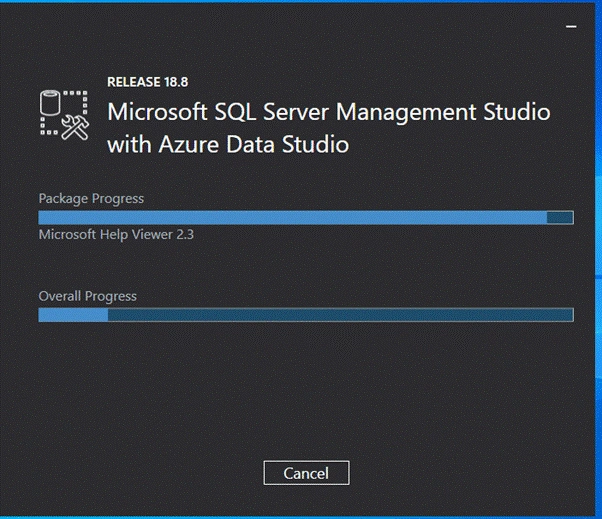
After loading packages, the progress bar will be shown. One is Package Progress and Overall Progress. Wait for a few minutes while the installer sets up the software.
Step 9
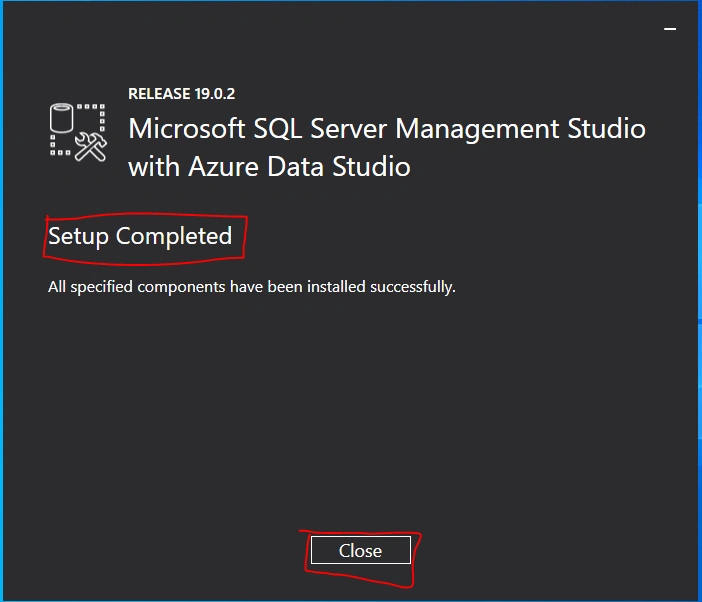
Installation completed. Now click the Close button; after completing the installation restart your computer for complete setup.
Step 10
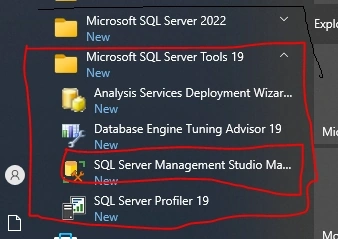
Go to all programs in your systems; we can see two folders, one is Microsoft SQL Server 2022, and another one is Microsoft SQL Server Tool 2019. Under Microsoft SQL Server Tools 19, you can see the Microsoft SQL Server Management Studio 19.
Step 11
Double-click on SQL Server Management Studio 19, and it will open looks like the below screenshot. The first opening will take a few minutes.
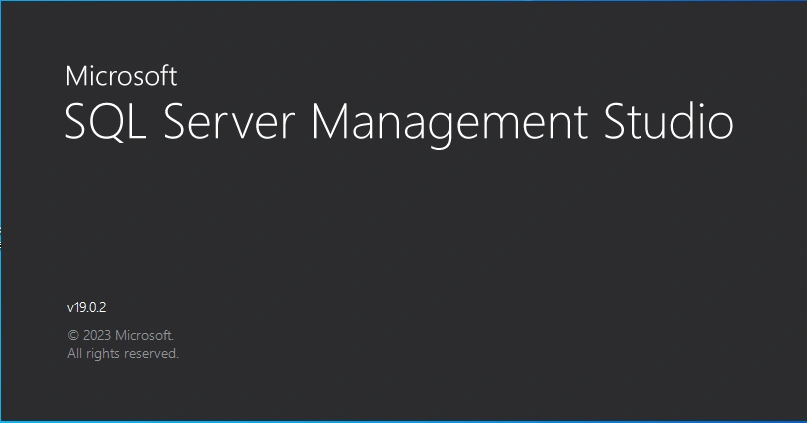
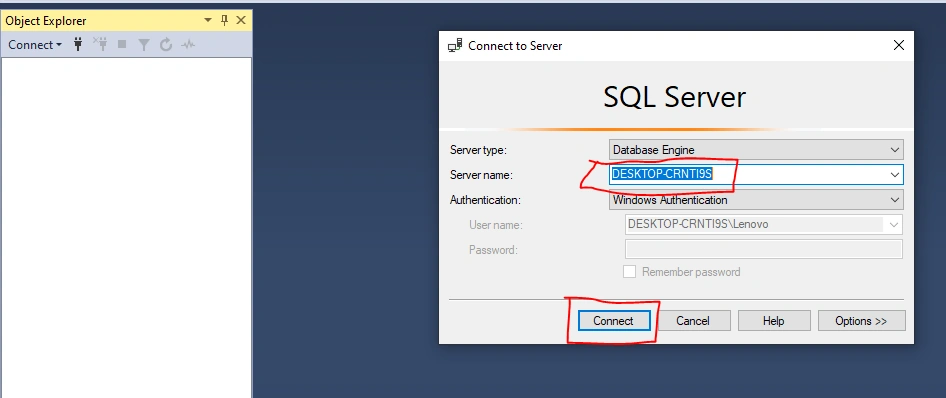
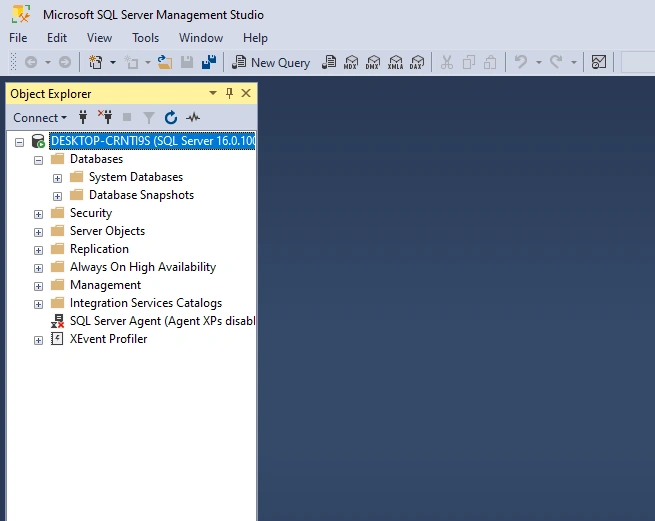
After opening SQL Server Management Studio 2019, it looks like the above screenshot.
Conclusion
In this article, we explained how to install SQL Server 2022 Developer Edition step by step.


Join the conversation! Your thoughts help the community grow.