

Introduction
In this article, we will learn what reCaptcha is for Android and how to integrate the same to Android apps.
This option is provided by Google. Google’s reCaptcha API protects your app from malicious traffic and it is integrated with your Android apps using SafetyNet API. The service is free to use and it will show a Captcha to be solved if the engine suspects user interaction to be a bot instead of a human.
How does it work?
The following points explain the simple flow of reCaptcha in Android with SafetyNet API.
- We need to get the site key pair from SafetyNet by registering our app.
- We will get Site Key and get user response token from SafetyNet server using SafetyNet API in Android.
- Then, validate the token with the SafetyNet server using the curl commands and site key.
Registering your App with SafetyNet Server
- Open the reCaptcha site from the following link.
https://www.google.com/recaptcha/admin#list
- Go to Register New Site section and select Option reCAPTCHA Android. The following figure explains the same.
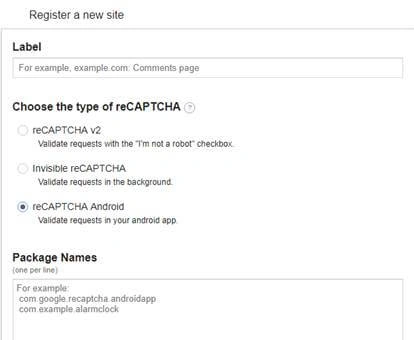 Figure 1
- Then, add your Package Name in Package Names Section as shown in the above figure. We can add multiple apps and each can be separated by hitting Enter or new line.
- Check or select the "Accept Terms" Checkbox and click the Register button. The following figure shows the same.
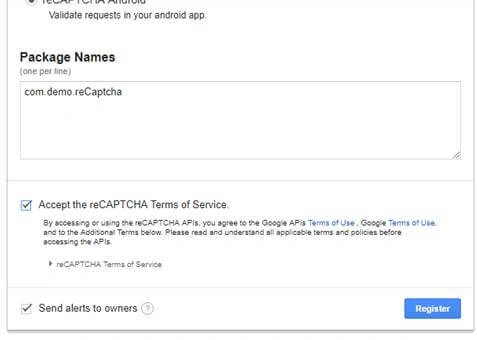 Figure 2
- Then, you will get the site key and secret key from SafetyNet API Server and it as well as shows client and server-side integration code snippets. The following figures show the same.
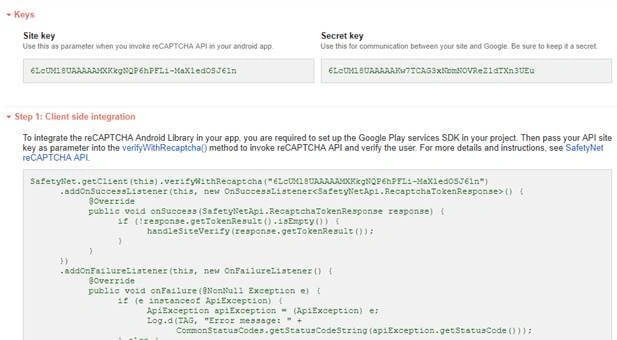 Figure 3
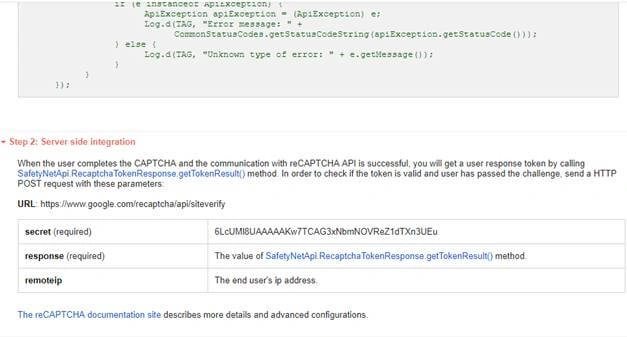 Figure 4
I have divided this implementation into 4 steps, as shown in the following.
- Step 1: Creating a New Project with Android Studio
- Step 2: Setting up the library and AndroidManifest for the project.
- Step 3: Implementation of the SafetyNet API.
- Step 4: Captcha Response Token Validation.
Step 1 - Creating a New Project with Android Studio
- Open Android Studio and select "Create New Project".
- Name the project as you wish and select your activity template.
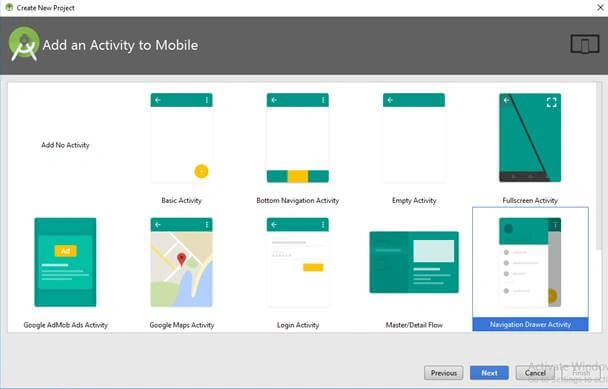
- Click the “Finish” button to create a new project in Android Studio.
Step 2 - Setting up the library and AndroidManifest for the project
- Add Google Play service library dependency in your app level build.gradle file. Here, I used the following dependency. You can change as per your Android SDK.
- implementation 'com.google.android.gms:play-services-safetynet:15.0.1'
- implementation 'com.android.volley:volley:1.1.0’
- Then, click “Sync Now” to add the library.
- Now, open your App Manifest file (AndroidManifest.xml) and add the following permission.
- <uses-permission android:name="android.permission.INTERNET" />
- SafetyNet library is used to create the Captcha Validation in Android.
Volley Library is an HTTP Networking Library used here for validating Captcha Response.
Step 3 - Implementation of SafetyNet API:
- Add the following to get the Captcha Token from SafetyNet Server.
- SafetyNet.getClient(this).verifyWithRecaptcha(SITE_KEY)
- .addOnSuccessListener(this, new OnSuccessListener<SafetyNetApi.RecaptchaTokenResponse>() {
- @Override
- public void onSuccess(SafetyNetApi.RecaptchaTokenResponse response) {
- if (!response.getTokenResult().isEmpty()) {
- handleCaptchaResult(response.getTokenResult());
- }
- }
- })
- .addOnFailureListener(this, new OnFailureListener() {
- @Override
- public void onFailure(@NonNull Exception e) {
- if (e instanceof ApiException) {
- ApiException apiException = (ApiException) e;
- Log.d(TAG, "Error message: " +
- CommonStatusCodes.getStatusCodeString(apiException.getStatusCode()));
- } else {
- Log.d(TAG, "Unknown type of error: " + e.getMessage());
- }
- }
- });
- Replace “SITE_KEY” with your appropriate “Site Key” get from SafetyNet API while registering app.
- The API will check the Server and it has a separate callback from success and failure.
- At Success, we will get Captcha Response Token which will be used to validate the user interaction is made by a bot or real human.
- We will discuss how to validate the token with SafetyNet API Server in the next step.
Step 4 - Captcha Response Token Validation
- We have to verify the token getting from the server using the secret key.
- It can achieve by using the following.
- API Link - https://www.google.com/recaptcha/api/siteverify
- Method - POST
- Params – secret, response (We have to pass the “SECRET_KEY” and “TOKEN” respectively)
Dawinder SinghPosted Feb 7, 2019, 10:17 PM
Did not get any option to enter package name in above given google link. I think google update that link. Please open that link and check. Captcha is not working with above given code.
Hadshana KamalanathanPosted Jul 22, 2018, 6:28 AM
Good one ....
Abhijit SahooPosted Jul 4, 2018, 6:38 AM
Nicely explained