

Introduction
A payment gateway is an indispensible part of any Android application. There are many payment gateways available in the market, but today we will learn about a very popular payment gateway known as Razorpay. Razorpay Android Standard SDK lets you easily integrate the Razorpay Payment Gateway with your Android application.
Prerequisites
- Create Razorpay account
- Generate test and live keys from dashboard. (Test keys are easy to test in that there will be no deduction of money.)
After creation of Razorpay account go to dashboard and generate a test key for testing purposes like shown in the image below.
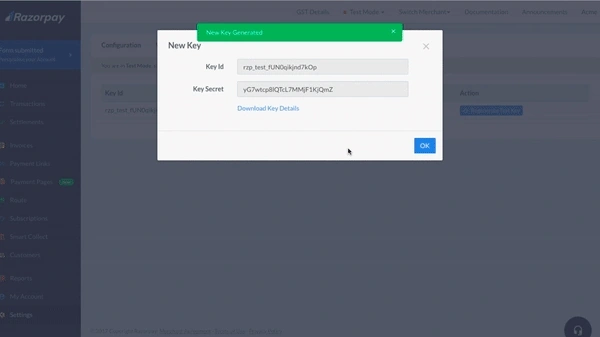
The key will look like : rzp_test_LdI1ob5rGXZDF6
Integration Steps
Step 1 - Add Razorpay sdk to your build.gradle file
- repositories {
- mavenCentral()
- }
- dependencies {
- implementation 'com.razorpay:checkout:1.5.16'
- }
- @Override
- public void onCreate(Bundle savedInstanceState) {
- super.onCreate(savedInstanceState);
- checkout.setKeyID("rzp_test_LdI1ob5rGXZDF6");
- // ...
- }
Step 3 - Create order on server (Optional)
You can use your backened custom order id. Create an order using Orders API in server. This generates an order_id when the customer places an order on your app. This order_id must be passed by you during checkout.
You can use your backened custom order id. Create an order using Orders API in server. This generates an order_id when the customer places an order on your app. This order_id must be passed by you during checkout.
- try {
- JSONObject orderRequest = new JSONObject();
- orderRequest.put("amount", 12000); // amount in the smallest currency unit
- orderRequest.put("currency", "INR");
- orderRequest.put("receipt", "order_rcptid_11");
- Order order = razorpay.Orders.create(orderRequest);
- } catch (RazorpayException e) {
- // Handle Exception
- System.out.println(e.getMessage());
- }
- {
- "id": "order_DBJOWzybf0sJbb",
- "entity": "order",
- "amount": 50000,
- "amount_paid": 0,
- "amount_due": 50000,
- "currency": "INR",
- "receipt": "rcptid_11",
- "status": "created",
- "attempts": 0,
- "notes": [],
- "created_at": 1566986570
- }
Step 4 - Inititate payment
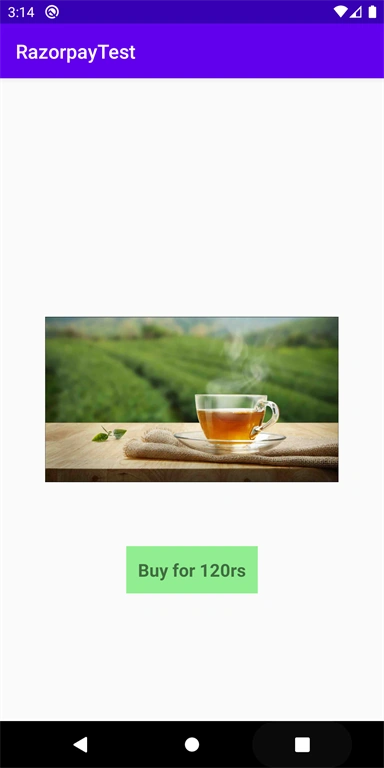
Firstly we have created some xml to show what we are checking out -- let's see our xml file activity_main.xml
Firstly we have created some xml to show what we are checking out -- let's see our xml file activity_main.xml
- <?xml version="1.0" encoding="utf-8"?>
- <RelativeLayout xmlns:android="http://schemas.android.com/apk/res/android"
- xmlns:app="http://schemas.android.com/apk/res-auto"
- xmlns:tools="http://schemas.android.com/tools"
- android:layout_width="match_parent"
- android:layout_height="match_parent"
- tools:context=".MainActivity">
- <ImageView
- android:id="@+id/imageview"
- android:layout_width="300dp"
- android:layout_height="300dp"
- android:src="@drawable/ic_tea"
- android:layout_centerInParent="true">
- </ImageView>
- <TextView
- android:id="@+id/textview"
- android:layout_width="wrap_content"
- android:layout_height="wrap_content"
- android:text="Buy for 120rs"
- android:textSize="18sp"
- android:textStyle="bold"
- android:background="#90EE90"
- android:padding="12dp"
- android:layout_below="@id/imageview"
- android:layout_centerHorizontal="true"/>
- </RelativeLayout>

LIJU DANIELPosted May 29, 2021, 5:46 PM
How to add proguard rules for this razor pay dll