

Introduction
In this article, we are going to see how to create a scheduler component and configure its available Angular.
First, we setup an angular application using angular CLI. Once finish the setup need to add a schedule reference package. Please refer and install the below scheduler component npm command.
npm install @syncfusion/ej2-angular-schedule --save
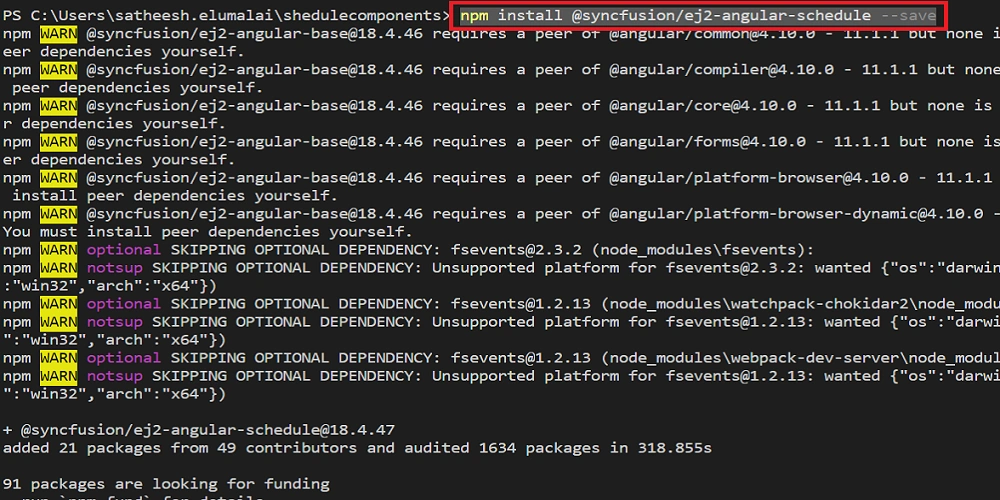
After installing that reference the related dependencies are added in the package.json file.
Import Weekly Schedule Module
Now add the schedule module to the app.module.ts file. Please add the below code to your app.module.ts file.
- import {
- NgModule
- } from '@angular/core';
- import {
- BrowserModule
- } from '@angular/platform-browser';
- import {
- AppRoutingModule
- } from './app-routing.module';
- import {
- AppComponent
- } from './app.component';
- import {
- ScheduleModule
- } from '@syncfusion/ej2-angular-schedule';
- @NgModule({
- declarations: [
- AppComponent
- ],
- imports: [
- BrowserModule,
- AppRoutingModule,
- ScheduleModule
- ],
- providers: [],
- bootstrap: [AppComponent]
- })
- export class AppModule {}
Adding CSS Reference File
Schedule CSS files are available in the ej2-angular-schedule package folder. This can be referenced in your application using the following code.
- /* You can add global styles to this file, and also import other style files */
- @import '../node_modules/@syncfusion/ej2-base/styles/material.css';
- @import '../node_modules/@syncfusion/ej2-buttons/styles/material.css';
- @import '../node_modules/@syncfusion/ej2-calendars/styles/material.css';
- @import '../node_modules/@syncfusion/ej2-dropdowns/styles/material.css';
- @import '../node_modules/@syncfusion/ej2-inputs/styles/material.css';
- @import '../node_modules/@syncfusion/ej2-lists/styles/material.css';
- @import '../node_modules/@syncfusion/ej2-popups/styles/material.css';
- @import '../node_modules/@syncfusion/ej2-navigations/styles/material.css';
- @import '../node_modules/@syncfusion/ej2-angular-schedule/styles/material.css';
Module injection
The scheduler module required some of the modules. So we are going to inject the needed module for those views. Please refer to the below names.
- Day - Inject this module for displaying day view.
- Week - Inject this module for displaying the week view.
- WorkWeek - Inject this module for displaying the workweek view.
- Month - Inject this module for displaying the month view.
- Year - Inject this module for displaying the year view.
- Agenda - Inject this module for displaying agenda view.
- MonthAgenda - Inject this module for displaying the month agenda view.
- TimelineViews - Inject this module for displaying timeline day, timeline week, timeline work week view.
- TimelineMonth - Inject this module for displaying timeline month view.
- TimelineYear - Inject this module for displaying timeline year view.
These modules should be injected into the schedule using the providers' method within the app.component.ts.
- import {
- Component
- } from '@angular/core';
- import {
- DayService,
- WeekService,
- WorkWeekService,
- MonthService,
- AgendaService
- } from '@syncfusion/ej2-angular-schedule';
- @Component({
- selector: 'app-root',
- providers: [DayService, WeekService, WorkWeekService, MonthService, AgendaService],
- templateUrl: './app.component.html',
- styleUrls: ['./app.component.css']
- })
- export class AppComponent {
- title = 'shedulecomponents';
- }
ScheduleInitialization
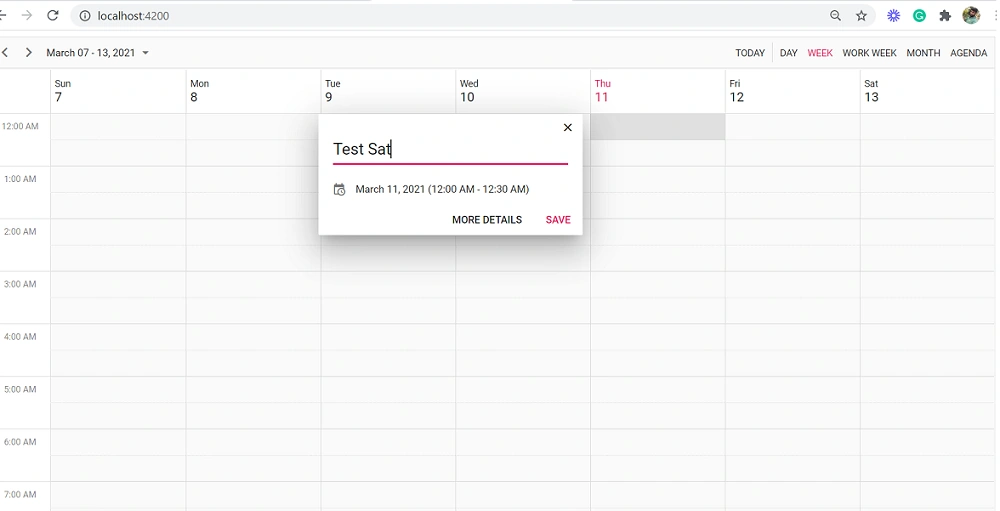
Add <ejs-schedule> </ejs-schedule> tag to app.components.html file. Followed above steps and codes and run the application ng serve --open
Set Date
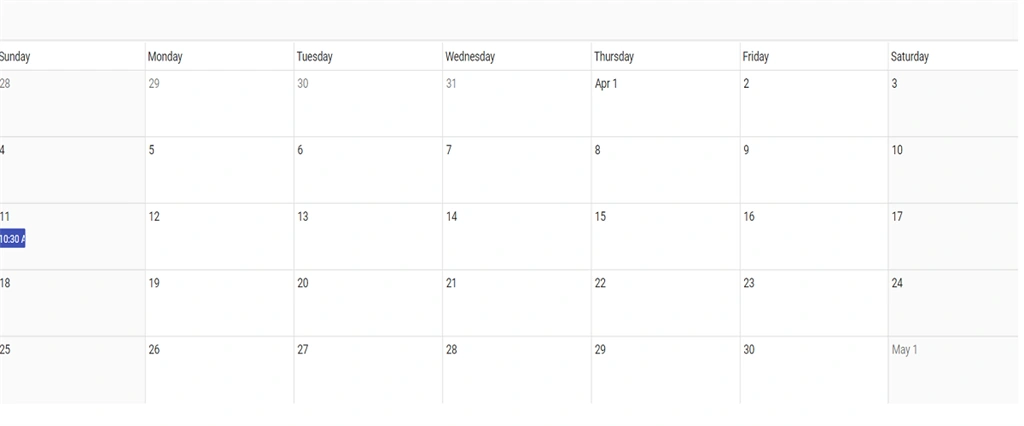
The scheduler usually displays the system date as its current date. To change the current date of Scheduler with a specific date, define the selecteddatavalue property.
- public selecteddatavalue : Date = new Date(2021, 3, 11);
Highlights appointments
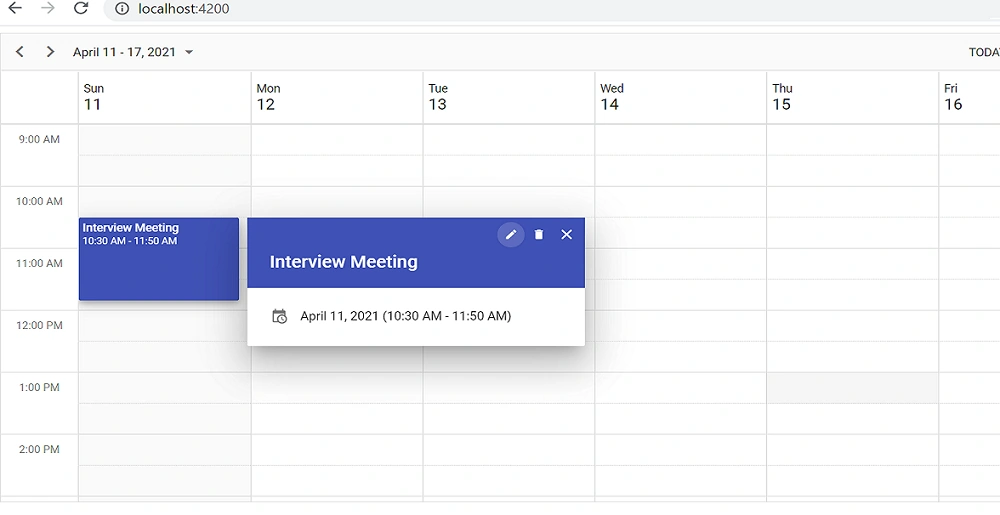
Next to populate the empty scheduler with appointments, define some of the json data passed to the datasource property available within the eventSettings option.
The eventSettings options need to import EventSettingsModel from @syncfusion/ej2-angular-schedule.
To define any appointments, start and end times are required. In the following example, you can see the appointment defined with default fields such as Id, Subject, StartTime, and EndTime.
app.component.html
Join the conversation! Your thoughts help the community grow.