In this article, I will tell you how to import an image from the Gallery in Android.
If we want to change the background in Android then we import an from the Gallery and set that image as the background image.
To do that we must use the following procedure.
Step 1
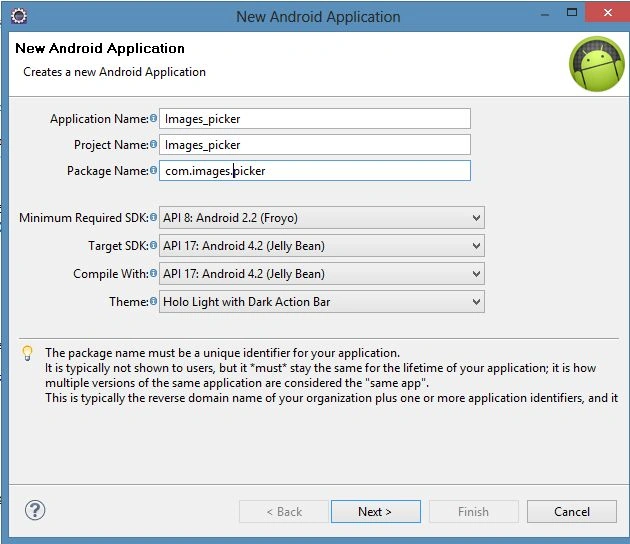
To create a new project: "New" --> "Android Application project" --> set the name to "Image_picker."
Step 2
Open the Image_picker/Manifest.xml file and update it using the following code.
- <?xml version="1.0" encoding="utf-8"?>
- <manifest xmlns:android="http://schemas.android.com/apk/res/android"
- package="com.novoda"
- android:versionCode="1"
- android:versionName="1.0">
- <uses-permission android:name="android.permission.READ_CONTACTS" />
- <uses-sdk android:minSdkVersion="3" />
- <application android:icon="@drawable/ic_launcher" android:label="@string/app_name">
- <activity android:name=".ContactSelector"
- android:label="@string/app_name">
- <intent-filter>
- <action android:name="android.intent.action.MAIN" />
- <category android:name="android.intent.category.LAUNCHER" />
- </intent-filter>
- </activity>
- </application>
- </manifest>
Step 3
Open the Image_picker/res/layout/activity_main.xml file and update it using the following code.
- <?xml version="1.0" encoding="utf-8"?>
- <LinearLayout xmlns:android="http://schemas.android.com/apk/res/android"
- android:orientation="vertical"
- android:layout_width="fill_parent"
- android:layout_height="fill_parent">
- <ImageView
- android:id="@+id/imgView"
- android:layout_width="fill_parent"
- android:layout_weight="1" android:layout_height="wrap_content"></ImageView>
- <Button
- android:layout_height="wrap_content"
- android:text="Load Picture"
- android:layout_width="wrap_content"
- android:id="@+id/buttonLoadPicture"
- android:layout_weight="0"
- android:layout_gravity="center"></Button>
- </LinearLayout>
Step 4
Open the Image_picker/res/values/string.xml file and update it using the following code.
- <?xml version="1.0" encoding="utf-8"?>
- <resources>
- <string name="hello">Hello World, ImageGalleryDemoActivity!</string>
- <string name="app_name">ImageGalleryDemo</string>
- </resources>
Step 5
Open Image_picker/src/com.image.picker/MainActivity.java and update this file using your contact picking logic as in the following.
- package net.viralpatel.android.imagegalleray;
- import android.app.Activity;
- import android.content.Intent;
- import android.database.Cursor;
- import android.graphics.BitmapFactory;
- import android.net.Uri;
- import android.os.Bundle;
- import android.provider.MediaStore;
- import android.view.View;
- import android.widget.Button;
- import android.widget.ImageView;
- public class MainActivity extends Activity {
- private static int RESULT_LOAD_IMAGE = 1;
- @Override
- public void onCreate(Bundle savedInstanceState) {
- super.onCreate(savedInstanceState);
- setContentView(R.layout.main);
- Button buttonLoadImage = (Button) findViewById(R.id.buttonLoadPicture);
- buttonLoadImage.setOnClickListener(new View.OnClickListener() {
- @Override
- public void onClick(View arg0) {
- Intent i = new Intent(
- Intent.ACTION_PICK,
- android.provider.MediaStore.Images.Media.EXTERNAL_CONTENT_URI);
- startActivityForResult(i, RESULT_LOAD_IMAGE);
- }
- });
- }
- @Override
- protected void onActivityResult(int requestCode, int resultCode, Intent data) {
- super.onActivityResult(requestCode, resultCode, data);
- if (requestCode == RESULT_LOAD_IMAGE && resultCode == RESULT_OK && null != data) {
- Uri selectedImage = data.getData();
- String[] filePathColumn = { MediaStore.Images.Media.DATA };
- Cursor cursor = getContentResolver().query(selectedImage,
- filePathColumn, null, null, null);
- cursor.moveToFirst();
- int columnIndex = cursor.getColumnIndex(filePathColumn[0]);
- String picturePath = cursor.getString(columnIndex);
- cursor.close();
- ImageView imageView = (ImageView) findViewById(R.id.imgView);
- imageView.setImageBitmap(BitmapFactory.decodeFile(picturePath));
- }
- }
- }
Step 6
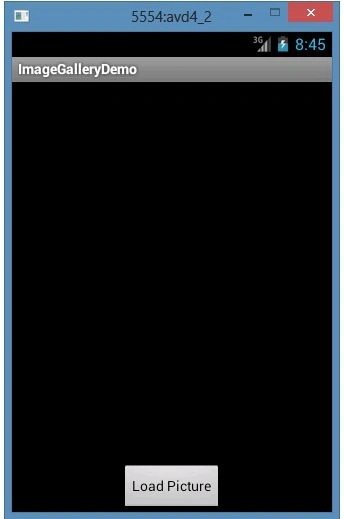
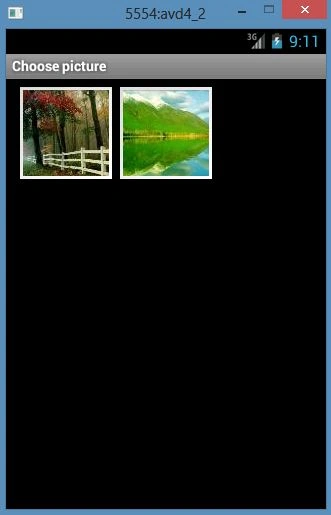
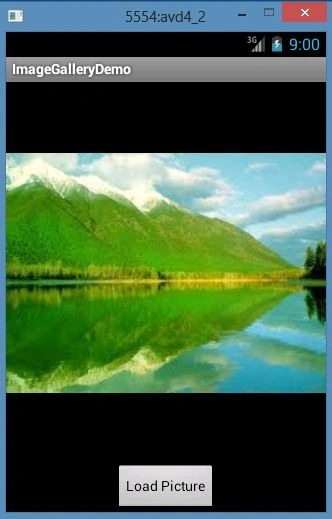
Run the application in an Android virtual device and see the output.
Load an Image
Select an Image
Loaded Image


Al CheserPosted May 5, 2016, 8:28 PM
I have completed the program, but when I select the image, it does not show up on the screen?