

Updated 8/29/2018 - Formatted
This is the next article of the 'How to make Image editing tool' project. In the first article we learned how to show or open image file in our C# application with a very professional look.
Now in this article we will learn about resizing the image.
Design the right panel with the help of a tabcontrol and a DomainUpDown control, so that the user can input a percentage of the original size of image.
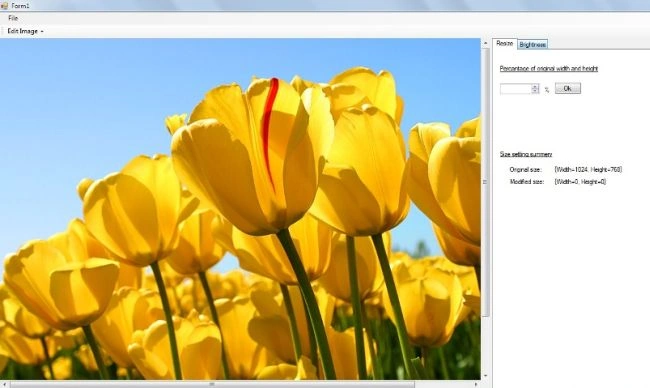
Put the values 1 to 1000 in domainupdown control
- private void BindDomainIUpDown()
- {
- for (int i = 1; i <= 999; i++)
- {
- DomainUpDown1.Items.Add(i);
- }
- DomainUpDown1.Text = "100";
- }
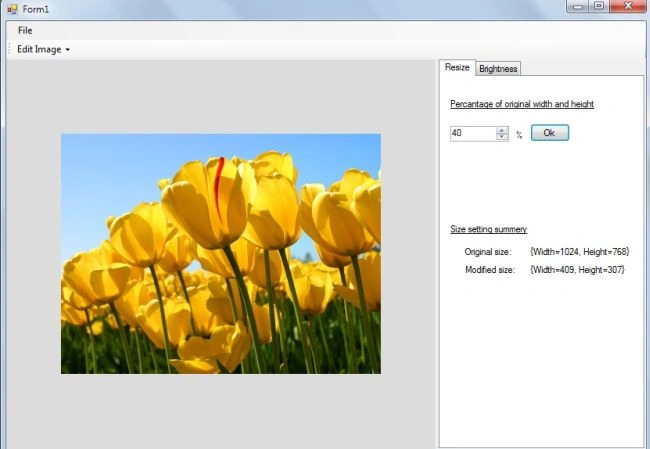
We declare the two variables ModifiedImageSize and OriginalImageSize; OriginalImageSize refers to the original width and height of the image and ModifiedImageSize refers to the width and height of the image after the DomainUpDown control's value selection.
- private Size OriginalImageSize;
- private Size ModifiedImageSize;
We can calculate original size of the image like this:
- int imgWidth = Img.Width;
- int imghieght = Img.Height;
- OriginalImageSize = new Size(imgWidth, imghieght);
And modifiedSize
Jignesh KumarPosted Aug 29, 2018, 2:15 AM
Good article thanks
Purushottam RathorePosted Mar 23, 2011, 12:27 AM
hi harendra.. Good article. keep it up... Thanks