

Introduction
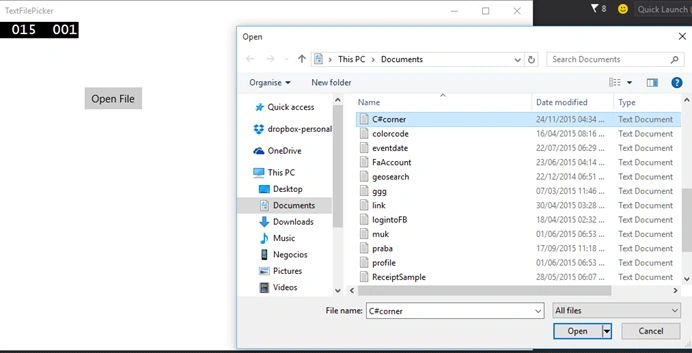
In Windows 10 we have OpenFileDialog which opens a dialog to pick the files. Here we are going to pick the text file in Windows 10.
Create a new Windows 10 project and create a button and image control to perform File Picker operation.
Firstly, create a new instance for FileOpenPicker as in the following code snippet:
- FileOpenPicker openPicker = new FileOpenPicker();
Next, we have to set file picker ViewMode, you could ignore this, but if you would like to add, there are two options, such as List and Thumbnail. Here I will set thumbnail.
- openPicker.ViewMode = PickerViewMode.Thumbnail;
Then set the suggested location as you wish. I am going to set the default location as a document library.
- openPicker.SuggestedStartLocation = PickerLocationId.DocumentsLibrary;
We need to add FileTypeFilter; it is a mandatory field that you should add. It requires at least one type.
Here I am setting filter type for .txt files.
- openPicker.FileTypeFilter.Add(".txt");
Finally, we are going to show the file picker dialog as in the following code snippet and we have the option to select single or multiple file selection.
- StorageFile file = await openPicker.PickSingleFileAsync();
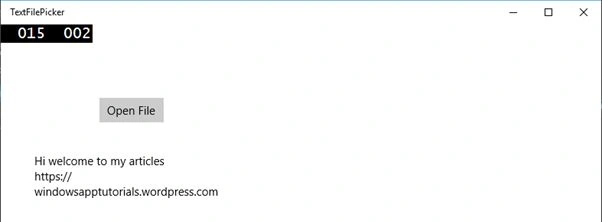
Finally, we are going to read the selected file using a stream and assign it to the text block.
Kuppurasu NagarajPosted Feb 11, 2016, 12:32 PM
Nice Share
Ajay GandhiPosted Nov 25, 2015, 8:20 AM
Nice One
Raja TPosted Nov 25, 2015, 7:54 AM
Nice sharing
Suresh MPosted Nov 25, 2015, 7:16 AM
Thank you Jeetendra
Jeetendra GundPosted Nov 25, 2015, 7:14 AM
Welcome back @Suresh M