

Introduction
In this article, you will see how to record Microsoft Form responses in SharePoint using Microsoft Flow. Microsoft Forms allows the users to:
- Easily create surveys, quizzes, and polls.
- Analyze the responses or results using built-in analytics.
- Access the form or quiz via browser or mobile.
- Export the form data to Excel for additional analysis.
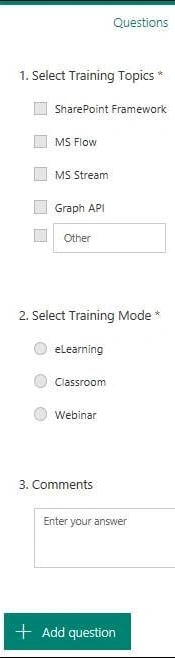
In the previous article, we saw how to create a form in Microsoft Forms. I have created a sample form, as shown in the below screenshot.
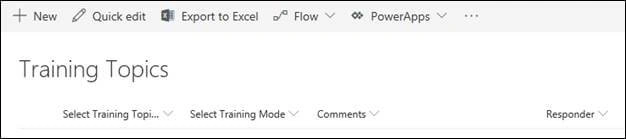
I have created a custom list in SharePoint.
- Select Training Topics: Single line of text
- Select Training Mode: Single line of text
- Comments: Multiline of text
- Responder: People or group
Create and test the flow
- Navigate to the flow site here.
- In the top navigation, click My Flows.
- Click "Create from a template".
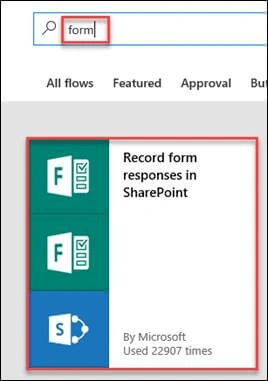
- Type form in the search box and then click search. Select Record form responses in SharePoint.
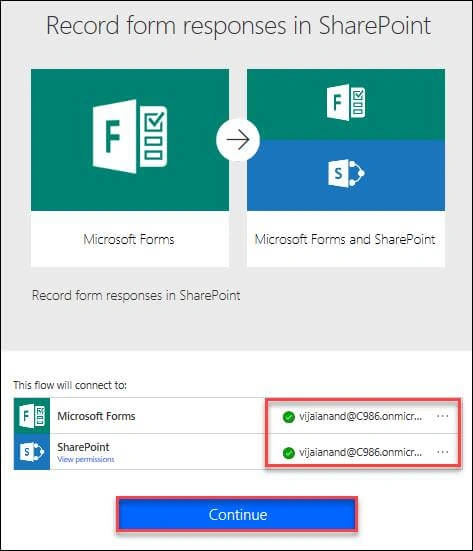
- Enter the credentials and connect to Microsoft Forms and SharePoint connectors. Click "Continue".
- When a new response is submitted, trigger - Select the form ID from the drop-down list.

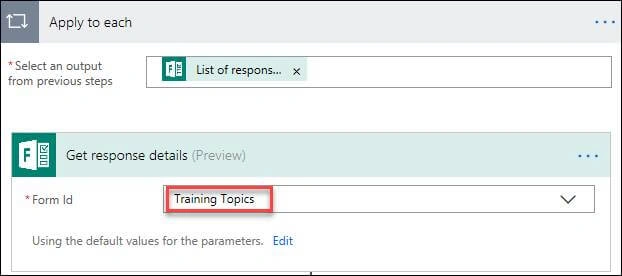
- In the "Get response details" action, select the form ID from the drop-down list.
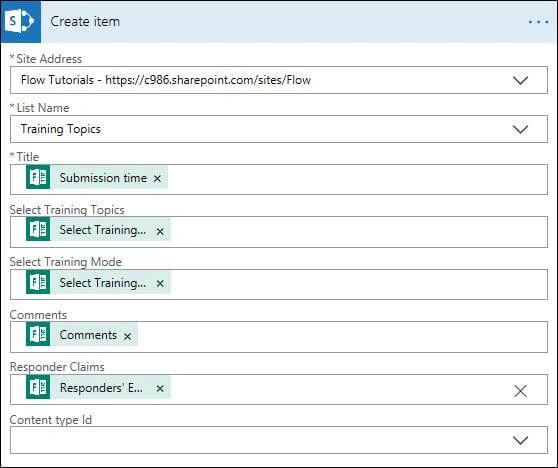
- Create item action: Select the site address, and last name, and add dynamic contents as shown in the below screenshot.
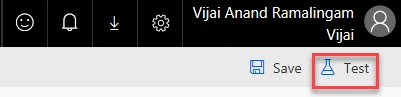
- Click Save, once the changes are completed.
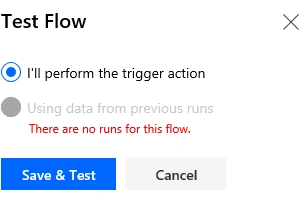
- Click Test to test the workflow.
- Navigate to the form and submit the response.
- Flow ran successfully as shown in the below screenshot.
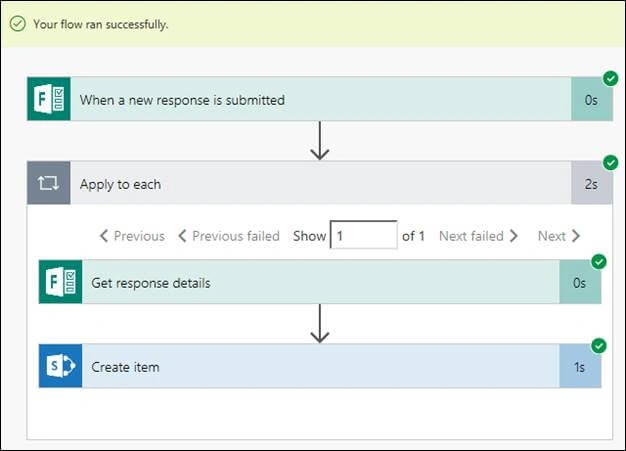
- A new item was created in the SharePoint list, as shown in the below screenshot.

Summary
Thus in this article, you saw how to record form responses in SharePoint using Microsoft Flow.
Guru PrasadPosted Mar 25, 2020, 9:22 AM
Whenever there is multiple selection i wanted to create a separate entry in the share point list ..how to do that?
Omar MatamorosPosted Feb 8, 2020, 11:52 AM
May I use a different form Id created for anothe user?
ShivaranjiniPosted May 10, 2019, 4:27 AM
Hi, In the 8th point what is the list name ? also sharepoint address ? Please update
Jeevanandham MPosted Oct 29, 2018, 10:34 PM
Nice article....