

Introduction
In this article, we are going to explain how to enable or disable Quick Launch in Windows 8. Quick Launch is a small toolbar on the Taskbar that stores shortcuts of applications. Using Quick Launch you can access programs from The program shortcuts. The Quick Launch folder is located in the hidden SysData folder in the C drive of your computer. If you want to add an application shortcut to Quick Launch then you can add shortcuts simply by copying the shortcuts to the Quick Launch folder.
By default, Quick Launch is disabled in Windows 7 and Windows 8 and it is doesn't show on the Taskbar. To enable the Quick Launch toolbar on the Taskbar using following procedure.
How to restore Quick Launch in Windows 8?
Step 1
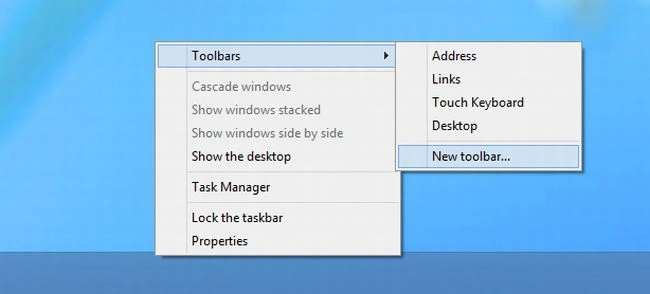
Right-click on the Taskbar and select "New toolbar" from the "Toolbars" option.
Step 2
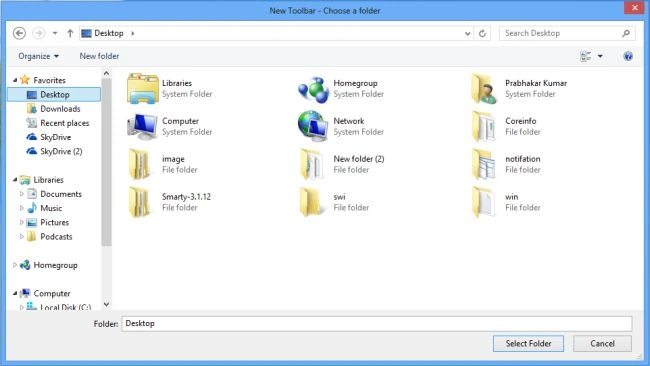
In this step enter the following path in folder path:
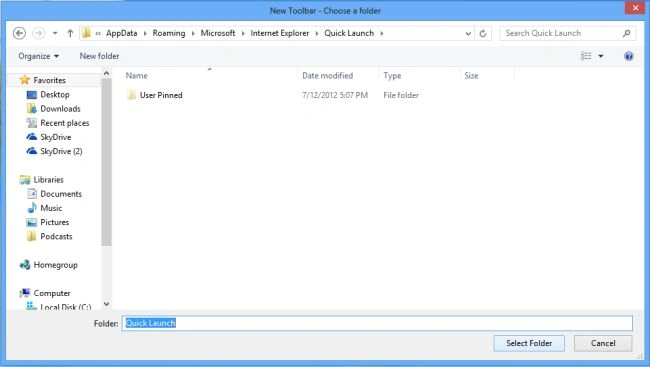
"%appdata%\Microsoft\Internet Explorer\Quick Launch"
Step 3
After finding the Quick Launch folder click on "select folder".
Step 4
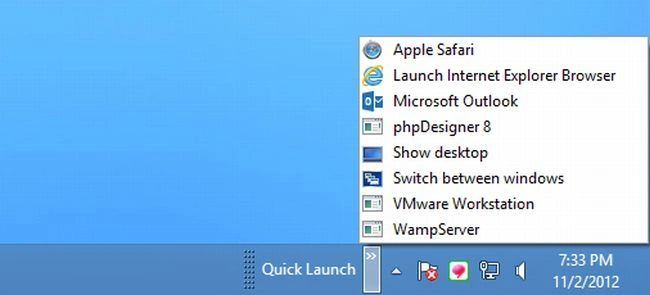
The Quick Launch Toolbar will be shown on the Taskbar.
Step 5
If you want to show a Quick Launch shortcut on the Taskbar then click on the dotted line and drag it over to the left.

Step 6
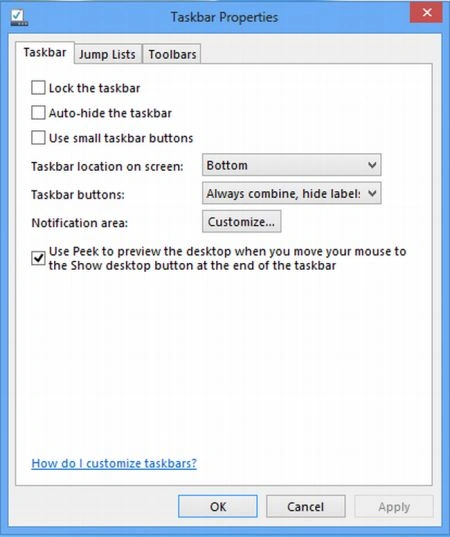
If you want to disable Quick Launch then go to the Taskbar properties.
Step 7
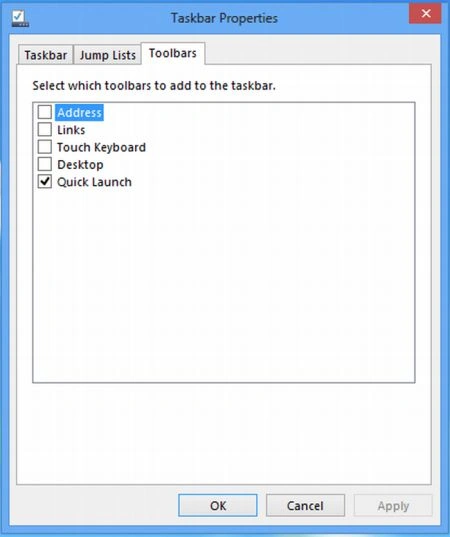
In the Taskbar properties window go to the "Toolbar" tab and uncheck "Quick Launch".
Summary
In this article, we learned about Restore Quick Launch in Windows 8.
Join the conversation! Your thoughts help the community grow.