


Introduction
In today’s fast-paced work environment, timely communication is vital for collaboration and efficiency. Sending emails manually can be time-consuming, especially when dealing with repetitive tasks. Microsoft Power Automate, previously known as Microsoft Flow, provides an easy way to automate sending emails based on specific triggers, such as updates to a SharePoint list. This article will walk you through the steps to set up your own email automation workflow using Power Automate.
Features
Power Automate offers a range of features that enhance its usability for sending emails.
- Integration: Connects seamlessly with various applications, including SharePoint, Outlook, and Teams.
- Triggers: Allows you to set specific conditions that trigger the sending of an email.
- Templates: Offers pre-built templates to help you get started quickly.
- Customization: Users can customize the content, recipient, and conditions of the email.
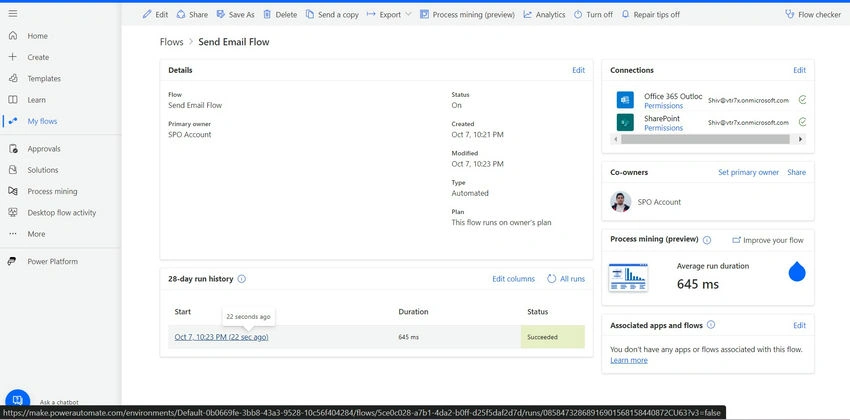
- Monitoring: You can track the success or failure of your flows through Power Automate’s dashboard.
Advantages and Disadvantages
Advantages
- Time-Saving: Automates repetitive tasks, allowing users to focus on more important activities.
- Increased Efficiency: Ensures timely communication, especially for alerts and reminders.
- User-Friendly: The intuitive interface makes it easy for users to create workflows without extensive technical knowledge.
- Scalability: Supports small to large organizations, adapting to various needs.
Disadvantages
- Learning Curve: While user-friendly, some users may need time to familiarize themselves with the platform.
- Limited Free Tier: Advanced features may require a paid subscription.
- Dependency on the Internet: Requires a stable Internet connection to function effectively.
- Email Limitations: Sending limits may apply, depending on the account type.
Steps to Send Emails Using Power Automate
- Open Power Automate.
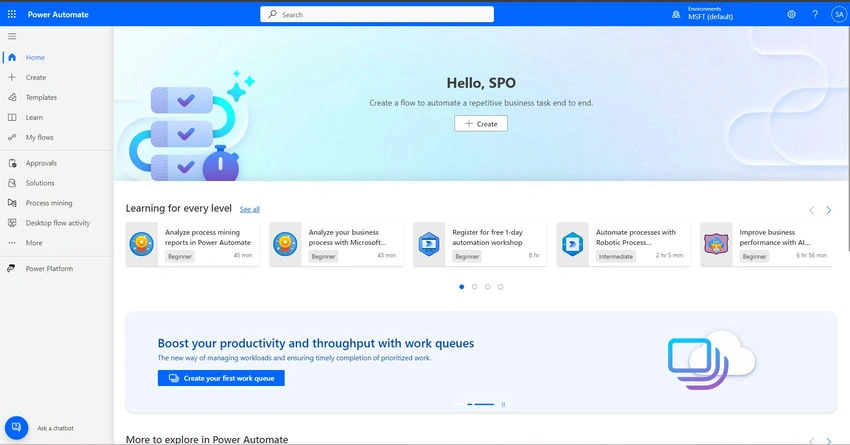
- In your web browser, go to Power Automate. You may also access Power Automate directly through the Microsoft 365 app launcher.
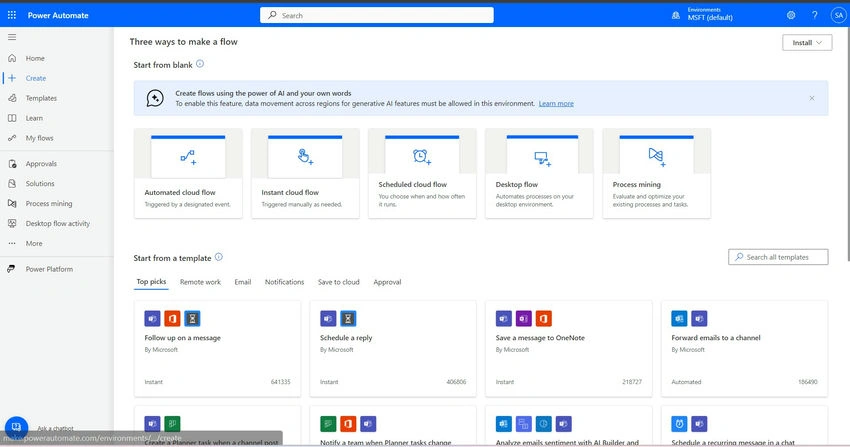
- Click on Create.
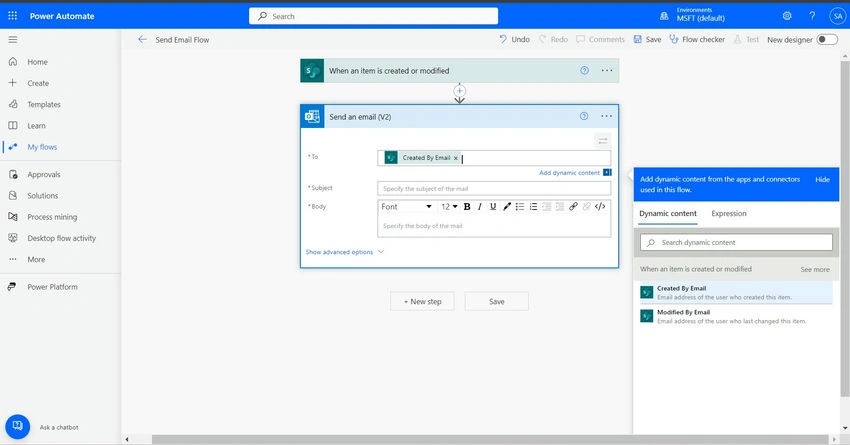
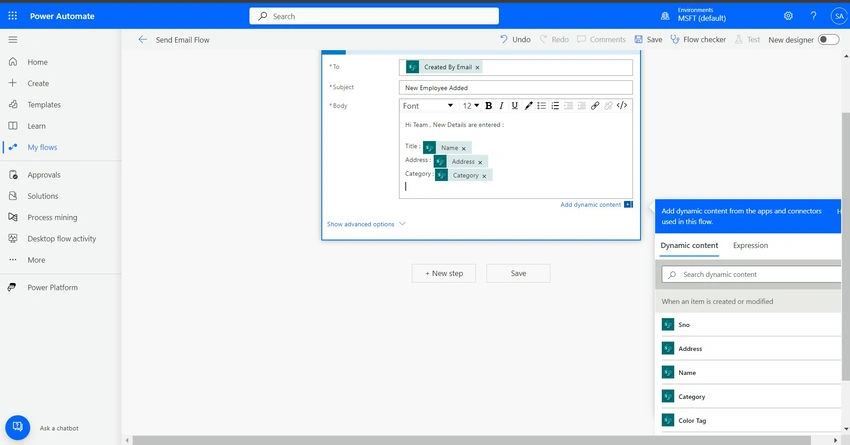
- Once you are in Power Automate, look for the “Create” button on the left-hand menu. Click on it to start setting up a new flow.
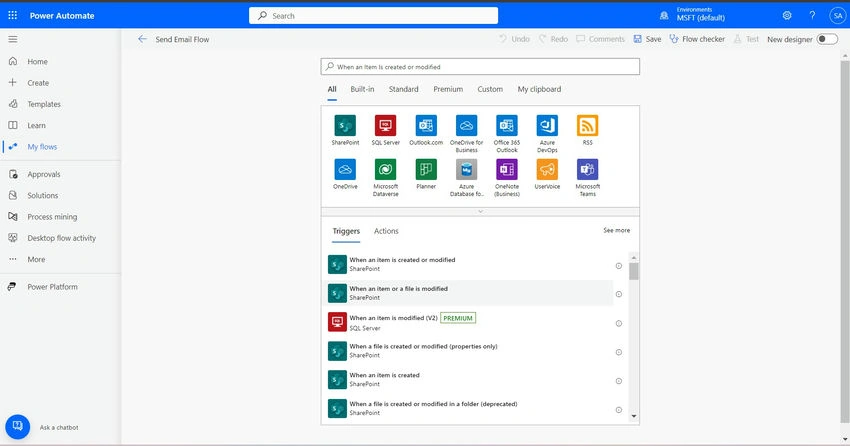
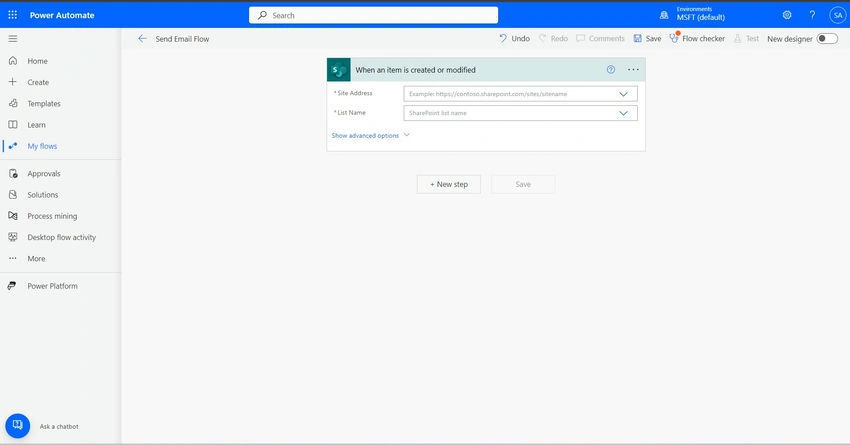

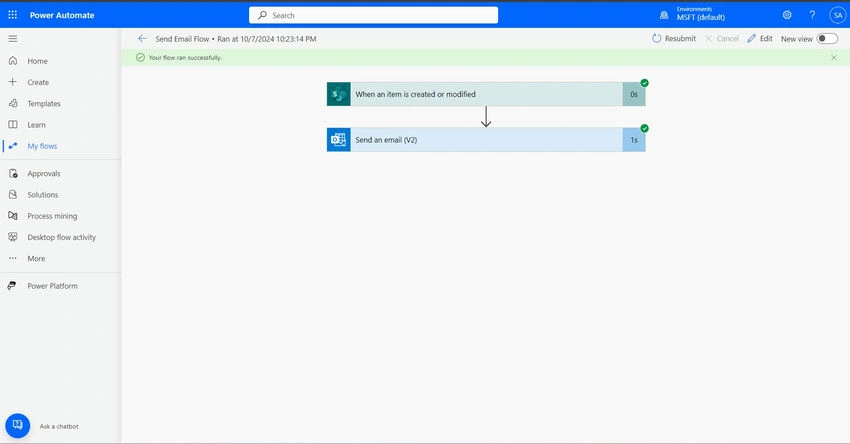
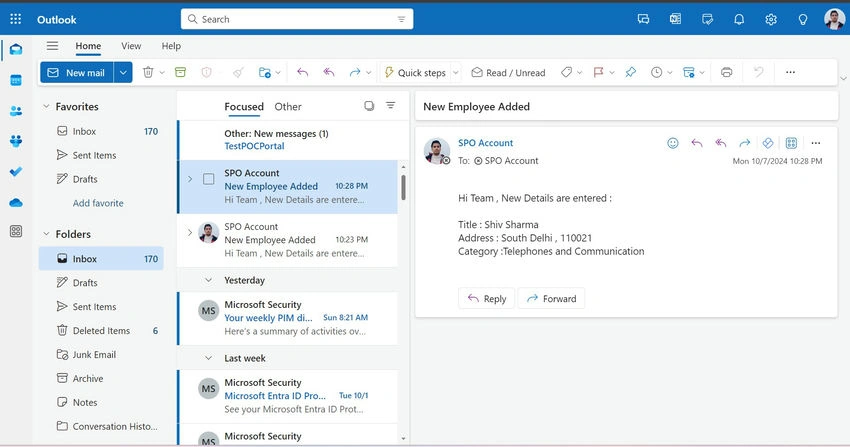
Join the conversation! Your thoughts help the community grow.