

Introduction
In PowerApps, setting default values for controls like text inputs or dropdowns is easy because you can directly use the Default property. However, when it comes to the People Picker (Person or Group field), things are not as straightforward. Even though it also has a Default property, it does not accept simple values like text or email. Instead, it requires a specific format, which often confuses developers.
In this article, I will explains the problem, correct solution, and how you can automatically set the logged-in user as the default value in a People Picker control.
Problem
When working with a People Picker in PowerApps, you may notice that the field remains blank when creating a new record. Even if your requirement is to auto-fill the current user (for example, in “Requested By” or “Created By”), the control does not show anything by default.
This happens because the People Picker expects a properly structured user record. If the value is not provided in the correct format, PowerApps cannot recognize it as a valid user. As a result, users are forced to manually select their name every time, which is not efficient.
Solution
To fix this issue, you can use the Coalesce function to handle both scenarios in a single formula. This approach ensures that if a value already exists (Edit mode), it is shown, and if not (New mode), the current logged-in user is automatically selected.
Steps to Implement
Open your PowerApps app and navigate to the screen that contains your form. Select the Person or Group field data card (for example, “Requested By” or “Emploee Name”). From the Advanced panel, click on “Unlock to change properties.” Then select the value control inside the data card (usually named something like DataCardValue).
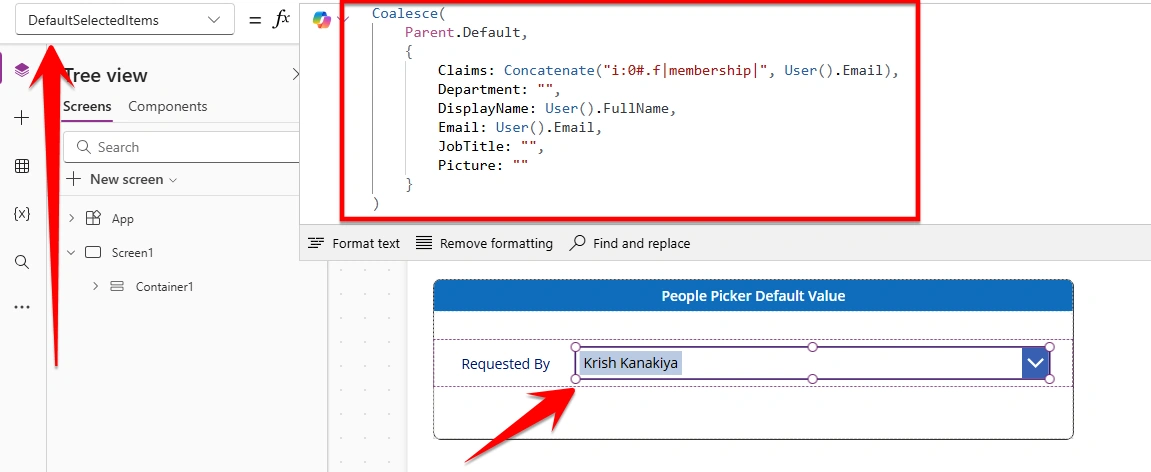
From the property dropdown, select the DefaultSelectedItems property and apply the following code:
Coalesce(
    Parent.Default,
    {
        Claims: Concatenate("i:0#.f|membership|", User().Email),
        Department: "",
        DisplayName: User().FullName,
        Email: User().Email,
        JobTitle: "",
        Picture: ""
    }
)
How This Works
The formula first checks if there is an existing value using Parent.Default. This is useful when the form is in Edit mode. If a value is already saved, it will be displayed.
If no value is found (which is the case in New mode), the formula creates a user object using the User() function. This object includes important fields like Claims, DisplayName, and Email, which are required for PowerApps to recognize it as a valid user.
The Claims field is especially important because it defines the identity format used by SharePoint and Dataverse.
Conclusion
Using this article, you can easily set a default value in a People Picker control without relying on manual user selection. By applying the Coalesce function and providing the correct user object format, the control can intelligently handle both New and Edit modes. This ensures that the logged-in user is automatically selected when creating a new record, while existing values are preserved during updates.
Join the conversation! Your thoughts help the community grow.