

Microsoft Flow is a cloud-based service. It allows us to react to an event in one service and do something with the data from that event into another service. The users can build workflows that automatically do some business tasks and processes across applications and services.
It helps us to monitor all our workflow with the help of a great cloud solution called “Microsoft Flow”. Before reading this article, please go through some important articles mentioned below.
- Deep Dive Into Microsoft Flow
- How To Connect OneDrive To Google Drive With Microsoft Flow
- How To Connect Facebook to Twitter With Microsoft Flow
- How To Save Email Attachment From Outlook To Dropbox With Microsoft Flow
- How To Send Notification Via SMS When Dropbox Is Modified With Microsoft Flow
- How To Connect The Outlook Mail To Excel With Microsoft Flow
- How To Save Office 365 Email Attachment To OneDrive With Microsoft Flow
- How To Track Facebook Wall Messages In An Excel Table Using Microsoft Flow
- How To Notify A User Of Newly Submitted Microsoft Forms Response Via Email
- How To Generate Audio For My Facebook Post Using Microsoft Flow
- How To Save Wunderlist Tasks To OneNote Pages Using Microsoft Flow
- How To Change Your Facebook Post In One Language To Repost In Another Lang...
Connect Flow button and Excel
We can track our work hours and work location automatically using Microsoft Flow.
Excel
Microsoft Excel is a spreadsheet developed by Microsoft for Windows, macOS, Android, and iOS. It features calculation, graphing tools, pivot tables, and a macro programming language called Visual Basic for applications.
Flow button
There are many repetitive tasks that we all wish we could run with just a tap of a button. For example, you may need to quickly email your team to remind them to join the daily team sync, or you may want to start a new Visual Studio Online build of your code base after you've been notified that there are no more check-ins planned for the day. Button flows allow you to accomplish these and many other tasks simply by tapping a button on your mobile device. To learn more, click here.
How to create a Microsoft Flow to track your work hour and work location

Here, we will connect Flow button and Excel.
Prerequisites
- Microsoft Account – Corporate ID.
- Microsoft Flow Mobile App.
- Microsoft Excel
- DropBox Account
Follow the below steps to build a Flow using a template.
Step 1
Login to www.flow.microsoft.com.

Here is the dashboard.

Step 2
Choose the Templates menu from the menu bar.

Search "Track Work Hour" in the search bar and choose "Track your Working Hours" template.
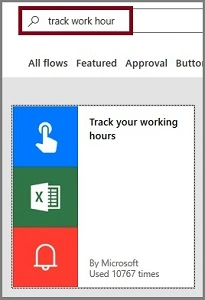
Now, click on the "Use this template" button.
Step 3
Sign into Excel and give it permission to access your accounts.

Step 4
Sign into Notifications.

Step 5
After all of these get configured, click on the "Continue" button.

Step 6
Create Excel sheet with Date, Timestamp, and Full address columns.

Create table.

Set the table name as Track.

Upload the Excel to Dropbox.

File Uploaded

Step 7
Next, let us configure the flow using Flow button and Excel.

Choose the Excel file name from Dropbox.

Choose the Table name.

Choose the Columns, like Date, Timestamp, and Address.
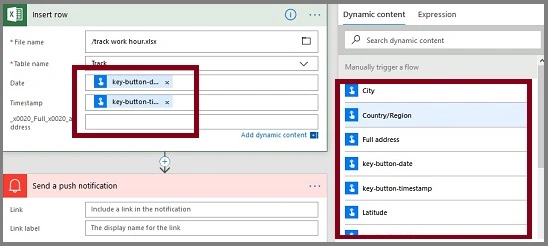
The final row will be like this.

Choose Link and Link label to send a push notification to your Microsoft Flow mobile app.

Final Flow should be like this. Click on "Save Flow".

The Flow is created.

Output
Press the "button" and it will run!
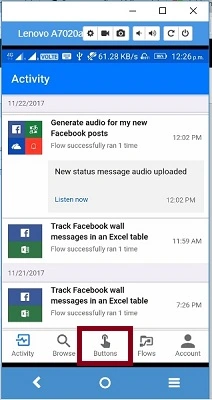
Now, the flow starts.

Enable your flow to access the device location.
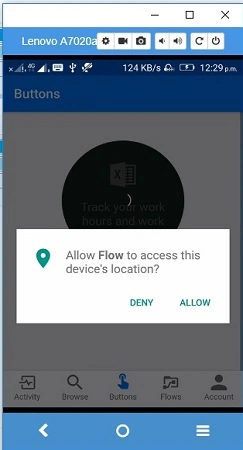
Saved the Current Date, Timestamp, and Address in an Excel file.

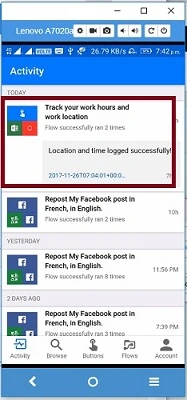
Microsoft Flow App Notification.
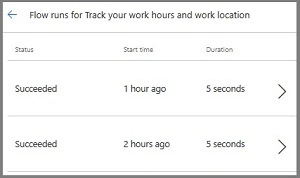
The history of the flow.
Summary
I hope you understood how to track your Work Hours and Work Location automatically and how to run that. Stay tuned for more Flow articles.
Guru PrasadPosted Mar 27, 2018, 11:37 PM
Thanbk you...please can u explain the timesheet creation and approval in power apps..if user book the time sheet it has t send for manager approval.after approval the user has to get the notification stating that u timesheet has approved
Sriram HariharanPosted Nov 29, 2017, 5:40 AM
Nice way to track your working hours! Cool..