

Introduction
Do you really need to update Power BI? Yes. Microsoft team updates Power BI from time to time. But how you can update your application? Here you will find the answer in this article.
There are two ways to install Power BI:
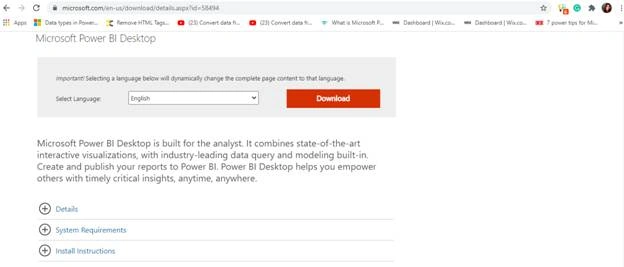
- Download it directly from the web.
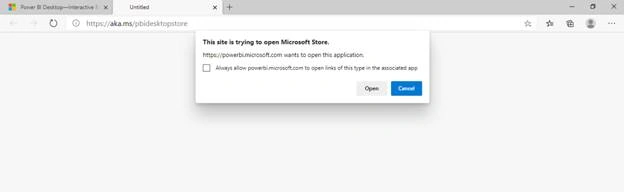
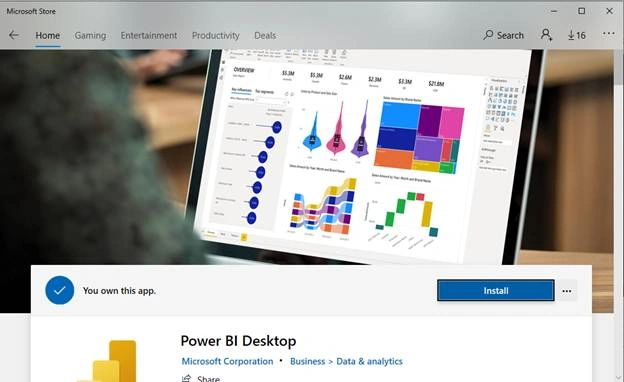
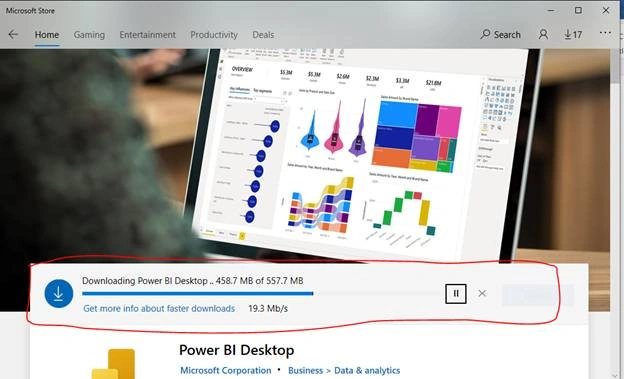
- From the Microsoft Store.
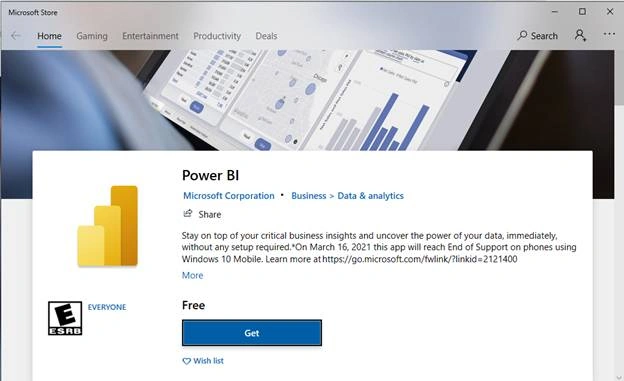
If you download the app from the Microsoft store, you need to have a Microsoft account. You need not pay for Power BI. This app is free in the Microsoft store.
Auto Update Power BI Desktop
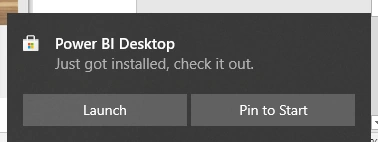
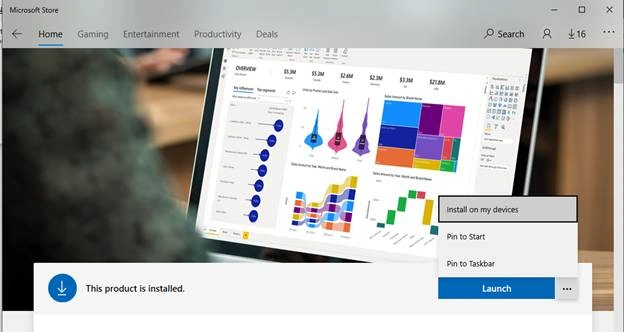
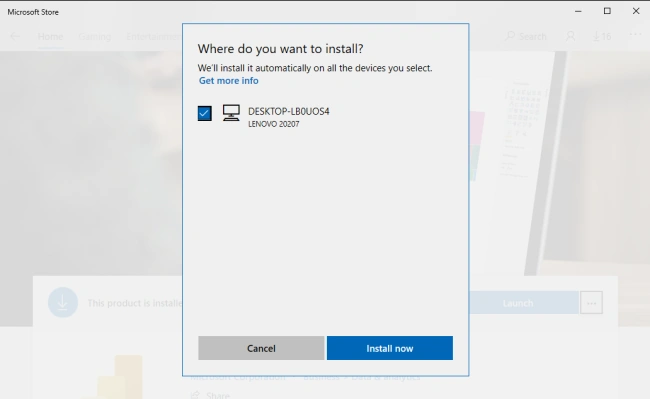
If you Install Power BI from the Microsoft store then it will be updated automatically. This is the main difference between the installation of Power BI from store and directly from the web. As soon as the Power BI developer updates anything, the Microsoft store version will automatically update itself to the latest version. You need not do anything to keep it up-to-date.
Manually Update Power BI Desktop
Power BI team updates this application every month. If you download this application directly from the web then you need to update it manually. But how do you know when you update it?
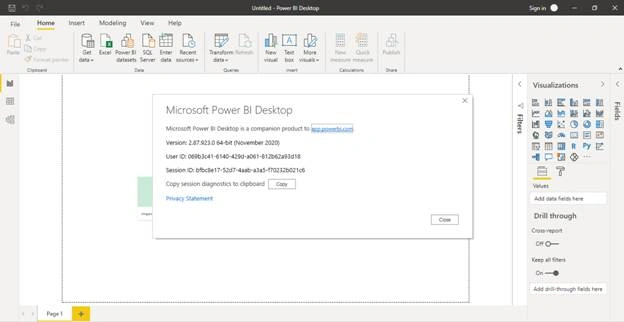
First, you need to check which version you are using. To know it, go to the File tab and click on ‘About’.
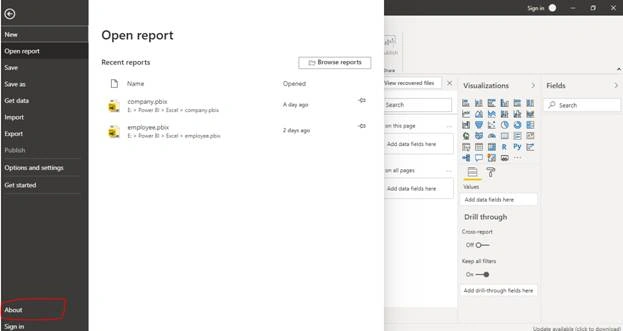
Once you are clicked on ‘About’ you can see which version of Power BI you are using.
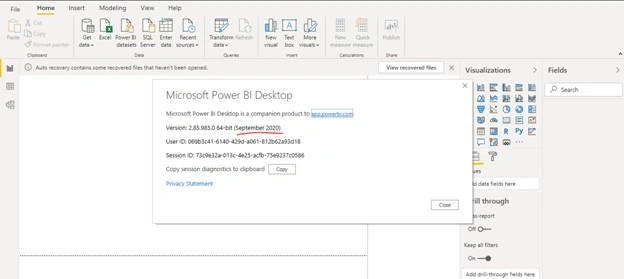
As per the above image, I am using the ‘September 2020’ version. So, I need to update it. My first priority is to get a notification to update my app. So I am going to apply for notification for an update.
To do so, go to the ‘File’ tab and click on ‘Options and Settings’, and then click on ‘Options’.
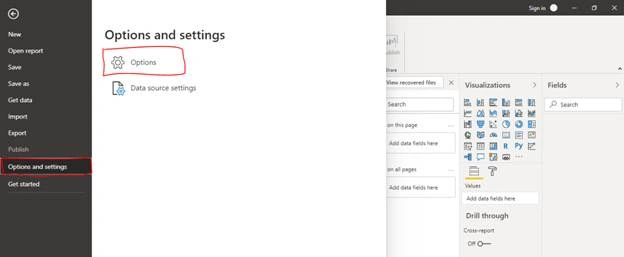
Click on ‘Updates’ to get a notification when your application needs to update.
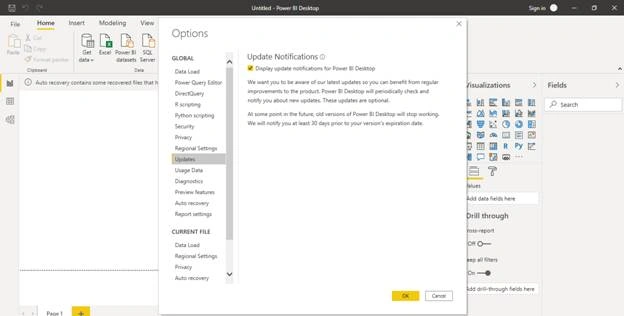
Click on the check box and then click on ‘Ok’. Now you will get a notification when you open the application.
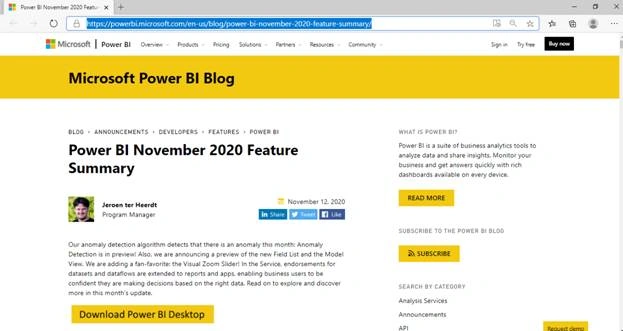
Once you open your application and if it needs to update then a small pop-up will reflect at the lower-right corner. See the below image.
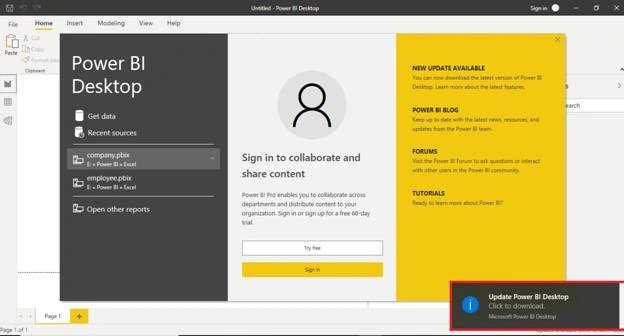
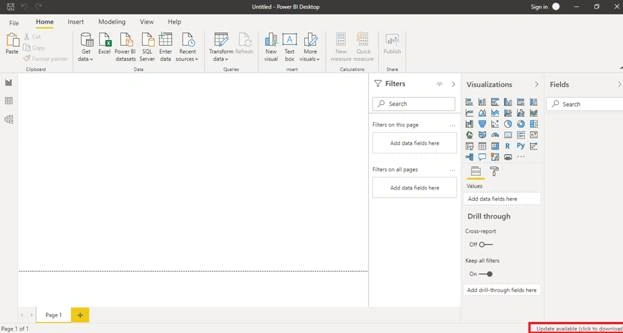
This highlighted update icon will be removed after a few seconds. But you will still get this at the same side link in the below image.
Join the conversation! Your thoughts help the community grow.