

In this blog, we will explore how to upload an image from a custom form and save it to a Dataverse table's Image column using the Web API.
GOAL
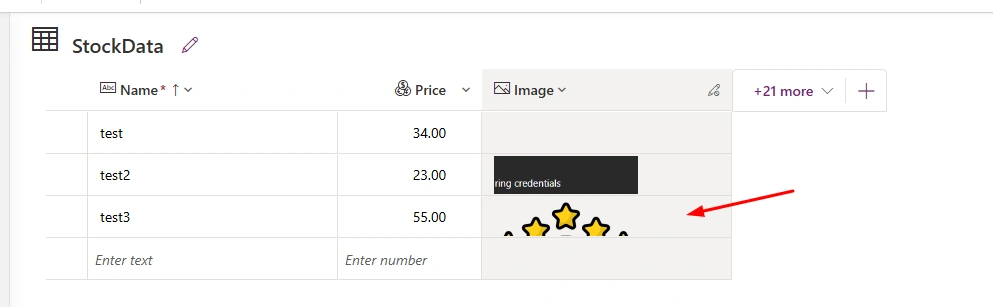
where Image column data type is Image
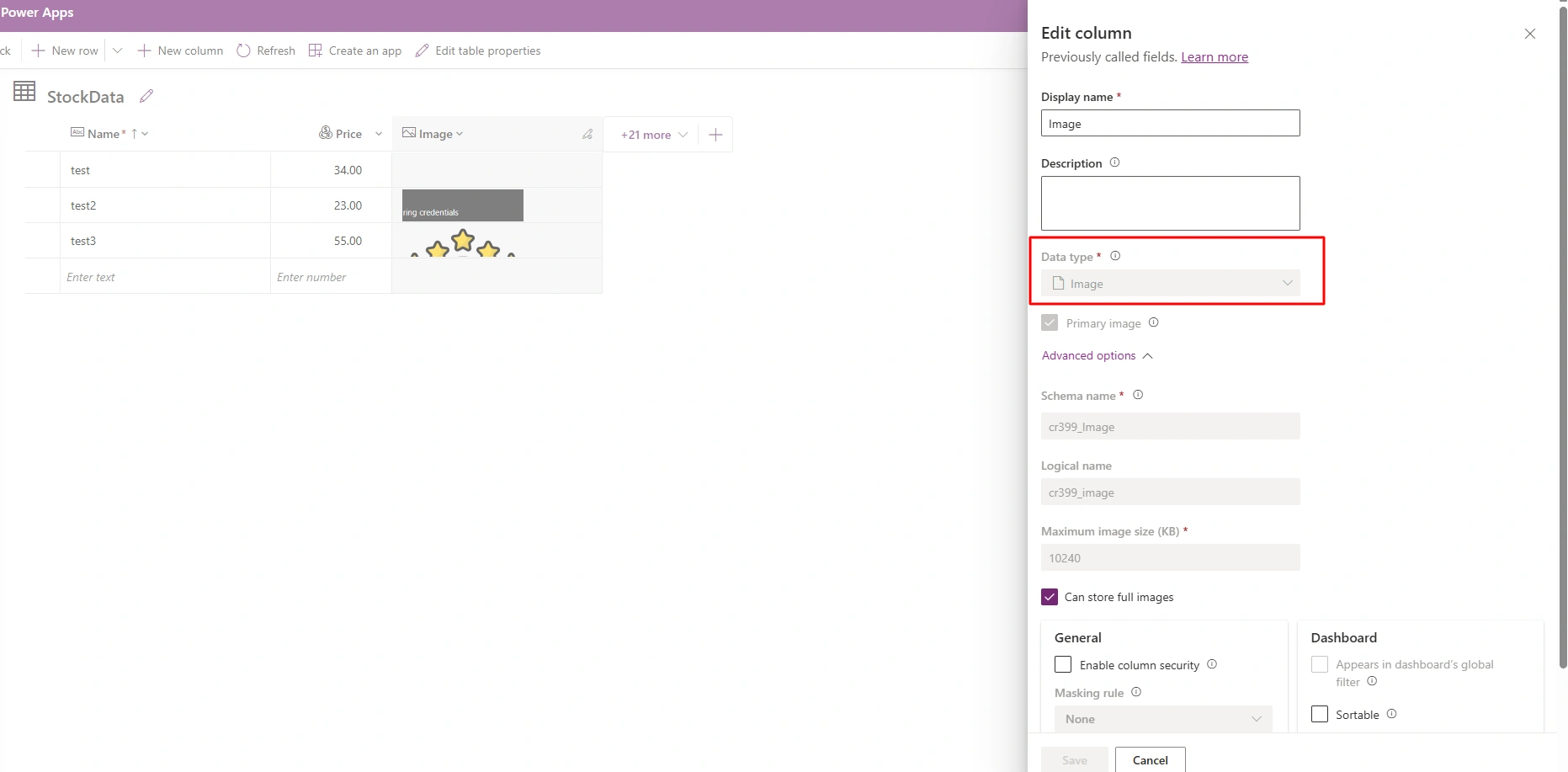
Stepwise Implementation
1 - Configure site settings (Web API) & Table permissions for Table
2 - Assign web roles to Demo Table.
3 - UI Design of Form which i have used in Demo with file input
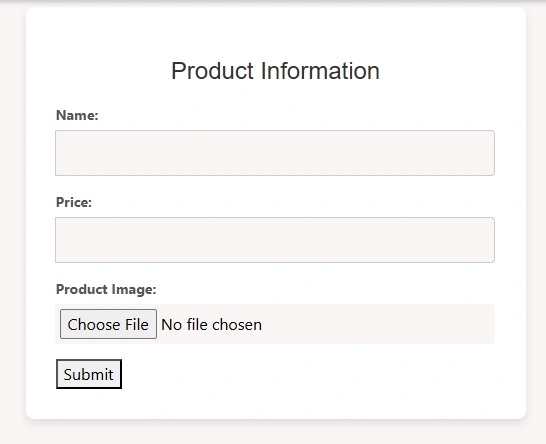
4 - JS Code Example : Submit button code
const submitBtn = document.getElementById("submit-btn")
submitBtn.addEventListener("click", saveRecord)

function saveRecord() {
    // console.log("Hello")
    const nameValue = name.value
    const priceValue = parseFloat(price.value)
    const file = fileInput.files[0]

    const record = {
        cr399_name: nameValue,
        cr399_price: priceValue
    }

    webapi.safeAjax({
        type: "POST",
        url: "/_api/cr399_stockdatas",
        contentType: "application/json",
        data: JSON.stringify(record),
        success: function (res, status, xhr) {
            productId = xhr.getResponseHeader("EntityId")
            console.log("Product Id: ", productId)
            if (file) {
                uploadImage(productId, file)
            } else {
                alert("Data saved without file")
            }
        }, error: function (xhr, status, error) {
            console.error("Failed to save record", error);

        }
    })
}

function uploadImage(id, file){
    const reader = new FileReader();
    reader.addEventListener("load", (e) => {
        const base64String = e.target.result.split(",")[1];

        const record = {
            cr399_image: base64String
        }

        webapi.safeAjax({
            type: "PATCH",
            url: `/_api/cr399_stockdatas(${id})`,
            contentType: "application/json",
            data: JSON.stringify(record),
            success: function(){
                alert("Image uploaded")
            }, error: function(err){
                console.error("Image upload failed", err);

            }
        })
    })
    reader.readAsDataURL(file)
}
saveRecord(): It collects form data (name, price, and optional image) and saves it to Dataverse.
uploadImage(): If an image is provided, it converts it to base64 format and uploads it to Dataverse to update the record.
1 - Save Record Function
const nameValue = name.value: Gets the value from the name input field.
const priceValue = parseFloat(price.value): Converts the value from the price input field to a float number.
const file = fileInput.files[0]: Gets the selected file (image) from the file input.
# Record Creation:
const record = { cr399_name: nameValue, cr399_price: priceValue }: Creates an object with the name and price values that will be sent to the Dataverse table.
webapi.safeAjax(): This function is used to send a POST request to the Dataverse API to create a new record in the cr399_stockdatas table.
If the record is saved successfully, it checks whether a file was uploaded. If yes, it calls the uploadImage function to upload the image. If no file was uploaded, it alerts that the data was saved without the image.
2 - Upload Image Function
const reader = new FileReader(): Creates a FileReader object that will read the file (image).
reader.addEventListener("load", (e) => {...}): This listens for the load event once the file is read. It converts the image file to a base64 string (a format suitable for uploading).
const base64String = e.target.result.split(",")[1]: Extracts the base64-encoded string from the file reader result.
# Sending Image to Dataverse:
A PATCH request is sent to update the record in the Dataverse table, attaching the base64-encoded image to the cr399_image column.
If the image is uploaded successfully, it alerts "Image uploaded". If there is an error, it logs the error message.
Conclusion
In this article, we’ve learned how to upload an image from a custom form and save it to a Dataverse table’s Image column using the Web API. We used the FileReader to convert the image into a base64 string, and then we sent the data to Dataverse using a PATCH request.
Join the conversation! Your thoughts help the community grow.