

In my previous article (ASP.NET Web Optimization Framework) I described what the ASP.NET Web Optimization Framework is and what are all the classes provided by this framework for the use of this framework in web forms, web pages and ASP.NET MVC. So here in this article I will explain how to use this framework in ASP.NET MVC 4.
Since in my previous article I have already explained the ASP.NET Web Optimization Framework so without describing anything about it I am switching directly to implementation. But I recommend before reading this article please go through my previous article because that is a prerequisite for this article.
So now let's see how to use this framework in a web form application step-by-step. Here I will describe from the scratch by taking an Empty template of ASP.NET MVC 4 application.
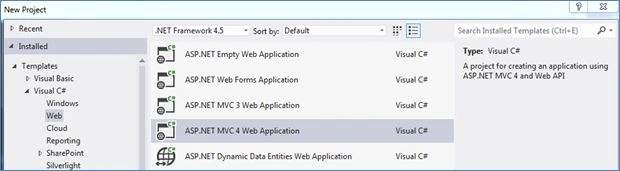
- Create an ASP.NET MVC 4 Web Application as in the following:
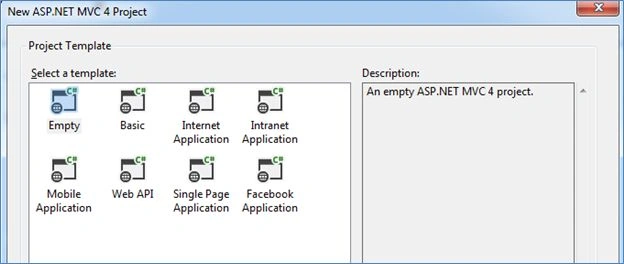
- Choose an Empty Project Template as in the following:
- Now you need to install this framework in your website so open the NuGet Package Manager console as in the following Screen Shot:
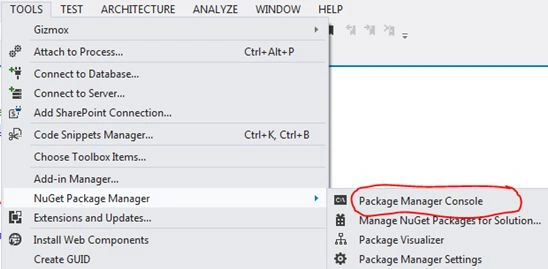
- Enter the command “Install - Package Microsoft.AspNet.Web.Optimization” and press Enter. It will install the ASP.NET Optimization Framework into your web site.

- In the bin folder you can verify that the required DLLs have been added.
- Now you need to create two folders Scripts and Styles for keeping scripts and CSS files, one controller named HomeController and one view for Index. Now your Solution Explorer should look like the following:
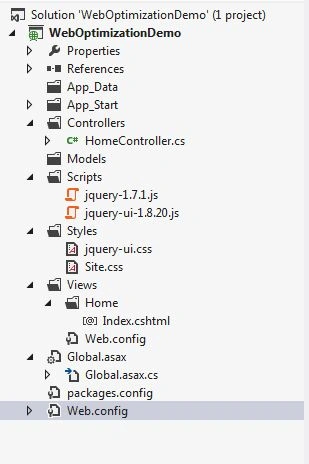
Here I have added 2 files in the scripts folder and 2 files in Styles for demonstration. You can add whatever you need to.
- Open the Global.asax file. You can see that there are many events in the Global.asax file. I am focusing on the Application_Start event here. You need to write the following code inside this event.
- System.Web.Optimization.BundleTable.Bundles.Add(new System.Web.Optimization.ScriptBundle("~/bundle/js")
- .Include("~/Scripts/*.js"));
- System.Web.Optimization.BundleTable.Bundles.Add(new System.Web.Optimization.ScriptBundle("~/bundle/css")
- .Include("~/Styles/*.css"));
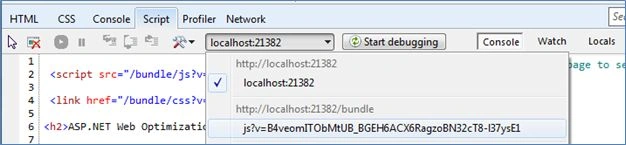
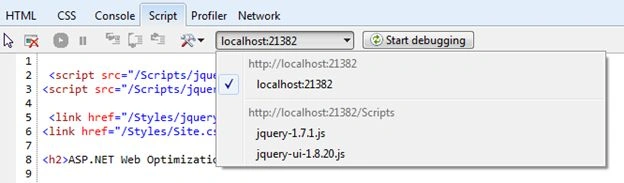
Here I am directly creating and adding two bundles into the bundle table. You can define therm depending on your classification and use. You can further classify a single bundle into other sub bundles. One more thing you might have noticed here is that I am using *.js , because I am adding all js files into one bundle and same for CSS. So exactly what I did here is I bundled all the JavaScript files into one bundle, in other words they will load as a single entity, not as multiple files The same for the CSS, I created a single bundle for all CSS files.
I think you can now better understand practically how this framework optimizes the calls and the loading of resources.
In some articles you might find that they have created a separate file called BundleConfig for creating the bundle in a static method and they add bundles in a global.asax file by calling that static method. This provides one more level of abstraction. Since this is a very basic article I have directly created and added bundles in the global.asax file. - Now we are ready with our bundle so the last task is to include this bundle into our view file. That we can do using the Scripts.Render and Styles.Render methods like the following:
- @System.Web.Optimization.Scripts.Render("~/bundle/js")
- @System.Web.Optimization.Styles.Render("~/bundle/css")
- We have now completed all the implementation. The only one task remaining now is to enable the bundling and minification. As I described in my previous article that there are two ways to enable it. So you can use either of the ways. Here I am enabling it by setting the web.config file's compilation element's debug attribute like the following:
- <system.web>
- <compilation debug="false" />
- </system.web>
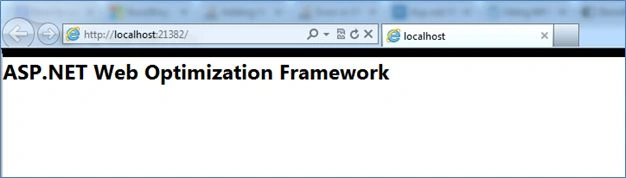
- So it is now time to be happy and test our work. So run the application and you will get the following screen.


Join the conversation! Your thoughts help the community grow.