Introduction
In this article, we will learn how to use ag-grid in a React.js application. ag-Grid is a component used for showing data in tabular format. By using ag-Grid, developers can easily extend functionality according to their requirements.
Prerequisites
- Basic knowledge of React.js
- Visual Studio Code IDE should be installed on your system.
- Basic knowledge of Bootstrap and HTML.
Create ReactJS project
First, let's create a React application with the following command.
- npx create-react-app reduxparttwo
Open the newly created project in Visual Studio Code and install ag-Grid using the following command.
- npm install --save ag-grid-community ag-grid-react
Now install bootstrap in this project by using the following command.
- npm install --save bootstrap
Now, open the index.js file and add import Bootstrap.
- import 'bootstrap/dist/css/bootstrap.min.css';
Now go to the src folder and add a new component, named 'Aggriddemo.js'.
Add ag grid and style reference in this component, add the following lines in this component.
- import { AgGridReact } from 'ag-grid-react';
- import 'ag-grid-community/dist/styles/ag-grid.css';
- import 'ag-grid-community/dist/styles/ag-theme-alpine.css';
ag-Grid has differenct themes. We can customize these themes. Add the following code in this component:
- import React, { Component } from 'react'
- import { AgGridReact } from 'ag-grid-react';
- import 'ag-grid-community/dist/styles/ag-grid.css';
- import 'ag-grid-community/dist/styles/ag-theme-alpine.css';
- export class Aggriddemo extends Component {
- constructor(props) {
- super(props);
- this.state = {
- columnDefs: [
- { headerName: "Id", field: "Id", sortable: true, filter: true },
- { headerName: "Name", field: "Name", sortable: true, filter: true },
- { headerName: "Age", field: "Age", sortable: true, filter: true },
- { headerName: "Address", field: "Address", sortable: true, filter: true },
- { headerName: "City", field: "City", sortable: true, filter: true },
- { headerName: "Salary", field: "Salary", sortable: true, filter: true },
- { headerName: "Department", field: "Department", sortable: true, filter: true }
-
-
-
- ],
- rowData: [
- {
- Id: "100",
- Name: "Sanwar",
- Age: "25",
- Address: "Jaipur",
- City: "Jaipur",
- Salary: "500000",
- Department: "IT",
-
- },
- {
- Id: "2",
- Name: "Nisha",
- Age: "25",
- Address: "C-Scheme",
- City: "Jaipur",
- Salary: "500000",
- Department: "IT",
- },
- {
- Id: "3",
- Name: "David",
- Age: "25",
- Address: "C-Scheme",
- City: "Jaipur",
- Salary: "500000",
- Department: "IT",
- },
- {
- Id: "4",
- Name: "Sam",
- Age: "25",
- Address: "C-Scheme",
- City: "Jaipur",
- Salary: "500000",
- Department: "IT",
- },
- {
- Id: "5",
- Name: "Jyotsna",
- Age: "25",
- Address: "C-Scheme",
- City: "Mumbai",
- Salary: "500000",
- Department: "IT",
- },
- {
- Id: "6",
- Name: "Sid",
- Age: "25",
- Address: "C-Scheme",
- City: "Bangalore",
- Salary: "500000",
- Department: "IT",
- },
- {
- Id: "7",
- Name: "Chavi",
- Age: "25",
- Address: "C-Scheme",
- City: "Noida",
- Salary: "500000",
- Department: "IT",
- },
- {
- Id: "8",
- Name: "Nisha",
- Age: "25",
- Address: "C-Scheme",
- City: "Delhi",
- Salary: "500000",
- Department: "IT",
- }
- ]
- }
- }
-
- render() {
- return (
- <>
- <div class="row" style={{marginTop:"10px"}}>
- <div class="col-sm-12 btn btn-info">
- Add ag-Grid to ReactJS App
- </div>
- </div>
- <div class="row">
- <div class="col-md-12">
- <div class="card">
- <div class="card-body position-relative">
- <div className="ag-theme-alpine" style={{ height: "550px" }}>
- <AgGridReact
- columnDefs={this.state.columnDefs}
- rowData={this.state.rowData}
- >
- </AgGridReact>
- </div>
- </div>
- </div>
- </div>
- </div>
- </>
-
- );
- }
- }
- export default Aggriddemo
Add reference of this component in the app.js file, and add the following code in the app.js file.
- import React from 'react';
- import logo from './logo.svg';
- import './App.css';
- import Aggriddemo from './Aggriddemo'
- function App() {
- return (
- <div className="App">
- <Aggriddemo/>
- </div>
- );
- }
-
- export default App;
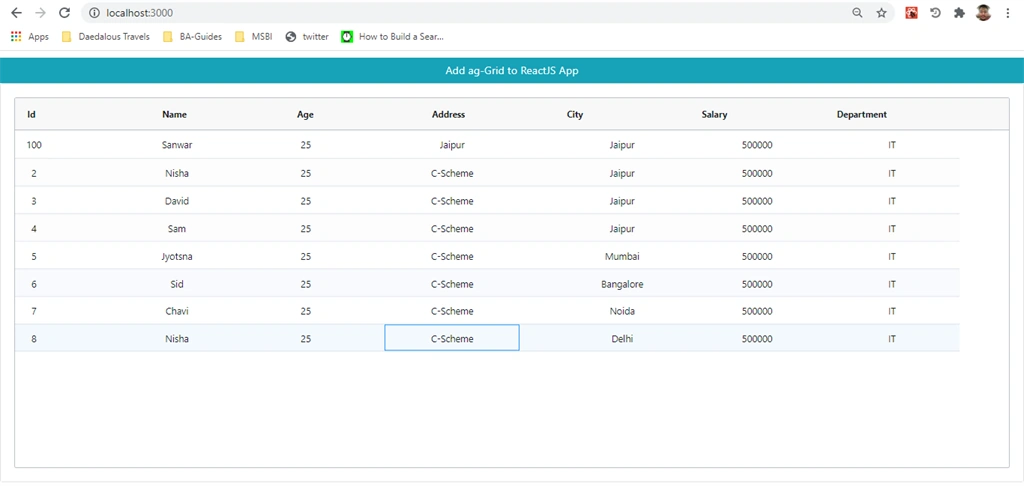
Now, run the project by using 'npm start' command and check the result.
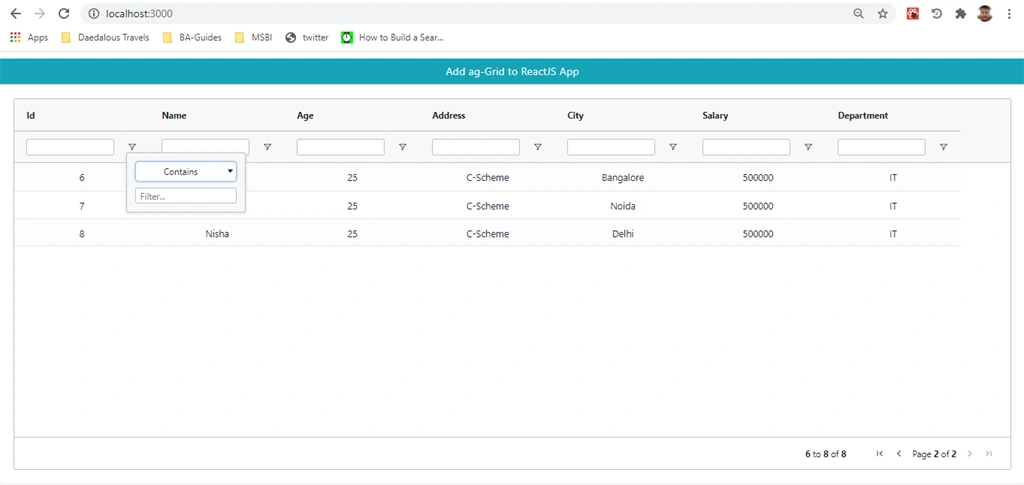
We can also add pagination, sorting and filtering in ag-grid. To add filtering shorting and pagination add the following property in ag grid.
- pagination="true" paginationPageSize="5" floatingFilter="true"
Add the following code in the component and check the result:
- import React, { Component } from 'react'
- import { AgGridReact } from 'ag-grid-react';
- import 'ag-grid-community/dist/styles/ag-grid.css';
- import 'ag-grid-community/dist/styles/ag-theme-alpine.css';
- export class Aggriddemo extends Component {
- constructor(props) {
- super(props);
- this.state = {
- columnDefs: [
- { headerName: "Id", field: "Id", sortable: true, filter: true },
- { headerName: "Name", field: "Name", sortable: true, filter: true },
- { headerName: "Age", field: "Age", sortable: true, filter: true },
- { headerName: "Address", field: "Address", sortable: true, filter: true },
- { headerName: "City", field: "City", sortable: true, filter: true },
- { headerName: "Salary", field: "Salary", sortable: true, filter: true },
- { headerName: "Department", field: "Department", sortable: true, filter: true }
-
-
-
- ],
- rowData: [
- {
- Id: "100",
- Name: "Sanwar",
- Age: "25",
- Address: "Jaipur",
- City: "Jaipur",
- Salary: "500000",
- Department: "IT",
-
- },
- {
- Id: "2",
- Name: "Nisha",
- Age: "25",
- Address: "C-Scheme",
- City: "Jaipur",
- Salary: "500000",
- Department: "IT",
- },
- {
- Id: "3",
- Name: "David",
- Age: "25",
- Address: "C-Scheme",
- City: "Jaipur",
- Salary: "500000",
- Department: "IT",
- },
- {
- Id: "4",
- Name: "Sam",
- Age: "25",
- Address: "C-Scheme",
- City: "Jaipur",
- Salary: "500000",
- Department: "IT",
- },
- {
- Id: "5",
- Name: "Jyotsna",
- Age: "25",
- Address: "C-Scheme",
- City: "Mumbai",
- Salary: "500000",
- Department: "IT",
- },
- {
- Id: "6",
- Name: "Sid",
- Age: "25",
- Address: "C-Scheme",
- City: "Bangalore",
- Salary: "500000",
- Department: "IT",
- },
- {
- Id: "7",
- Name: "Chavi",
- Age: "25",
- Address: "C-Scheme",
- City: "Noida",
- Salary: "500000",
- Department: "IT",
- },
- {
- Id: "8",
- Name: "Nisha",
- Age: "25",
- Address: "C-Scheme",
- City: "Delhi",
- Salary: "500000",
- Department: "IT",
- }
- ]
- }
- }
-
- render() {
- return (
- <>
- <div class="row" style={{marginTop:"10px"}}>
- <div class="col-sm-12 btn btn-info">
- Add ag-Grid to ReactJS App
- </div>
- </div>
- <div class="row">
- <div class="col-md-12">
- <div class="card">
- <div class="card-body position-relative">
- <div className="ag-theme-alpine" style={{ height: "550px" }}>
- <AgGridReact
- columnDefs={this.state.columnDefs}
- rowData={this.state.rowData}
- pagination="true" paginationPageSize="5" floatingFilter="true" >
- </AgGridReact>
- </div>
- </div>
- </div>
- </div>
- </div>
- </>
-
- );
- }
- }
- export default Aggriddemo
Summary
In this article, we learned how to use ag-grid in a React.js application.


Join the conversation! Your thoughts help the community grow.