

👋 Introduction
Copilot Studio is fast becoming a go-to platform for building intelligent, conversational agents across Microsoft 365 and Power Platform. One of the most underrated – but super useful – features in Copilot Studio is the “Add a Tool” option.
Now, many of us think we always need to write a Power Automate flow or an API to get business logic into our Copilot. But guess what? You can actually use out-of-the-box tools like the SharePoint connector, without writing a single line of code or designing a custom flow!
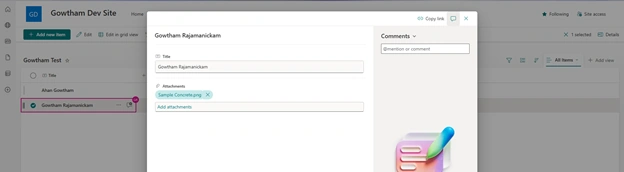
In this blog, I’ll walk you through how to use the built-in SharePoint connector via the Add Tool section to let users add attachments to SharePoint list items – directly from the Copilot conversation.
Let’s get started 🎯
🛠️ What is the “Add Tool” Feature in Copilot Studio?
The “Add Tool” section is where you bring in external actions that Copilot can perform.
In simple terms:
You’re giving your Copilot new skills – like uploading a file, fetching data, or submitting a record.
What’s great is – Copilot Studio already has built-in access to Microsoft Dataverse, SharePoint, Teams, Outlook, Planner, and many other connectors. So instead of building your own flows, you can simply search and plug them in.
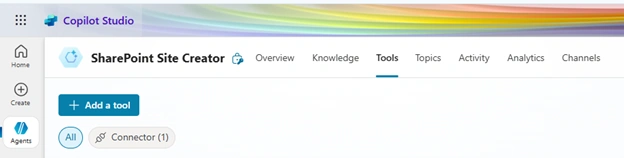
🧩 Scenario – Add Attachment to a SharePoint List Item
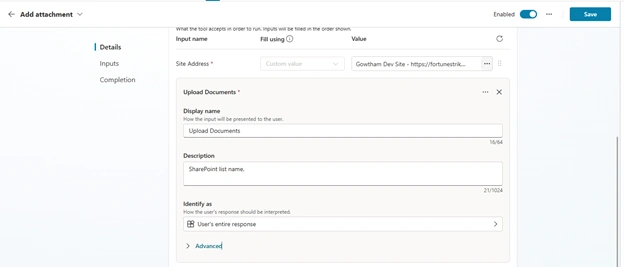
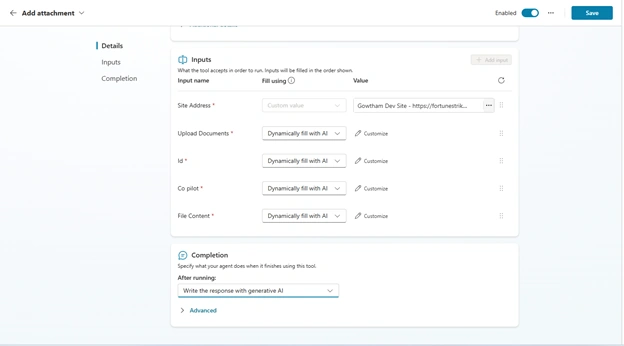
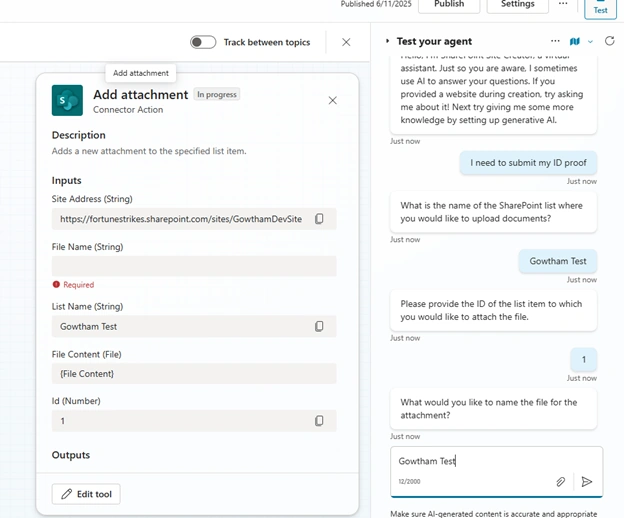
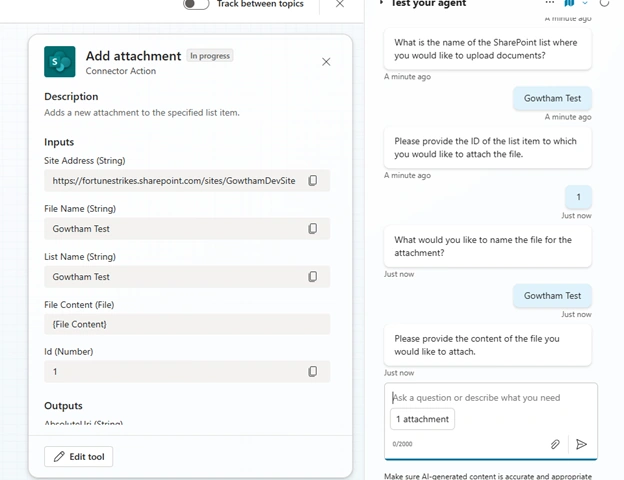
Let’s say you're building a Copilot for your internal HR team. One of the use cases is to upload employee documents (like resumes or ID proof) to a SharePoint list.
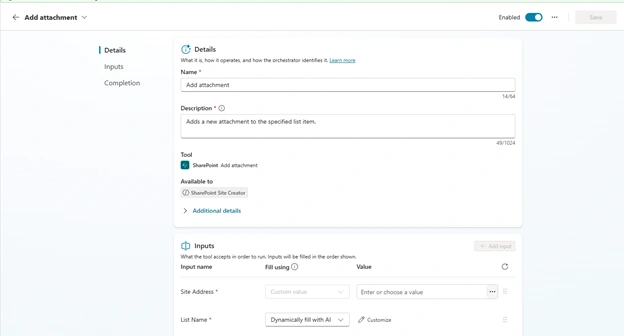
Here’s how you can do this without writing any flow – just using the SharePoint connector inside Copilot Studio's "Add Tool".
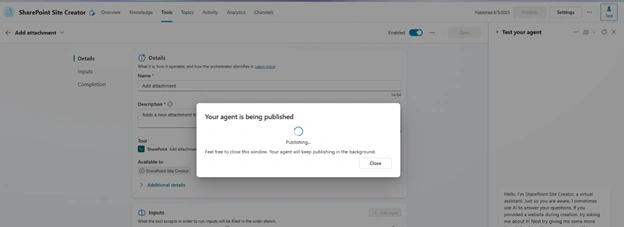
🔄 Steps to add Tool with SharePoint "Add Attachment"
1. Go to Your Copilot Project
- Open Copilot Studio
- Select the Copilot you are working on.
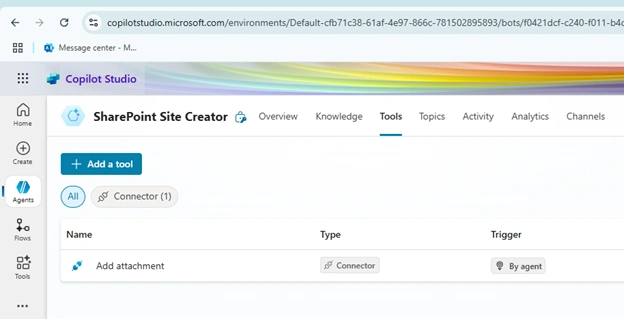
2. Open the “Plugins” or “Tools” section
- Click on “Add a Tool”
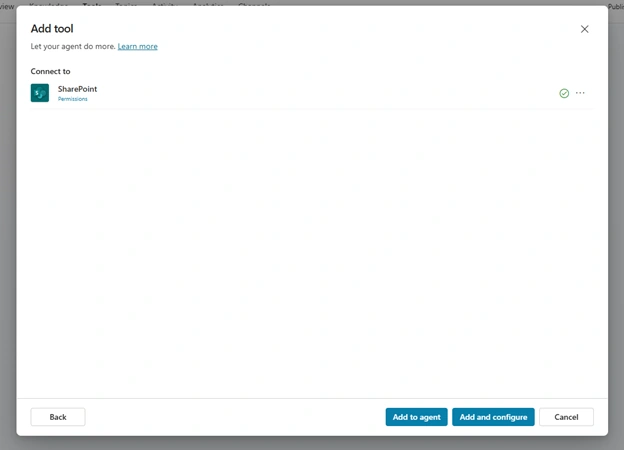
- You’ll see the option to Use a Power Platform connector
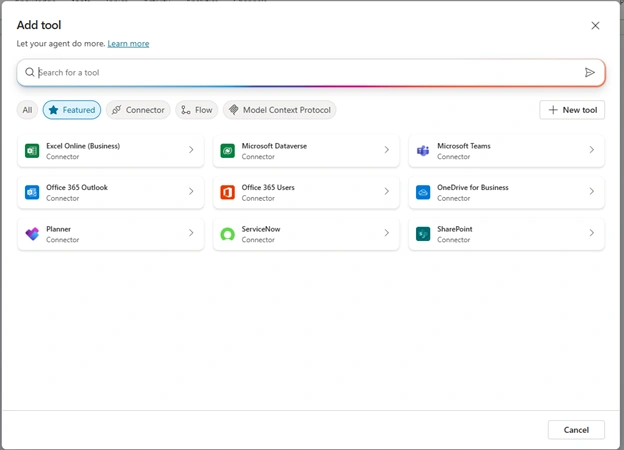
3. Search for SharePoint
- Select SharePoint (Standard Connector)
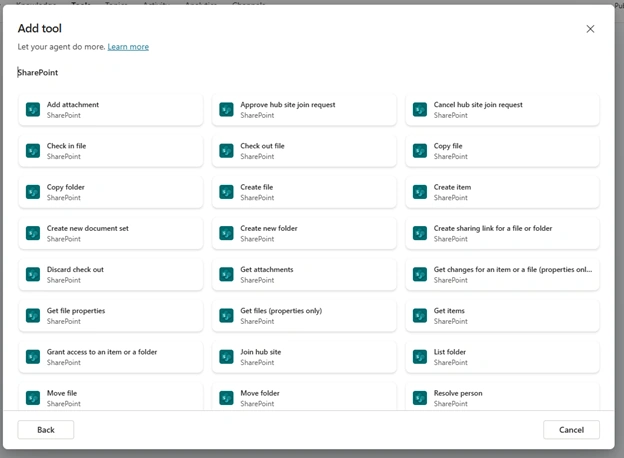
- You’ll now see a list of available actions from SharePoint
Tejesh BarmaPosted Jul 22, 2025, 1:45 AM
Hi Goutham, very nice article. We followed same steps but attachment is not added into SharePoint list and throwing error. Sorry, something went wrong. Error code: SystemError. Conversation ID: ed4b8d69-ff0c-4b1a-9917-a632c97efae6. Copilot taking all inputs and finally receiving above error. can you please suggest on this.