

Introduction
Microsoft Graph API is a unified REST API endpoint that allows you to access and interact with data across Microsoft 365 services such as Outlook, OneDrive, Teams, SharePoint, and Azure Active Directory. It provides a single interface for retrieving, creating, updating, and deleting data stored in Microsoft 365.
In PowerApps, the Microsoft Graph API can extend your app's capabilities beyond what built-in connectors provide. While PowerApps has connectors such as Office 365 Users, SharePoint, and Office 365 Groups, these connectors cover only common scenarios. Using Graph API allows you to access more advanced or custom data and perform actions that are not natively supported in PowerApps.
Why Use Graph API in PowerApps?
Extended functionality: Access Microsoft 365 data that isn’t exposed by default connectors.
Centralized integration: One API endpoint to connect with multiple Microsoft 365 services.
Custom solutions: Build apps that securely and efficiently interact with organizational data.
How It Works in PowerApps
Built-in connectors: Simple Graph operations like getting the current user’s profile (
Office365Users.MyProfile()).Custom connectors: For calling specific Graph API endpoints directly, with OAuth 2.0 authentication.
Power Automate flows: Call the Graph API in a flow and return the results to Power Apps.
1️⃣ Get My Profile Using Graph API
Call Microsoft Graph directly from Power Apps to retrieve the current user’s profile. There are a couple of approaches. I’ll give you a reliable way using a Custom Connector, since the built-in Office 365 Groups aren't reliable.HttpRequest won’t work for /me reliably.
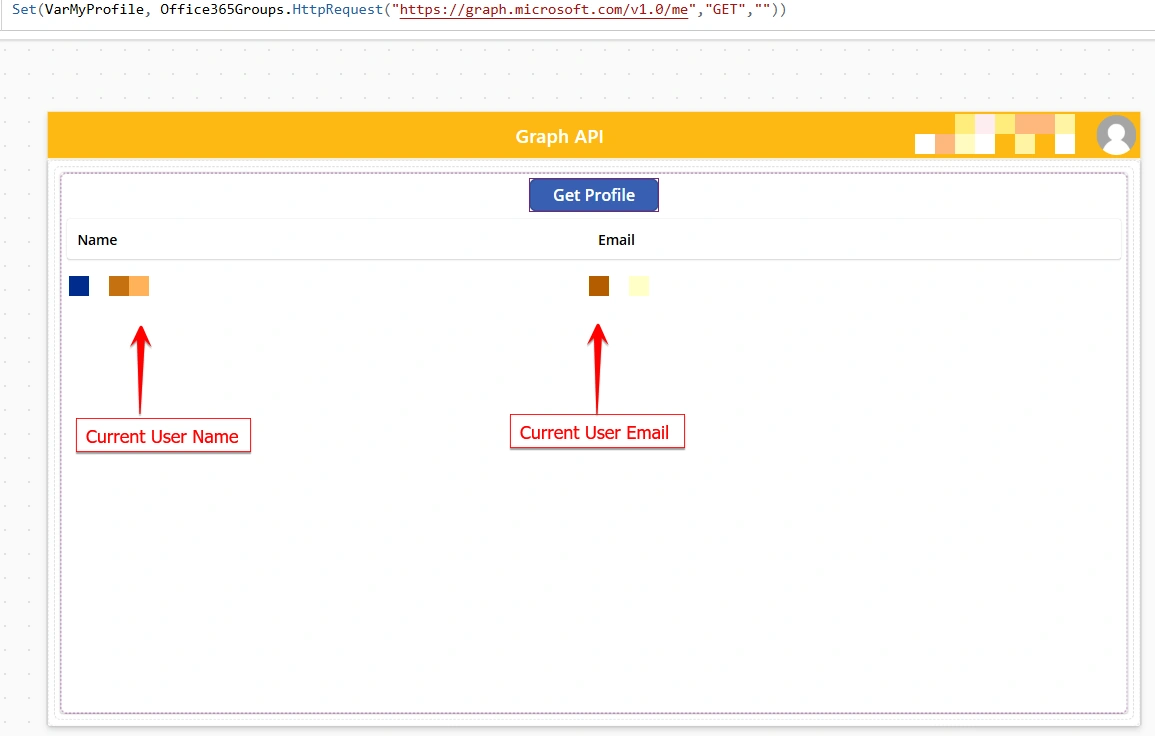
Button Name: Get Profile
On Select:
Set(VarMyProfile, Office365Groups.HttpRequest("https://graph.microsoft.com/v1.0/me","GET",""))1) What this does
Office365Groups.HttpRequestis a premium connector function that can make HTTP calls to Microsoft Graph."https://graph.microsoft.com/v1.0/me"is the endpoint for getting the current user’s profile."GET"is the HTTP method.""is the body (empty because GET requests don’t send a body).The result is stored in the variable
VarMyProfile.
2) Things to Watch Out For
Permissions:
The
Office365Groupsconnector only has access to group-related data by default, not the full Graph API.To access
/meor/users, you may not have permission, and it can throw a 403 error.
Alternative:
For
/me, you don’t needHttpRequestat all. Use the built-in connector:
Set(VarMyProfile, Office365Users.MyProfile())This gives you the same info: DisplayName, Mail, JobTitle, etc.
Much simpler and doesn’t require
HttpRequest.
If you really need
HttpRequest:Make sure your app has Graph API permissions configured in Azure AD (e.g.,
User.Read) and that the connector supports calling/me.Not all Office 365 connectors can call arbitrary Graph endpoints; Office365Groups is mostly for groups and teams.
2️⃣ Example Using Office365Groups.HttpRequest Properly
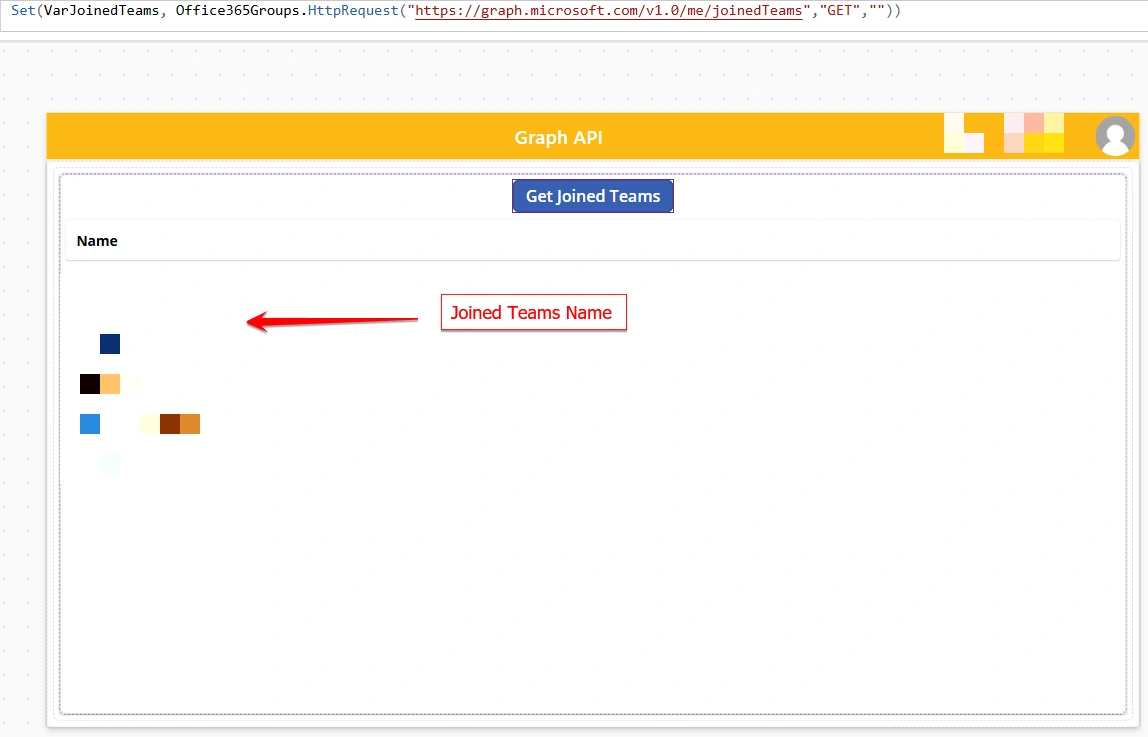
If you want to call groups data:
Button Name: Get Joined Teams
On Select:
Set(MyGroups, Office365Groups.HttpRequest(
    "https://graph.microsoft.com/v1.0/me/joinedTeams",
    "GET",
    ""
));
This returns the groups the current user is part of.
Works because the Office365Groups connector has permissions for group data.
3️⃣Get Sites and Lists
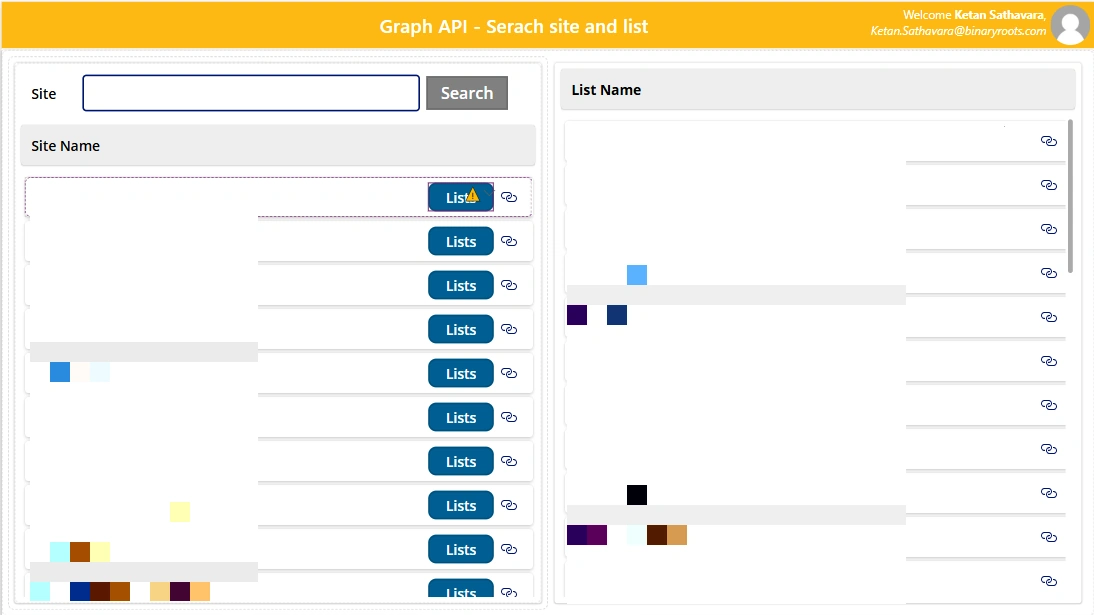
On Search button : On Select
Set(VarSites, Office365Groups.HttpRequest("https://graph.microsoft.com/v1.0/sites?search=" & TextInput1.Text , "GET","")); On List button : On Select
Set(VarLists, Office365Groups.HttpRequest("https://graph.microsoft.com/v1.0/sites/"& ThisItem.Value.id &"/lists","GET",""))On Site Link Icon: on Select
Set(VarLists, Office365Groups.HttpRequest("https://graph.microsoft.com/v1.0/sites/"& ThisItem.Value.id &"/lists","GET",""))On List Link Icon: Select
Launch(ThisItem.Value.webUrl,"",LaunchTarget.New)Conclusion:
For
/me→ UseOffice365Users.MyProfile()For group info → Use
Office365Groups.HttpRequestFor anything else outside groups → You need a custom connector or Power Automate flow with proper Graph permissions.
Join the conversation! Your thoughts help the community grow.