

Views are actually the presentation layer of the application. With the help of Views, we see the information on the screen. Let’s start our journey.
- We are already working on ‘HelloWorld’ project.
- Just add a new ‘Empty Controller’ and name it ‘TestController’.
- And add the View.
Right-click Action body > Add View.
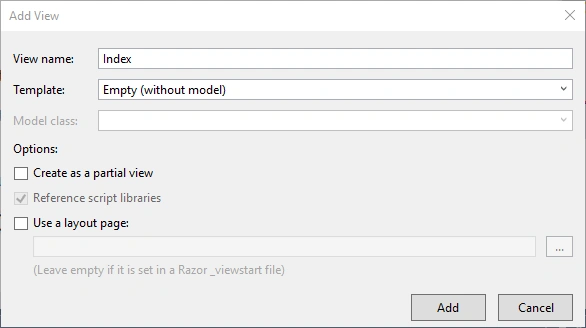
Uncheck the layout checkbox and click on "Add".
- @{
- Layout = null;
- }
- <!DOCTYPE html>
- <html>
- <head>
- <meta name="viewport" content="width=device-width" />
- <title>Index</title>
- </head>
- <body>
- <div>
- </div>
- </body>
- </html>
You already know the concept of master pages. Like in PHP files, when we are working on a page and we need headers and footers, then we make their code separate in the two different files and just include them where we need. Similarly, in Web forms, we make the master page for a common code of the page. Here, we’ve unselected the shared ‘_layout.cshtml’ page which means that the View generated through this action will run standalone. There is no dependency here in this file to any other View.
Another thing to look for is that our action name is ‘Index’ and our view name is by default ‘Index’. This is the beauty of convention in Visual Studio. It helps the developers to find out the relevant view in the same controller name folder very easily.
Now create another action but don’t generate its View.
- public class TestController: Controller {
- // GET: Test
- public ActionResult Index() {
- return View();
- }
- public ActionResult Demo() {
- return View();
- }
- }
Remember that
F5: Build and Run with Debugging
Ctrl + F5: Build and Run without Debugging
And normally I’m using Ctrl + F5.
When we request the ‘Index’ action into the URL, it shows nothing to us. Because we do not write a single line in Index-generated View, there is nothing to show on the screen. But when we request the ‘Demo’ action into the URL, then we see the error.
http://localhost:65354/Test/Demo
Let’s talk about the error.
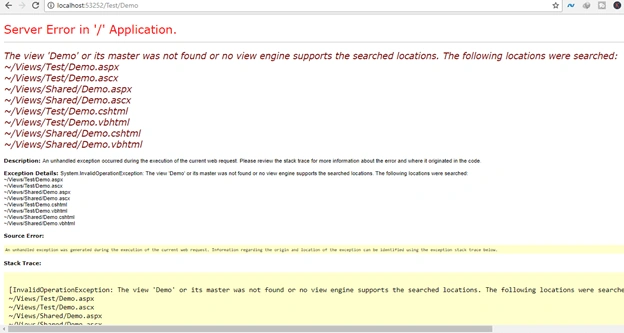
Actually, we don’t generate its View. So it is searching the ‘Demo’ view page with any possible extension. When the file didn’t find in the folder where it should be then it will move into the Shared folder to find out same name file. This is the power of convention. The system knows that the View is of the same name as the name of the action.
Now add its view and select the ‘layout page’ checkbox.
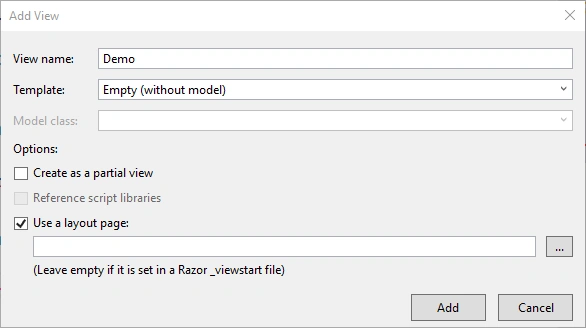
Now, look, here we have a guideline in the above popup that leaves it empty if it is set in _viewstart file. But in our project, we’ve no Shared folder no _ViewStart file but still, we leave it empty. So asp.net automatically detects it and manually create all the files for us.
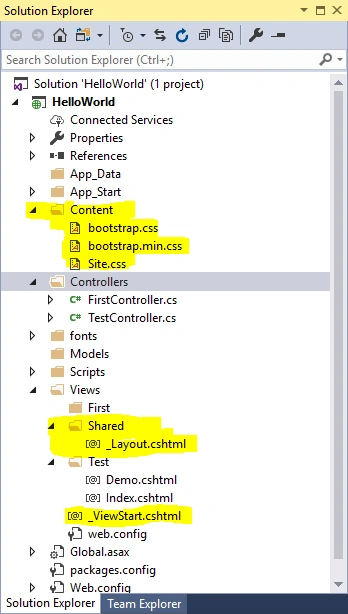
Click Add and now our Solution Explorer has some new files and folders which will be used to generate a well-formatted master (_layout) page with its content.
And now our view looks like
- @{
- ViewBag.Title = "Demo";
- }<h2>Demo</h2>
Actually in layout.cshtml there is a default theme of our application and when we trigger our action, our view ‘demo.cshtml’ which is generated with layout.cshtml will be see on the screen in good format.
Actually what is happening?
As you can see we’ve ‘_ViewStart.cshtml’ file in Views folder. It always comes into play before requesting a specific view. Here we’ve set a variable Layout
- @{
- Layout = "~/Views/Shared/_Layout.cshtml";
- }
It means that this address is in the Layout variable. And in the views where Layout is manually set as null like in ‘Index.cshtml’ we’ll not see the styling or theme of Layout.cshtml. And in the views where it is not set to any other value or null like in ‘Demo.cshtml’ we’ll see the view in a better format.
What is @ (Razor)?
Razor is actually the view engine which is first introduced MVC 3. View Engine is responsible to render the view into html form. ASP.Net has by default 2 view engines asp.net web form view engine <% %> and razor view engine @. ASP.Net is open source so there are many 3rd party view engines as well like (Spark, Sharp Tiles, Wing Beats etc.) which we can use in our views,
| Razor View Engine | Web Form View Engine |
| It has the file extension (.cshtml, .vbhtml) | It has the file extension (.aspx, .ascx, .as) |
| It is advanced but it is not a new programming language. | It is the classical view engine that is using from the beginning. |
| It prevents from attack (XSS) | It doesn’t prevent an attack. |
| It is much slower than web form view engine. | It is fast because it is near to HTML. |
| We use razor view [email protected] | We use web form view engine.<%: DateTime.Now %> |
| @foreach(var item in Model) { <tr> <td>@item.Name</td> </tr>} | <% foreach(var item in Model) { %> <tr> <td><%: item.Name %></td> </tr><% } %> |
Join the conversation! Your thoughts help the community grow.