

In my last article I explained how to create a SSRS project. In this article I explain how to use the Report Viewer in Visual Studio 2012. In this article we will see use of a dataset and the Report Viewer.
Step 1: Open Visual Studio 2012 or 2010 then create a new Forms Application (project name: "HowToOpenReportViewer").
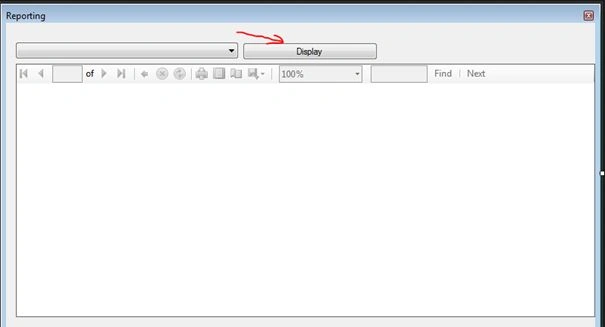
Step 2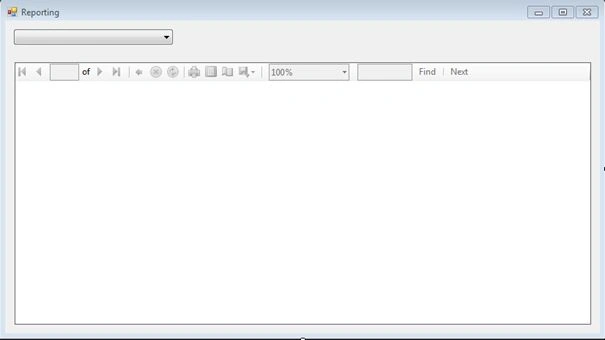
- Change the DropDownStyle to DropDownList
- Design name: cbProducts
Step 3: We need to create a dataset. How? Right-click on the HowToOpenReportViewer project then select "Add" >> "New Item" then select "DataSet". The default name is "DataSet1.xsd"; I did not change it. Then click the "OK" button.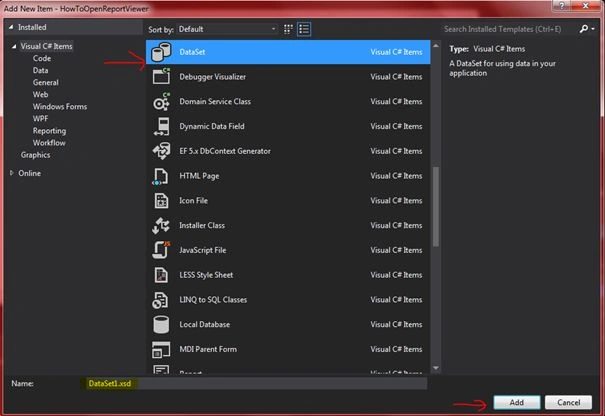
Here is the default DataSet page.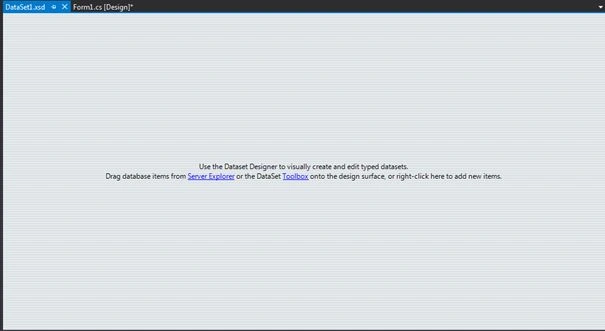
Step 4: Right-click then select "Add" -> "TableAdapter"
In this screen we can set a connection configuration. If you have no connection struct then you should create a new connection fron the "New Connection". 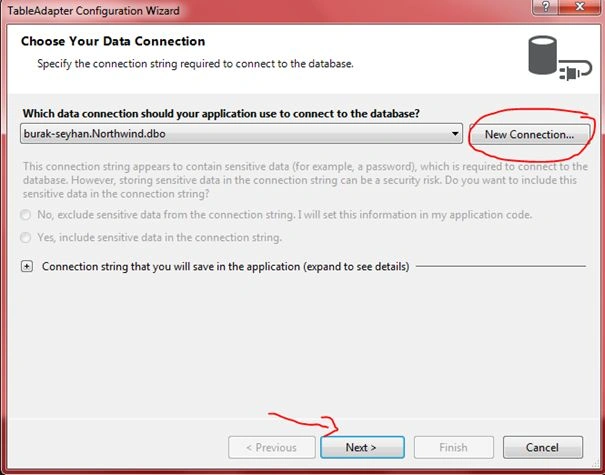
Step 5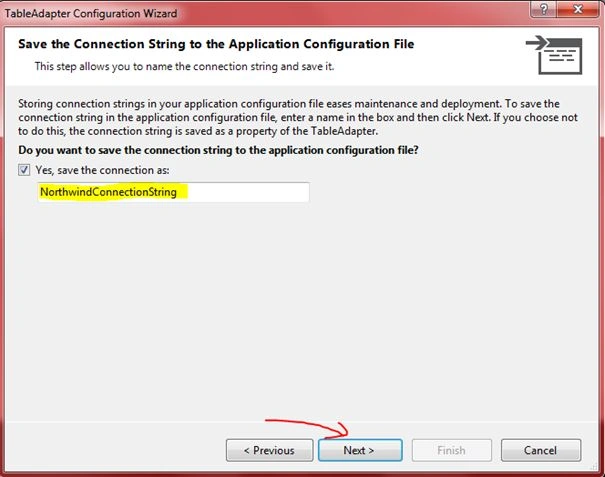
Step 6: If you have Stores Procedures then you should choose the second button; I chose "SQL Statement". Then click the "Next" button. 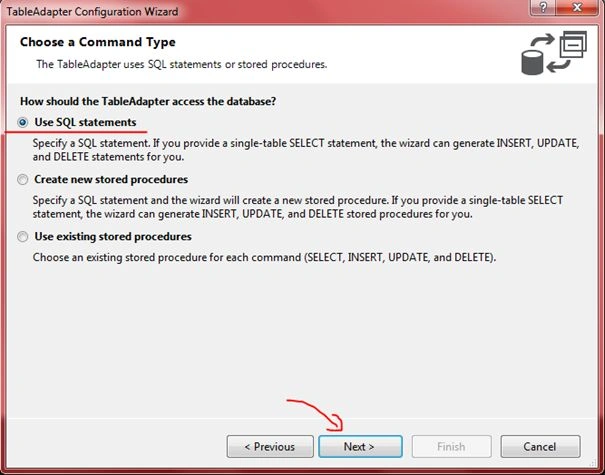
Step 7: We should use a SQL query for ComboBox. 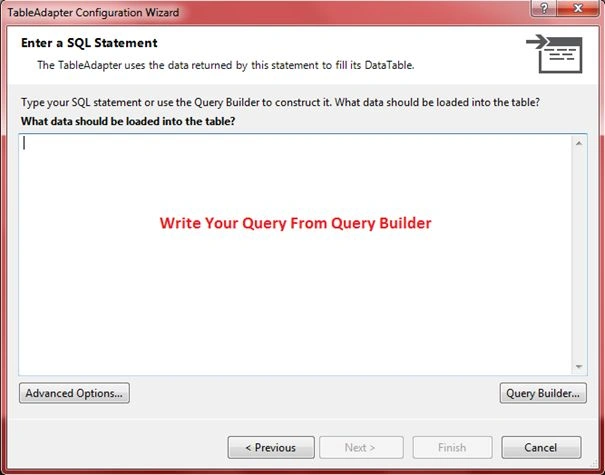
Step 8: This query will use a ComboBox.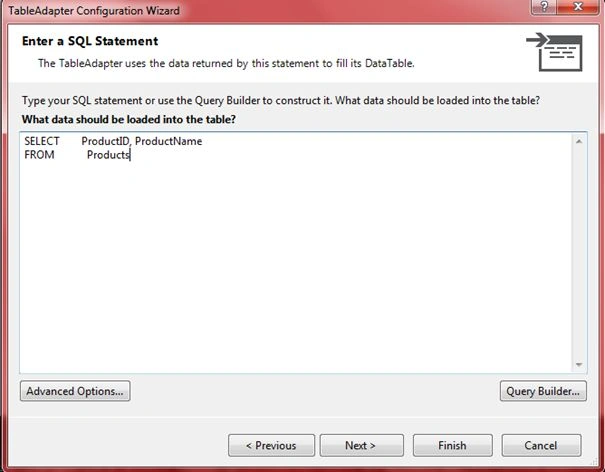
Step 9: Here is my method's name. If you want to change it, you can do that but I do not want to change it. I'll use the default name.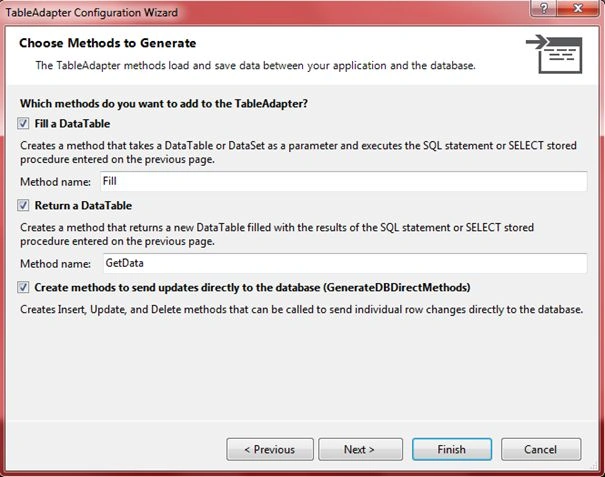
Step 10: All the configuration is there. If you are not sure of the settings then you should click the "Previous" button.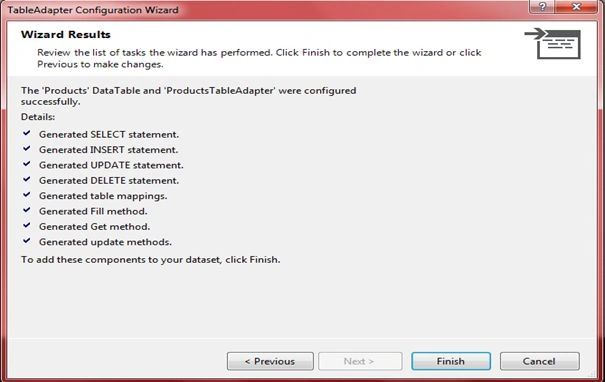
Step 11: I will create a DataAdapter two times for the display value. 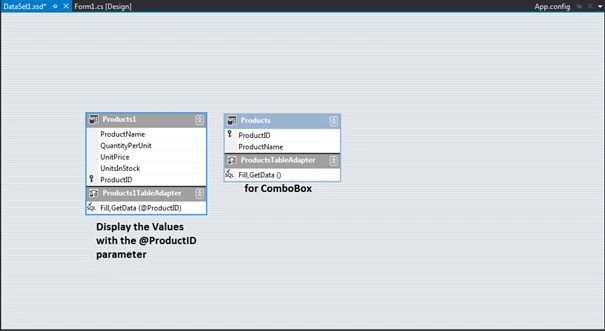
Step 12: Click the ComboBox then select "Use Data Bound Items".

Kamlesh KumarPosted Aug 22, 2014, 5:27 AM
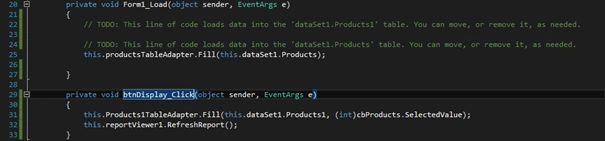
In the btnDispaly_Click event in tableadapter it does not come cbProducts.SelectedValues
Daniel RosaPosted Aug 11, 2014, 7:57 AM
how to use this in vb.net using visual studio and linq to sql ?
Sibiraj TPosted May 29, 2014, 3:33 PM
hi thank u so much, but the code that u have given for displaybutton is not working. so kindly help me out dude.. i get error in that fill function. im using vb.net in visual studio 2012 for my project
JOHIR TARUNPosted Mar 21, 2014, 2:17 AM
so much thanks
Aldo VallejosPosted Feb 5, 2014, 1:45 PM
Hi Burak Seyhan, look, heres the deal ... im having trobles with the report viewer in my Visual Studio 2013. When i add, delete or update any row in the DB the report keep showing the old ones, not the new ones with the updates, what can i do to fix this problem? please send me a response asap. greetings from Chile :)