

Introduction
Today in this article, I will explain how to create a simple C# program for Image Folder View. It has been a long time since I have planed to create a Winform C# program, for viewing Images the same as a folder structure (Small icon, Medium icon, Large icon and Extra Large icon). Today finally I got some time to work on my simple program.
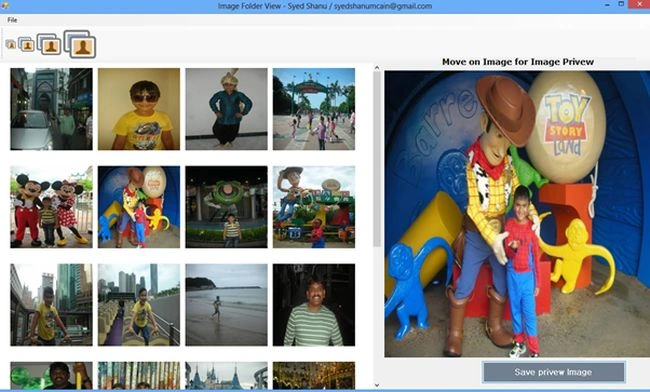
In my program I have used a "FolderBrowserDialog" to select Image path folder location. The images listed in the selected folder will be loaded to a panel. The user can view the images as Small, Medium, Large or Extra Large icons by clicking on the menu top. When users hover the mouse on images a preview will be displayed in the right that can be saved as an image file.
Using the Code
- Variable Declarations
I have declared the FolderBrowserDialog, locationX, locationY, Width and Height of the picture box for initial setting.
private System.Windows.Forms.FolderBrowserDialog folderBrowserDlg;
int locX = 20;
int locY = 10;
int sizeWidth = 30;
int sizeHeight = 30;
- Open Folder
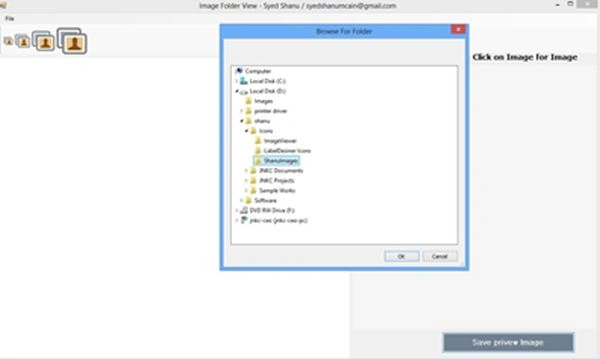
In the Open Folder Menu click event I get all the images from the selected folderpath using Folder.GetFiles() method, and checking for the images files from the selected folder. Using loadImagestoPanel() all the images are added to a pictuerbox and finally all the picturebox are added to the Panel control.
The details of the Open folder menu click event:
private void openFolderToolStripMenuItem_Click(object sender, EventArgs e)
{
DirectoryInfo Folder;
FileInfo[] Images;
this.folderBrowserDlg.RootFolder = System.Environment.SpecialFolder.MyComputer;
this.folderBrowserDlg.ShowNewFolderButton = false;
DialogResult result = this.folderBrowserDlg.ShowDialog();
if (result == DialogResult.OK)
{
Folder = new DirectoryInfo(folderBrowserDlg.SelectedPath);
Images = Folder.GetFiles();
pnControls.Controls.Clear();
int locnewX = locX;
int locnewY = locY;
foreach (FileInfo img in Images)
{
if (img.Extension.ToLower() == ".png" || img.Extension.ToLower() == ".jpg" || img.Extension.ToLower() == ".gif" || img.Extension.ToLower() == ".jpeg" || img.Extension.ToLower() == ".bmp" || img.Extension.ToLower() == ".tif")
{if (locnewX >= pnControls.Width - sizeWidth - 10)
{
locnewX = locX;
locY = locY + sizeHeight + 30;
locnewY = locY;
}
else
{
locnewY = locY;
}
loadImagestoPanel(img.Name, img.FullName, locnewX,locnewY);
locnewY = locY + sizeHeight + 10;
locnewX = locnewX + sizeWidth + 10;
}
}
}
}
The detail Folder Images are added to the panel function.
In this function get the Imagename, Path, image XLocation and image YLocation. Create a pictuerbox at runtime and add all pictuerboxes to the panel controls.
private void loadImagestoPanel(String imageName,String ImageFullName,int newLocX,int newLocY)
{
PictureBox ctrl = new PictureBox();ctrl.Image = Image.FromFile(ImageFullName);
ctrl.BackColor = Color.Black;ctrl.Location = new Point(newLocX, newLocY);
ctrl.Size = new System.Drawing.Size(sizeWidth, sizeHeight);
ctrl.SizeMode = PictureBoxSizeMode.StretchImage;
ctrl.MouseMove += new MouseEventHandler(control_MouseMove);
pnControls.Controls.Add(ctrl);
}
}
I have added a MouseMove event for all Pictuerbox controls. In this MouseMove Event I displayed the image to the preview Image Pictuerbox.
private void control_MouseMove(object sender, MouseEventArgs e)
{
Control control = (Control)sender;
PictureBox pic = (PictureBox)control;
pictureBox1.Image = pic.Image;
} -
Image Icon Size Change

Here I have 4 menu buttons for Small, Medium, Large and Extra Large. In this button click event I set the pictuerbox height and width and reload all the pictuerboxes with the new size added. The detailed code is listed below.
private void toolStripButton4_Click(object sender, EventArgs e)
{
locX = 20;
locY = 10;
sizeWidth = 30;
sizeHeight = 30;
if (pnControls.Controls.Count > 0)
{
loadControls();
}}
private void loadControls()
{
int locnewX = locX;
int locnewY = locY;
foreach (Control p in pnControls.Controls)
{
if (locnewX >= pnControls.Width - sizeWidth - 10)
{
locnewX = locX;
locY = locY + sizeHeight + 30;
locnewY = locY;
}
else
{
locnewY = locY;
}
p.Location = new Point(locnewX, locnewY);
p.Size = new System.Drawing.Size(sizeWidth, sizeHeight);
locnewY = locY + sizeHeight + 10;
locnewX = locnewX + sizeWidth + 10;
}
}
Points of Interest
The main purpose of this article is to create a simple C# application to view all the images listed in the folder with preview and save functionality.
Sam HobbsPosted Mar 2, 2018, 2:20 PM
Use of the MouseMove event should be avoided since there are so many of them sent. It seems to me that the MouseEnter Event would be equally effective and would be more efficient. You would want to also handle the MouseLeave event.
Sai TejaPosted Jan 12, 2018, 4:21 AM
What is pnControls?
Wael GhPosted Feb 29, 2016, 7:02 AM
Thanks
Syed ShanuPosted Sep 1, 2014, 10:56 PM
Thank You
sonu alamPosted Aug 31, 2014, 5:42 PM
good job sir