

Introduction
This article demonstrates image navigation in Xamarin.Forms applications.
Let's start.
Step 1
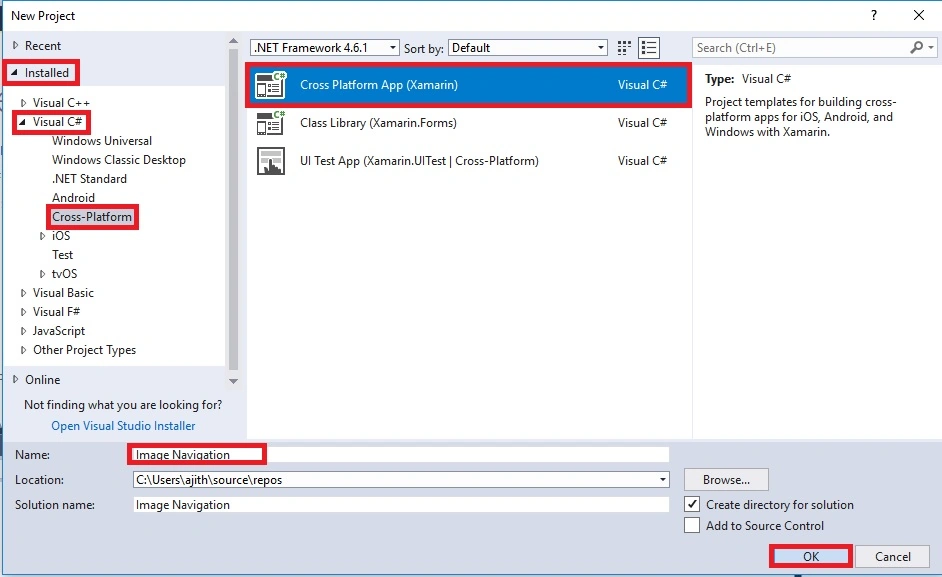
Open Visual Studio and go to New Project >> Installed >> Visual C# >> Cross-Platform.
Select Cross-platform app, then give your project a name and location.
Step 2
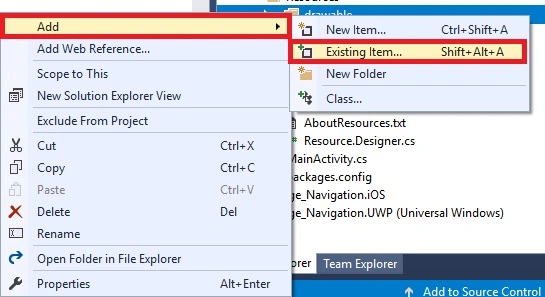
Next, add an image to Solution Explorer >> Project Name.Android >> Resources >> Right-Click >> drawable >> Add >> Existing Item.
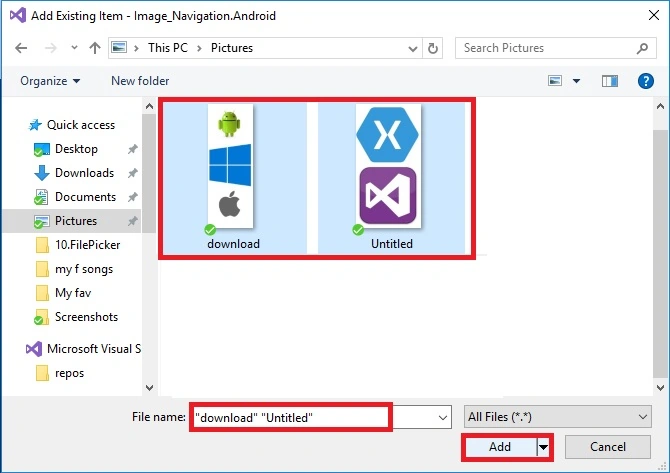
Next, a dialogue box will open. Choose image location and add images.
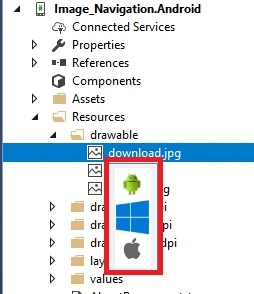
The image is added successfully.
Step 3
Open Solution Explorer >> Project Name (Portable) >> App.Xaml.cs. Open the design view of this page.
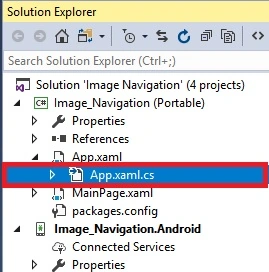
The code is given below.
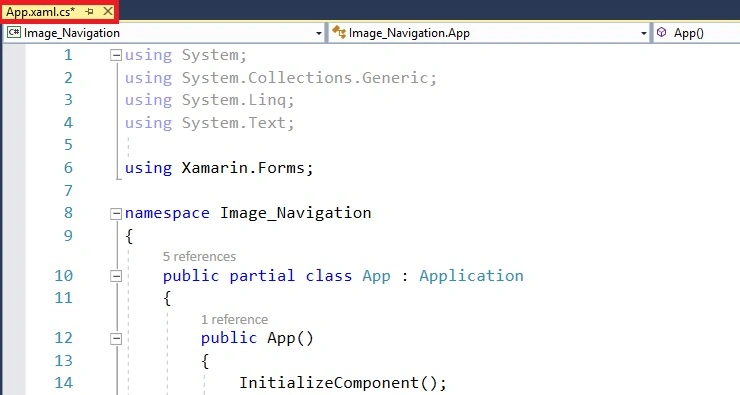
C# Code
- using System;
- using System.Collections.Generic;
- using System.Linq;
- using System.Text;
- using Xamarin.Forms;
- namespace Image_Navigation
- {
- public partial class App : Application
- {
- public App()
- {
- InitializeComponent();
- MainPage = new NavigationPage (new MainPage());
- }
Step 4
Open Solution Explorer >> Project Name (Portable) >> MainPage.xaml. Open the design view of this page.
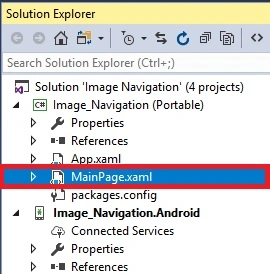
The code is given below.
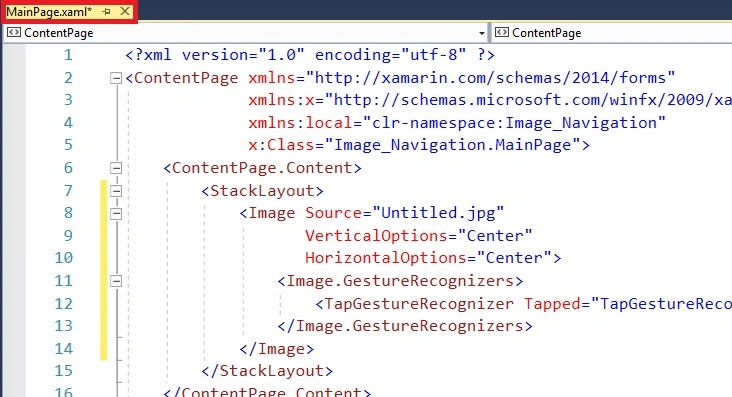
XAML Code
We are creating the image inside the StackLayout and adding an image name copied from the source. Image Name is "" Untitled.jpg".
- <?xml version="1.0" encoding="utf-8" ?>
- <ContentPage xmlns="http://xamarin.com/schemas/2014/forms"
- xmlns:x="http://schemas.microsoft.com/winfx/2009/xaml"
- xmlns:local="clr-namespace:Image_Navigation"
- x:Class="Image_Navigation.MainPage">
- <ContentPage.Content>
- <StackLayout>
- <Image Source="Untitled.jpg"
- VerticalOptions="Center"
- HorizontalOptions="Center">
- <Image.GestureRecognizers>
- <TapGestureRecognizer Tapped="TapGestureRecognizer_Tapped"/>
- </Image.GestureRecognizers>
- </Image>
- </StackLayout>
- </ContentPage.Content>
- </ContentPage>


Ravishankar VelladuraiPosted Mar 28, 2018, 10:57 AM
I have one doubt Ajith how to this a xamarin native
Ravishankar VelladuraiPosted Mar 28, 2018, 10:46 AM
Nice keep sharing and neat explanation and then next article what ??