

Recently, while working on a SharePoint Online (Office 365) project, I came across a very interesting task, i.e., to send anniversary and birthday emailers to the users. This scheduling needs to happen daily based on an individual's birthday or anniversary date.
Task
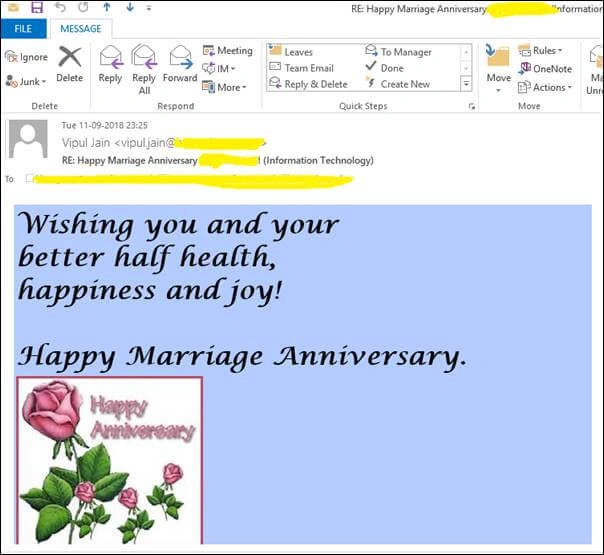
Send Anniversary and Birthday Emailers. Also, the images are random and every user must receive a different birthday image.
Send Anniversary and Birthday Emailers. Also, the images are random and every user must receive a different birthday image.
Looking at this task, I thought it’s a very common task and in every organization, developers will be doing this kind of activities. So below are the approaches,
Approach 1
My first approach for implementing this was to develop a Console Application and use Managed Client side object model (CSOM) code. Then this console application will be hosted on a Windows Server. However, this approach had a dependency on Windows Server and the client refused to use this approach.
Approach 2
The second approach was to schedule the Console Application as a Web Job on Microsoft Azure, however, this approach was also not possible because the client didn’t have an Azure subscription.
Approach 3 (Most Appropriate Approach)
The last approach was to use Microsoft Flows in Office 365. In Microsoft Flows, we have an action called “Recurrence” through which we can schedule our tasks. So, I used this approach, however using this approach again introduced the following challenges,
Using the SharePoint Document Library for saving the images
Challenge
Using the SharePoint Document Library for saving the images
Challenge
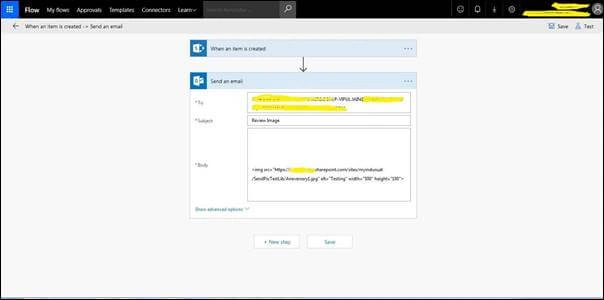
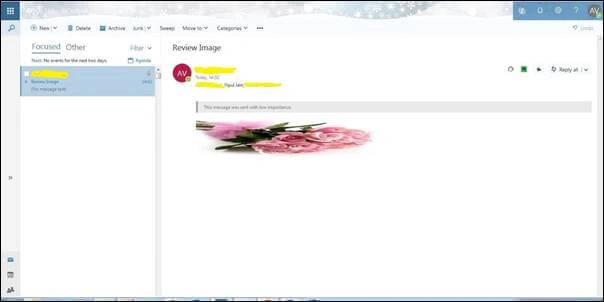
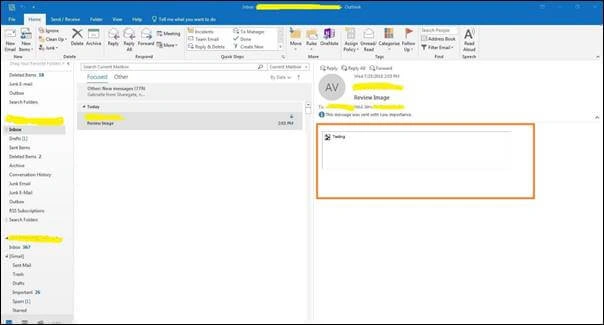
The image is not visible in the email body in Outlook 2013 or Outlook 2016.
NOTE
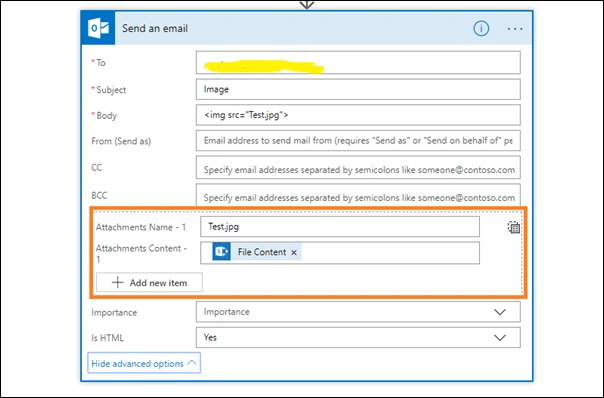
“ISHTML” option in Microsoft Flows was checked, so this was not the issue. Also, from the firewall policy point (from the customer), the settings in Outlook were also checked (as shown below).
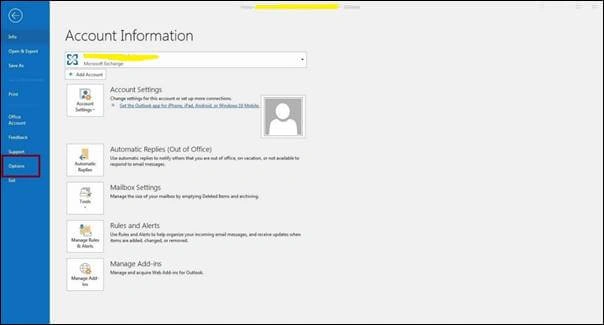
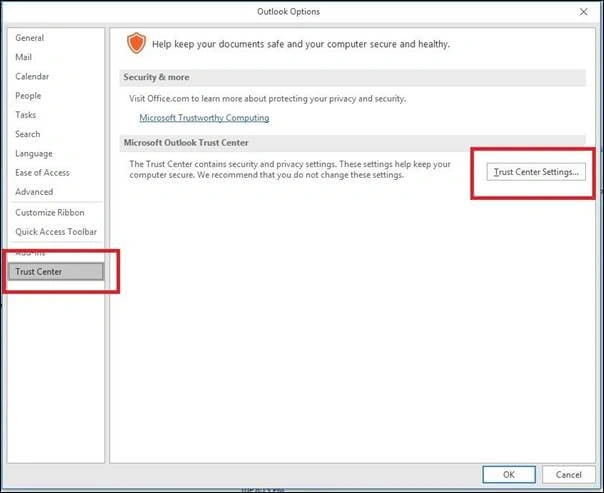
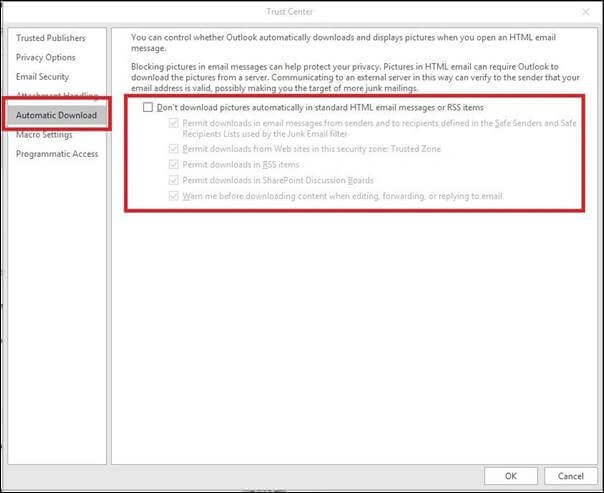
“ISHTML” option in Microsoft Flows was checked, so this was not the issue. Also, from the firewall policy point (from the customer), the settings in Outlook were also checked (as shown below).
NOTE
I checked with checking the above checkbox also, but the issue remained the same.
I checked with checking the above checkbox also, but the issue remained the same.
Henrik JuulPosted May 31, 2021, 12:43 PM
Wonderful - Seems like this is way to go when you create a HTML mail from any application. Note the link in the img-tag is only the filename, not the including the path
Books ReadPosted Feb 1, 2021, 8:19 AM
Thanks Vipul , this really helped me & saved my time
Suman Kumar SumanPosted May 27, 2020, 10:14 AM
Hello Vipul, Thanks for this article, but I am getting one issue as Images are getting displayed in email body along with its coming as attachment. Is there a way to display image in email body only not as attachment?
Kaviya MPosted May 3, 2020, 9:55 AM
Hi Vipul, please explain the steps. My image is in SharePoint library. I am adding it in both img tag and as attachment file content. Still image is not showing for anyone in outlook client recurrence. Please help with steps.
Neha RathiPosted Apr 29, 2020, 3:49 PM
Hello Vipul, I am trying to use recurrence flow to get all the news posted on SharePoint in an email every friday. The proble I am having is the images are not getting displayed in outlook client. Can you please help?
Neha RathiPosted Apr 29, 2020, 3:47 PM
Hello Vipul,
Mustafa AhmedPosted Jun 19, 2019, 4:06 AM
Hi Vipul, can you describe the steps to embed image to outlook client using ms flows. I am embeding image in mail body but it is displaying as square box.
Santosh PrasadPosted May 15, 2019, 6:14 AM
Finally, I made it, thank you for your help Vipul! Instead of uploading the image to List, just updated to the Image library and used Get File Content and followed above steps.
Santosh PrasadPosted May 14, 2019, 12:51 AM
Thank you Vipul for the quick revert. Actually, I am doing the same, updating the image in the SharePoint library and using its URL in the List. Is that the way we should do? Else, how to call the File Content directly from the SharePoint Doc Lib?
Santosh PrasadPosted May 10, 2019, 2:01 AM
Hi Vipul, thank you for sharing this article!, can you please let us know what is the content of "File Content", that you have used for Attachment Content, is this File Content coming from List ? Hoping to hear soon from you!