Before reading this article, please go through the following articles.
Reading this article, you can learn how to use UWP Tool Kit Control - ImageEx in Universal Windows Apps development, with XAML and Visual C#. ImageEx Control is an extension of image control which holds two sources of images, the Placeholder image and Source image.
The following important tools are required for developing UWP.
- Windows 10 (Recommended)
- Visual Studio 2015 Community Edition (It is a free software available online).
Now, we can discuss step by step App development.
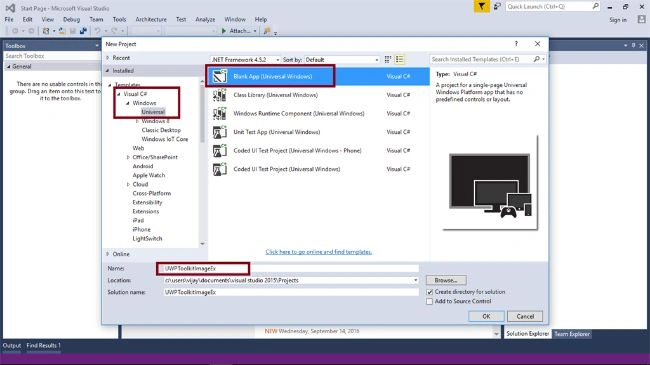
Step 1 - Open Visual Studio 2015 -> Start -> New Project -> Select Universal (under Visual C# -> Windows) -> Blank App -> Give a suitable name for your App (UWPToolkitImageEx) -> OK.
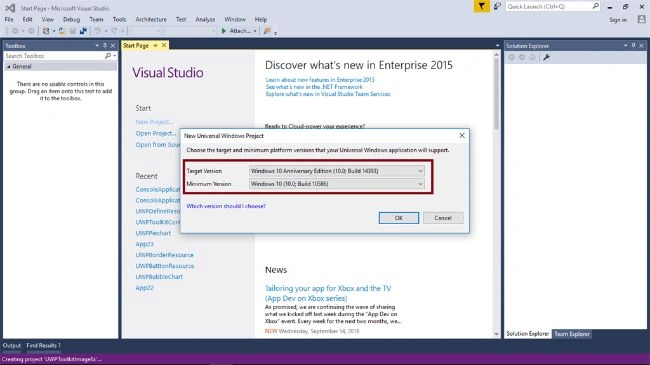
Step 2 - Choose the Target and Minimum platform version that your Windows Universal Application will support. After this, the project creates App.xaml and MainPage.xaml.
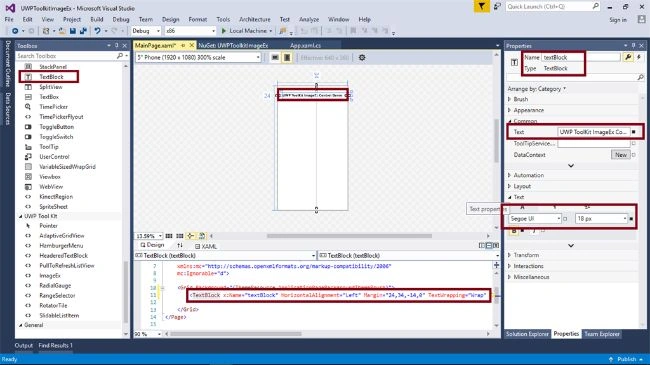
Step 3 - Add TextBlock control and change the name and text property of title.
For adding UWPToolKit Control, Please refer,
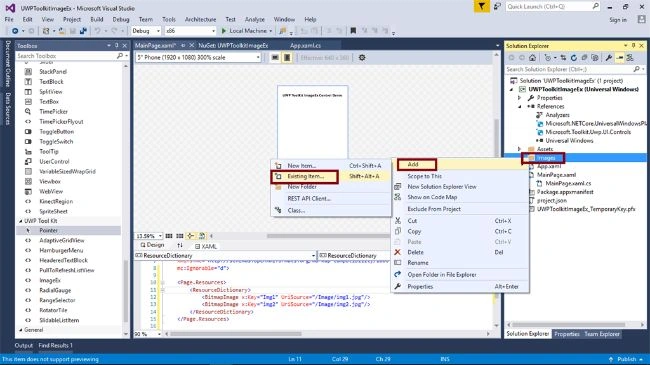
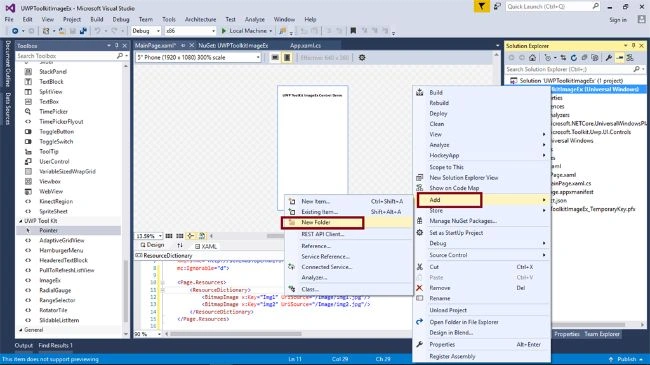
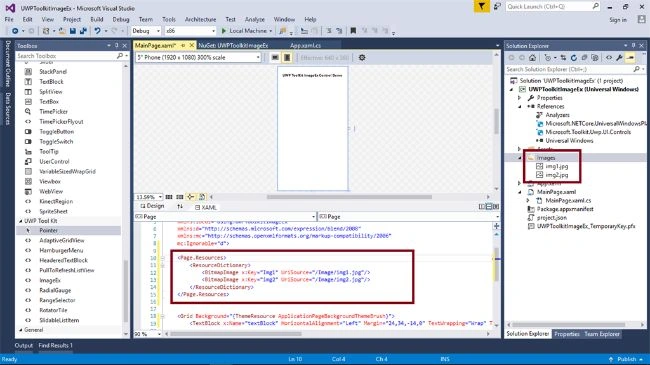
Step 4 - Add new folder as images, for images for ImageExControl.
Add two images in the images folder.
 Step 5 -
 Add the following XAML code for creating Local Resource for image, used to add ImageEx control.
- <Page.Resources>
-
- <ResourceDictionary>
-
- <BitmapImage x:Key="Img1" UriSource="/Images/img1.jpg"/>
-
- <BitmapImage x:Key="img2" UriSource="/Images/img2.jpg"/>
-
- </ResourceDictionary>
-
- </Page.Resources>
Step 6 - Add UWP Tool Kit namespace in Mainpage.xaml.
- xmlns:Controls="using:Microsoft.Toolkit.Uwp.UI.Controls"
Add ImageEx control from UWP Tool Kit and change the name property.
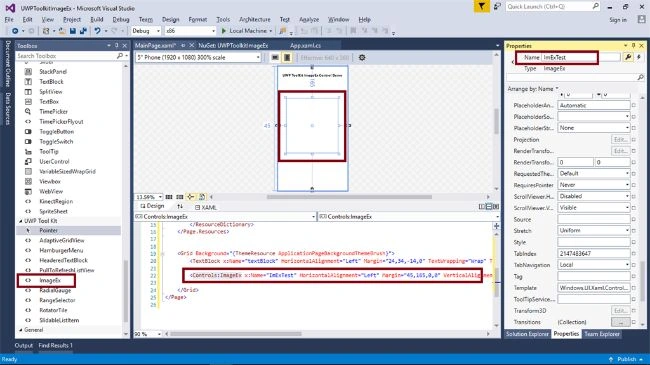 Step 7 -
 Set the Placeholdersource image as Local Resource.
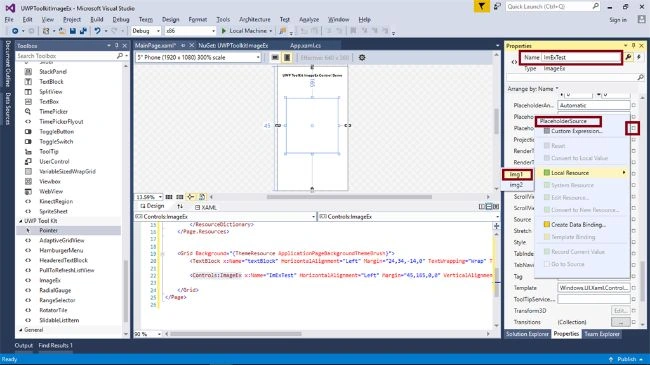 Step 8 -
 Finally, your design screen looks like the following.
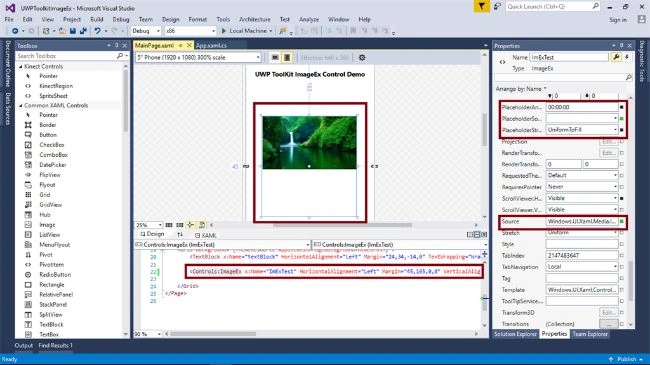
Note - Automatically, the following code will be generated in XAML code View, while we are done in the design View.
- <Page xmlns="http://schemas.microsoft.com/winfx/2006/xaml/presentation" xmlns:x="http://schemas.microsoft.com/winfx/2006/xaml" xmlns:local="using:UWPToolkitImageEx" xmlns:d="http://schemas.microsoft.com/expression/blend/2008" xmlns:mc="http://schemas.openxmlformats.org/markup-compatibility/2006" xmlns:Controls="using:Microsoft.Toolkit.Uwp.UI.Controls" x:Class="UWPToolkitImageEx.MainPage" mc:Ignorable="d">
- <Page.Resources>
- <ResourceDictionary>
- <BitmapImage x:Key="Img1" UriSource="/Images/img1.jpg" />
- <BitmapImage x:Key="img2" UriSource="/Images/img2.jpg" /> </ResourceDictionary>
- </Page.Resources>
- <Grid Background="{ThemeResource ApplicationPageBackgroundThemeBrush}">
- <TextBlock x:Name="textBlock" HorizontalAlignment="Left" Margin="24,34,-14,0" TextWrapping="Wrap" Text="UWP ToolKit ImageEx Control Demo" VerticalAlignment="Top" Height="32" Width="350" FontWeight="Bold" FontSize="18" />
- <Controls:ImageEx x:Name="ImExTest" HorizontalAlignment="Left" Margin="45,165,0,0" VerticalAlignment="Top" Height="280" Width="264" PlaceholderSource="{StaticResource Img1}" Source="{StaticResource Img1}" ScrollViewer.HorizontalScrollBarVisibility="Visible" PlaceholderStretch="UniformToFill" PlaceholderAnimationDuration="0" /> </Grid>
- </Page>
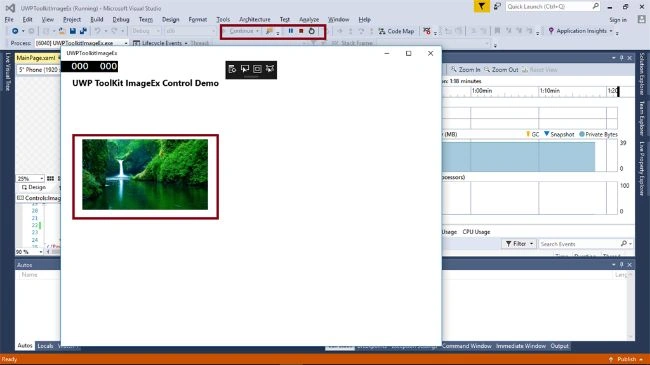
Step 9 - Deploy your app in Local Machine. The output of the
UWPToolkitImageEx App is shown below.1. With ImageEx control- Placeholdersource image -
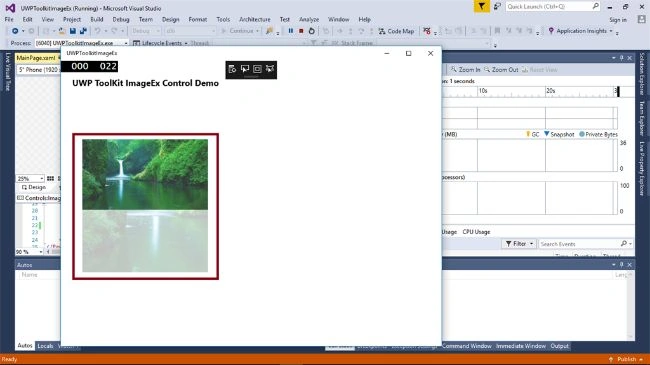
2. With Source image,
Summary - Now, you have successfully tested UWP Tool Kit - ImageEx Control in Visual C# - UWP environment.


MarioPosted Sep 22, 2016, 5:32 AM
Very nice
Prasanna MuraliPosted Sep 20, 2016, 9:36 PM
Nice share
Vignesh ManiPosted Sep 20, 2016, 6:12 PM
Nice