

Introduction
Most of the time we import bulk data using simple CSV files, but sometimes the requirement is to load all records into a predefined Excel template that already has fixed columns and formatting. In this article, I'll explain how to use Power Automate to take data from any source and automatically insert it into that existing Excel structure. You'll learn how to prepare the template, identify the table, and add rows dynamically without breaking the layout.
Use Case
In many business processes, we normally import data using CSV files. But sometimes the requirement is different ,the client wants all the records to be filled inside a fixed Excel template that already has headers, formatting, and formulas. Doing this manually every time takes a lot of effort and is not practical when data keeps changing. So we need an easy way in Power Automate to take all records from our data source and automatically place them into that predefined Excel table without touching the template layout.
Below are the steps to import all records into a predefined Excel template using Power Automate:
Step 1
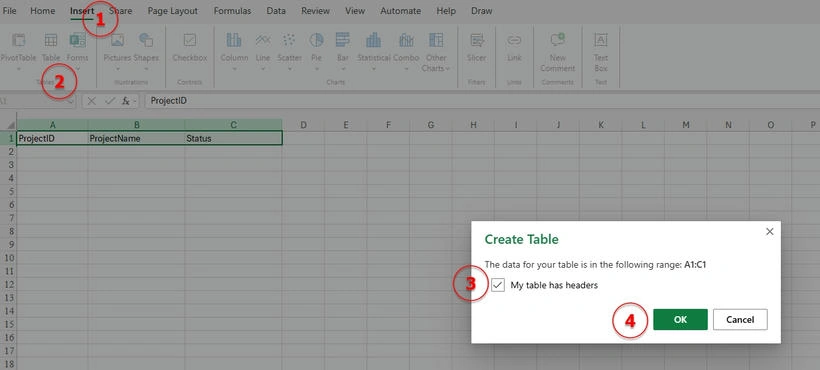
Open your Excel file. First, select the header row where you want to define your columns. Make sure to add all the columns that you want to import data into, and then format them as table headers.
Step 2
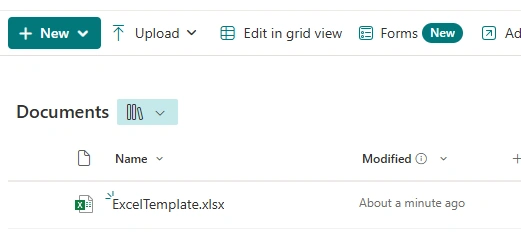
Upload the Excel file you just created to a document library.
Step 3
In Power Automate, we will read the Excel template that we created earlier . After that, we will create a new Excel file and add the imported data into it.
Step 4
Go to make.powerautomate.com . Select a trigger for your flow, give your flow a name , and then click on Create .

Step 5
As per the below image, I have these records in my list, and these are the records that I want to import into the new Excel file.

Add a Get items action. Select the site and list name from where you want to import the data. In my case, I am using SharePoint, so I selected the SharePoint list. If you are importing data from Dataverse, then just choose the Dataverse action instead of SharePoint.

Step 6
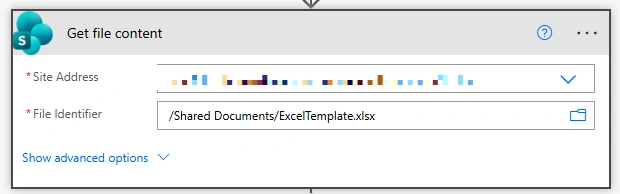
Add a Get file content action and provide the location of the Excel template file.
Step 7
Now add a " Create file" action. Select the site address and the folder path where you want to export the new Excel file.
For the file name , use your own naming convention and pass File content from Get file content action . In my case, I used File Name as:
ProjectTracker_formatDateTime(utcNow(), 'yyyy-MM-ddTHH:mm:ss').xlsx
This creates a unique Excel file every time the flow runs.

Step 8
Add an Apply to each action and pass the value output from the Get items action (from Step 5).
Inside the loop, add an "Add a row into a table" action. Select the location , document library , and then pass the File as Id from the Create file action.
Since we are reading the Excel template and creating a new Excel file, Power Automate cannot auto-detect the table name. So you need to enter the table name manually , use the same table name that you created in your Excel template.
For the row fields, manually define the object by mapping each column with the values coming from the list.
Make sure the left-side names in your object match exactly the same column names you used in your Excel template header.
Also, only map the values that you actually want to export into your new Excel file.

Output

Conclusion
In this process, we learned how to take data from a list and put it into a new Excel file using our Excel template . Instead of exporting to CSV, we used the template to keep the same columns and format. We just mapped the fields we needed, and Power Automate created the file for us.
Join the conversation! Your thoughts help the community grow.