

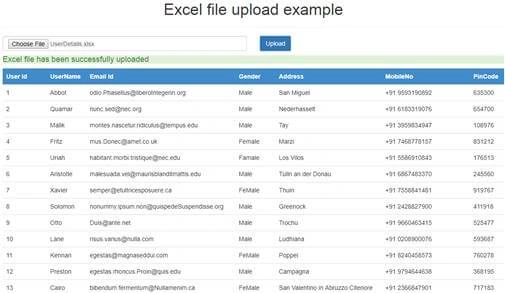
Let us learn the process of importing the Excel file in an Angular 7 Web Application using Web API with a back-end of the SQL Server database. And after uploading the Excel file, it will display in the UI. A Web API is used to provide data connectivity between the database and the front-end application.
I'm using Visual Studio Code as a tool to build my application. If you don't have Visual Studio Code, you have to download and install it first. Here is the Visual Studio Code download link: Download Visual Studio Code Editor.
You can read my previous articles related to Angular 7 from the following links.
- Cascading Dropdown List Using MVC, Web API And Angular7
- CRUD operations in angular7 using Web API
- Infinite Scroll In Angular 7 Using Web API And SQL Server
- Filtration, Sorting, And Pagination In Angular 7 using Web API And SQL Server
Step 1. Create a database table
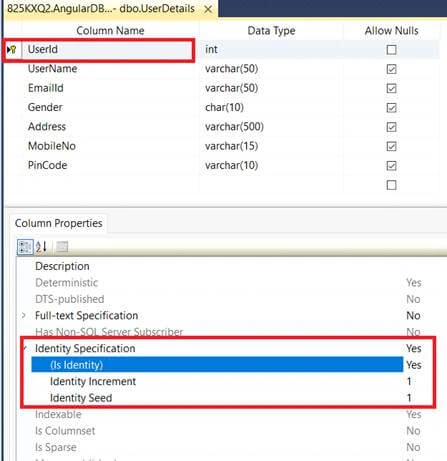
Create a database. Open SQL Server and create a new database table. As you can see from the following image, I have created a database table called User Details with 7 columns.
Note
You can choose the size of the column according to your requirement.
You can choose the size of the column according to your requirement.
Note
If you already have an existing database and table, you can skip this step.
If you already have an existing database and table, you can skip this step.
Step 2. Create a Web API Project
Now, we will create a Web API with the functionality of binding records from database. Go to Visual Studio >> File >> New >> Project, and select Web Application. After that, click OK and you will see the templates. Select Web API template.
Now, we will create a Web API with the functionality of binding records from database. Go to Visual Studio >> File >> New >> Project, and select Web Application. After that, click OK and you will see the templates. Select Web API template.
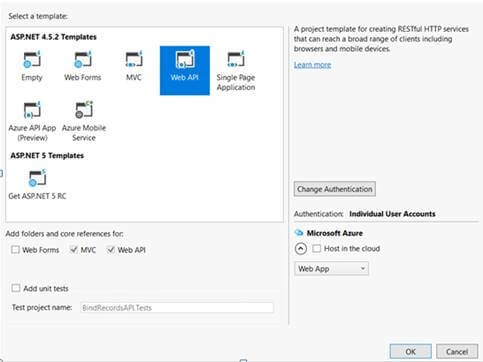
Click OK.
Step 3. Add ADO.NET Entity Data Model
Now, select the Models folder and right-click. Then, go to Add >> New Item >> select Data in left panel >>ADO.NET Entity Data Model.
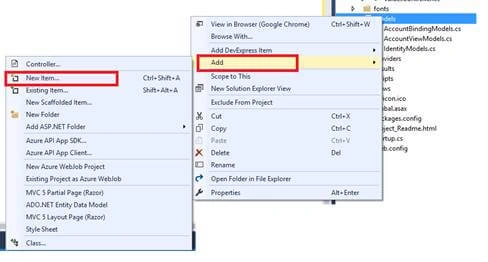
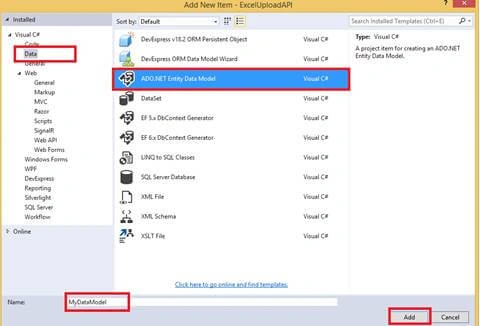
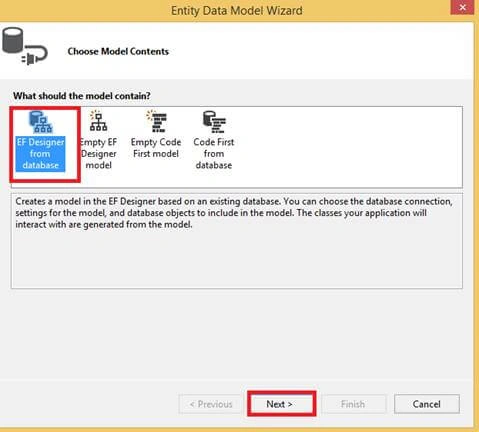
Now, click the Add button and select EF Designer from the database, click Next. After that, give your SQL credentials and select the database where your database table and data are located.
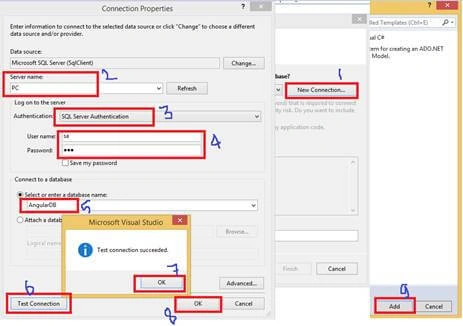
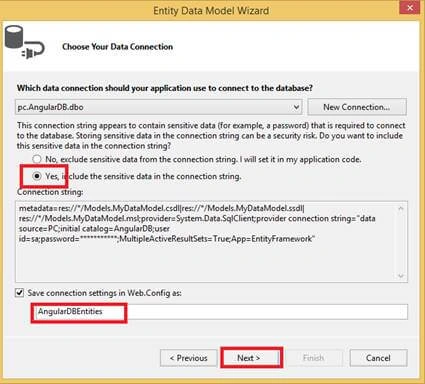
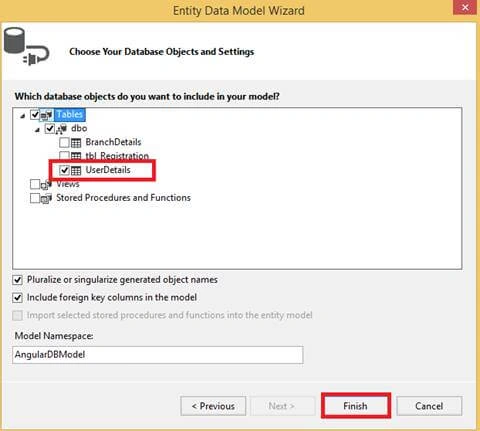
Click the "Add" button and select your table and click on the "Finish" button.
Step 4. Create Web API Controller
Now, we will write the code to perform import and binding operations.
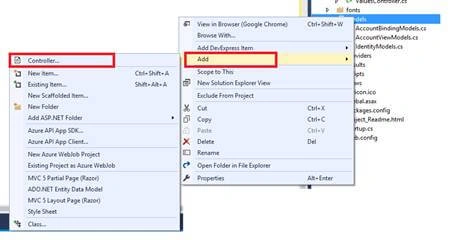
Go to the Controller folder in your API application and right-click >> Add >> Controller.
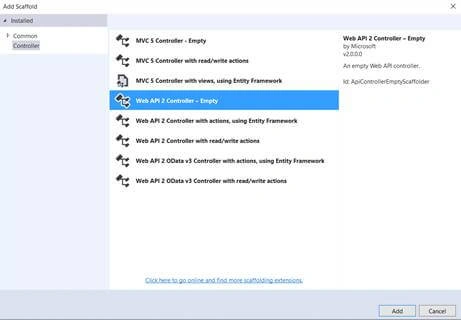
Select Web API 2 Controller-Empty.
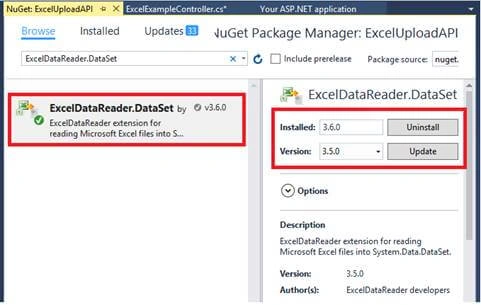
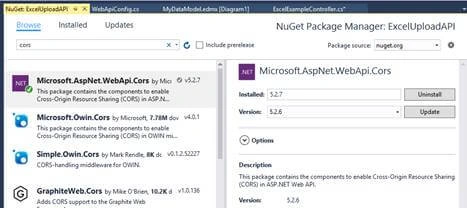
Now, we will go to the controller class but before we write any logic, we will install ExcelDataReader.DataSet although many ways to import Excel file in MVC but I am going to use an easy way to import excel file. So, now right-click on the project and select "Manage NuGet Packages" and search for ExcelDataReader.DataSet. Then, install this.
Step 5. Write the logic for import and retrieve records
Go to the Controller class and set the routing to make it more user-friendly by writing the below code.
- using ExcelDataReader;
- using System.Collections.Generic;
- using System.Data;
- using System.IO;
- using System.Linq;
- using System.Net;
- using System.Net.Http;
- using System.Web;
- using System.Web.Http;
- using ExcelUploadAPI.Models;
- namespace ExcelUploadAPI.Controllers
- {
- [RoutePrefix("Api/Excel")]
- public class ExcelExampleController : ApiController
- {
- [Route("UploadExcel")]
- [HttpPost]
- public string ExcelUpload()
- {
- string message = "";
- HttpResponseMessage result = null;
- var httpRequest = HttpContext.Current.Request;
- using (AngularDBEntities objEntity = new AngularDBEntities())
- {
- if (httpRequest.Files.Count > 0)
- {
- HttpPostedFile file = httpRequest.Files[0];
- Stream stream = file.InputStream;
- IExcelDataReader reader = null;
- if (file.FileName.EndsWith(".xls"))
- {
- reader = ExcelReaderFactory.CreateBinaryReader(stream);
- }
- else if (file.FileName.EndsWith(".xlsx"))
- {
- reader = ExcelReaderFactory.CreateOpenXmlReader(stream);
- }
- else
- {
- message = "This file format is not supported";
- }
- DataSet excelRecords = reader.AsDataSet();
- reader.Close();
- var finalRecords = excelRecords.Tables[0];
- for (int i = 0; i < finalRecords.Rows.Count; i++)
- {
- UserDetail objUser = new UserDetail();
- objUser.UserName = finalRecords.Rows[i][0].ToString();
- objUser.EmailId = finalRecords.Rows[i][1].ToString();
- objUser.Gender = finalRecords.Rows[i][2].ToString();
- objUser.Address = finalRecords.Rows[i][3].ToString();
- objUser.MobileNo = finalRecords.Rows[i][4].ToString();
- objUser.PinCode = finalRecords.Rows[i][5].ToString();
- objEntity.UserDetails.Add(objUser);
- }
- int output = objEntity.SaveChanges();
- if (output > 0)
- {
- message = "Excel file has been successfully uploaded";
- }
- else
- {
- message = "Excel file uploaded has fiald";
- }
- }
- else
- {
- result = Request.CreateResponse(HttpStatusCode.BadRequest);
- }
- }
- return message;
- }
- [Route("UserDetails")]
- [HttpGet]
- public List<UserDetail> BindUser()
- {
- List<UserDetail> lstUser = new List<UserDetail>();
- using (AngularDBEntities objEntity = new AngularDBEntities())
- {
- lstUser = objEntity.UserDetails.ToList();
- }
- return lstUser;
- }
- }
- }
Step 6. Create Angular application for building the UI Application
Now, let us create the web application in Angular 7 that will consume the Web API.
Now, let us create the web application in Angular 7 that will consume the Web API.
First, we have to make sure that we have Angular CLI installed.
Open the command prompt and type the below code and press ENTER.
npm install -g @angular/cli
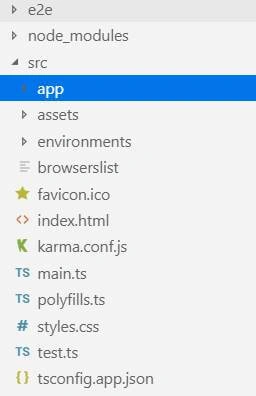
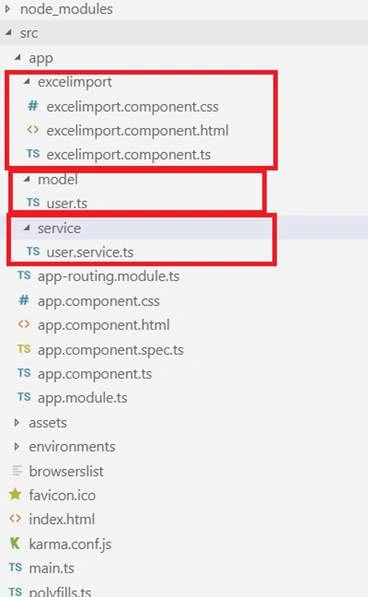
Now, open the Visual Studio Code and create a project.

sujit sahooPosted Sep 14, 2022, 8:52 AM
And I am getting this value httpRequest.Files["upload"] null
sujit sahooPosted Sep 14, 2022, 8:50 AM
As per your above code i am getting null values, Pls help me, String message = ""; HttpResponseMessage result = null; var httpRequest = HttpContext.Current.Request; //var username= httpRequest.Form["UserName"]; var incomingfile = httpRequest.Files["upload"];
Rohit PandeyPosted May 3, 2021, 9:09 AM
My application is running, but when I click on upload button nothing is happening it is not uploading data. Their is no error in code so I had click on Inspect screen on chrome and in console tab I found one error is err_connection_refused.Please help me how to solve
Rohit PandeyPosted Apr 25, 2021, 11:26 AM
I want to add a button to download the empty template format of the excel sheet. How can I do that?
Bhumika PatelPosted Mar 9, 2021, 11:07 PM
Awesome....I want to make it without using Angular... Can you help me to find the way... or where can I make changes to get data direct in SQL Server..
Hamid KhanPosted Nov 11, 2020, 7:03 AM
Very Very good explanation Thanks Mithilesh Kumar
ishwar giriPosted Apr 24, 2020, 5:17 PM
Sir IExcelDataReader is reading header column also in dataset how to solve this problem ?
Anahy YanezPosted Oct 27, 2019, 8:23 PM
Can you help me please, at the moment when i put the element on the constructor, all the HTML disappears, i delete it and the HTML appears again, i don't know what to do
Hansaka SandaruwanPosted Oct 3, 2019, 1:38 AM
Thanks. Saved My Day
Nkanyiso SibandaPosted Jul 30, 2019, 12:11 AM
You created a component and named it 'user' but in the list of your components we are seeing 'excelimport' in place of 'user'. How come?