
I am using Visual Studio 2012. First of all let's learn how to create an SSIS package/project.
1. Creating an SSIS package/project:
Procedure: In Visual Studio go to "File" -> "New" -> "Project..." then select Business Intelligence in installed templates then select Integration Services -> Integration Service Project then provide a meaningful name then click “OK”.
(If you're using Visual Studio 2012 and don't find “Business Intelligence” in the installed templates, there is no need to worry, you can download it by just clicking here.
Once you click OK it will create an SSIS package as shown below. You can see the package on the right side top corner of your Visual Studio (in the Solution Explorer), it will also provide you the SSIS toolbox that you can find on the left side of Visual Studio. Finally you'll also be able to see the control flow and Data Flow in your project.
2. SSIS Package/project
We've successfully created an SSIS project/package.
3. SQL Table Data
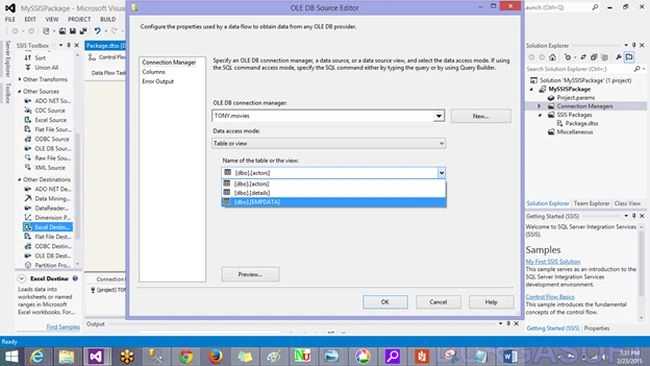
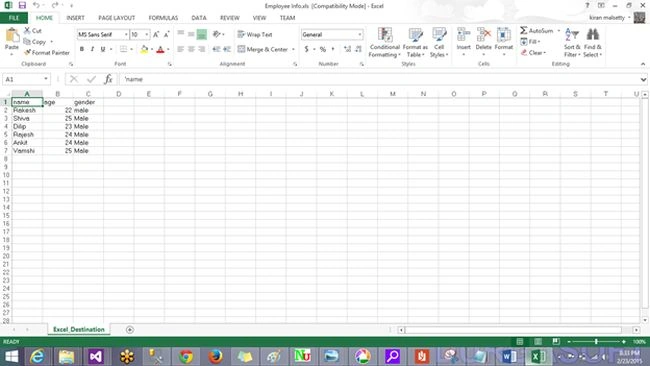
Now I've the following data in the SQL Server Database table (table name = empdata) and I want to import this data into an Excel workbook using the SSIS package we created just now.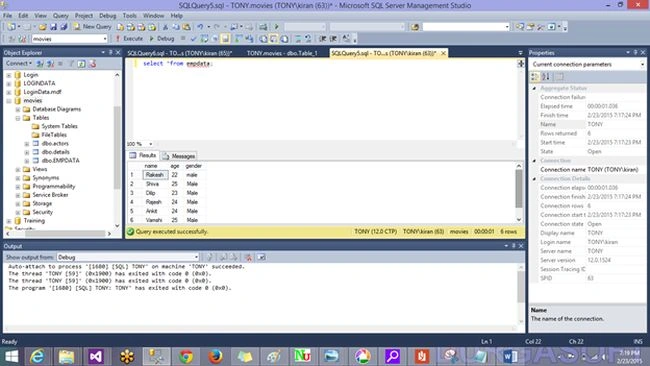
4. Creating Control flow and Data Flow tasks
Control flow is the workflow engine that contains control flow task containers and precedence constraints that manage when tasks are executed.
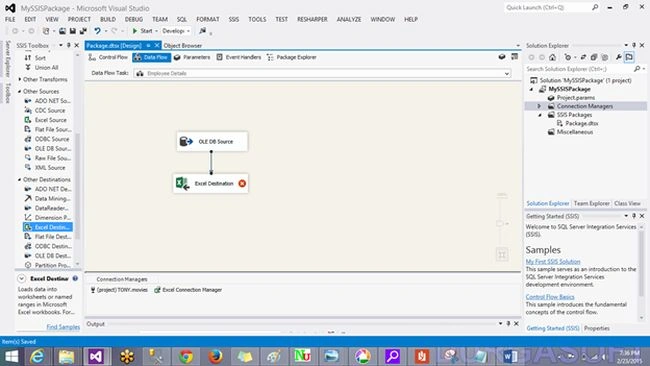
The Data Flow is related to the transformation of data from the source to the destination.
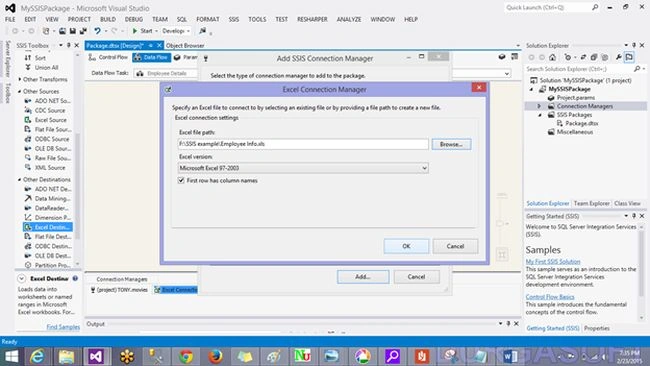
Note: In this article we are importing data from SQL to an Excel book, so SQL Server becomes our source and Excel workbook becomes the destination.
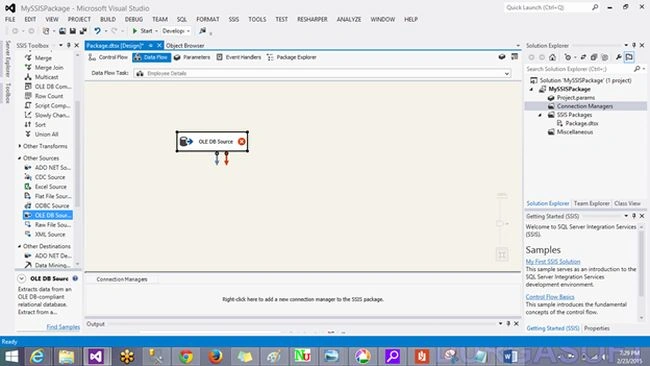
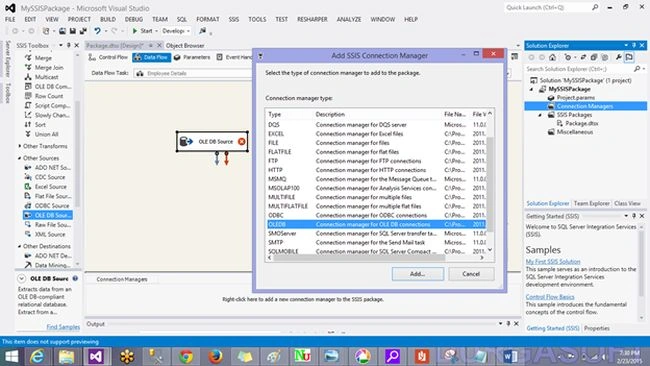
I will now create two tasks, one is a control flow task and the other is a Data Flow task. Just drag and drop the script task from the common tasks (from the SSIS tool box) because I want to display a message like “Data is being imported “, when our package is executed. And then drag and drop the Data Flow task from the favorites as shown below. 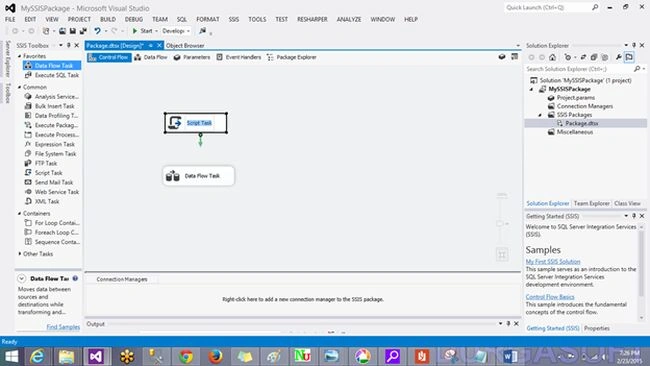
Rename the script task to any meaningful name if you want. In this case I am changing it to Display reassuring message (renaming is optional).
After you have added the two tasks to your projects, be sure to link these two tasks with the Green arrow mark (precedence constraint) to ensure that the two tasks execute one after the other.
Now double-click on the script task and it will give you the “script task editor” where you can select the script language and edit the script. Please click on the edit script button to display a message when your package is executing.
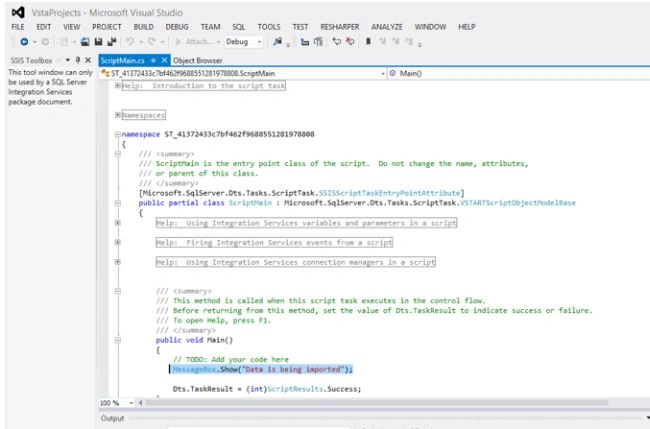
Once you click "Edit Script" then click "OK" then you will see a new project with the ScriptMain class. In that class go to the Main method and add the following code:
- MessageBox.Show(“Data is being imported”); (You can write your own message)




Gowtham RajamanickamPosted Mar 16, 2015, 2:27 AM
good...
sreenivasa kPosted Feb 24, 2015, 11:21 AM
good one
Vithal WadjePosted Feb 24, 2015, 10:23 AM
good start keep it up
RakeshPosted Feb 24, 2015, 10:22 AM
Thanks Rahul
Rahul Kumar SaxenaPosted Feb 24, 2015, 6:46 AM
Gud Rakesh...