

Introduction
Hello everybody, this is my second article about Windows 10 application programming. In the previous article of mine (Input Controls in Windows 10) I explained a few methods for getting input from a user, creating efficient forms for feedback and how to use various controls in different scenarios by editing out their properties. You also learned how to get confidential information from a user and how to use it in different contexts. I also provided a few Dos and Don'ts in that article of mine.
In this article, I will focus on other input controls; that one was text-oriented. This article would be more like option-oriented. Such as providing a list of options and allowing the users to select from either one of them. You might have been through this stage also if you have ever programmed an application that gets user input. I would walk you through various scenarios and share some other tips with you so that you can also get started programming a Windows 10 application. Although the programming model is similar to Windows 8 and 8.1 because the underlying framework is the Windows Runtime. The Windows Runtime exposes some APIs and packages (namespaces) that we can use in our application to get started. I will show you the techniques that will make your application compatible with UI and UX guidelines in Windows 10 or to be specific, they should be complying with your own UI and UX guidelines.
Let us get started.
Main Theme
Self-quote: Before I hand over a knife to you, I must tell you what you are supposed to do with it.
I will write an article for you, that you can use the source code from, but that is not my intention. I would love to guide you through various stages of programming, how to use control and in which context. So that when you need to build your own application you know what you are doing. Usually, programmers (beginners specifically) write lengthy code and then they get fed up with it. Because code is so complex, enterprise solutions require more hard work and maintenance. You cannot expect your code to always be saying Hello world, sometimes it might need to shake hands with the world.
In this article, I will show you a few controls that can be used in a Windows 10 application and how you are meant to use them.
Selection types
In this section, I will talk about controls that allow you to limit user's options to a few that are valid. In the text-oriented controls, we did not have this feature and the user was free to enter whatever he wanted. In this control, we allow users to only select a valid option. Such as, your gender. You are either a male or a female.
Single-Selection control
You might want your user to make one choice and then submit the form. In such cases, you use a RadioButton. This control allows users to make a selection from a list, but the user cannot undo his action; cannot remove a selection. At least one item remains selected. You can somehow clear the list from code-behind.
This control can be created using XAML markup. To do so you write the following code in your markup.
- <RadioButton>Male</RadioButton>
For each item, you will re-write the same control element and each item would be displayed on the screen. Now, as for the example of mine, gender, I wrote code that shows two such controls, one for Male and another for Female. After rendering the window, I got this on the screen.
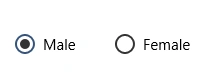
Now, the preceding two controls can be altered, but the selection cannot be removed. The controls remain checked, either Male or Female. You can create as many RadioButton controls as you want.
Uses
This type of control is used-
- When you want to allow users to always provide a result.
- When you want users to select only one option.
Multi-selection control
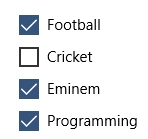
Next comes a multi-selection control. In a multi-selection control, you can ask your users to select multiple options. In such scenarios, you can use a CheckBox. A CheckBox allows users to select the item and deselect the item. This is why it is different from a RadioButton, the user can select and undo the action at the same time.
A CheckBox can be used where you want to get a value for a single item, or for a list of items. For example, a todo list can have checkboxes in it. You have also used it on a website when you login and you check the Remember me button. To create a CheckBox, you can use the following markup.
- <CheckBox>Did you like this?</CheckBox>
This would render as an intuitive CheckBox as in the following.
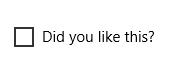
The user can select this option or he can ignore it or he can even uncheck it later. You need to determine whether the user selected it or not or whether it remained untouched. If you go to the MSDN and try to look for the IsChecked property, you will see that it is Nullable<bool> type. This means that you cannot use it in your code as a bool variable.
You need to test its nullability also.
Mukesh KumarPosted Oct 24, 2015, 12:06 PM
Great Job Sir
Santhakumar MunuswamyPosted Jul 11, 2015, 3:12 AM
Nice article! Thanks for sharing
Sibeesh VenuPosted Jul 10, 2015, 4:52 AM
Nice article buddy.
RakeshPosted Jul 10, 2015, 2:21 AM
Good one Sir
Nilesh JadavPosted Jul 10, 2015, 12:07 AM
Nice one sir
Van LaiPosted Jul 10, 2015, 12:03 AM
"Give a man a fish and you feed him for a day; teach a man to fish and you feed him for a lifetime." Thanks