In this article, you'll learn how to install and configure the two nodes failover cluster to setup your environment to minimize the downtime for the services to the users,
What is Failover Cluster
A failover cluster provides highly available services to the users while a group of computers works together.
Prerequisite
- A Virtual Machine for iSCSI Storage Server or iSCSI target server (DC-01)
- Two virtual Machine for the Nodes should have connected with the domain as a member server (SRV1 & SRV2
Step 1. Configure the Storage for Failover Cluster
Needs to add two HDD disks into the iSCSI storage server or iSCSI target server (DC-01)
Open the Hyper-V Manager
Go to the settings to add the disks
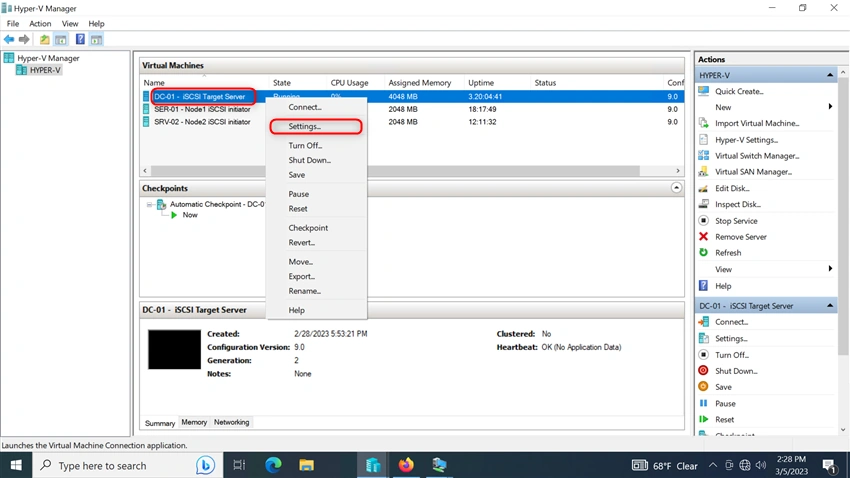
Go to the ICSI Controller and Add a Virtual Disk drive
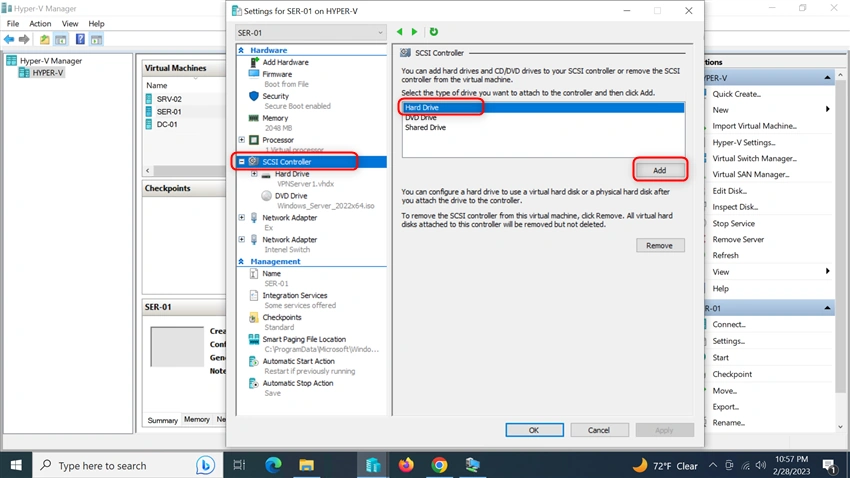
Then Click New
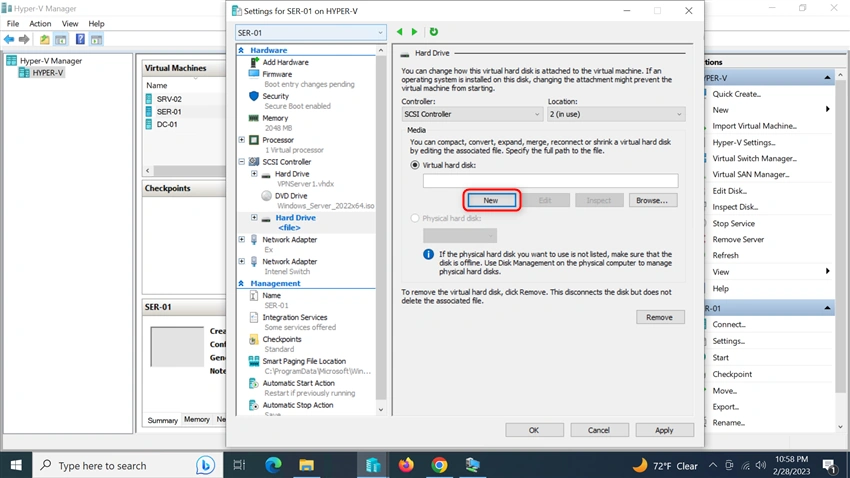
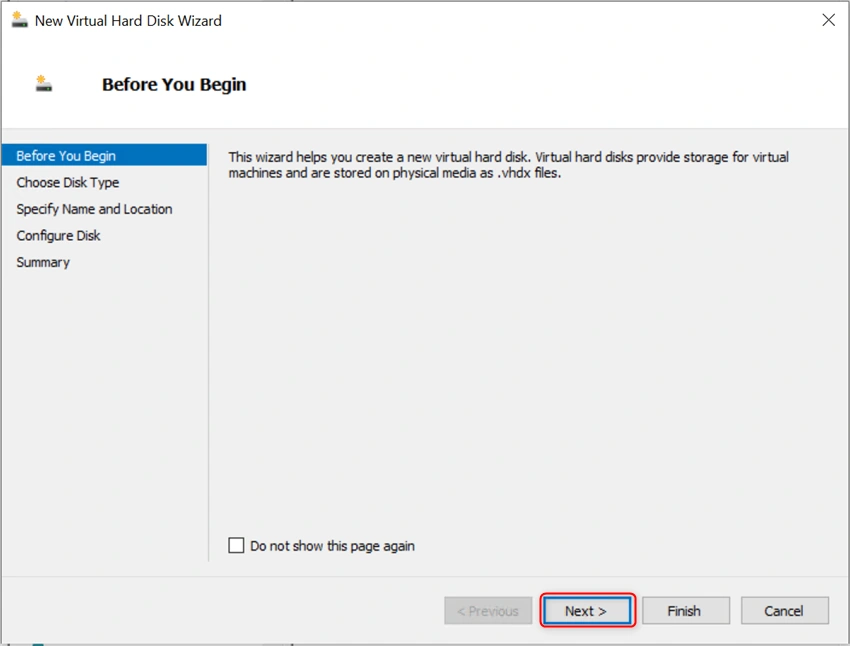
Before you begin the page, Click Next
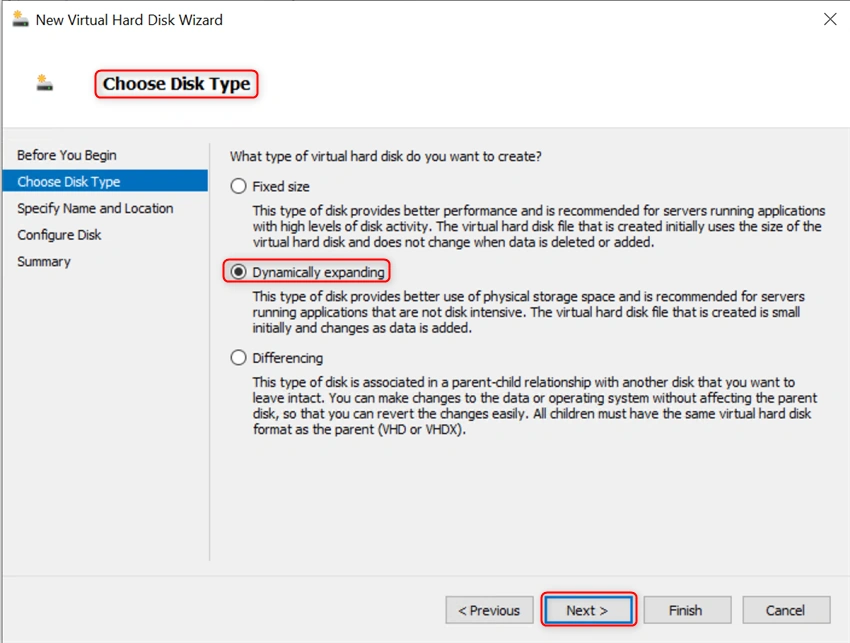
Choose Disk Type: for this demo, I select Dynamically expanding
Then Click Next
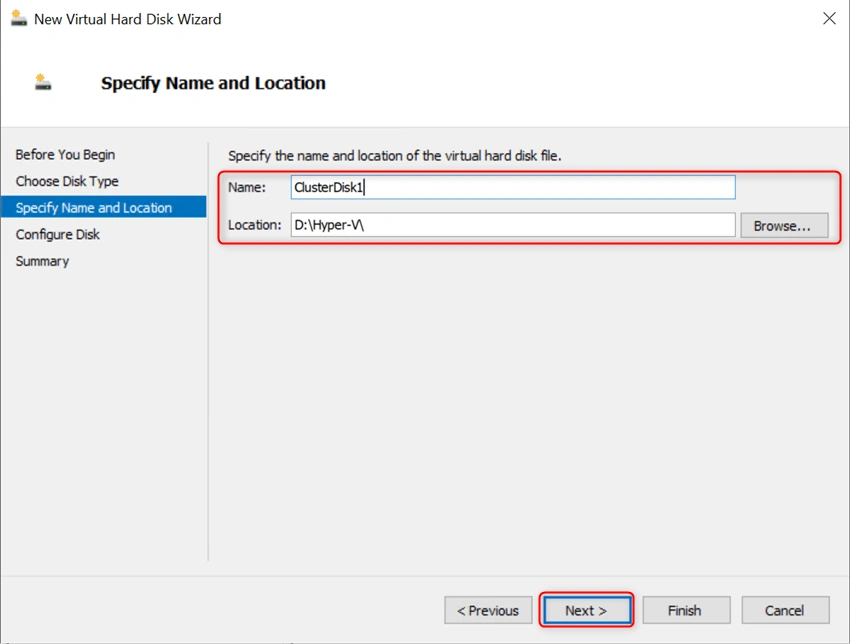
Specify Name and Location
- Name: ClusterDisk1
- Location: Keep by default or click browse to change the location of your Disk
Then Click Next
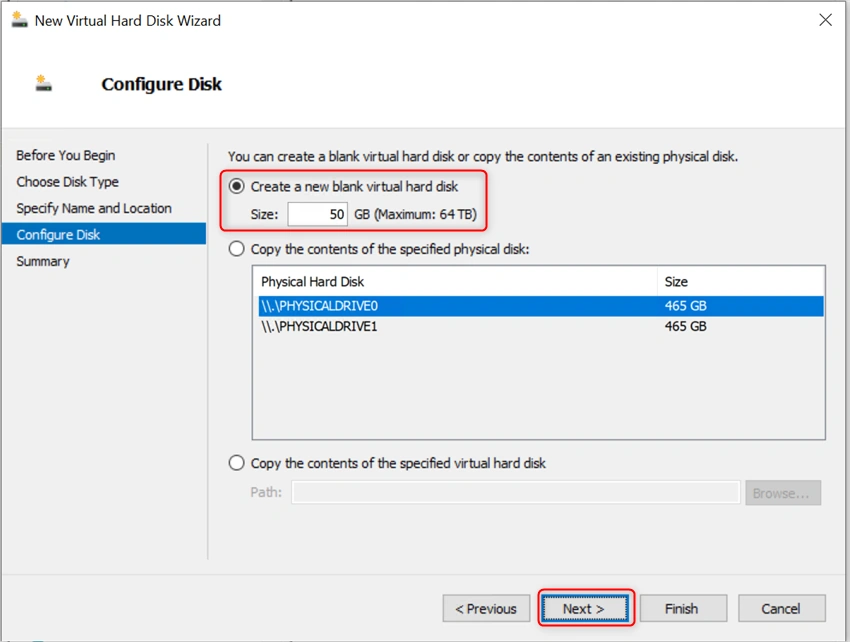
Configure Disk
Create a new blank virtual hard disk
Then set the disk size: to 50GB
Then Click Next and then Click Finish
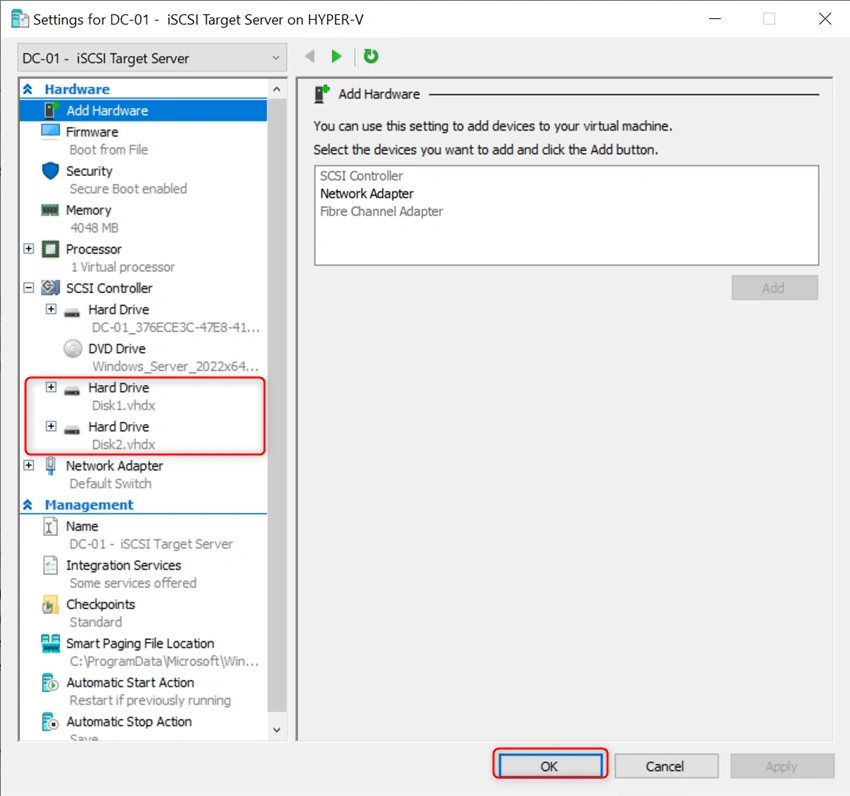
From the virtual machine setting in the hyper v manager, you can see the 2 disks has added for the failover cluster in the iSCSI target Server.
Then Click OK
Start the DC-01 virtual machine to configure as an iSCSI target server
Then enter your Administrator credential to Login the DC-01
Install the iSCSI target server role from the server manager
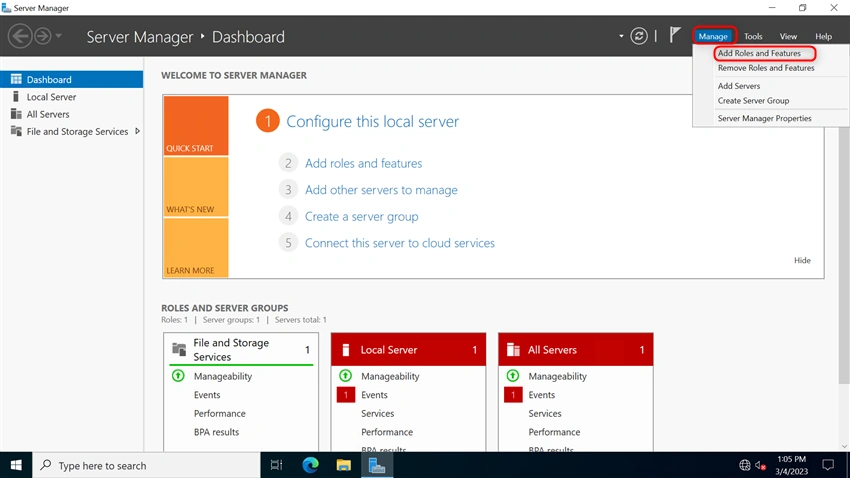
Go to the Server Manager. Click Manager Add Roles and Features
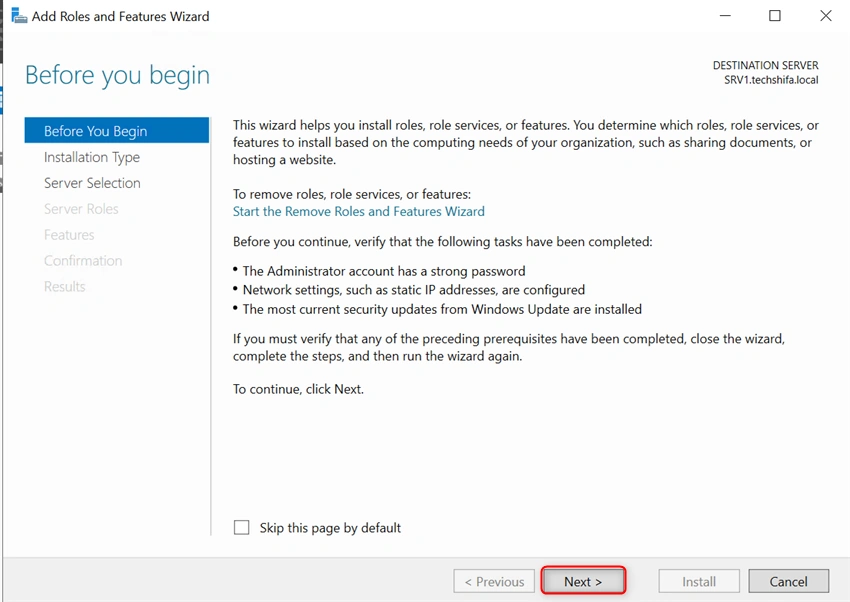
Before you begin the page, Click Next
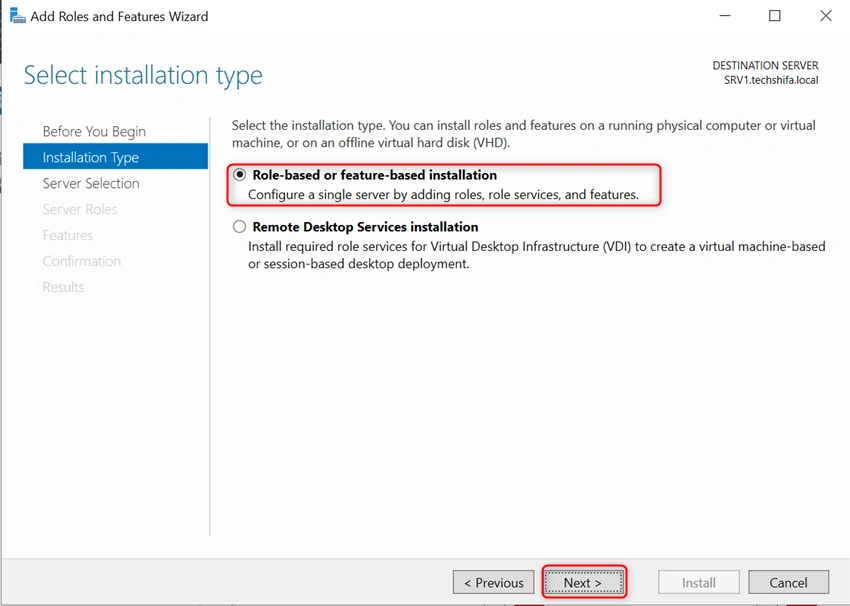
Select the installation type and then click Next
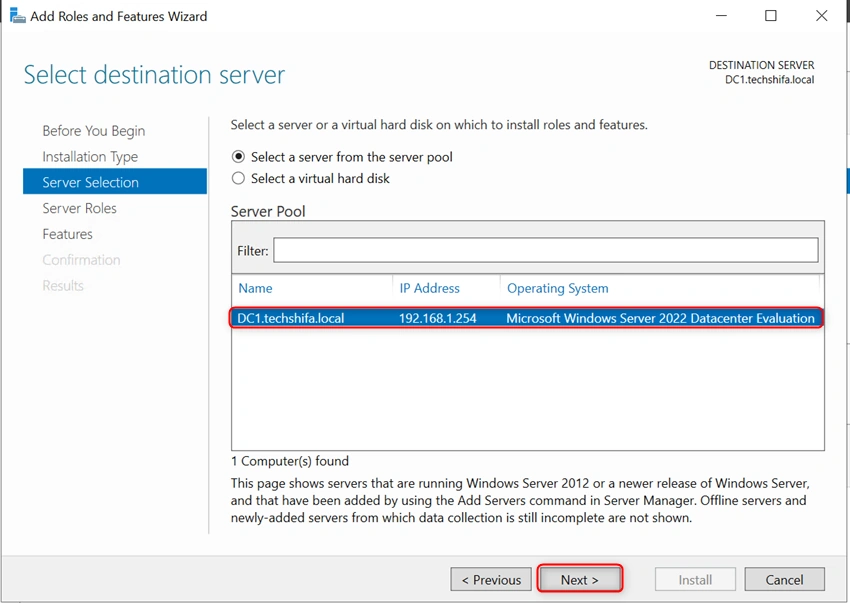
Select the destination server and click Next
Select server role
Expand the file and storage services
and then expand the File and iSCSI service
Then select the iSCSI Target Server role and then click Next
Then click Next
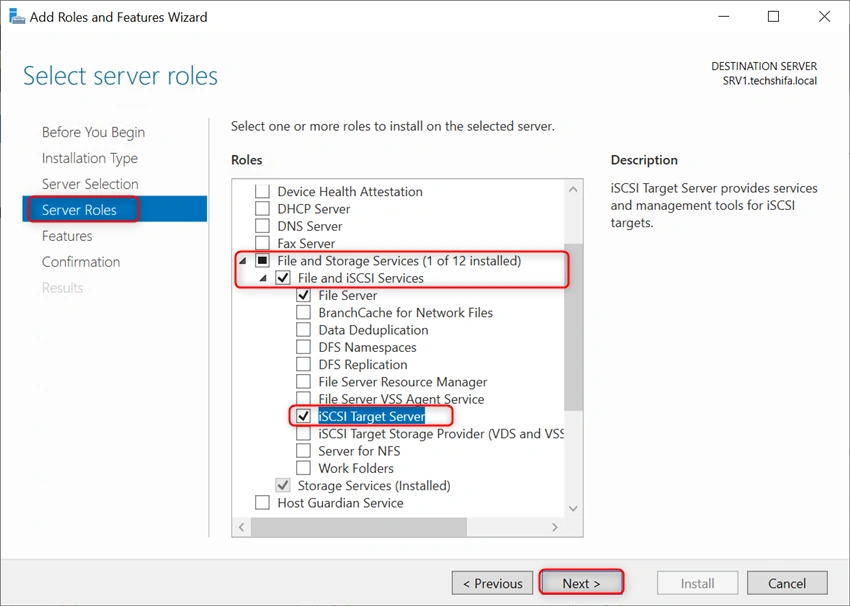
Click Next
Then Click Install
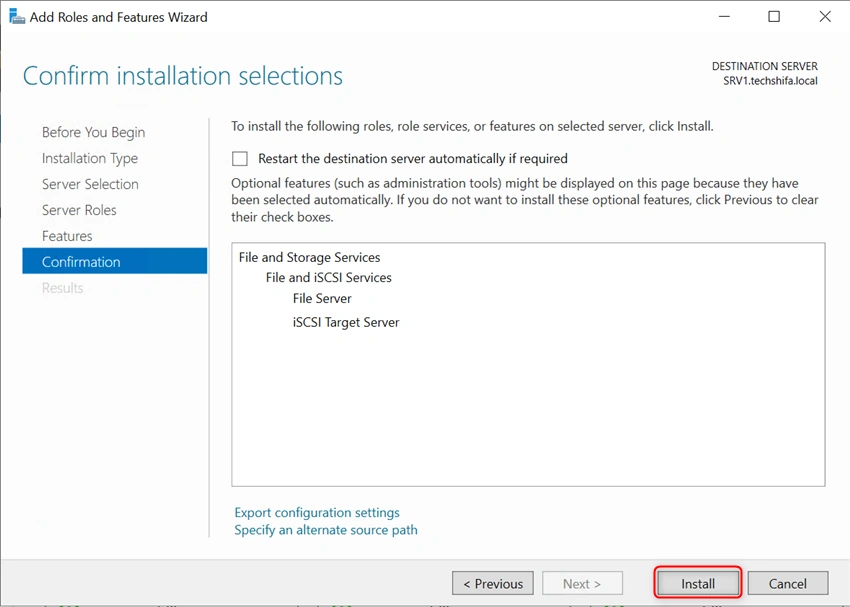
Once installation is complete, Click Close
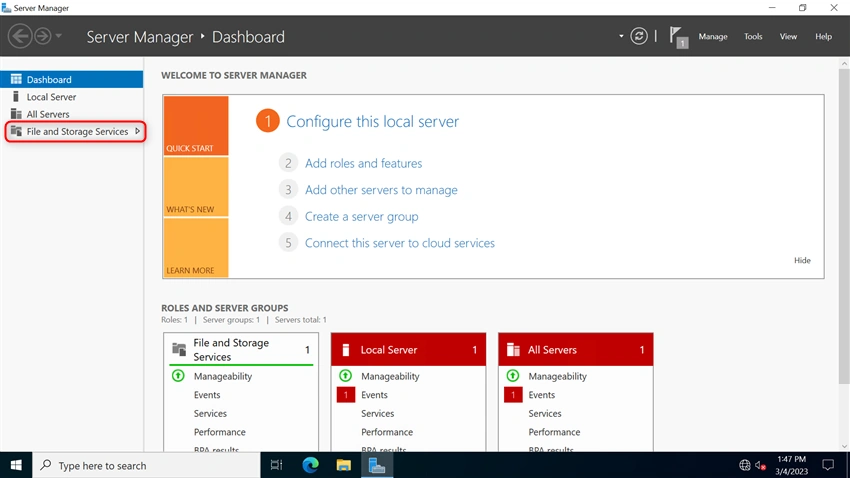
Then go back to the Server Manager
Then Select File and Storage Services
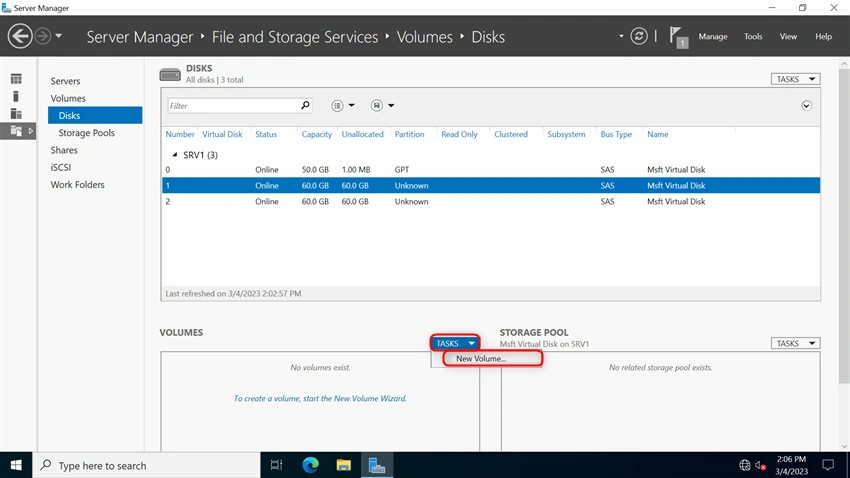
Select Disk,
Then bring online those disks
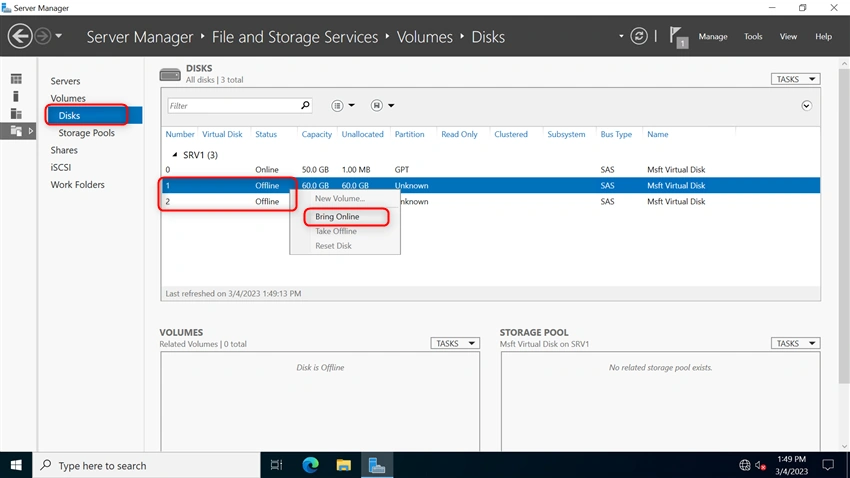
Click Task and then Select New Volume
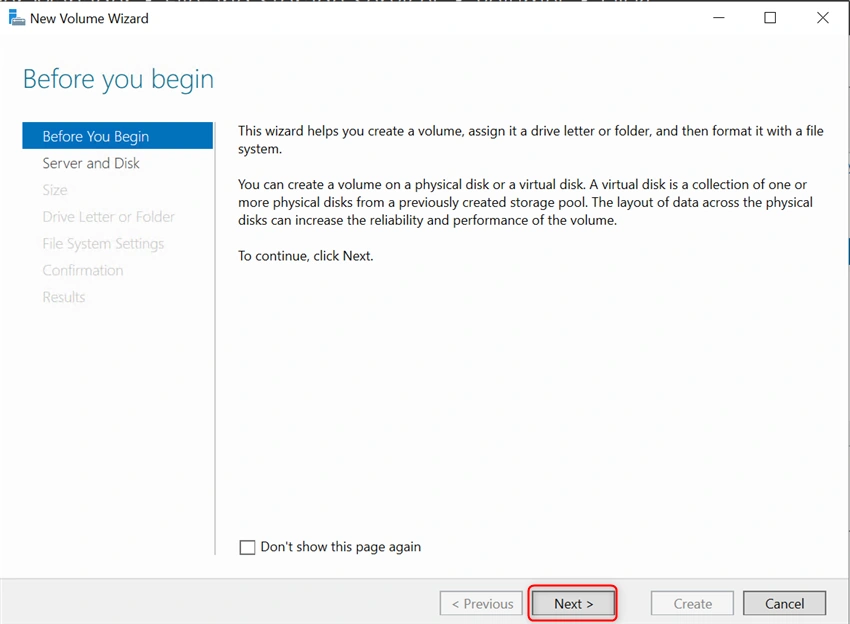
Before you begin, Click Next to continue the wizard
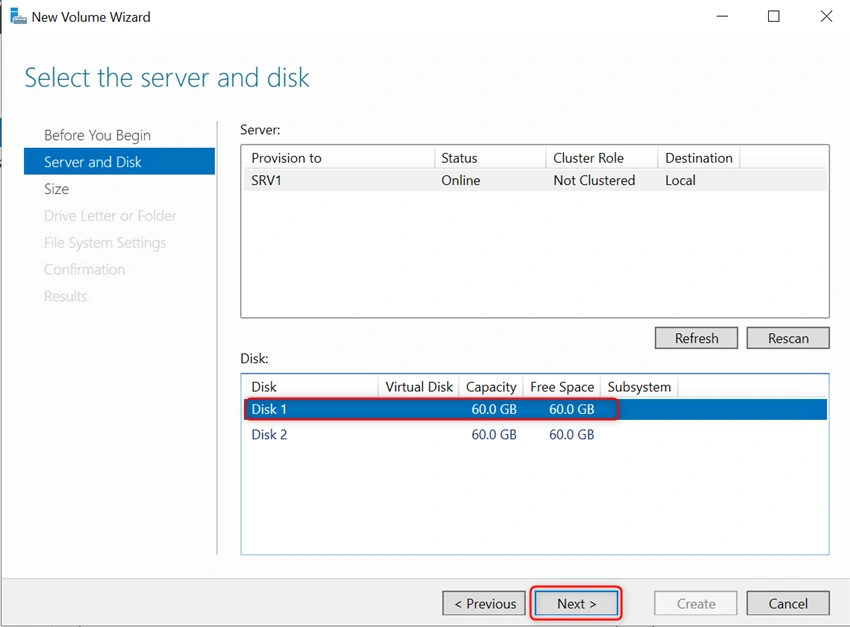
Select the Disk and then click Next
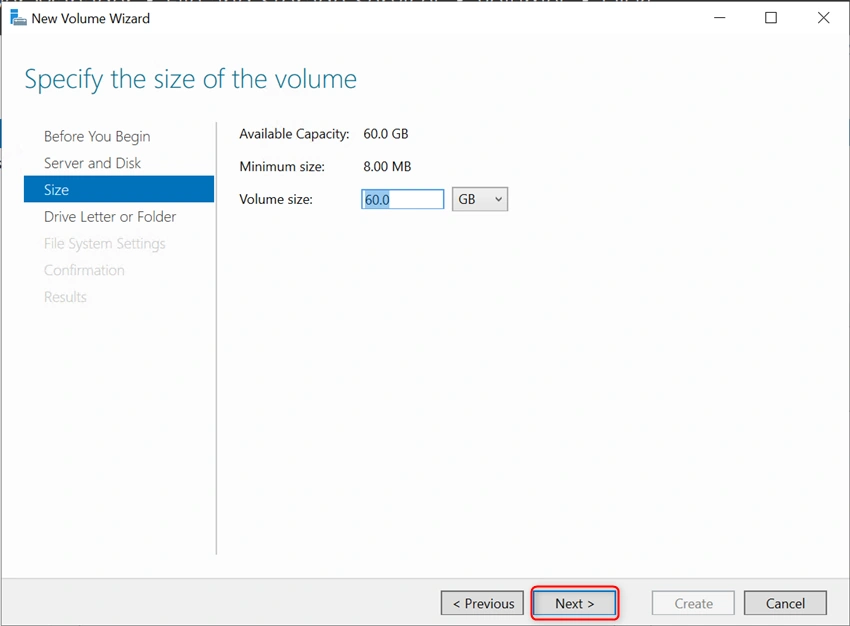
Enter the volume Size and Click Next
Select the Drive Letter and then click Next
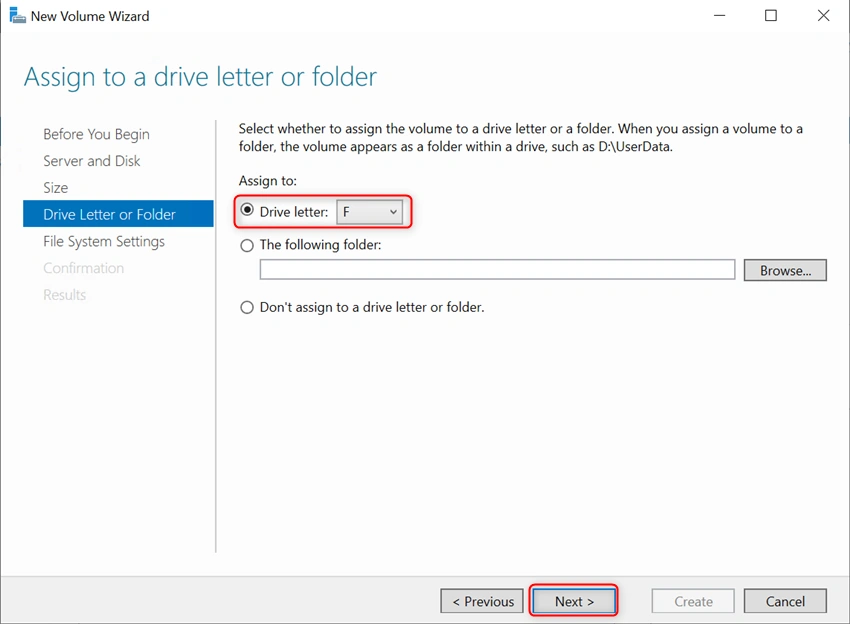
File system settings: Keep it as default settings and then click Next
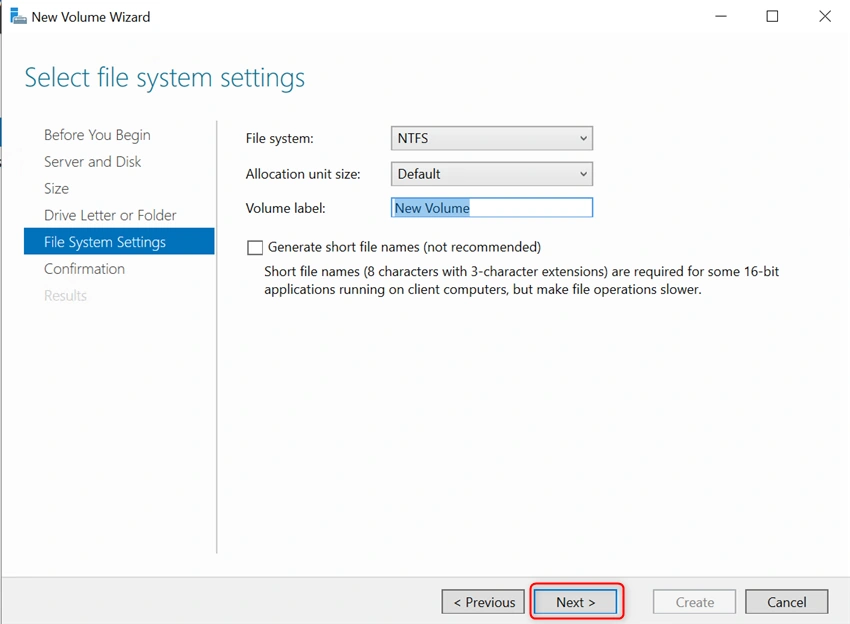
Then click Create
Apply the same steps and setting for the "Disk 2"
Create the iSCSI virtual Disk Wizard
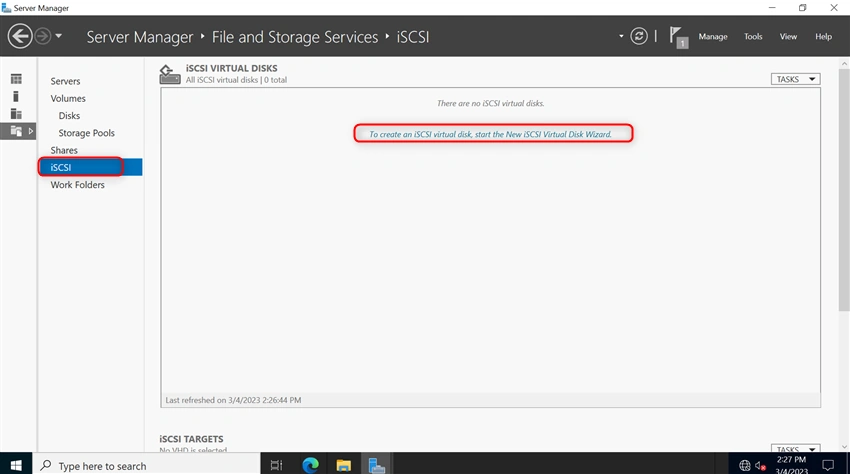
Go to File Storage and Services and select iSCSI
then select new create an iSCSI Virtual Disk Wizard
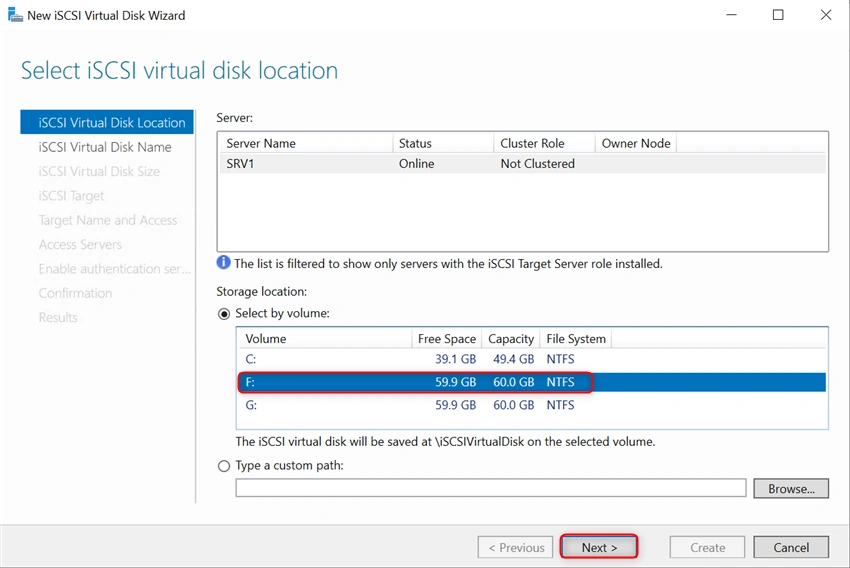
Select the volume, then click Next,
Enter the iSCSI Disk Name and then click Next
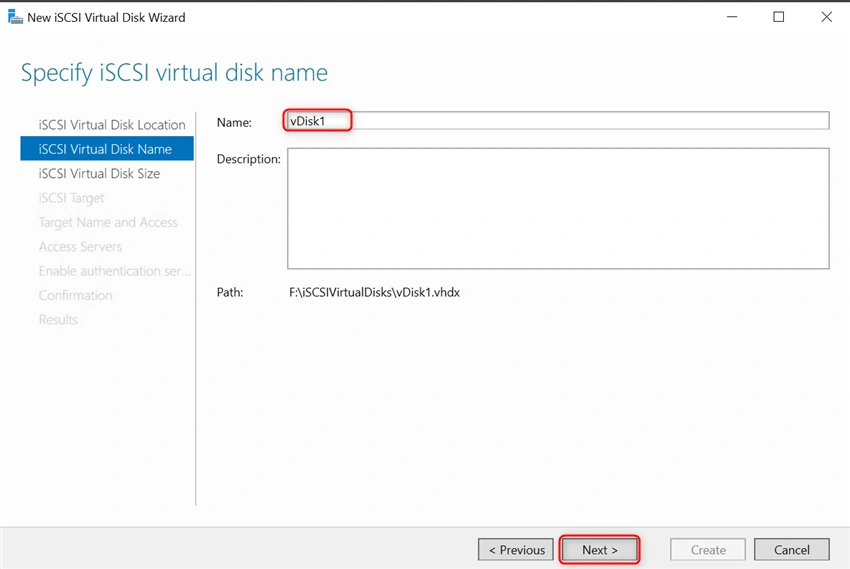
Specify the Virtual Disk Size and then select Dynamically Expanding
Then Click Next
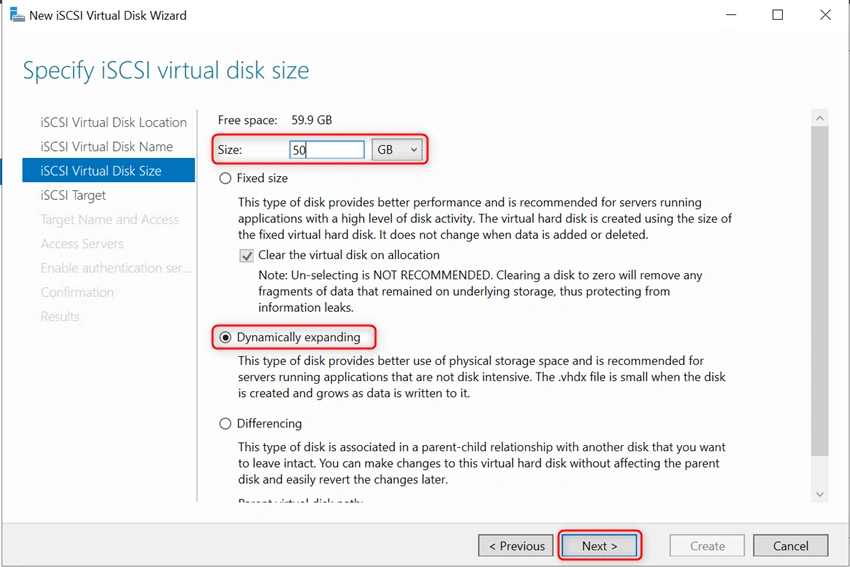
Assign the iSCSI target, Create New or use existing
Select New and Click Next
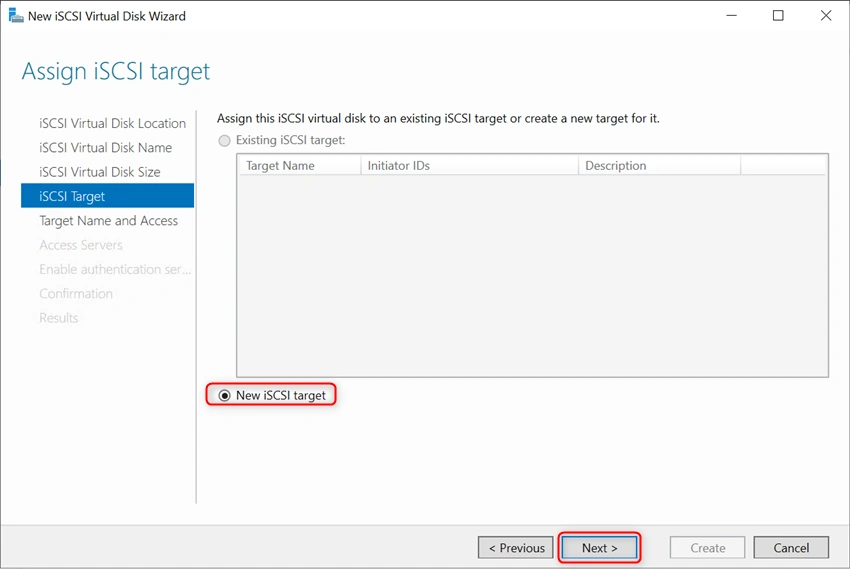
Enter the target Name: iscsi-target1 and then click Next
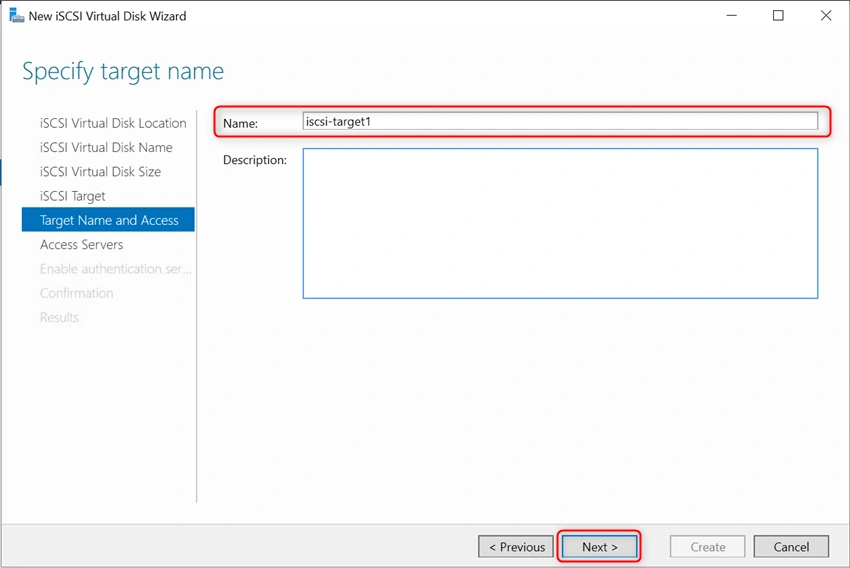
Add the iSCSI initiator to access the Disk
Click Add and then Click Browse
then Click Advance to add the Servers
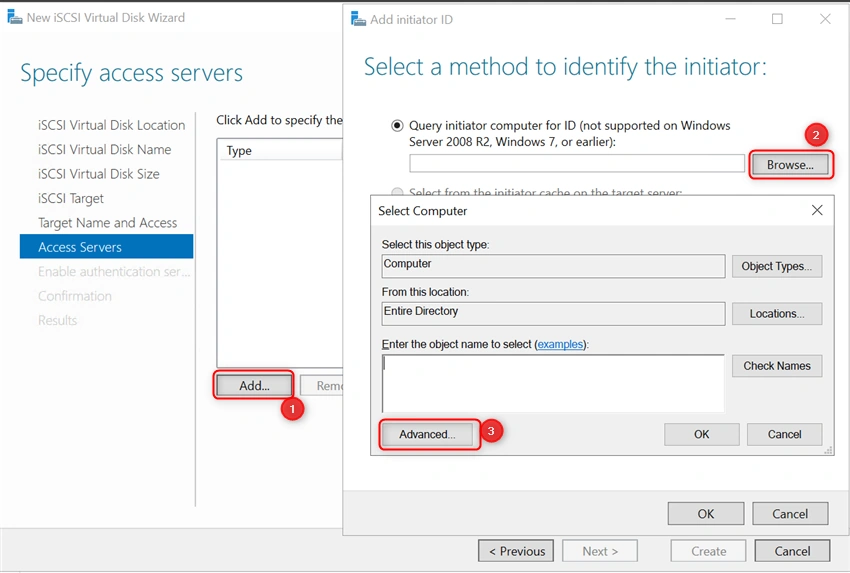
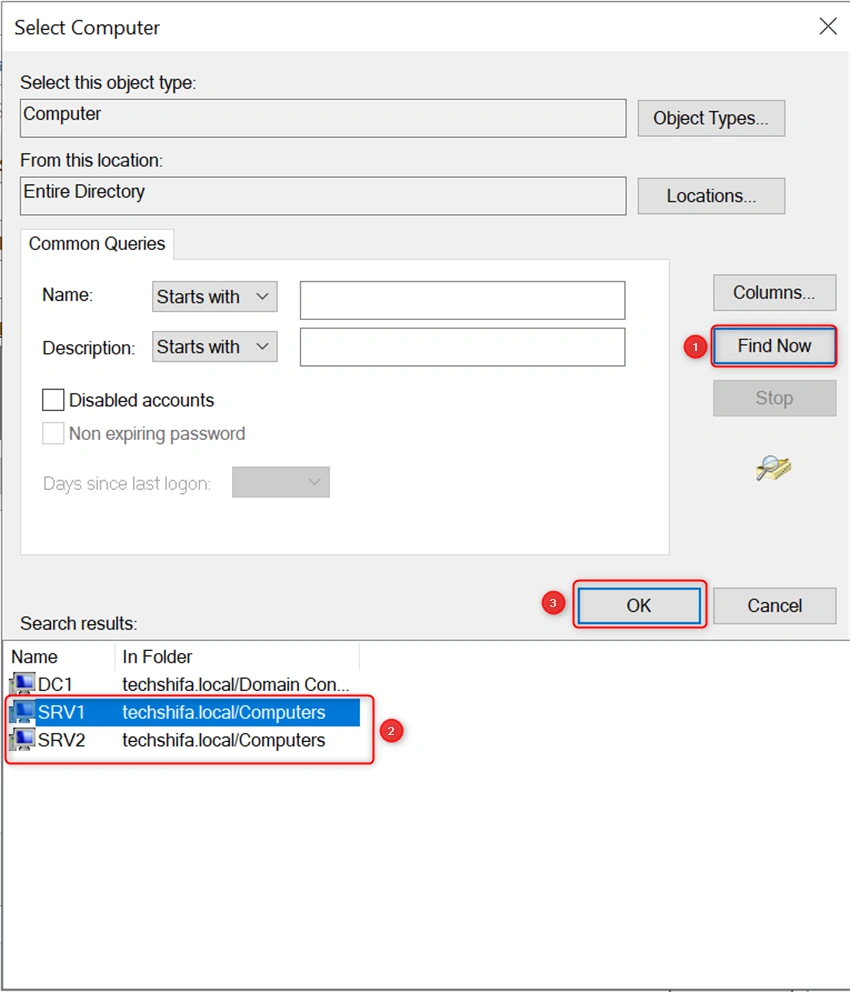
Click Find Now and then Select the Server and then click OK
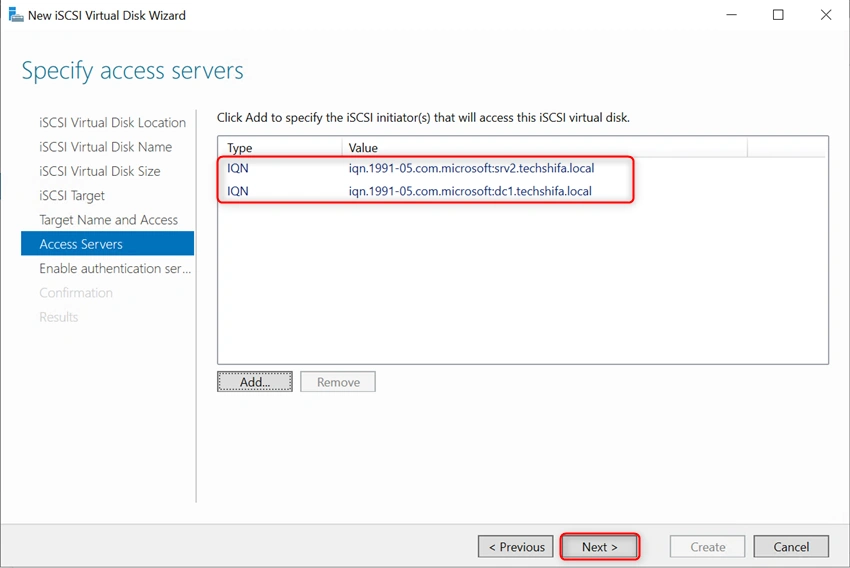
Once you have added iSCSI initiators, then click Next
"Enable Authentication" Keep by default and then Click Next
Confirm that the following are the settings, and then click Create
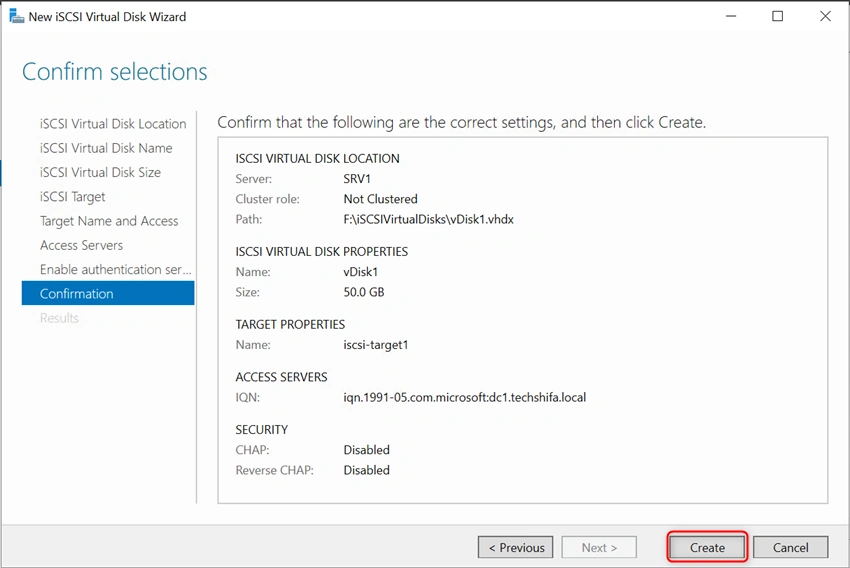
Now, successfully created iSCSI target and Virtual Disk
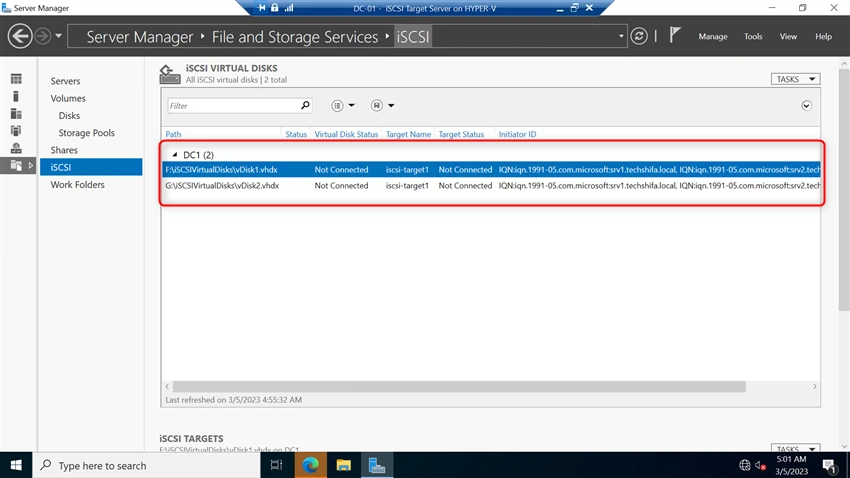
Connect iSCSI initiator servers to iSCSI target server
For this demo, I'm using the member servers "SRV1 and SRV2" for the failover cluster
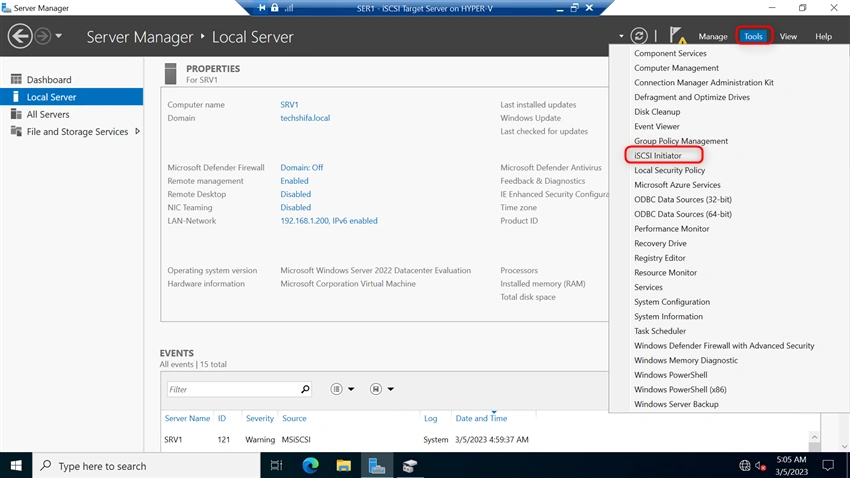
Go to the SRV1
Open the Server Manager
Click Manage
Select the iSCSI initiator to connect the iSCSI target server
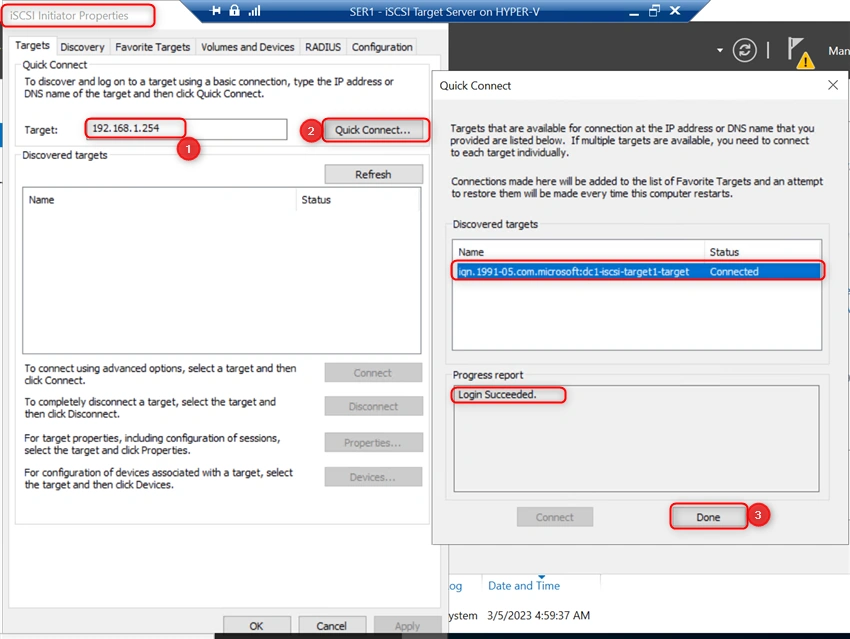
Enter the iSCSI target server IP address, then click Quick Connect
Then select the target then click Connect
Then click Done (the target name status will be connected)
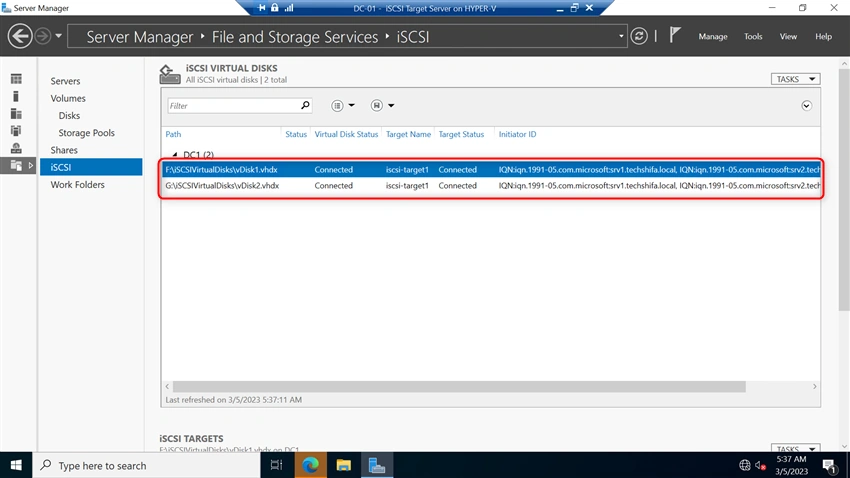
Apply the same setting for SRV2 to connect the second initiator to the iSCSI target server
Now, successfully both initiators are connected with the iSCSI target
Create volume for failover cluster
Go to the SRV1 and SRV2
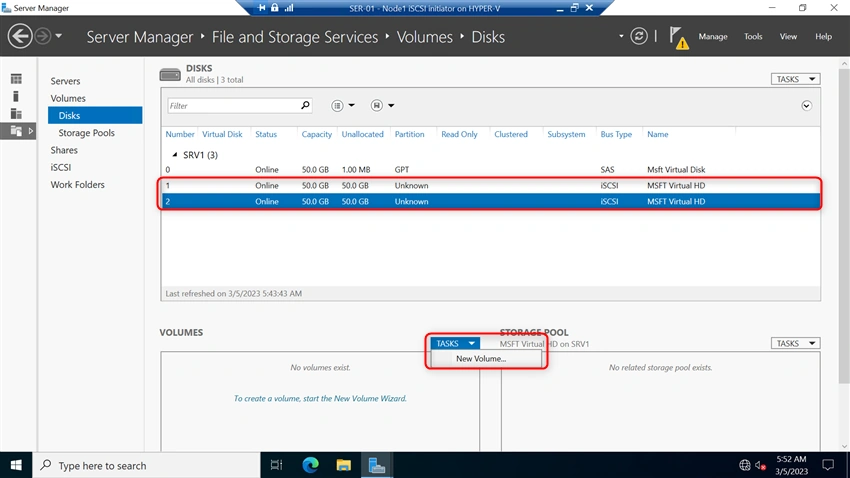
Then go to Server Manager File and Storage Service Disks
Select the iSCSI Disk, then right-click to bring it online
Click TAKS and then select New Volume to create the Volume for both disks
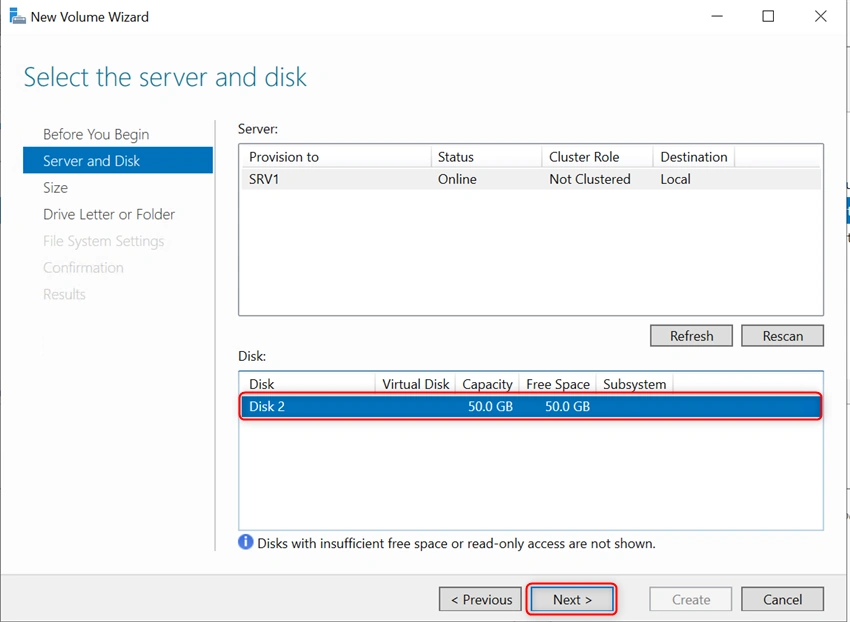
New Volume Wizard will open
Then select the Disk and then click Next
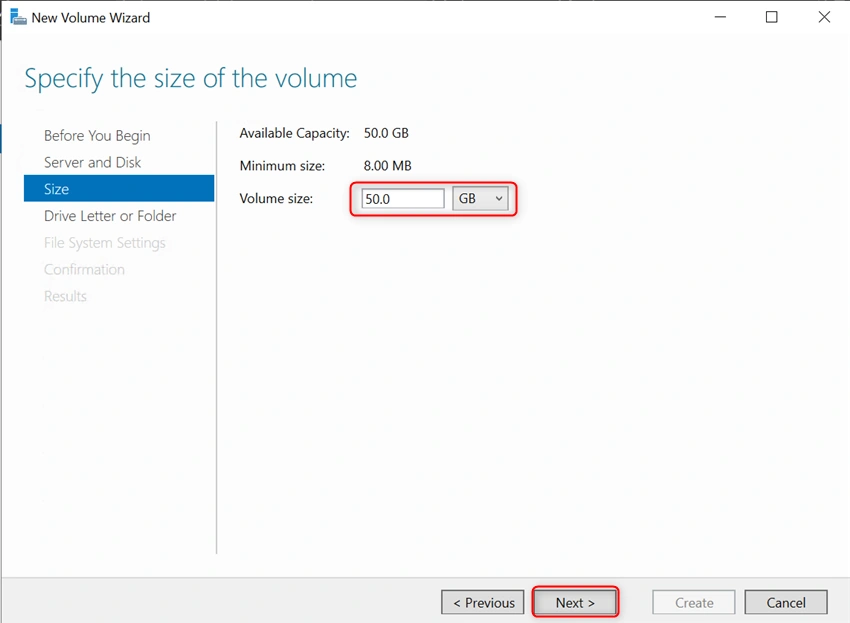
Specify the size of the volume, then click Next
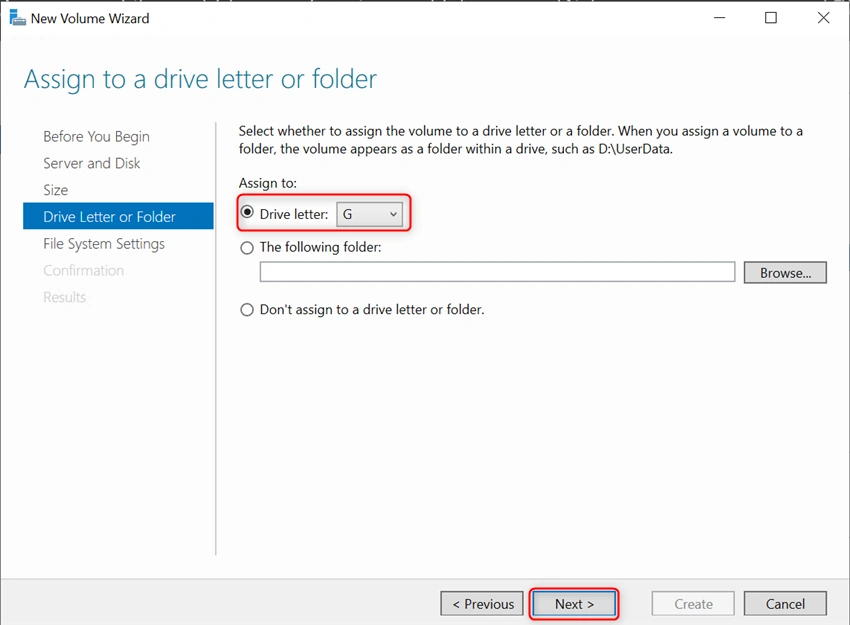
Assign the drive letter and then click Next
Keep the default file system settings and then click Next
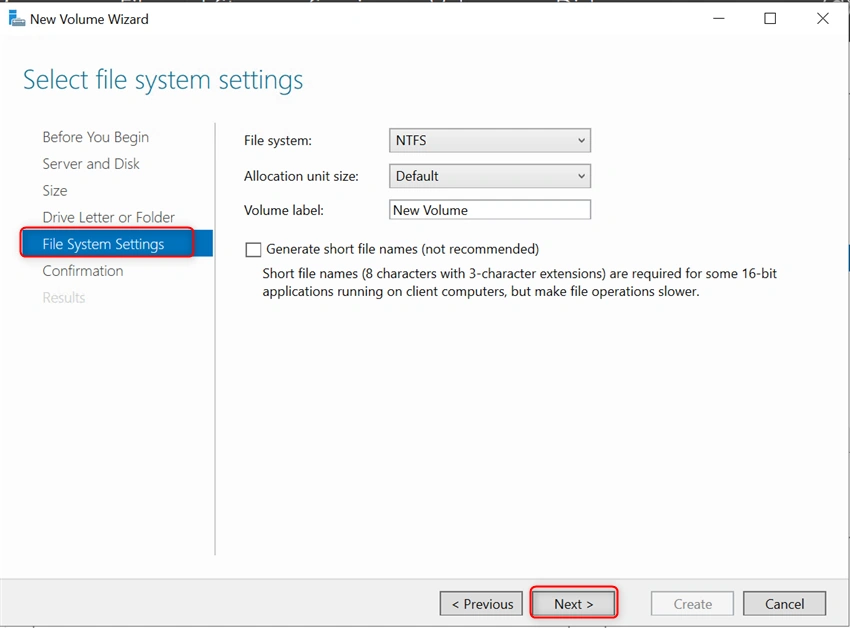
Then Click Create
Step 2. Install and Configure the Failover Cluster on both Nodes "SRV1" and "SRV2"
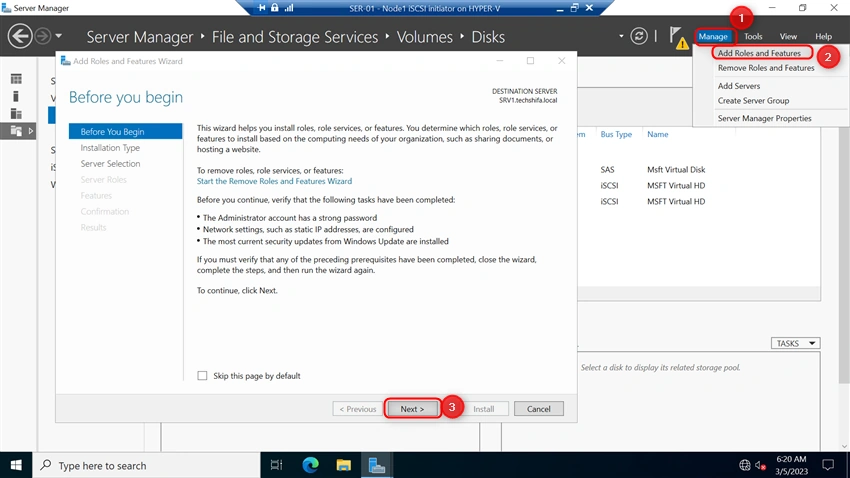
Go to the Server manager Manage Add Roles and Features
Before you begin the page, verify the following task and then Click Next
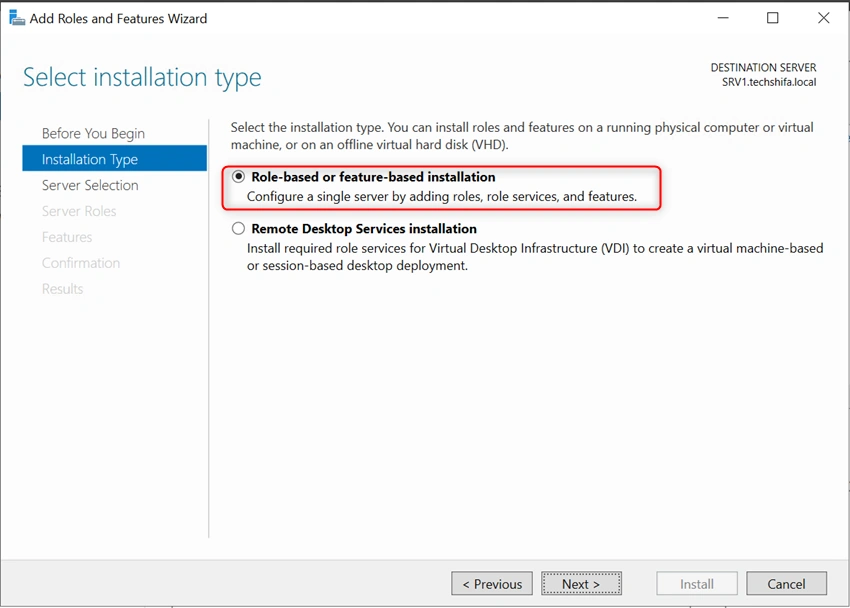
Select the installation type and then click Next
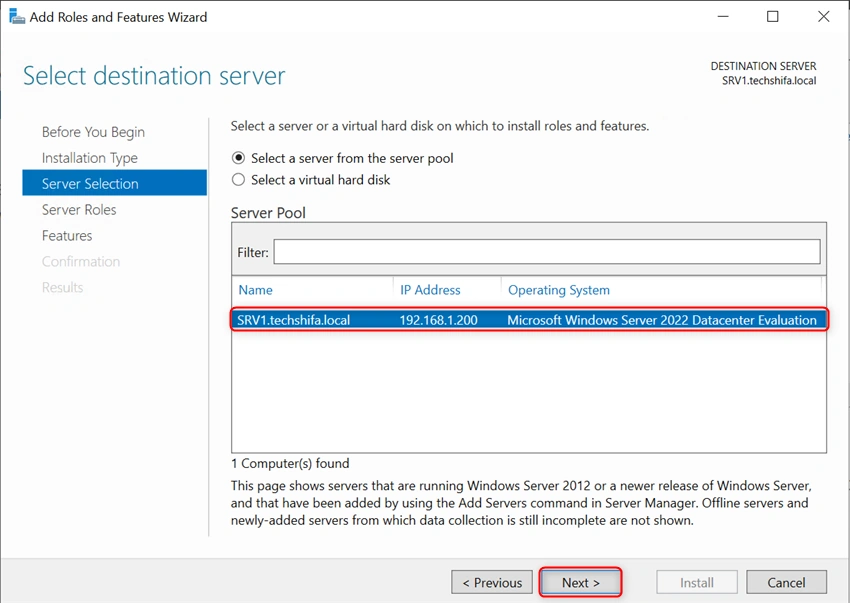
Select the destination server, then click Next
No need to select any server role, Click Next
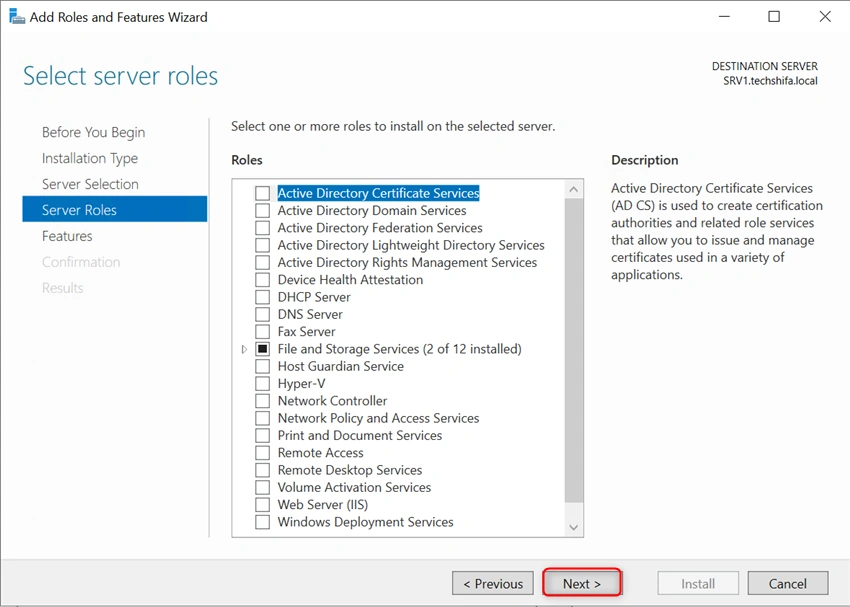
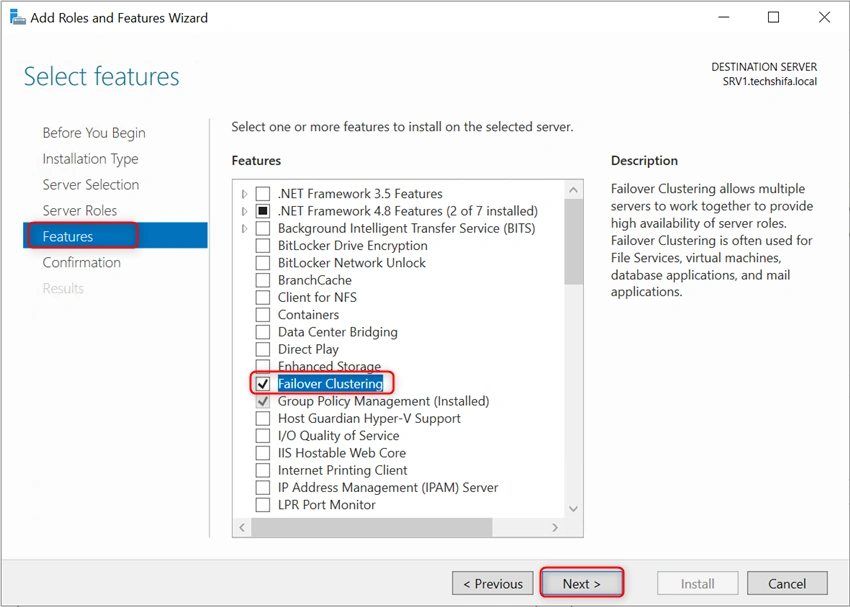
From the Features section, select the Failover Cluster
Then Click Next
Click Install
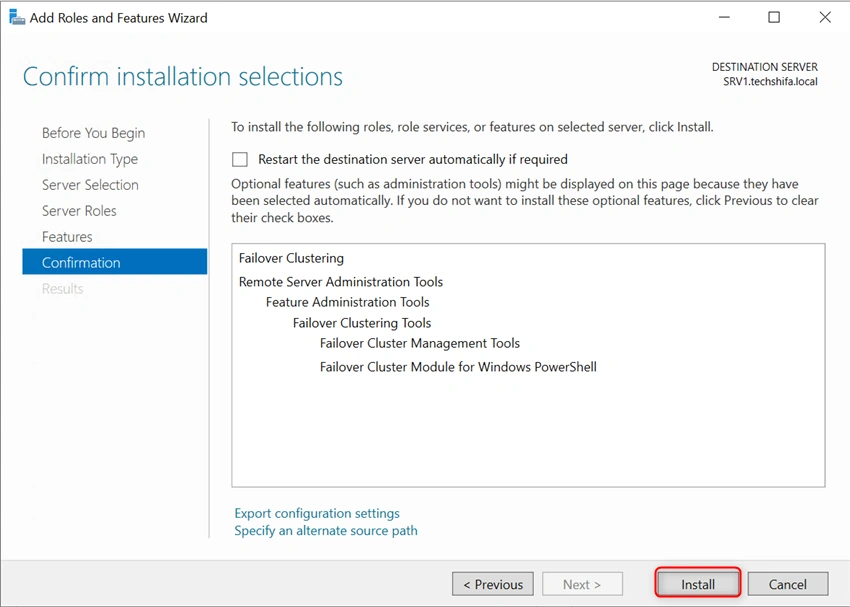
Apply the same steps to Install the failover Cluster on the SRV2
Step 3. Create a Cluster using Failover Cluster Manager
Go to the Node 1 or Node 2
Go to the Server Manager Manage
Select Failover Cluster Manager
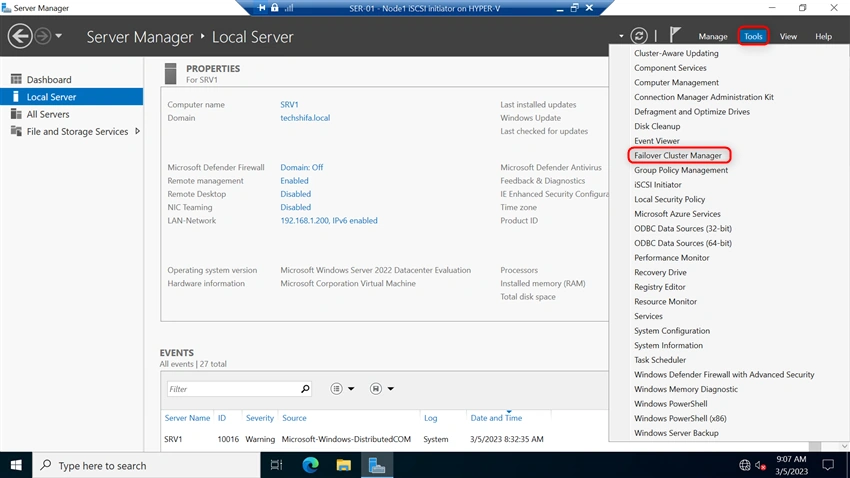
Select Validate Configuration
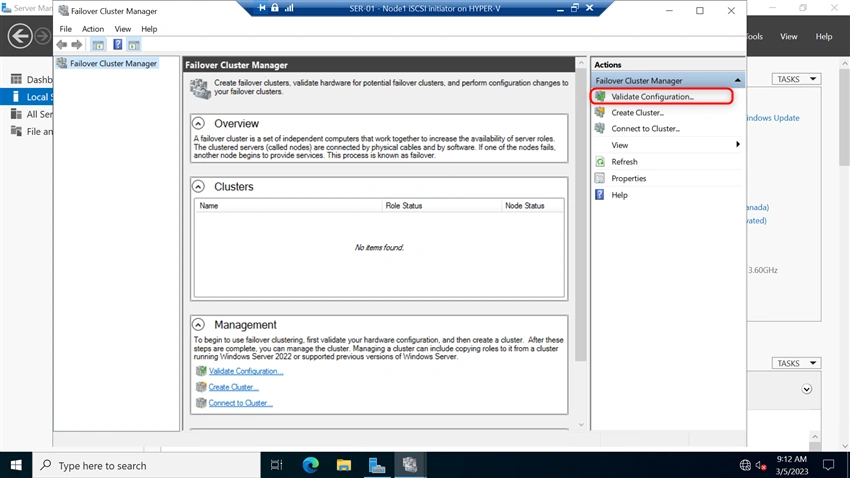
Before you begin, Click Next
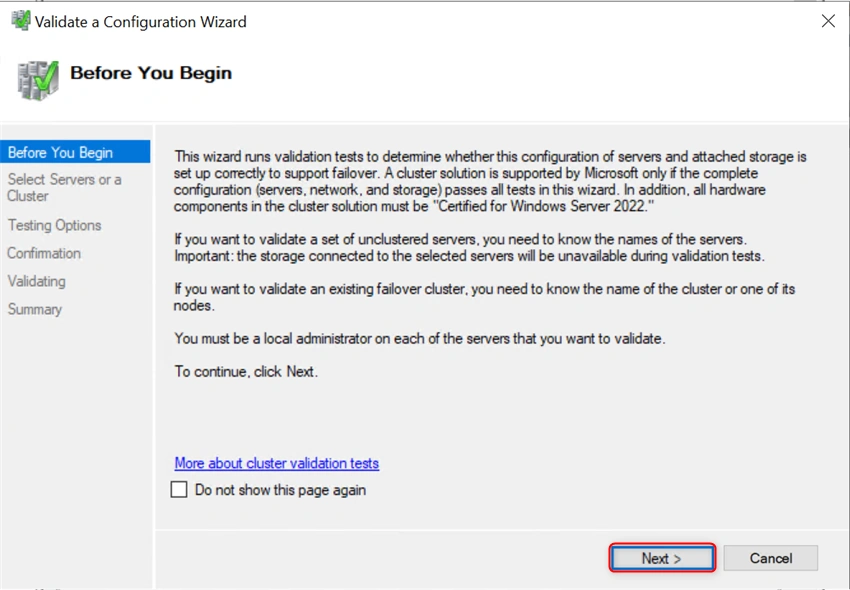
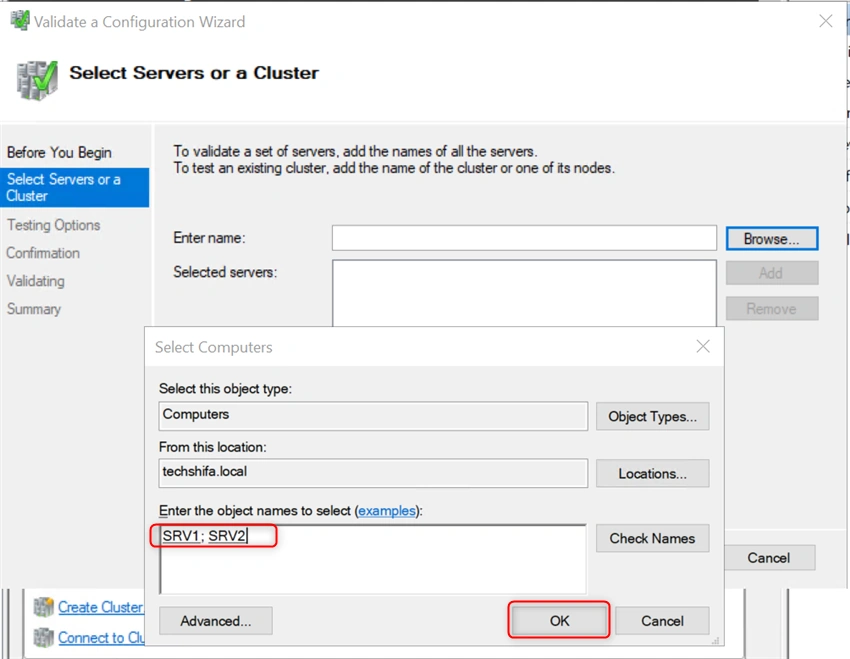
You want to specify the server which you want to add as a cluster node
Click Browse Advance
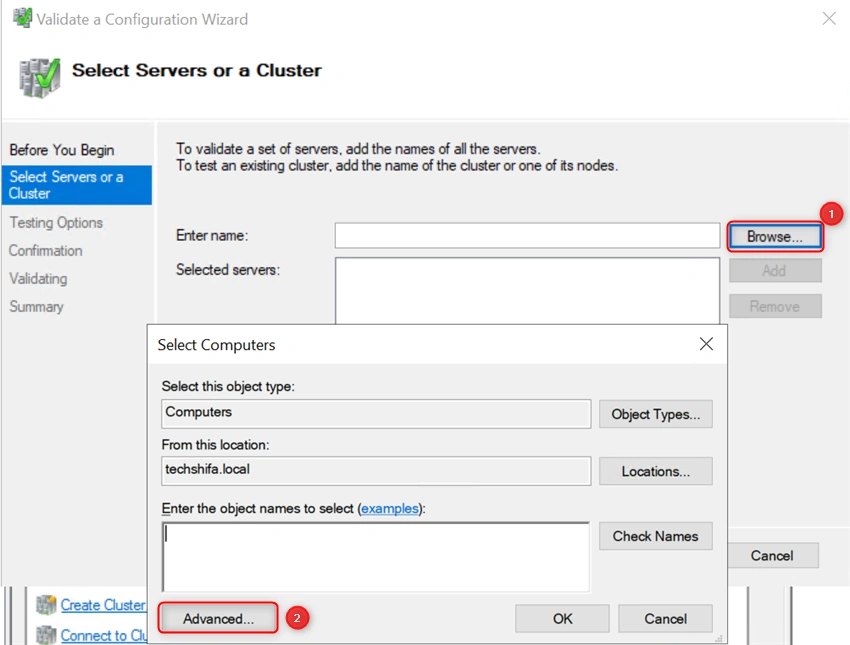
Click Find, and then Select the servers
Click Ok
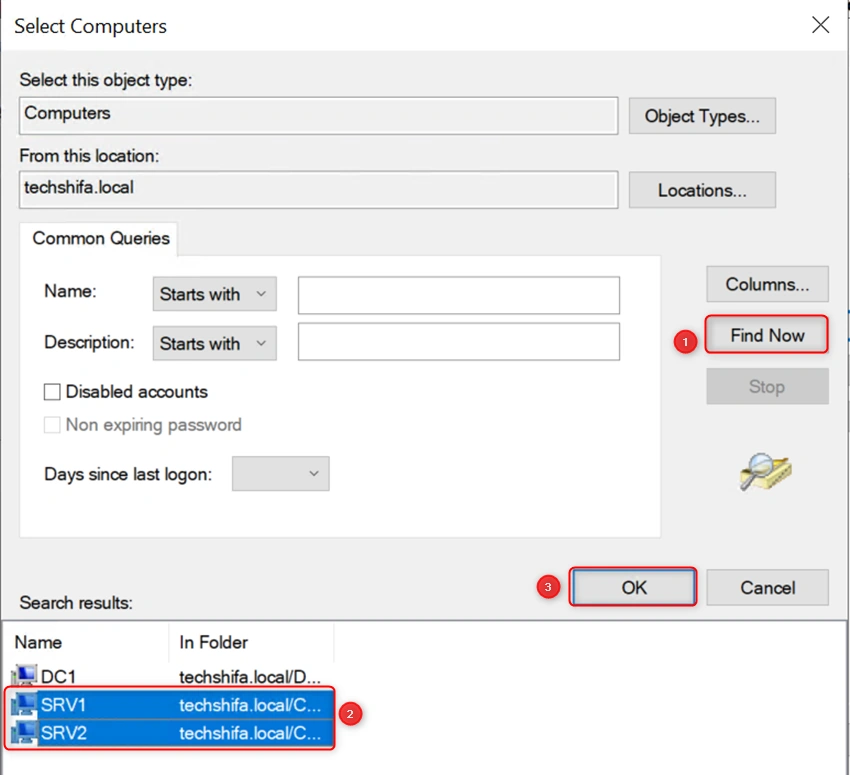
Click Ok
Click Next
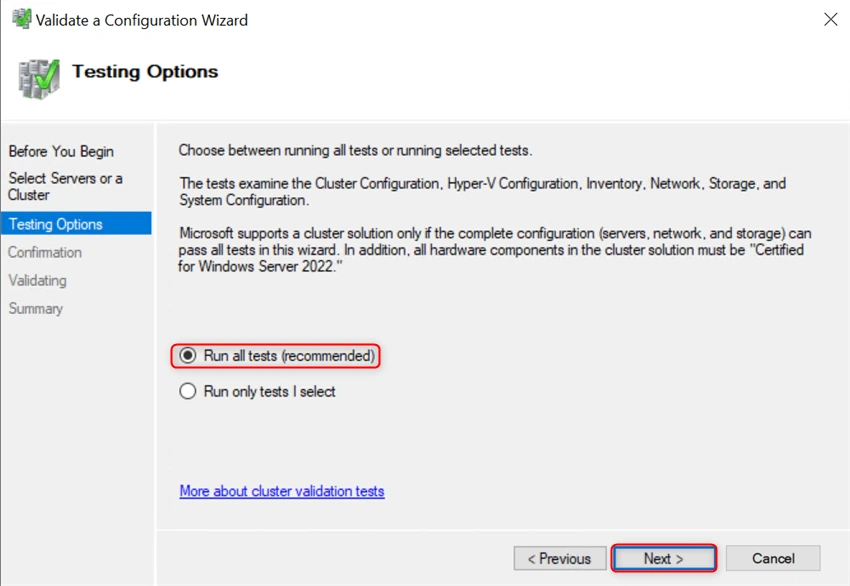
Testing Options: Select Run All Test (recommended) or Run only tests I select
Then Click Next
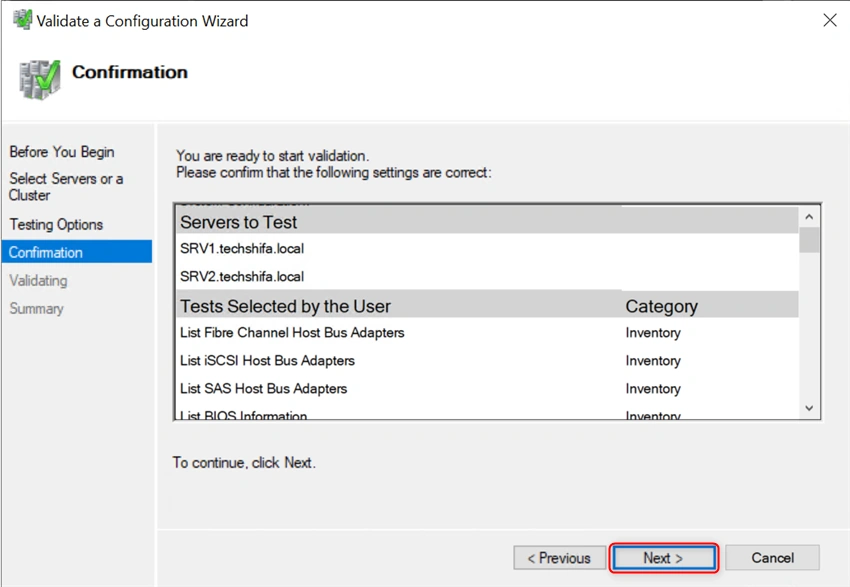
Click Next
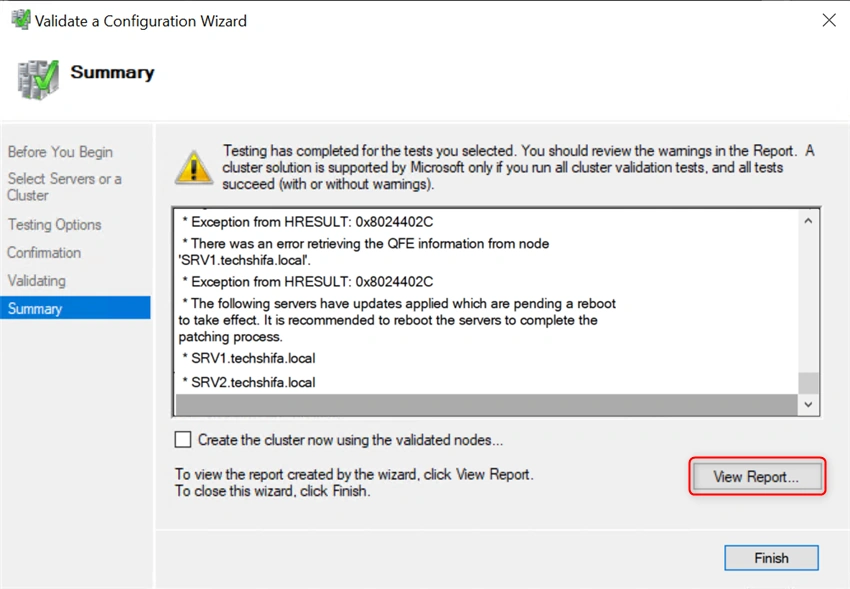
Once the test has been completed, click View Reports to open the Failover Cluster Validation Report, and then you should review the warning in the report to provide zero downtime services.
Create a Cluster
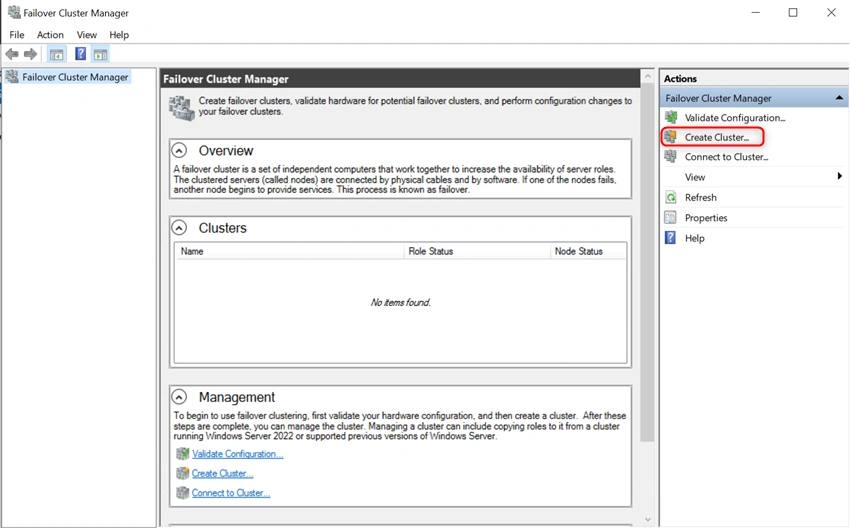
Select Create Cluster from the Failover Cluster Manager
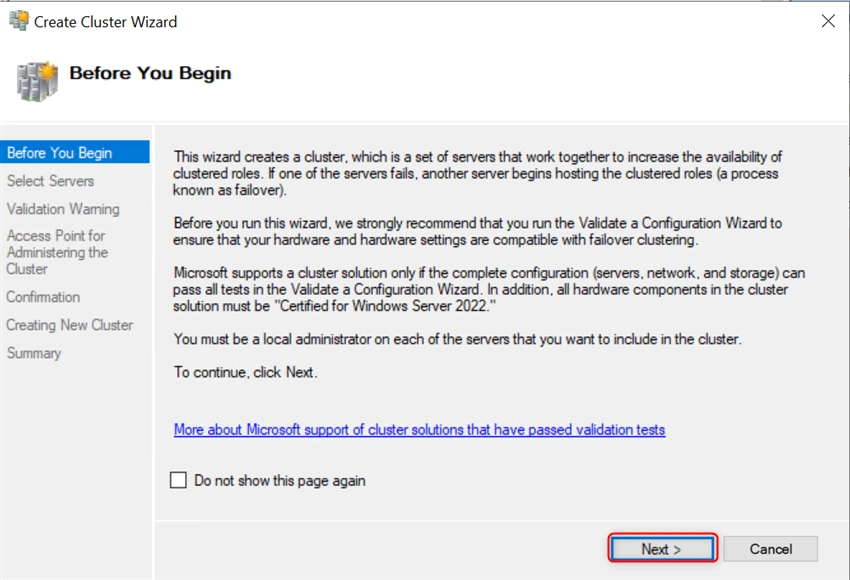
Before You Begin, Click Next
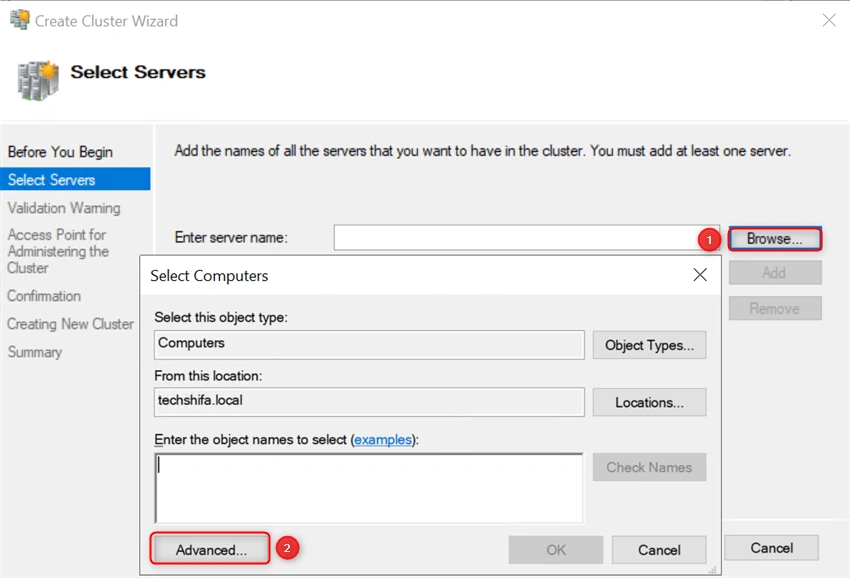
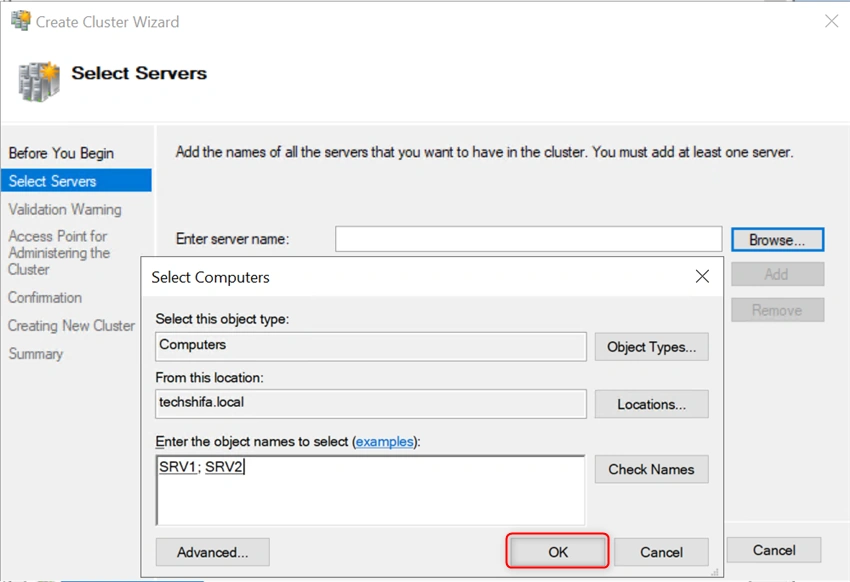
Click Browse to Select the Servers which you want to add to the cluster
Click Advance
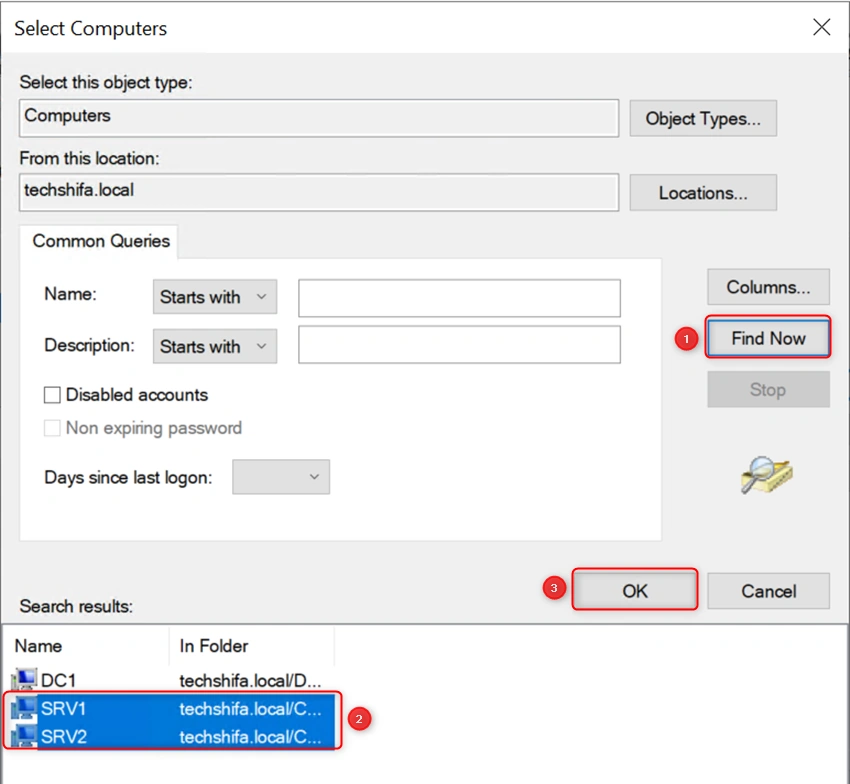
Click Find Now. Then Select the servers Node1 & Node2 and then Click OK
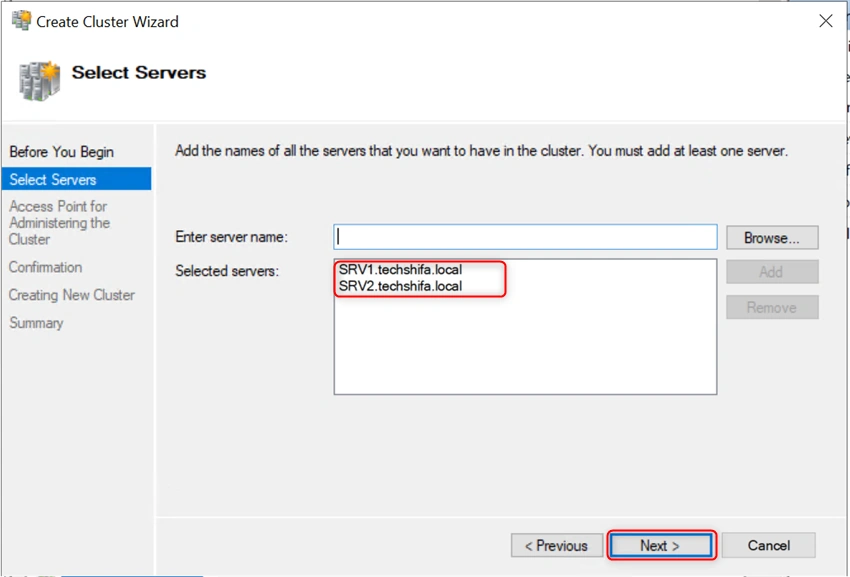
After you have selected the servers, then click OK
Click Next
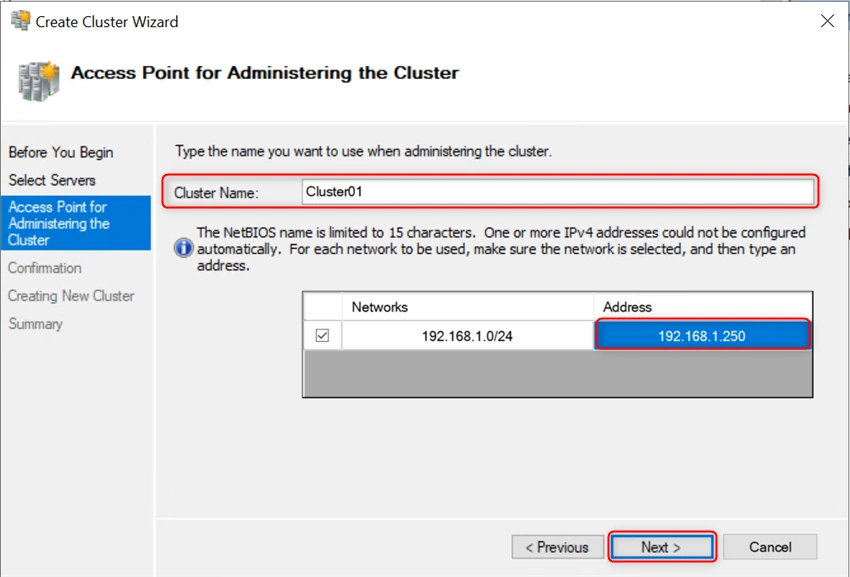
Access point for Administering the Cluster
Enter the Cluster Name: Cluster01
Cluster IP: 192.168.1.250
Then click Next
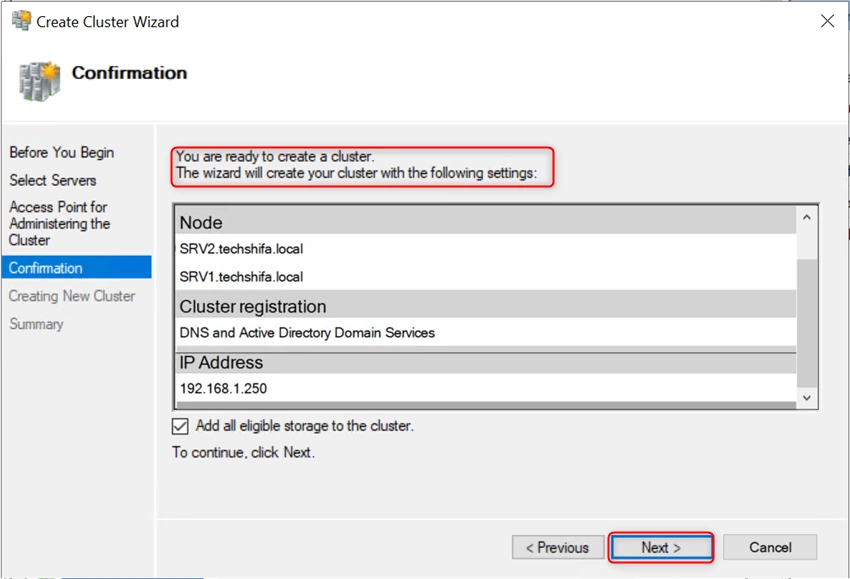
Then Click Next to create a cluster in your network
Once you have successfully completed the create cluster, click Finish
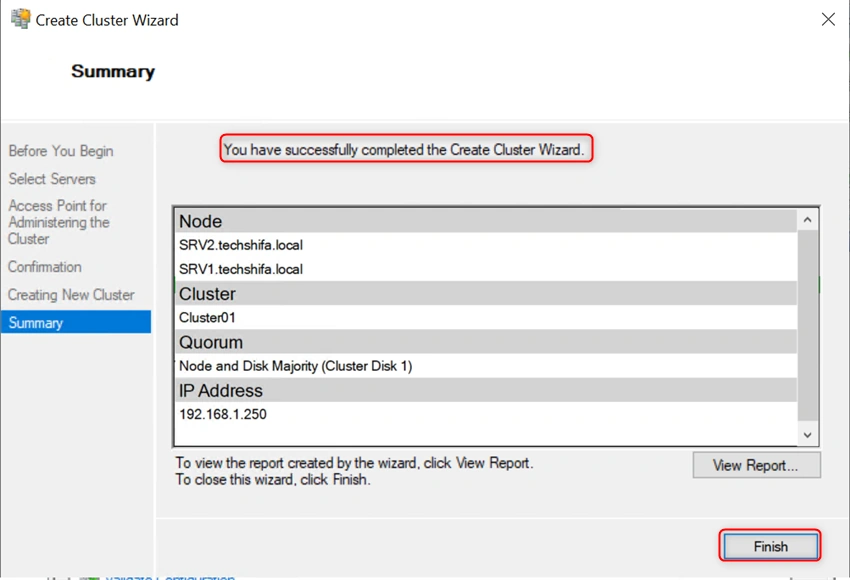
When you create the cluster, automatically cluster will be created in your other nodes also
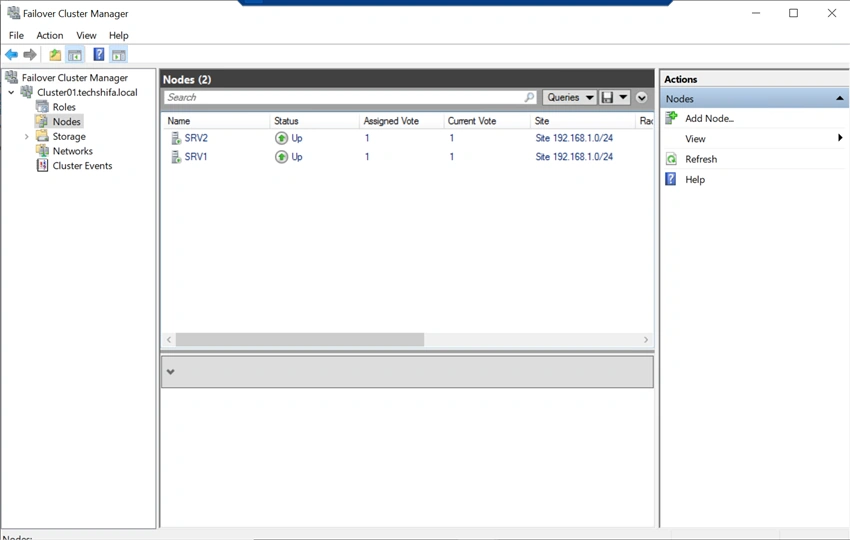
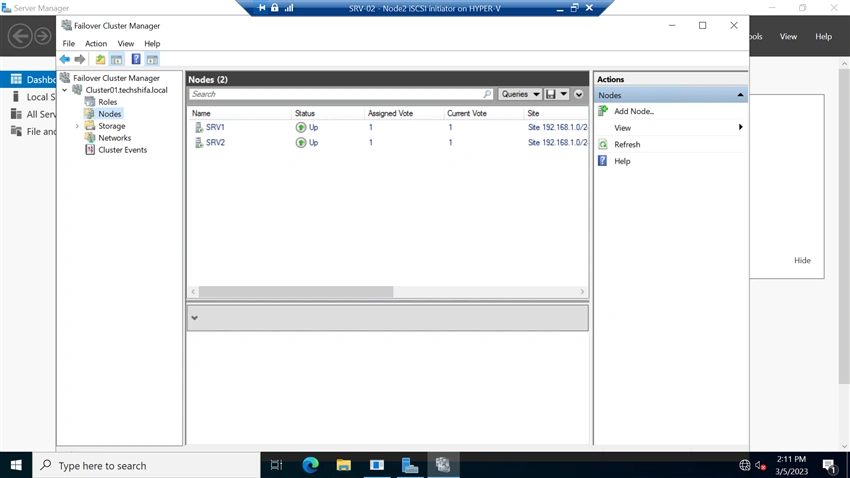
Now, the failover cluster has between node 1 and Node 2, and you can verify that from the failover cluster manager
Go to Node2 and open Failover Cluster manager from the Server manager


Join the conversation! Your thoughts help the community grow.