

Introduction
Drivers allow hardware to communicate with the Operating System that helps in detecting hardware by providing support for hardware compatibility issues in Windows.
In this specific section, we will look at how these drivers are installed and updated in Windows 10.
Installing Drivers using Windows Update
Or
Type wuapp in Run (Windows + R) then press Enter.
Step 2
Click Check Updates.
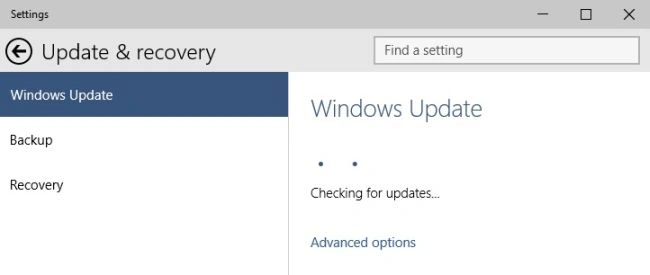
All the appropriate drivers start downloading in your system after detecting the system configuration by Windows Update.
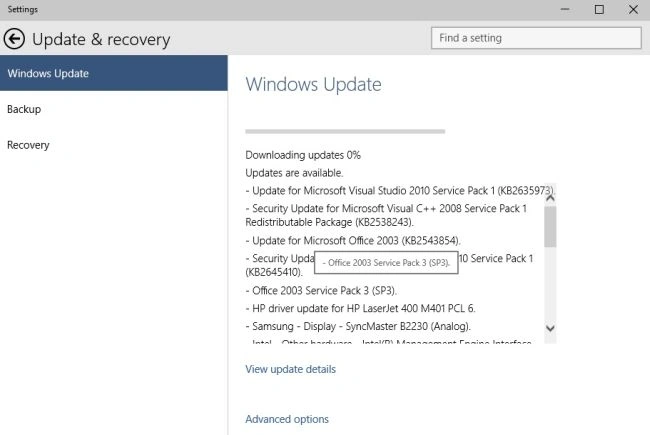
It might happen that some drivers are not detected and installed by Windows Update, you can try it manually to install.
Installing drivers using Device Manager


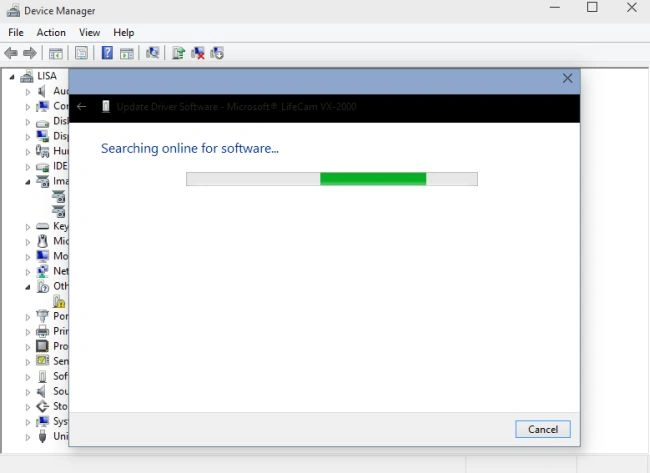
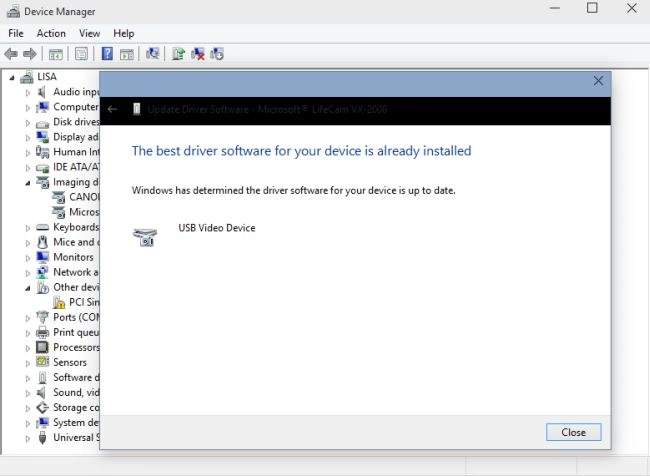
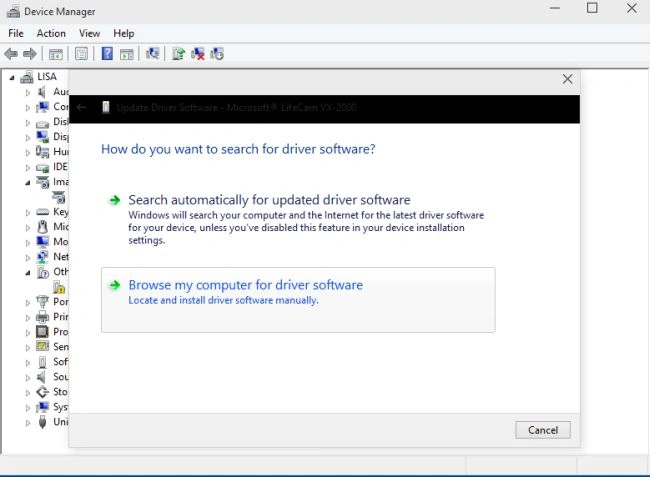
Look for the existing driver and select it.
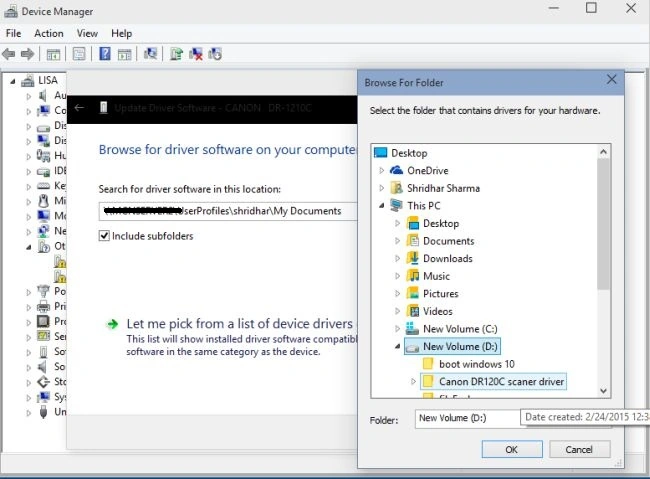 And then.
 Click Next, you will see the Installation complete wizard.
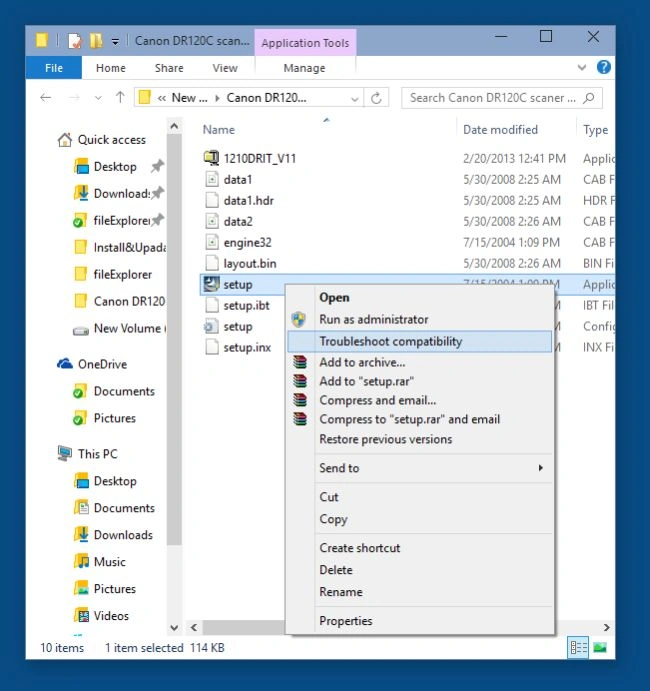
If the preceding two cases are unsuccessful then what you can do is use the Troubleshoot Compatibility that makes older drivers compatible with the modern versions of Windows.
Right-click the setup file and click Troubleshoot Compatibility and follow the step to fix this issue.
Click Next, you will see the Installation complete wizard.
If the preceding two cases are unsuccessful then what you can do is use the Troubleshoot Compatibility that makes older drivers compatible with the modern versions of Windows.
Right-click the setup file and click Troubleshoot Compatibility and follow the step to fix this issue.
 Will detect issues.
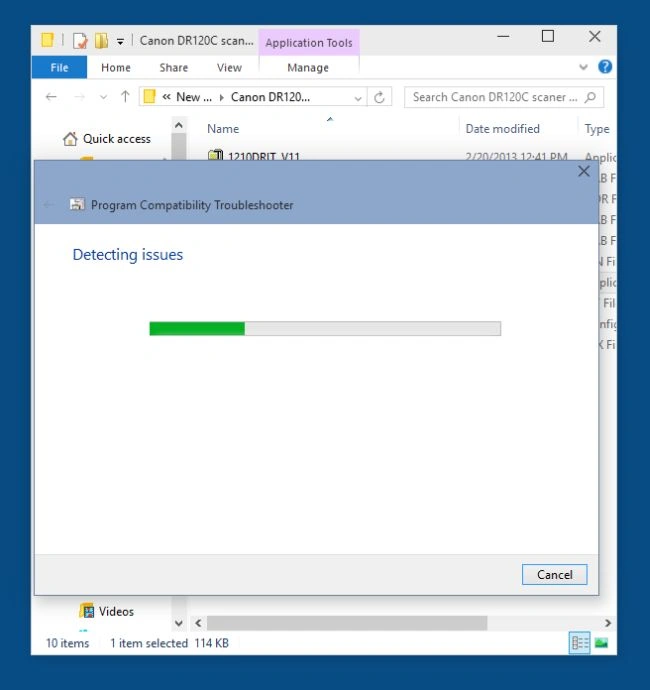 Use the following procedure.
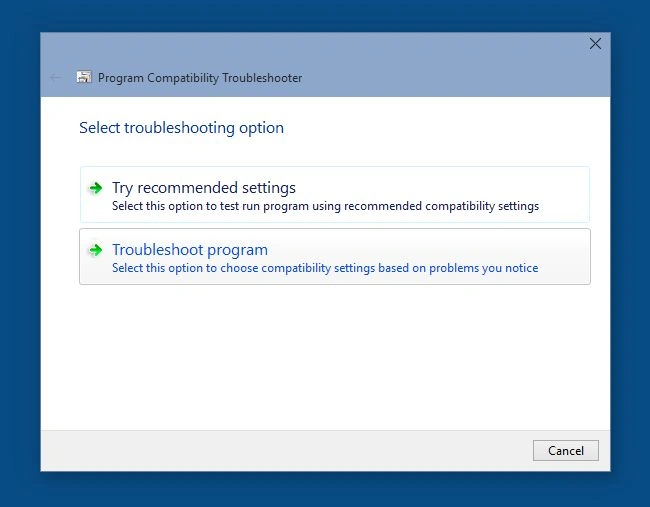 Finally, click Close.
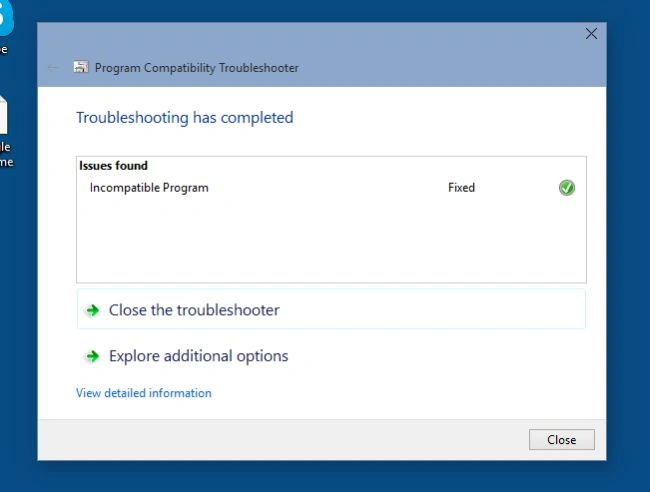 So, you fixed this issue. Kudos!
Troubleshooting Compatibility
Go through the following procedure for Troubleshoot Compatibility
Summary
In this article, we learned about Install and Update Drivers in Windows 10.
Sibeesh VenuPosted Feb 25, 2015, 5:42 AM
Shridhar Sharma You are welcome.
Shridhar SharmaPosted Feb 25, 2015, 5:41 AM
Thank you Sibeesh Venu sir :)
Sibeesh VenuPosted Feb 25, 2015, 5:15 AM
Good one.