

ASP.NET core is a brand new web framework that is open source, cross-platform, cloud optimized and built on top of .NET. The important thing is that ASP.NET Core gives you a consistent and unified experience for building both Web UI and WEB APIs.
Nowadays, we are working in ASP.NET - we have variety of frameworks for building ASP.NET Web pages, ASP.NET MVC, and ASP.NET Web API. And each of these frameworks is works great in software development but there is a drawback with these frameworks which is a lack of consistency among them.
That is,
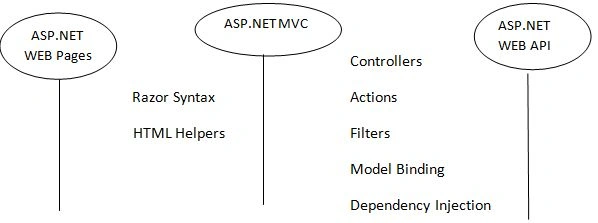
- Web Pages and MVC both use Razor syntax as they have view syntax. Both use their own HTML Helpers implementation.
- MVC and WEB API both look very similar because they both share a bunch of concepts like Controllers, Actions, Filters, Model binding and Dependency Injection but actually there is no code sharing between them. This is because there may be some reasons like MVC is host on IIS and WEB API will be able to self hosted.
- Because of those variations, we have to write code twice for every feature for both MVC and WEB API.
For solving the above problems, Microsoft provided ASP.NET Core WEB API in which they are aligning (MVC + Web API + Web Pages) into a single aligned web stack for doing both Web UI and Web API’s.

- It has one set of concepts for remove duplication.
- We can implement both Web UI and Web API’s.
- It’s a part of ASP.NET core and supports .NET core (cross platform implementation is possible).
- It runs on IIS or Self-hosted
- Deep integration is possible with Dependency Injection stack.
Getting started with ASP.NET Core
For building WEB API’s using ASP.NET core, first we need to acquire .NET Core from here . Go to that link and click on .NET Core as shown in the below screen.
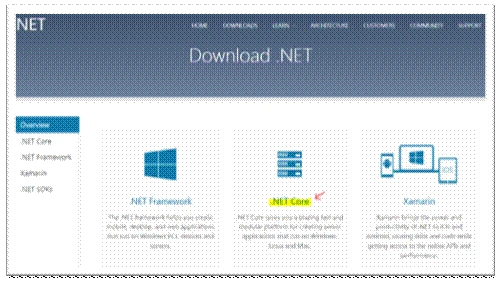
Once you click on the above link, you will get installation instructions to a particular platform like below.
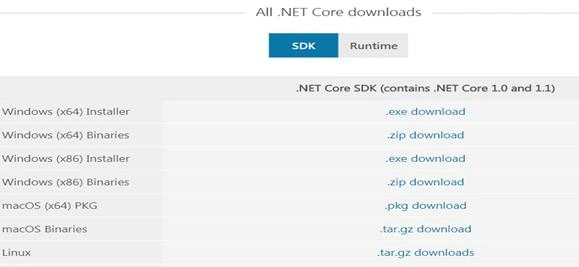
I am using windows platform so I downloaded and installed the .exe download for my visual studio. You can choose your own platform based on the OS installed in your machine. If you want step by step instructions for working with .NET Core there is an option on the same page just below the above download links. You can choose your platform to work with it. Once you installed .NET Core then start/restart your Visual Studio in administrator mode. I have VS 2017 Which contains .NET core by default, If you are using below VS2017 then the above instructions will be useful. If you are using VS2015 then you have to use VS2015 update 3 for working with .NET core application and also you need to install VS2015 preview tools along with .NET Core SDK.
Once you complete the installation,
Go to File -> New -> Project and select the web node on left navigation in the New Project dialog and you can see the number of options here
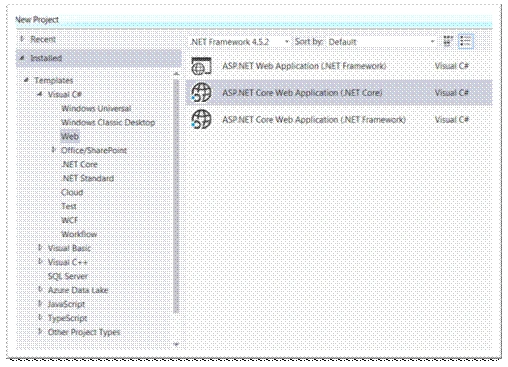
In the above options,
ASP.NET Web Application (.NET Framework) is an existing ASP.NET web stack for building web applications like Web Forms and MVC 5 for targeting .NET Framework.
ASP.NET Web Application (.NET Core) is for building ASP.NET Core Web Application and runs on .NET Core. It’s a template for building projects with cross platform compatibility.
We also have an option ASP.NET Web Application (.NET Core) for building ASP.NET Core Web Application which targets to .NET framework, which means it does not have cross platform compatibility.
Now, let’s select the web template which has cross platform compatibility and name the project with some name like “SampleWebApiCoreProject” and click on OK to create the project. After clicking on OK, we will get the new dialog with various options available for selecting a template for.NET Core and select Web API and do not select any authentication for now. Just Keep it as No Authentication and leave the other default settings and click on OK.
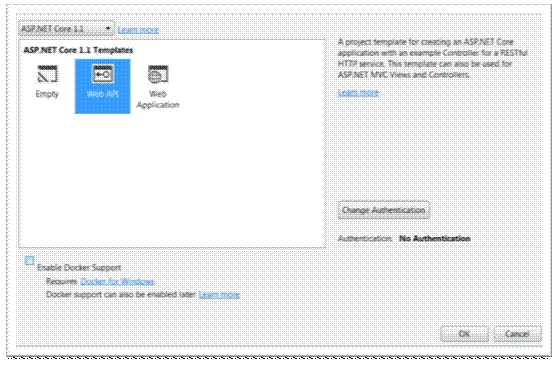
It will take a few seconds to create a project in .NET Core. Once the project creation is completed you can see a bunch of files in solution explorer in visual studio. It is just a web api project in .NET Core. You can see that it's just a console application. i.e ASP.NET Core Web API is just a console applciation. You can see a program.cs in this console application as shown in the below screen.
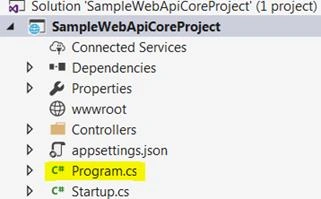
Now, open Program.cs you can see the following code in that class.
Join the conversation! Your thoughts help the community grow.