

What is Search?
- SharePoint Search is used to get the keyword results from SharePoint sites, using search query.
- Search center is used to show the search results.
- In Search center, there are several pages and they are called search verticals.
- We can customize the search vertical, as we need. The default search verticals in SharePoint online are given below-
- People
- Conversation
- Videos
- We can customize the search result, as we need.
- SharePoint provides lots of options to customize the search results. We can integrate with open search engines and remote SharePoint Exchanges.
Now, we are going to see how we integrate Bing search engine results with SharePoint search results.
Steps to Integrate the Bing search Results
To show Bing results with SharePoint search results, first we need to create the two things, given below-
- Create new SharePoint Search Result source.
- Create new Search Query Rule.
Let us see how to create New Result Source and New Query rule.
New Result Source
Follow the steps, listed below, to create new search result source in SharePoint Site-
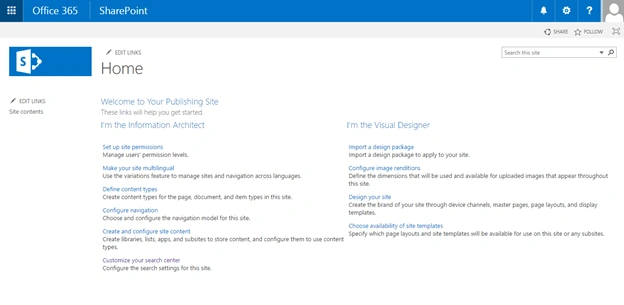
Step 1 - Open SharePoint site, where you need to integrate Bing results.
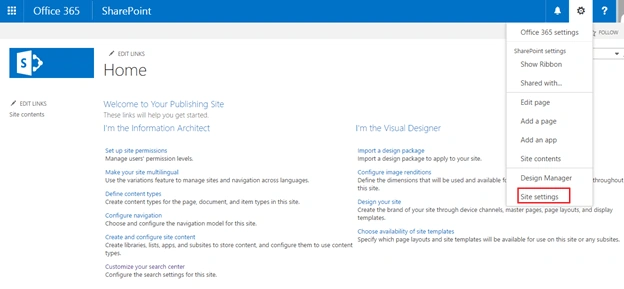
Step 2 - Select "Site settings" from gear menu, as shown below-
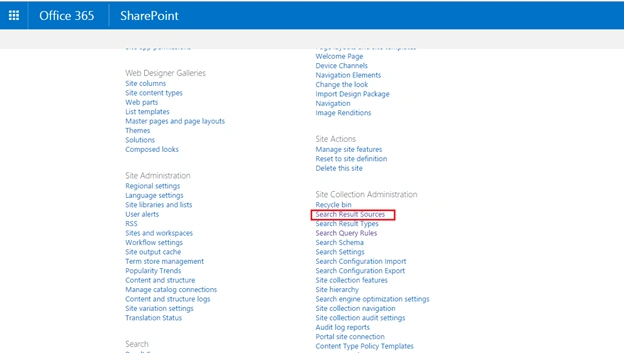
Step 3 - On “Site Settings” page, click “Search Result Source” under site collection administration.
Step 4 - You will navigate to “Manage Result Source page” as shown in below

Step 5 - Then click “Create New Result Source” on Manage Result source page

Step 6 - On “Manage Result Source” page, provide the values, given below in the respective fields-
- Name - Name of the result source.
- Description – Description of the result source.
- Protocol – For Bing results, we need to select “OPEN SEARCH 1.0/1.1” (OpenSearch 1.0/1.1 is used to show the results from search engine).
- Type – Select SharePoint Search Results
- Query Transform - {searchTerms}
- Source URL : http://www.bing.com/search?q={searchTerms}&format=rss&Market=en-us
- Credential Information : Anonymous (by default, it selects anonymous options and options are disabled).
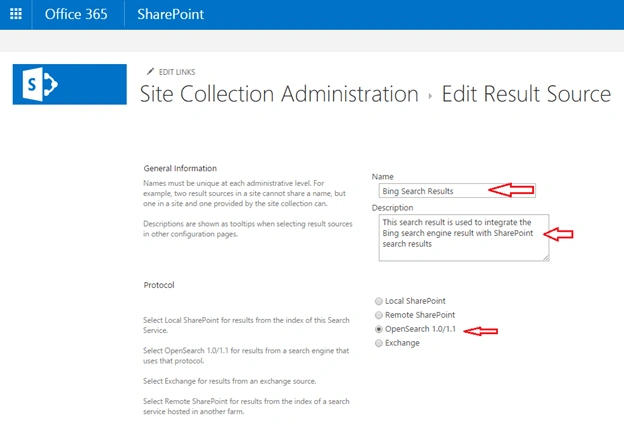

Step 7 - After providing all the information, click “Save” to create a new result source in SharePoint site.
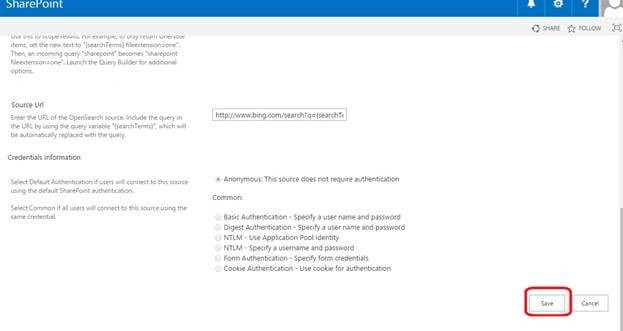
Bing search result source will be created successfully, as shown below-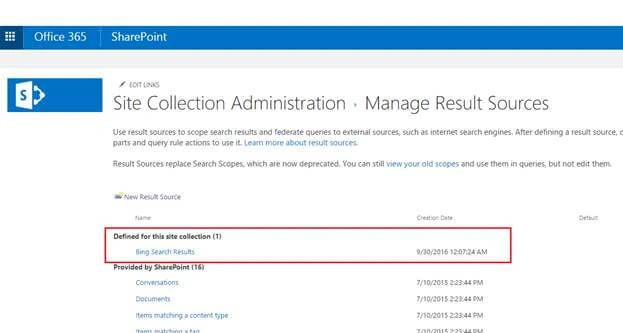
New Search Query Rule
Follow the steps, given below, to create new Query rule-
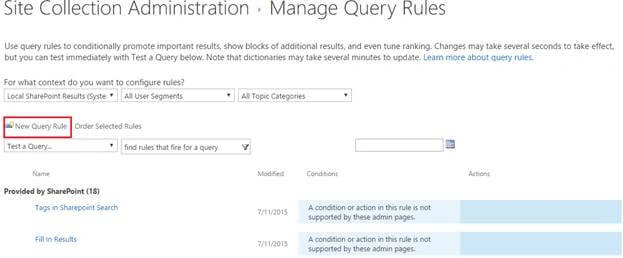
Step 1 - Go to Site Settings page and select “Search Query Rules” under Site collection Administration.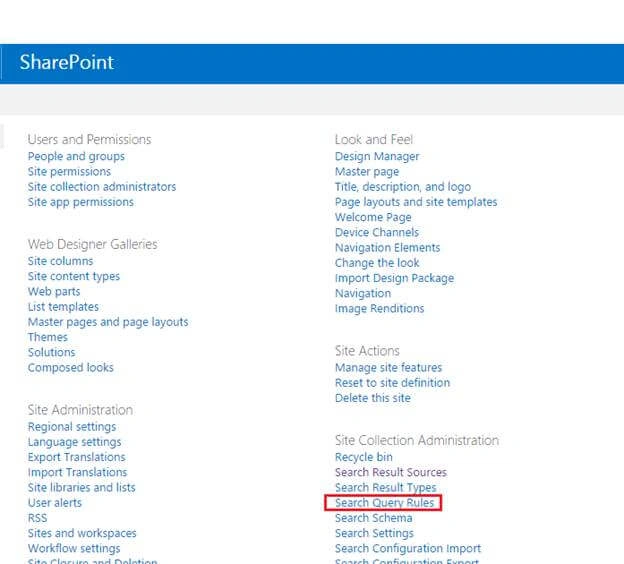
Step 2 - On Manage Query rules page, select a result source.
- Select Local Share Point Results on Context. Do you want to configure this rule, as shown below-
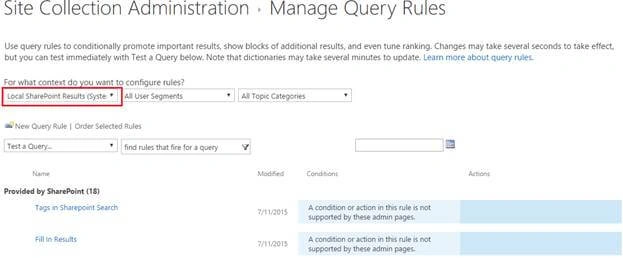
Step 3 - Click “New Query Rule” in Manage Query Rules page.
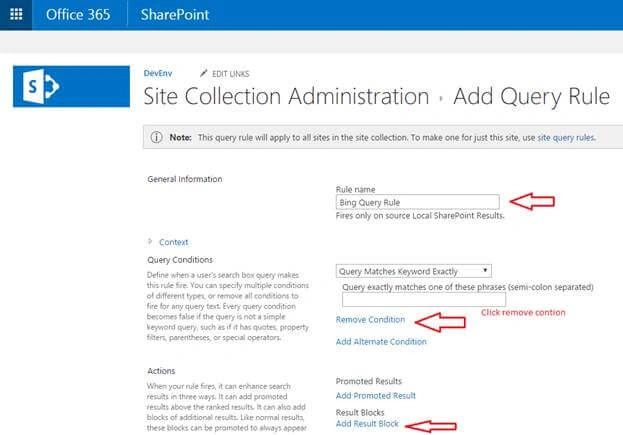
Step 4 - You will navigate to “Add Query Rule” page and provide the values, given below in the respective fields-
- Rule Name – Name of your Query Rule.
- Query Condition – I don’t provide any query condition, so I removed the condition ( click remove condition in the query condition).
- Action – Select “Add Result Block”, after clicking the add result block, you will get the “Add Result Block” pop up.
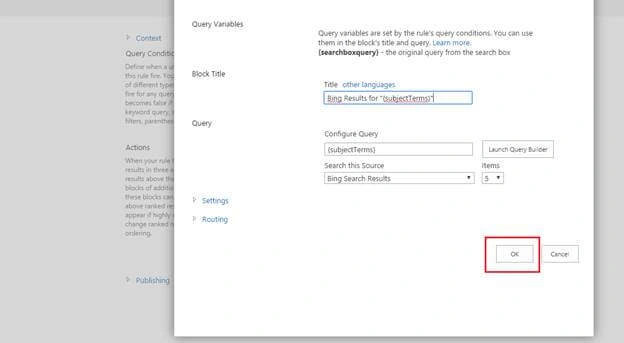
Step 5 - On the Add Result Block pop up, provide Block Title, Query and select search this source.
- Query – In selecting this resource, give your search result source, which you have created for Bing search.

Click “OK” on Add Result block and the screen, shown below pops.
Step 6 - After adding the query rule details and result block details, click “SAVE” to create a query rule.
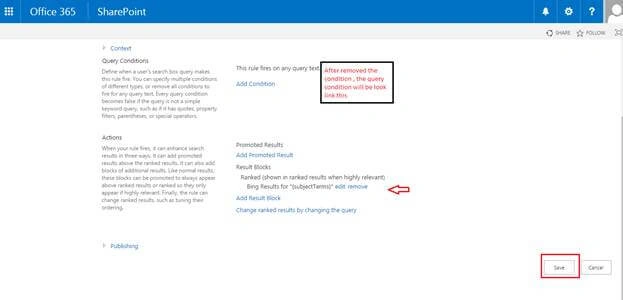
Finally, Query rule will be created successfully.
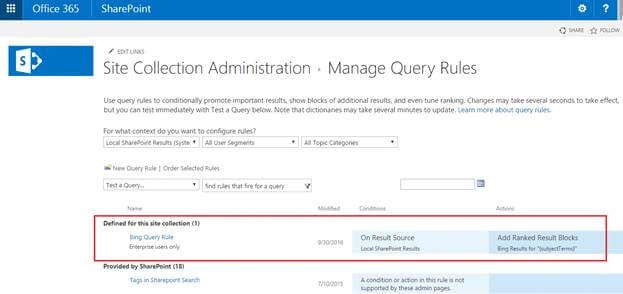
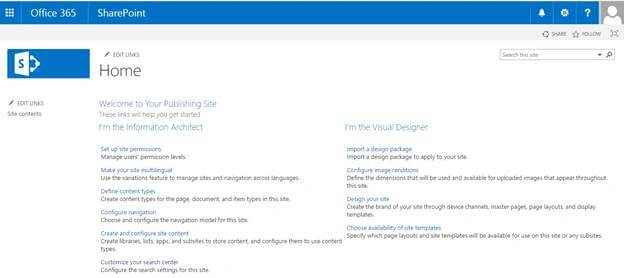
Step 7 - Go to your SharePoint site, where you have created the search result source and query rule.
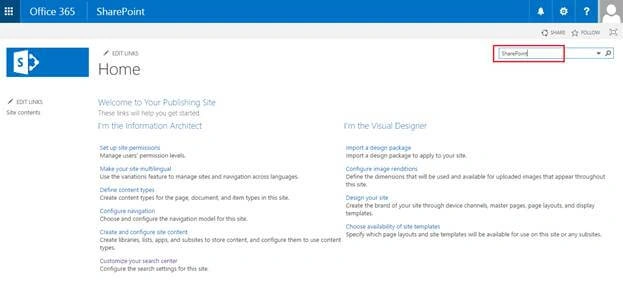
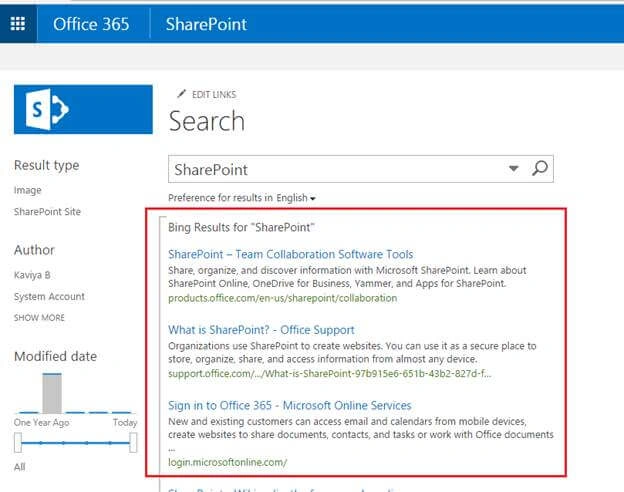
Step 8 - Type the keyword on the search box and enter. You will get the results from “Bing Search Engine” on SharePoint search result page.
Finally, we have integrated Bing search engine with SharePoint search results.

Summary - In this article, we explored how to integrate the Bing search engine with SharePoint online search results.
Happy searching.
Kunal BasuPosted Sep 26, 2023, 4:23 AM
This is a nice blog. Is it possible to implement designs to the Bing search results using Display templates?
LaThaniel DillonPosted May 25, 2017, 8:58 AM
How can I move the Bing search results to the bottom of page and SharePoint results to the top?
Kaviya BalasubramanianPosted Oct 4, 2016, 12:30 AM
Thanks Madan Mohan :)
Madhanmohan DevarajanPosted Oct 3, 2016, 12:32 PM
Its interesting.. Good Job!
Kaviya BalasubramanianPosted Oct 3, 2016, 3:18 AM
Thank u Tejesh :)
Tejesh BarmaPosted Oct 3, 2016, 3:09 AM
Good Article.It's nice.I tried this article in my online site it's working perfectly.....
Kaviya BalasubramanianPosted Oct 3, 2016, 2:50 AM
Thank u Tarun :)
Tarun DPosted Oct 3, 2016, 1:17 AM
Nice article. Thanks for sharing..
Kaviya BalasubramanianPosted Oct 3, 2016, 12:26 AM
Thanks Vignesh and Humayun :)
Vignesh ManiPosted Oct 2, 2016, 4:31 PM
Good One
Humayun Kabir MamunPosted Oct 1, 2016, 11:46 PM
Nice...