

Introduction
In today's online world, it's really important for businesses that sell things or offer services online to have a smooth way for people to pay them. Power Pages is a well-liked tool for making websites because it's easy to use and helps you make websites fast. But if you want to use it for online shopping or selling stuff, you need to add a way for people to pay you. This article will show you how to do that, so you can take payments on your Power Pages website.
Use Cases
Adding a payment gateway to Power Pages can bring lots of benefits for different types of businesses:
- Online shops: If you sell things online, adding a payment gateway lets customers buy directly from your website, making shopping easier.
- Service providers: People who offer services like advice, coaching, or freelance work can get paid online, which makes it simpler for clients.
- Donation pages: Charities and non-profits can collect donations smoothly through their Power Pages websites, making it easier for people to give money for good causes.
- Event Sign-ups: Businesses that organize events or workshops can let people sign up and pay for tickets online, making the whole process of registering simpler.
Step-by-step process to integrate payment gateway
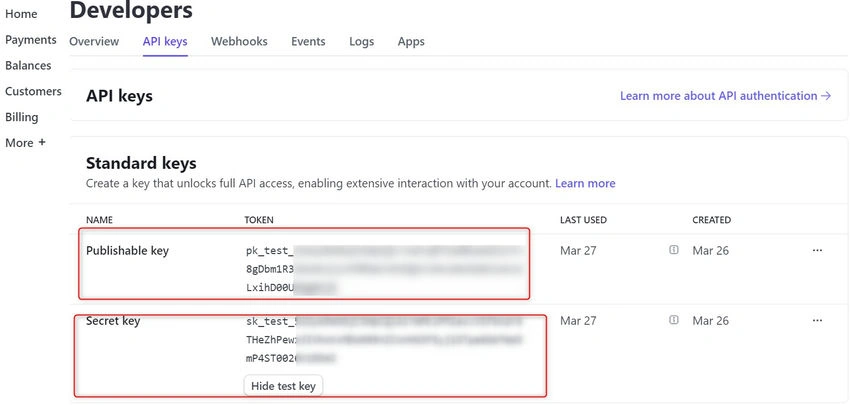
Step 1. For this article, we will use 'Stripe' as our payment gateway. Go to STRIPE and create an account for yourself. Navigate to the developer's page and copy Publishable and Secret keys under API keys as shown below.
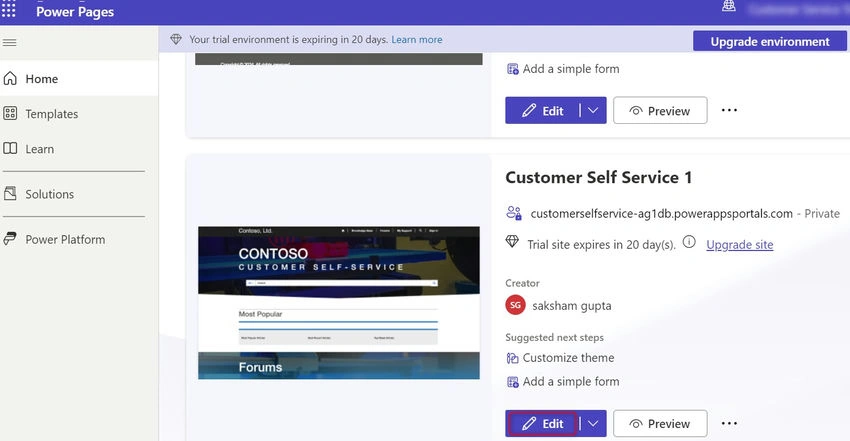
Step 2. Create a Power Pages Site or use an existing one. Click on the edit button as shown below.
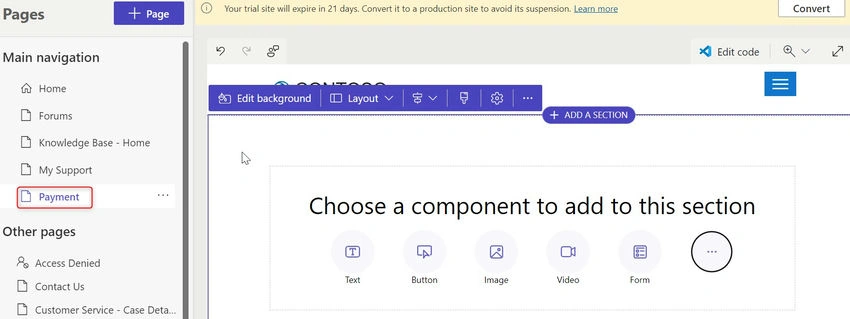
Step 3. Add a blank payment page on the site created in Step 2 as shown below.
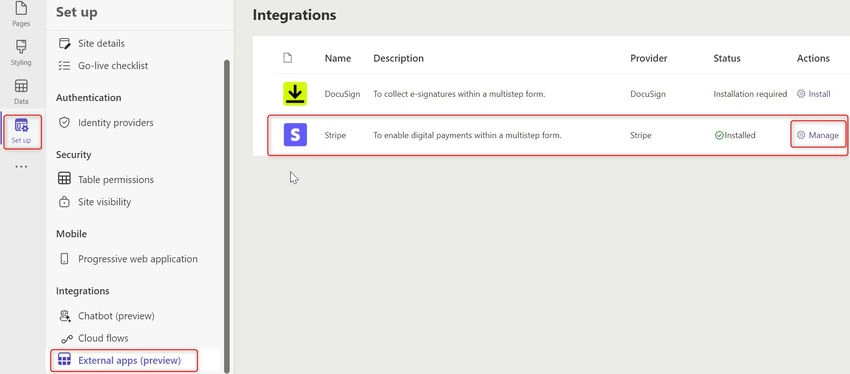
Step 4. Click on the 'Set up' tab on the left navigation. Go to External apps -> Install 'Stripe' integration -> Click on manage.
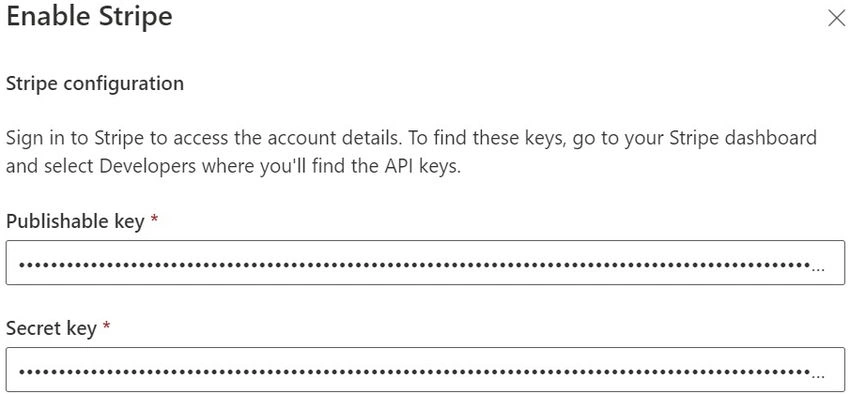
Step 5. A new pop-up will appear. Paste the Publishable and Secret keys copied in Step 1 and save.
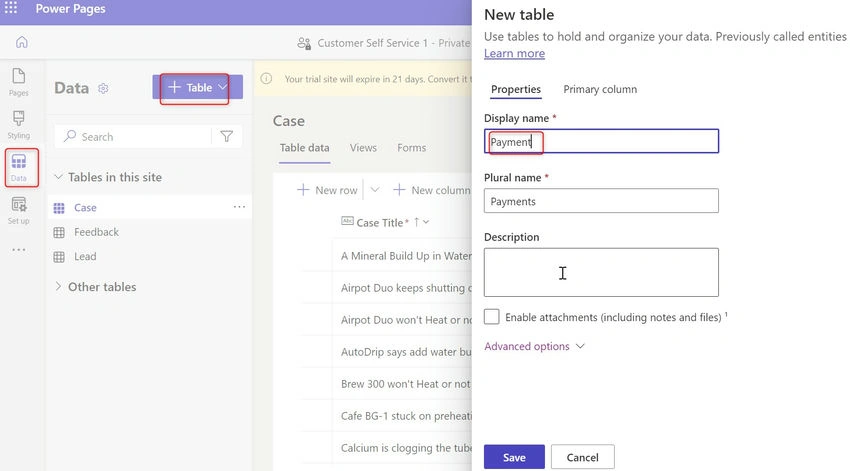
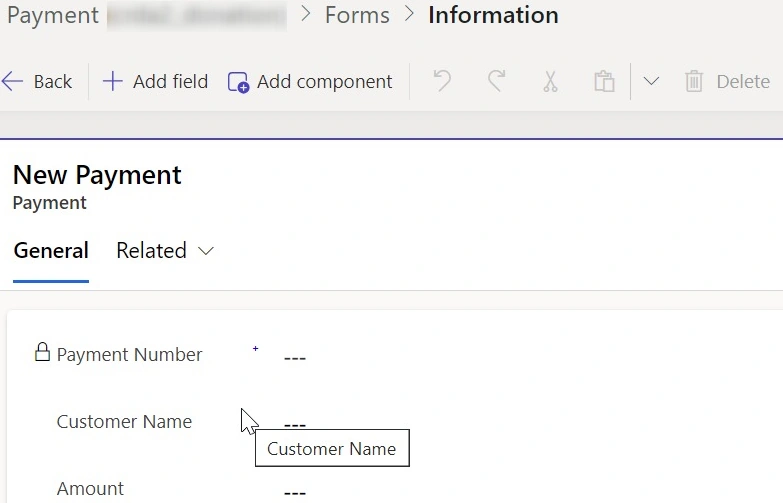
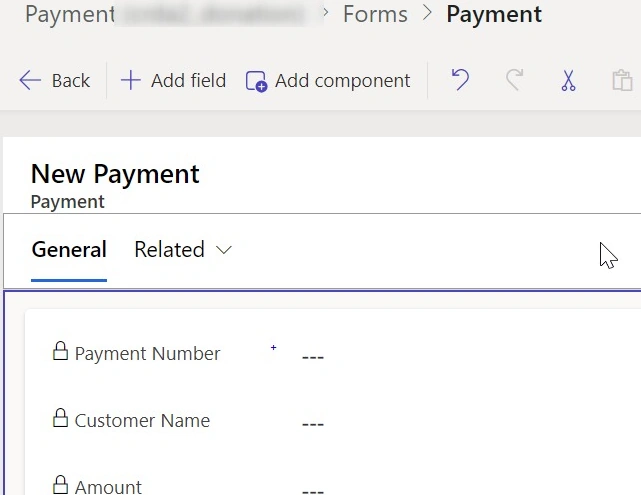
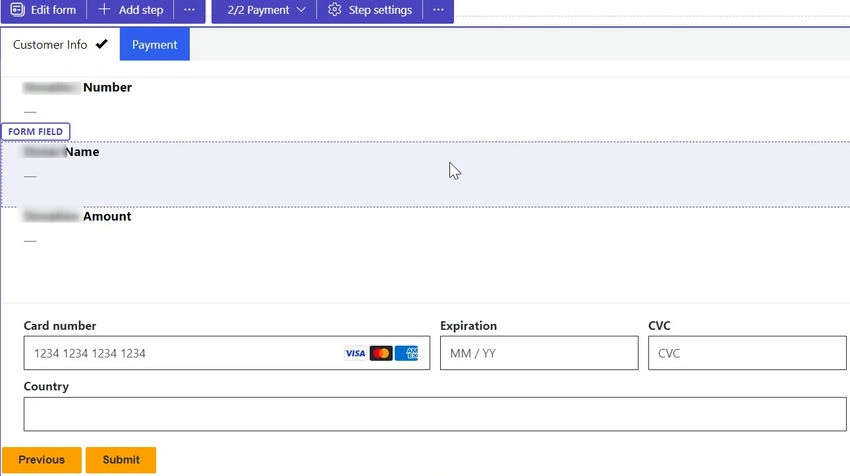
Step 6. Go to Data Tab -> Click on New Table -> Create a table with the name 'Payment' -> Click on Primary Column.
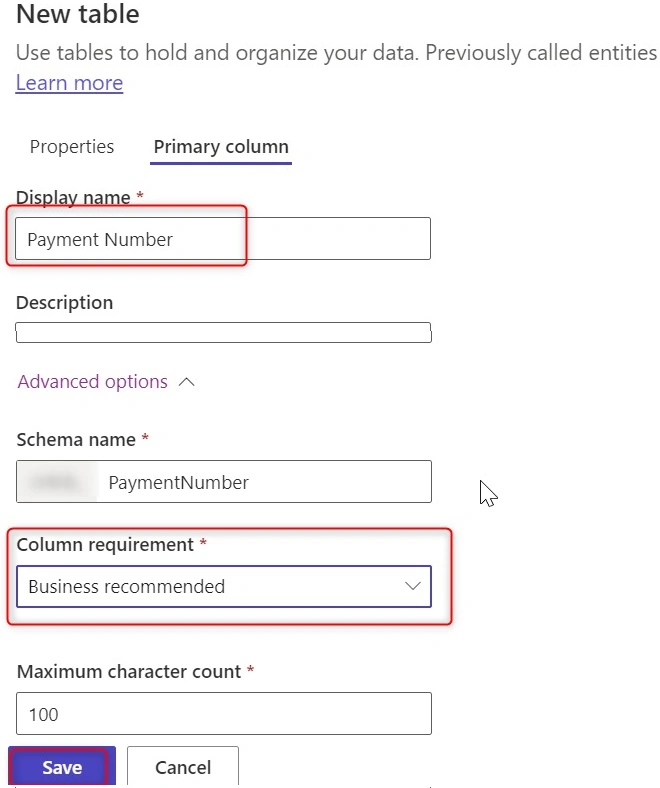
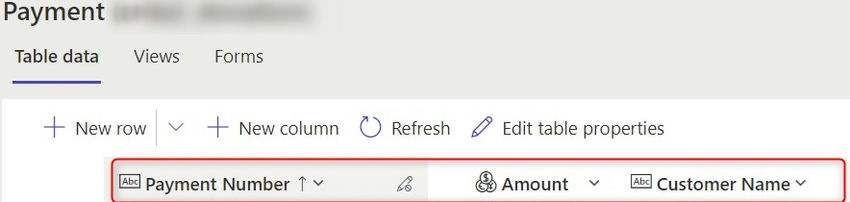
Step 7. Under Primary Column -> Update column name to Payment Number -> Set column requirement Business Recommended-> Click on save as shown below.

Join the conversation! Your thoughts help the community grow.