

Introduction
This article is in continuation of my previous article where I have explained how to perform Azure blob storage binding for Azure Functions. Here, we are going to discuss how to integrate the SendGrid service to Azure Functions. So, in my last article, we ended up storing the invoice in a blob. Now, we are going to see how to send the file as an attachment and send it to the respective users via an email.
Prerequisites
Basic knowledge of Azure Functions and Azure Storage Service
Integrate Azure Blob to Azure Functions
In my last article, we created a function GenerateInvoice which is integrated with the Azure Blob Storage, and stores the invoice details as a text file. In this article, we are going to add a trigger to this function to send an email.
Step 1
Go to the GenerateInvoice function and select "Integrate", as shown in the below figure.
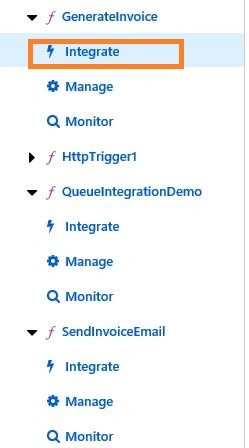
Figure 1
Step 2
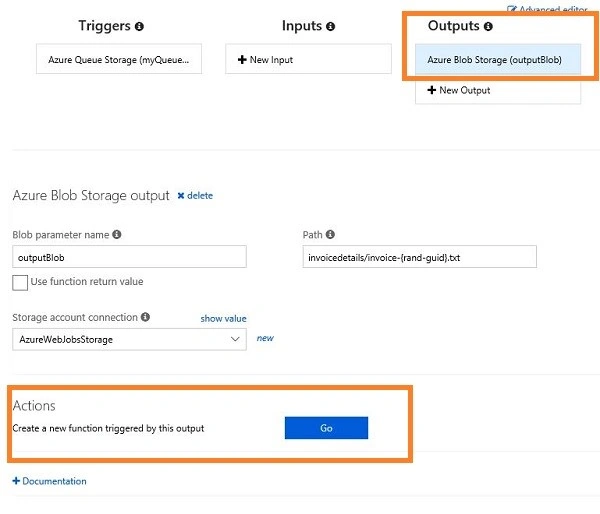
Select the Azure Blob output and click on "Go" to create a new function to send an email based on the Azure blob output trigger.
Step 3
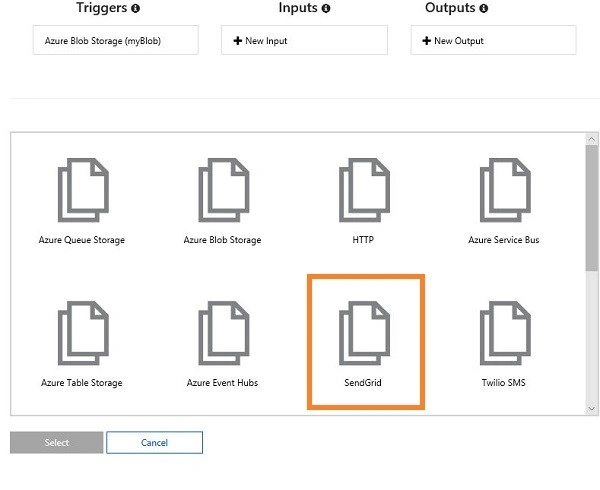
Select "Azure Blob Storage trigger" template from the available templates.

Step 4
Now, we will get a form. Create a new function, name the function, provide blob path in path details. In my case, it is invoicedetails/{filename}. Now, give a storage account which we used in the previous function.

Step 5
Click the "Create" button. It will create a new function called SendInvoiceEmail. Replace the existing code with the code given below.
- #r "SendGrid"
- using System;
- using System.Text.RegularExpressions;
- public static void Run(string myBlob, string filename, ILogger log)
- {
- log.LogInformation(myBlob);
- var email=Regex.Match(myBlob,@"^Email\:\ (.+)$", RegexOptions.Multiline).Groups[1].Value;
- log.LogInformation($"Send invoice to {email} with filename :{filename}");
- }
From the above code, you can observe that we are getting the data from the invoice detail file which is stored in the blob service as a string and the file name also is a string.
We are using a regular expression to get the Email address of the user from the string myBlob. Remember to include the namespace System.Text.RegularExpression in your script.
Step 6
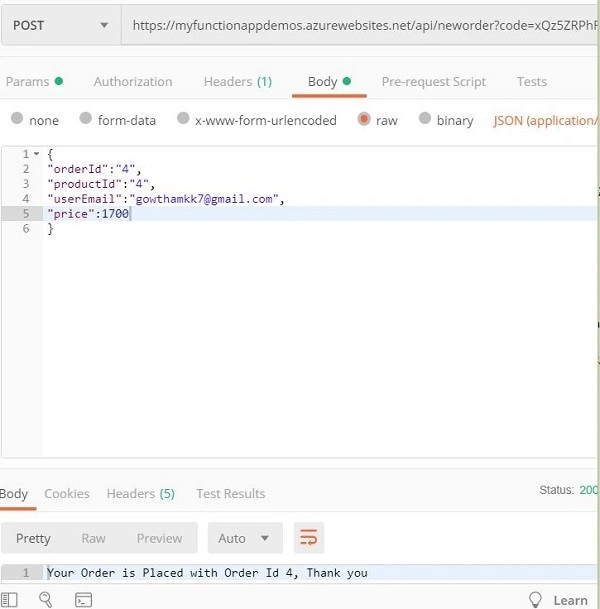
Let’s trigger the function using POSTMAN, for testing.





Join the conversation! Your thoughts help the community grow.