

Introduction
Inter-VLAN routing is the way computers and devices in different VLANs (Virtual Local Area Networks) talk to each other. Normally, devices in one VLAN cannot reach devices in another VLAN. Inter-VLAN routing makes communication possible between them, which is important in networks that use VLANs to keep traffic organized, faster, and more secure.
In this article, we'll learning about Router-on-a-Stick. This method allows devices in different VLANs to communicate with each other. For example, a computer in the IT VLAN will now be able to connect to a computer in HR, SALES, or GUEST.
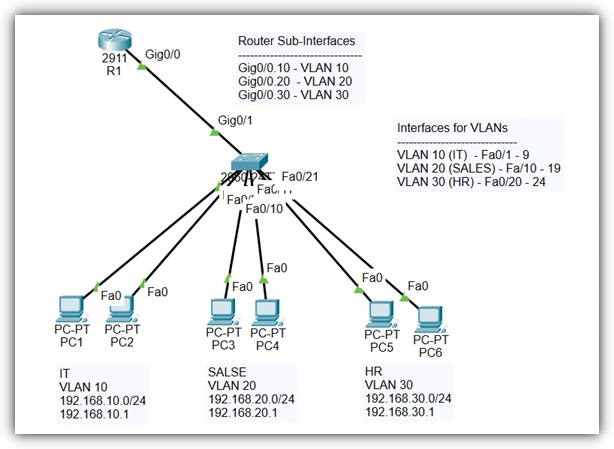
What is Router-on-a-Stick?
Normally, VLANs are separate and cannot talk to each other. For example, computers in the IT VLAN cannot talk to computers in the HR VLAN. To fix this, we need something called routing.
One easy way to make VLANs talk to each other is by using a method called Router-on-a-Stick.
We use one physical router interface.
That interface is divided into many sub-interfaces (one for each VLAN).
Each sub-interface gets its own IP address (default gateway for that VLAN).
The switch port connected to the router must be set to trunk mode, so it can carry traffic from all VLANs.
Network Topology Overview
Switch S1 connects computers and devices that are in different VLANs.
Router R1 allows devices in different VLANs to talk to each other. It does this by using sub-interfaces on one physical port (this is called Router-on-a-Stick).
The connection between S1 and R1 is set up as a trunk link, so it can carry traffic from all VLANs.
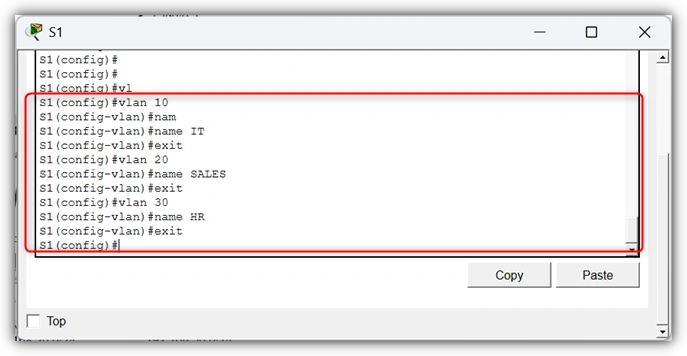
Step 1. Create VLANs on the switch
VLAN 10 - IT
VLAN 20 - SALES
VLAN 30 - HR
    S1(config)# vlan 10
S1(config-vlan)# name IT
S1(config-vlan)# exit

S1(config)# vlan 20
S1(config-vlan)# name SALES
S1(config-vlan)# exit

S1(config)# vlan 30
S1(config-vlan)# name HR
S1(config-vlan)# exit
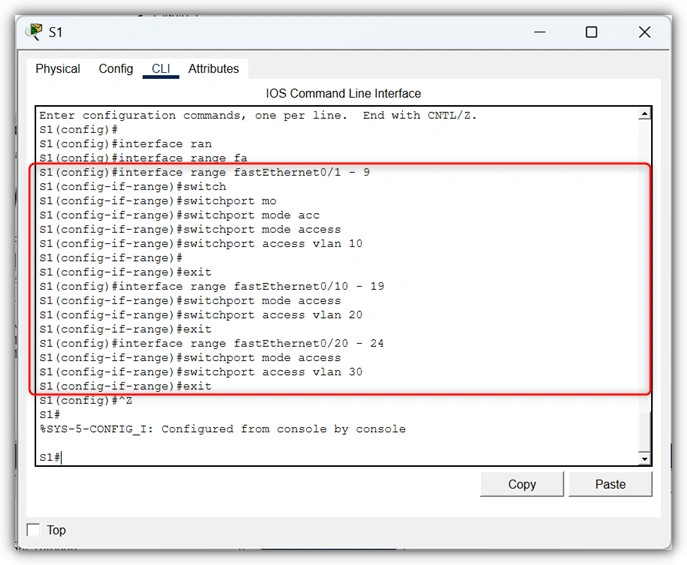
Step 2. Configure Interfaces for VLANs
    S1(config)# interface range FastEthernet0/1 - 9
S1(config-if)# switchport mode access
S1(config-if)# switchport access vlan 10
S1(config-if)# exit

S1(config)# interface range FastEthernet0/10 - 19
S1(config-if)# switchport mode access
S1(config-if)# switchport access vlan 20
S1(config-if)# exit

S1(config)# interface range FastEthernet0/10 - 24
S1(config-if)# switchport mode access
S1(config-if)# switchport access vlan 30
S1(config-if)# exit
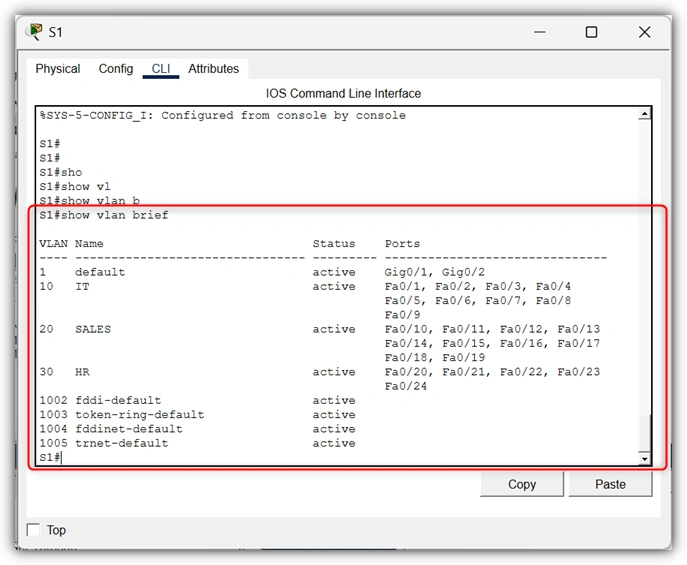
Which ports (interfaces) belong to which VLAN
S1#show vlan brief
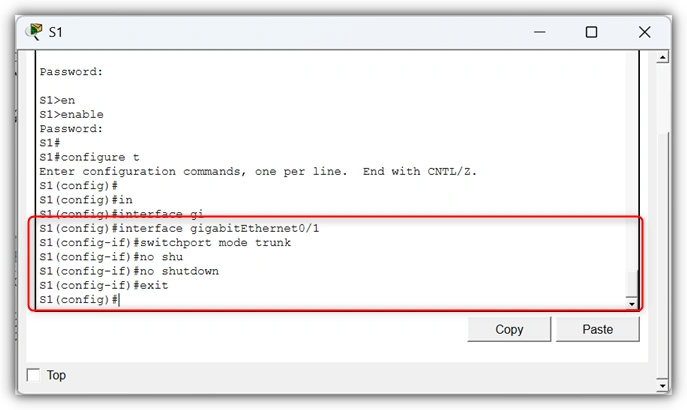
Step 3. Configure the Switch Port as a Trunk
We need to tell switch S1 that port GigabitEthernet0/0 will carry traffic from all VLANs.
    S1> enable
S1# configure terminal
S1(config)# interface GigabitEthernet0/1
S1(config-if)# switchport mode trunk
S1(config-if)# no shutdown
S1(; config-if)# exit
Step 4. Configure Router Sub-Interfaces
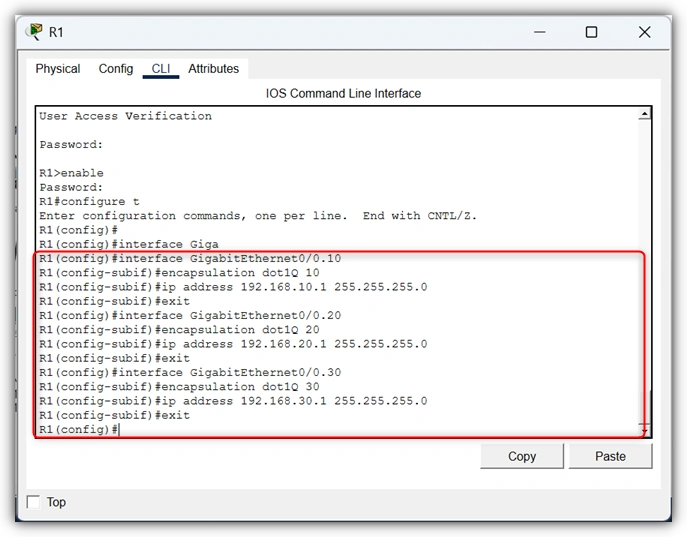
On router R1, we split the physical interface Fa0/0 into 4 sub-interfaces.
Each one is linked to a VLAN and gets an IP address.
    R1> enable
R1# configure terminal
IT - VLAN 10
    R1(config)# interface GigabitEthernet0/0.10
R1(config-subif)# encapsulation dot1Q 10
R1(config-subif)# ip address 192.168.10.1 255.255.255.0
R1(config-subif)# exit
SALES - VLAN 20
    R1(config)# interface GigabitEthernet0/0.20
R1(config-subif)# encapsulation dot1Q 20
R1(config-subif)# ip address 192.168.20.1 255.255.255.0
R1(config-subif)# exit
HR - VLAN 30
    R1(config)# interface GigabitEthernet0/0.30
R1(config-subif)# encapsulation dot1Q 30
R1(config-subif)# ip address 192.168.30.1 255.255.255.0
R1(config-subif)# exit
Turn on the main interface
    R1(config)# interface GigabitEthernet0/0
R1(config-if)# no shutdown
R1(config-if)# exit
Step 5. Enable the Physical Interface
    R1(config)# interface gigabitEthernet0/0
R1(config-if)# no shutdown
R1(config-if)# exit
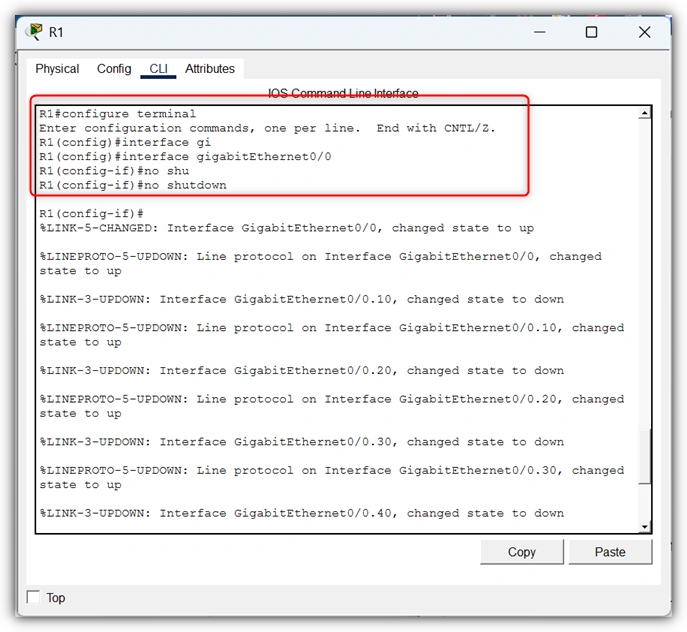
Now the router is ready to route traffic between VLANs.
Step 6. Configure IPs on PCs
Every PC or device in the VLAN must have:
An IP address in the correct subnet.
The router sub-interface IP as the default gateway.
1. IT PC (VLAN 10)
IP: 192.168.10.10
Subnet Mask: 255.255.255.0
Gateway: 192.168.10.1
2. SALES PC (VLAN 20)
IP: 192.168.20.10
Subnet Mask: 255.255.255.0
Gateway: 192.168.20.1
3. HR PC (VLAN 30)
IP : 192.168.30.10
Subnet Mask: 255.255.255.0
Gateway: 192.168.30.1
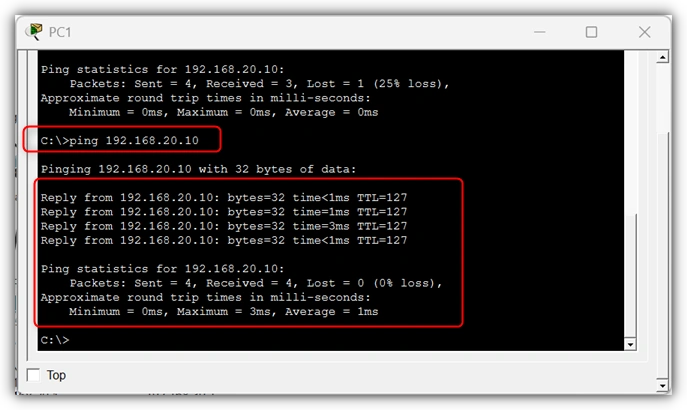
Step 7. Test Connectivity
To test the setup, go to the IT PC, open Command Prompt, and ping the SALES PC
ping 192.168.20.10
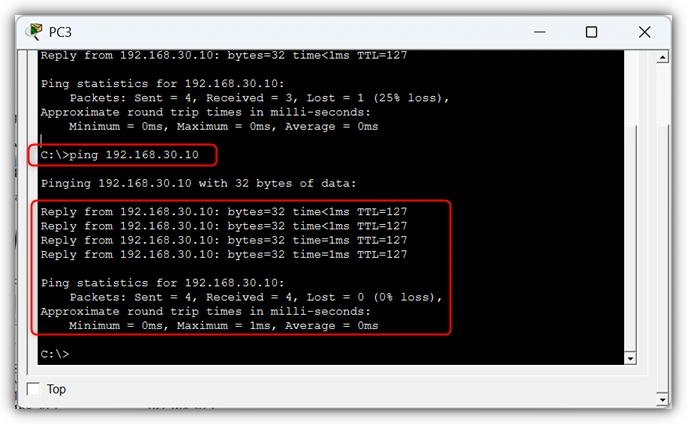
From the SALES PC to the HR PC
ping 192.168.30.10
From the HR PC to the IT PC
ping 192.168.10.10
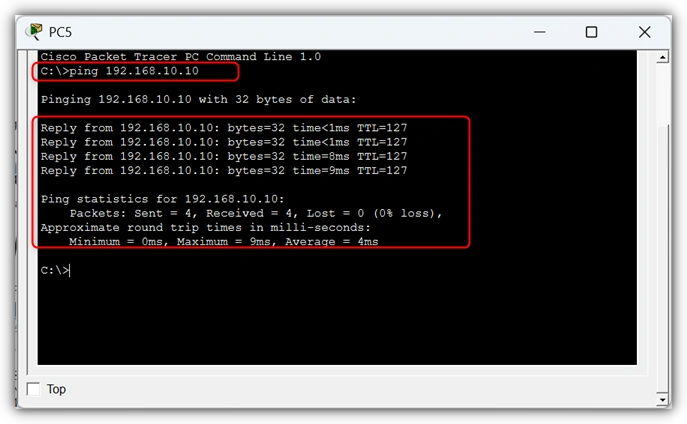
Note: If all pings work, then inter-VLAN routing is successful.
Step 8. Save the Configurations
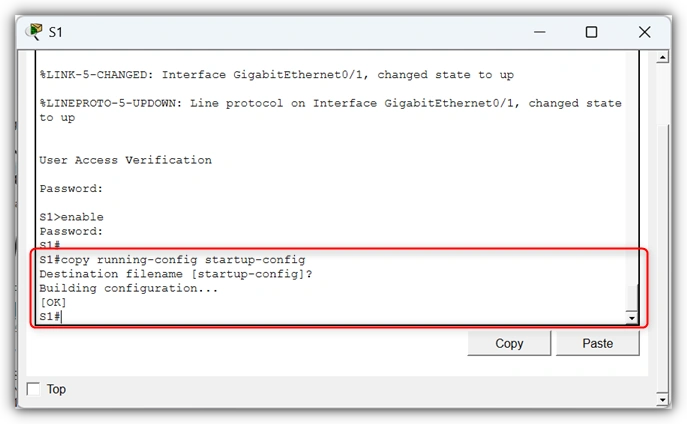
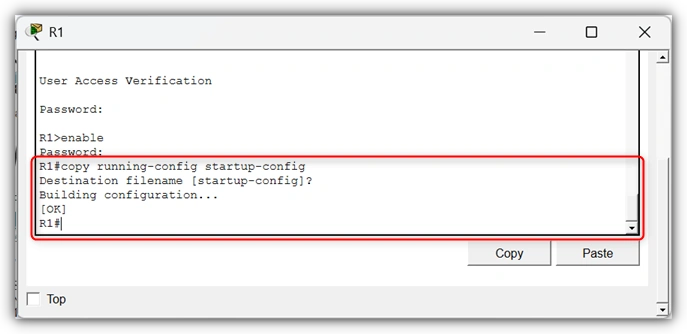
Always save your settings so they are not lost after a reboot:
On the switch
S1# copy running-config startup-config
On the router
R1# copy running-config startup-config
Conclusion
In this article, we saw how to connect VLANs together using Router-on-a-Stick. We changed the switch port to trunk, added sub-interfaces on the router, and gave each VLAN its own IP address. Then we set IP addresses for the computers and tested them with ping. The test worked, which means now all VLANs can talk to each other. This makes the network simple, safe, and well-organized.
You can also read my previous articles on how to set up VLANs on a Cisco switch and assign them IP addresses. We created VLANs for different departments like IT, HR, SALES, and GUEST, and then connected switch ports to each VLAN. After that, we added IP addresses so devices inside the same VLAN could communicate with each other. If you'd like to review those steps, you can check these articles.
Join the conversation! Your thoughts help the community grow.