
This article shows how to bind data from a Data Source (such as ADO.NET) to a Windows Forms form.
Objectives
- Learn to Build a simple data-bound form
- Learn to implement complex data binding
Contents
- Simple data binding with a TextBox control
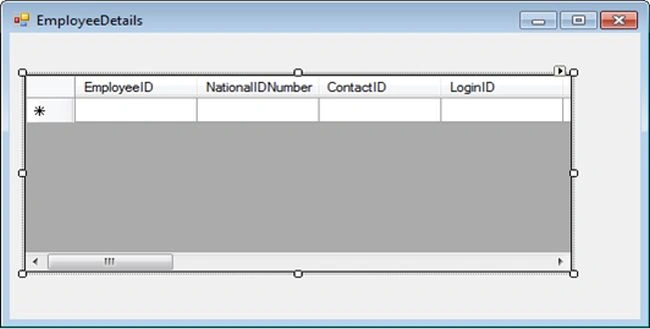
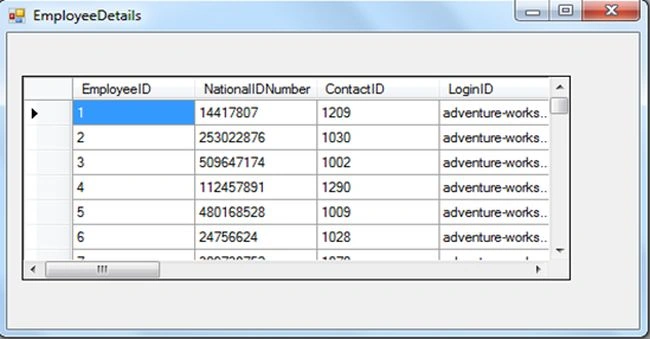
- Complex Data binding with DataGridView and ComboBox
- Navigating Between records with Binding Navigator
Windows Forms allows you to bind easily to nearly any structure that contains data. With data binding, you do not need to explicitly write the code that instantiates a connection and creates a dataset (as we saw in my last article. http://www.c-sharpcorner.com/UploadFile/e95fe7/introduction-to-ado-net. On the basis of the number of bound values that can be displayed through a control of a Windows form, binding can be classified into.
- Simple data binding
- Complex data binding
Simple data binding
Simple data binding allows you to bind a control to a single data element. The most common use of simple data binding involves binding a single data element, such as the value of a column in a table, to a control on a form. You use this type of data binding for controls that show only one value. Uses of simple data binding include binding data to text boxes and labels. Consider a scenario where a Windows Forms form needs to be created to display employee details in the following way.
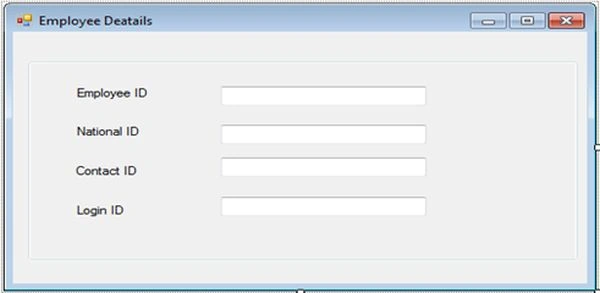
In the preceding form, one value needs to be displayed in each of the controls. Therefore simple data binding will be performed for each control.
Steps
- Press F4 to open the properties window.
- Select the first TextBox to display its properties window.
- Expand the (DataBindings) property.
- Select the text property to enable the drop-down list. Click the drop-down list.
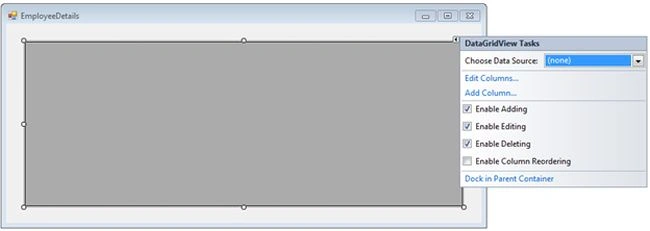
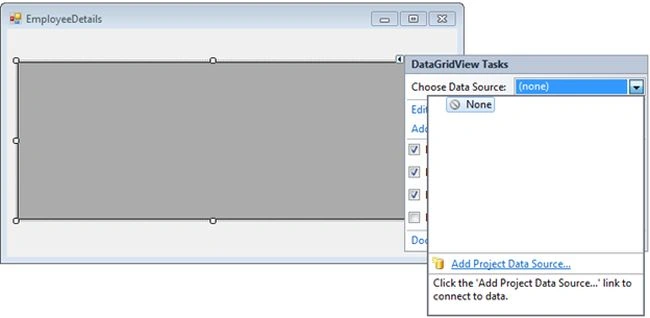
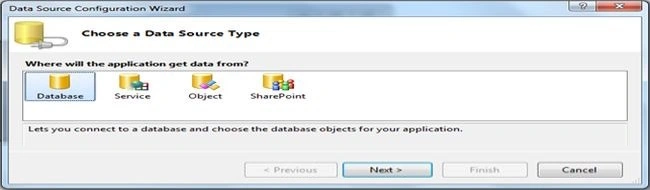
- Add a project data source in the drop-down list.
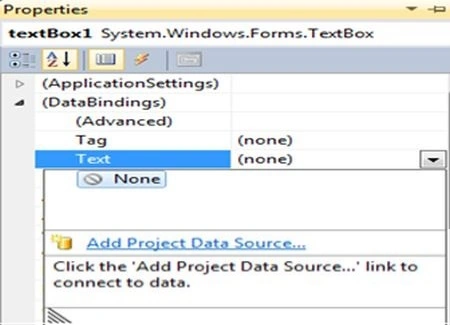
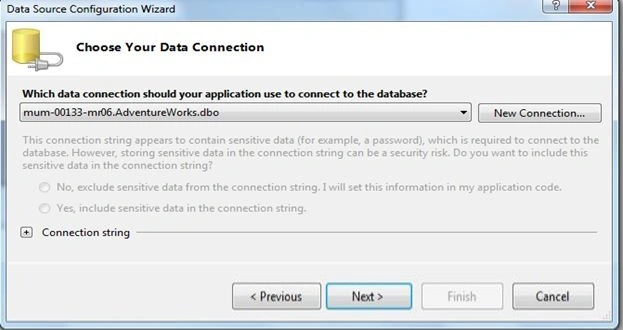
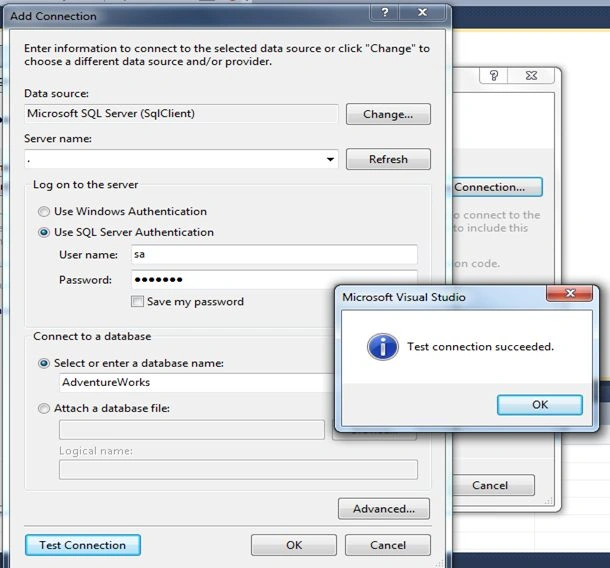
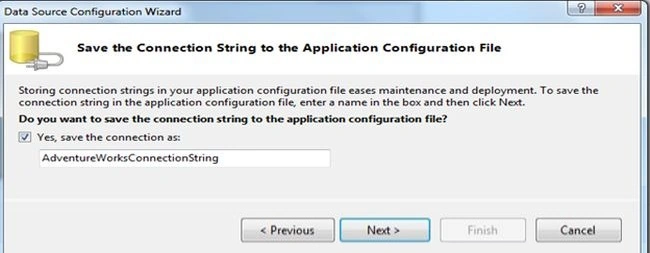
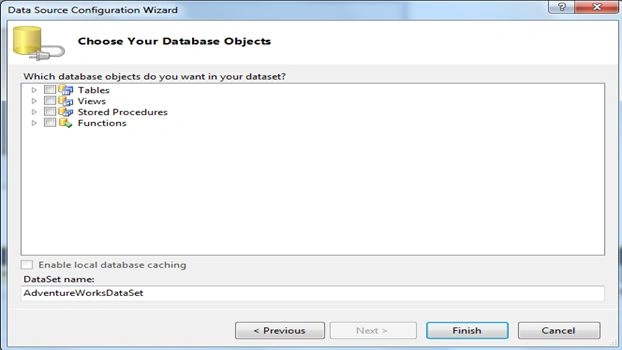
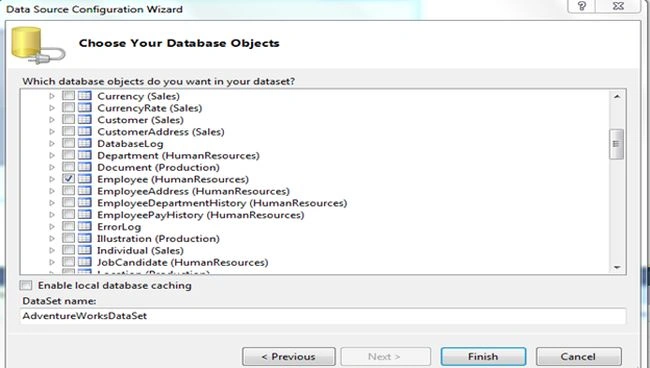
- Create a connection with the AdventureWorks database and select the HumanResources.employee table.
- Select the first TextBox. Expand "Other data source" ---> "Project data source" --> "AdventureWorksdataset" --> "Employee" --> "EmloyeeId".
- Select the second TextBox. Expand the DataBinding property then select "Text" ---> "Employee Binding source" then select column(National ID) from the list.
- Similarly, bind TextBox3 and TextBox4 with the column contactid and Login ID.
- Press F5. If everything goes well, you will see the following output.
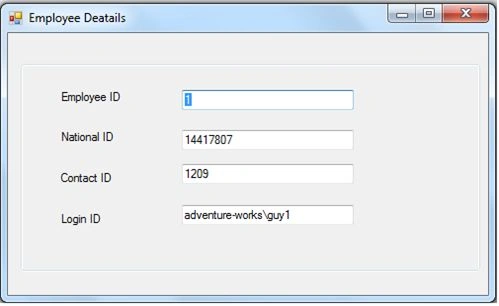
Here is one problem with the preceding. Every time you run your project, you are able to see only one record. So how to solve this problem?
We can solve that problem using the BindingNavigator Control. For every data source that is bound to a Windows Forms control, there exists a BindingNavigator control. The BindingNavigator control handles the binding to the data by keeping the pointer to the item in the record list current.
Implementing BindingNavigator
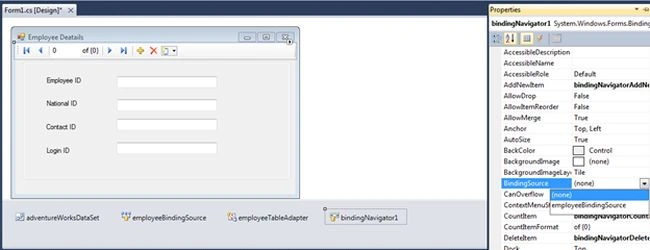
- Drag and drop a BindingNavigator control from the Toolbox.
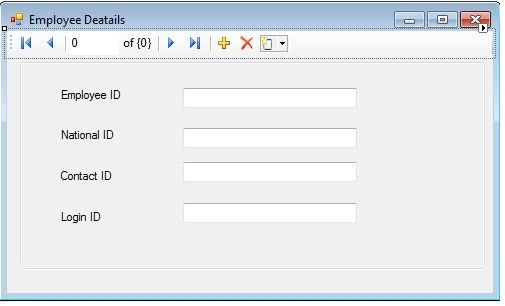
- Select BindingNavigator1; this will display the properties window.
- Select the bindingSource property from the properties Window to enable the corresponding drop-down list.
- Select employeeBindingSource from the Drop-Down list as shown in the following figure.
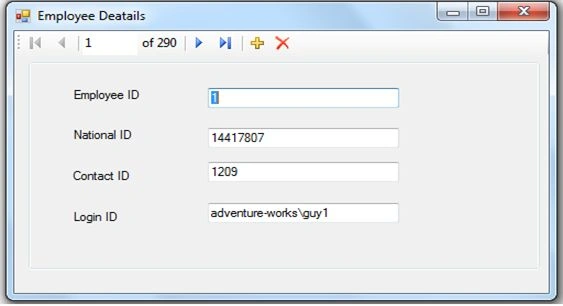
- Execute the Windows Forms form and verify the output. The Employee Details will be displayed as shown in the following figure.
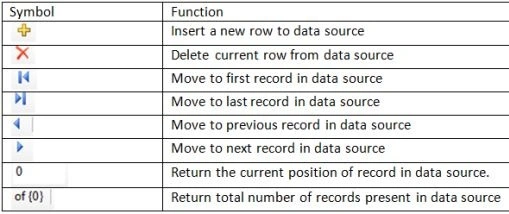
- The following table describes the various symbols and their function in the BindingNavigator control.
جمال القاضيPosted Nov 11, 2020, 7:21 AM
How can i use databinding with picturebox
Sandeep SharmaPosted May 7, 2015, 12:19 AM
https://msdn.microsoft.com/en-us/library/c8aebh9k(v=vs.85).aspx
Sam HobbsPosted Aug 21, 2013, 6:22 PM
Also note that you can use a TableAdapter to do what you call Simple data binding by simply specifying that you want detailed binding. TableAdapters are not documented as well as they could be but TableAdapters are older technology. Entity Framework is newer technology.
Sam HobbsPosted Aug 21, 2013, 6:17 PM
I think that data binding is actually more general than this. Also I think that what you call complex data binding is actually called a typed data source or also called a TableAdapter. I wrote a similar article ("Database Table Update in a DataGridView without Writing Code") about using a TableAdapter; see: http://www.c-sharpcorner.com/uploadfile/SamTomato/database-table-update-in-a-datagridview-without-writing-code/